Access denied to all USB drives
Solved
jameswell
Posted messages
16
Status
Member
-
Mhamed -
Mhamed -
Hello,
On Windows 7, I apparently can't access ANY USB drives.
When I try to open one, a dialog box indicates:
"You do not have the required permissions to access this folder. Click Continue to permanently access this folder."

When I click Continue, a new dialog box indicates:
"Access to this folder has been denied. To access this folder, click on the Security tab."

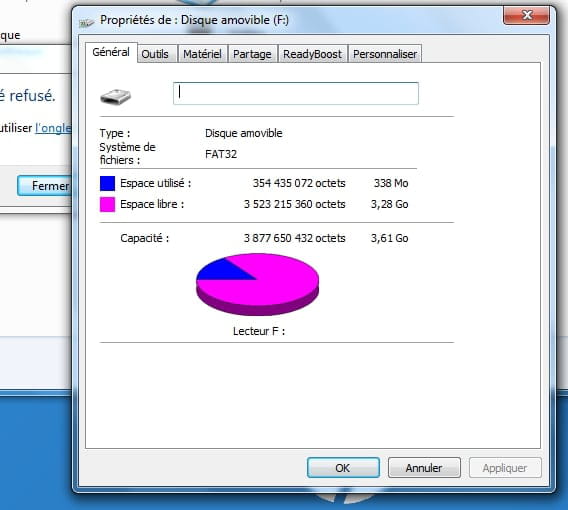
The term "Security tab" is underlined, and when I click on it, the "Properties" window of the USB drive appears, and it does not have a security tab, as if it's a joke.

I activated the administrator account and tried to open the drive from there, I booted into safe mode, and I encounter the same problem every time. This is very frustrating, and I would be very grateful for any help. Thank you in advance,
Daniel
On Windows 7, I apparently can't access ANY USB drives.
When I try to open one, a dialog box indicates:
"You do not have the required permissions to access this folder. Click Continue to permanently access this folder."
When I click Continue, a new dialog box indicates:
"Access to this folder has been denied. To access this folder, click on the Security tab."
The term "Security tab" is underlined, and when I click on it, the "Properties" window of the USB drive appears, and it does not have a security tab, as if it's a joke.
I activated the administrator account and tried to open the drive from there, I booted into safe mode, and I encounter the same problem every time. This is very frustrating, and I would be very grateful for any help. Thank you in advance,
Daniel
3 answers
-
It's an HP machine, as I can see. And it seems that this problem is common with this manufacturer, due to recalcitrant software/drivers.
The solution was provided on the HP forum by JordanGreer.
With Google Translate, it says:
1. Open the control panel
2. Go to System and Security
3. Open HP Client Security
4. In the third column, select device permissions.
5. There will be an icon titled "change" at the top right of the Access column, click on it.
6. Click yes in the pop-up window
7. In the dropdown access menu next to "Removable Storage (e.g. USB drives)", click on "allow - full access"