Adobe premiere cs6 / rotate a video 90° without distorting it
selimage
Posted messages
2
Status
Member
-
laurent -
laurent -
A question about Premiere, I'm pulling my hair out... I took a video on my mobile, when I insert it into Premiere it's horizontal, when I apply the video rotation effect it rotates but then the video extends at the top and bottom and there are black bars on the right and left... How do you adjust the workspace to the video and not the video to the workspace??? It distorts it if I don't keep the proportions, and if I adjust it to the workspace, the black bars inevitably reappear? Grrr the size of the video is 1920x1080 in the video info but I don't see how to modify them, and it should be 1080 x 1920??? And in video effects/transformation, there is no rotation, nor in video effects/transformation/lens view... help.... Thank you :)
4 answers
-
What Selimage is asking for is feasible (if I understood his request correctly): the goal is to rotate the video while simultaneously changing its format. The source video is 1920 pixels wide and 1080 pixels high, the rotated video should be 1080 pixels wide and 1920 pixels high.
Here is the step-by-step process that may be useful to others:
— Right-click on the sequence -> Sequence Settings.
— Note the parameters indicated. In my case, I have this: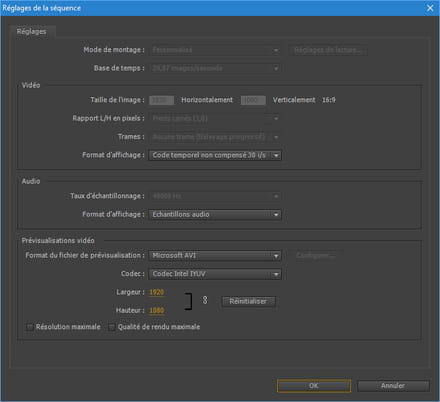
— Click OK, then File -> New -> Sequence -> Settings tab.
— In "Timebase", choose "Custom".
— Re-enter the previously noted timebase (29.97 frames per second for me) as well as the pixel aspect ratio (square pixels for me), the frame rate setting (no pulldown for me) and the display format (uncompensated timecode 30 fps for me).
— For image size, enter the previously noted values by switching them (I had 1080 pixels horizontally for 1920 pixels vertically, so I enter 1920 pixels horizontally and 1080 pixels vertically).
— If all goes well, the ratio that appears should be 9:16 instead of the 16:9 of the source video: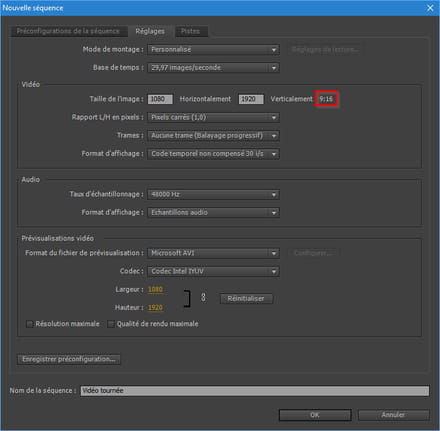
— Click OK.
— Return to the timeline on the source sequence -> Right-click on the video -> Copy.
— Switch to the new sequence (through the tabs or by double-clicking in the bin) -> Edit -> Paste (or Ctrl+V).
— Click on the newly pasted video in the timeline.
— Effect Controls -> Motion -> Rotation -> Enter 90° (for "rotate right") or 270° (for "rotate left") -> Enter.
This way, you obtain a new sequence, where width and height have been swapped, and where the video has been "rotated" without distortion, black bars, or loss of quality.
No mathematical problem or moral lesson needed for "the youth" in all of this, thank you! :) -
Hello
It is impossible to distort the size of an image without deformation.
Either you adjust the size with distortion, or there are bands or loss of a part of the image.
It's mathematical.
Regards.
"We swallow whole the lie that flatters us and we drink drop by drop a truth that is bitter to us." -
Hello, I smile when I see this confidence, this certainty that youth has in the power of software that should be able to do everything for us with just a few clicks
but as "Mad'" says, there are the mathematics and the rules are immutable
--
" donkeys change their minds, not fools"
remember to mark your message as "resolved" if that's the case -
Bravo mti131, very nice demonstration. You showed how with Premiere Pro one can customize a resolution, change the ratio (16/9 > 9/16) to eliminate the black bars. Saying that this operation can be done without distorting the image is like saying that 16/9 = 9/16. Bravo. You truly deserve the Nobel Prize in Mathematics (you would be the first).
Oh, a small detail, continuing your reasoning, the export must also be customized by adopting the settings you made: 1080*1920 ratio 9/16, meaning that when playing on a standard player or 16/9 TV screen (which cannot change resolution), the black bars that you had removed will reappear.
All in all, there is another simpler and more effective solution with the certainty of not distorting the image (no change in ratio) and not having black bars, it's simply to rotate the video 90°. Well, alright, for viewing you have to tilt your head 90° or flip the screen to a vertical position.
There is indeed another solution, but that one, if we want neither to distort nor to crop the image while staying with the 16/9 ratio, will preserve black bars...
I grant you 10 additional points according to your criteria (+, -, it's the same).
to glandu: There is the old school 1+1=2 and the modern math, Nobel Prize style.-
Thank you for all these congratulations :) I assure you I am not upset with math!
Selimage wanted to change from a 1920x1080 format to a 1080x1920 format (which of course corresponds to a change in ratio) and I doubt he was using the verb "deform" in the same sense as you — in the common sense, it seems to me, we say that a photo or a video is deformed if for example a round face appears oval: the image looks "stretched" or "squished" compared to reality.
Of course this method implies that the video will not fully fill a 16:9 screen, that the playback software will add black bars and reduce the video so that it fits in height. But it seems to me that no one here claimed that this was the goal: it is, as you guessed, to avoid having to tilt the head / rotate the screen / touch the settings of the video playback software.
Personally, I use this method for videos taken with my smartphone when I used it in portrait mode. -
Good evening,
I’m glad mti131 that you finally recognize that changing the aspect ratio without distorting the image necessarily involves the presence of black bars.
To properly practice video, you must comply with certain rules, including adhering to resolution standards (for example, for HD 1920*1080 or 1280*720).
No, changing the dimensions of the image must in no case alter the video resolution or its aspect ratio. Therefore, you should:
- rotate the image 90°
- reduce the image dimensions without changing the aspect ratio: 607.5*1080
- the new image not filling the frame means that there will necessarily be vertical black bars
Your solution proposes a bastard resolution and a non-compliant aspect ratio for the video, so it should be avoided.
Furthermore, I see that you confuse resolution, size, format… A learning in video techniques would be useful for you.
Video resolution: width*height expressed in pixels
image dimensions: width*height occupied in a resolution
video size: weight expressed in bytes
video, image format: recording and playback device for a video, an image (Mpeg, Mp4… JPEG, PNG…)
The interventions of madmyke and glandu are entirely justified.
-