
Problematic BIOS Settings for Windows 11
Solvedrick7 Posted messages 323 Registration date Status Member Last intervention -
Good evening,
In preparation for a migration from Windows 10 PRO 64bit to Windows 11, I have configured the BIOS of the Asus Prime A320M-K motherboard.
In the Boot section, on the "OS type" line, I selected "Windows UEFI mode" instead of "Other OS."
Despite this configuration, the PC is still not compatible with Windows 11, it's just the secure boot that is causing problems (see screenshot below).
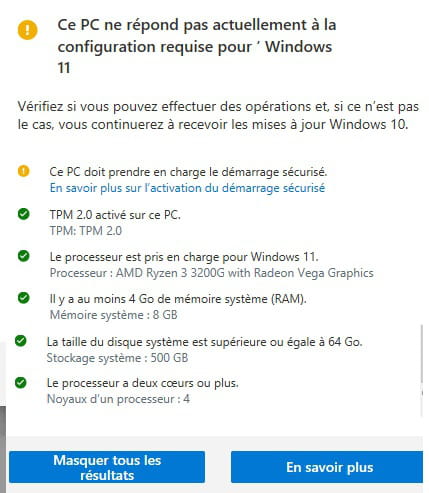
Should I make any other changes in the BIOS (version 6241 from 04/07/2025)? (There is a beta version 6251 from 08/14/2025 that I am hesitant to install)
Configuration:
Motherboard: Asus Prime A320M-K
Processor: AMD Ryzen 3 3200g
Memory: 8GB DDR4 Valueselect Corsair
Hard drive: 465GB Seagate ST500DM009-2F110A
Thank you.
10 answers
-
Hello, Good evening,
To install Windows 11 from scratch, it is not necessary for Secure Boot to be enabled, just that it is possible (That the motherboard supports it), (And be in UEFI mode (Not CSM or Legacy) so it’s strange.
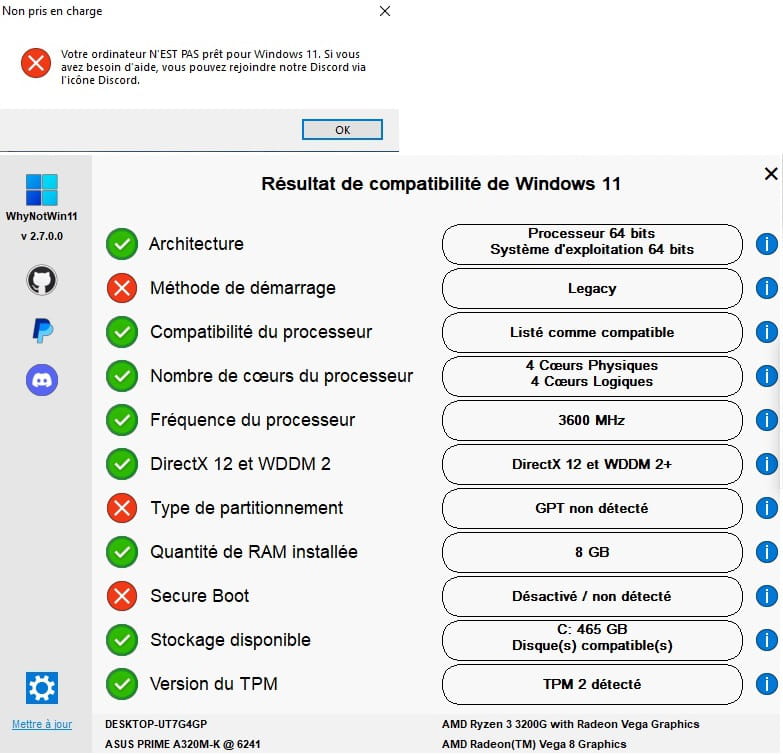
What does WhyNotWin11 show?
https://github.com/rcmaehl/WhyNotWin11/releases -
If you switched the disk from MBR to GPT using MBR2GPT in command prompt in WinRE mode
https://forums.commentcamarche.net/forum/affich-38229275-convertir-disque-mbr-en-gpt#p38229290
With my answers and those of @flo88 StatusContributor that can help too.
Because your partitioning and boot mode is still in MBR and Legacy (So Secure Boot Impossible) -
The WinRE will update with the update
You can download the Windows 11 25H2 ISO filehttps://www.microsoft.com/fr-fr/software-download/windows11
When you have the ISO file, right-click > Open with > Windows Explorer
Then click on the setup.exe file
Follow the instructions to "install" without deleting everything, make sure the green checkboxes indicating that you're keeping everything are all checked.
-
flo88 Posted messages 28490 Registration date Status Contributor Last intervention Ambassadeur 5 169
Hello
For MBR2GPT, I confirm that the message highlighted in red is unimportant.
What matters is the line just above that confirms the success of the conversation.
-
flo88 Posted messages 28490 Registration date Status Contributor Last intervention Ambassadeur 5 169
Hello
This partition exists regardless, it's a partition on your hard drive that stores the boot information for Windows, so it's important. When the disk is switched to GPT, there will be one more, an EFI partition, which is also essential for booting W11.
You can hide it by following the instructions in the tutorial below:
The reserved system partition of Windows 10 - malekal.com
However, I strongly advise against deleting it; it takes up very little space on the disk.
-
Thank you Fabul,
I have this result (below)
-
Hello,
Thank you fabul, I followed the method in section 3.2 of this website https://lecrabeinfo.net/tutoriels/mbr2gpt-convertir-disque-mbr-en-gpt-sans-perte-de-donnees/#depuis-windows-10, but I got an error message (see the red box).
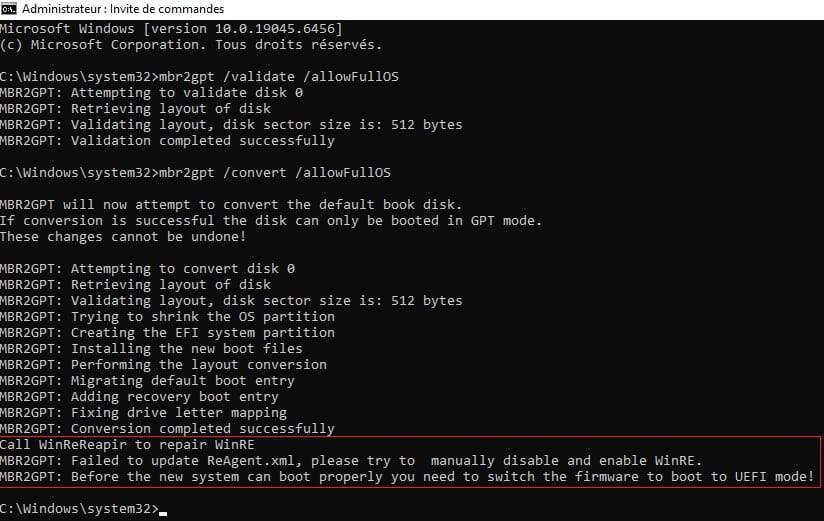
I restarted the PC, making sure to configure the BIOS correctly:
- In the Boot section, on the "OS type" line, I selected "Windows UEFI mode" instead of "Other OS".
- In the BIOS, Boot, Boot\CSM (Compatibility Support Module), Boot Device Control, I selected UEFI only.
The PC is now compatible with Windows 11.
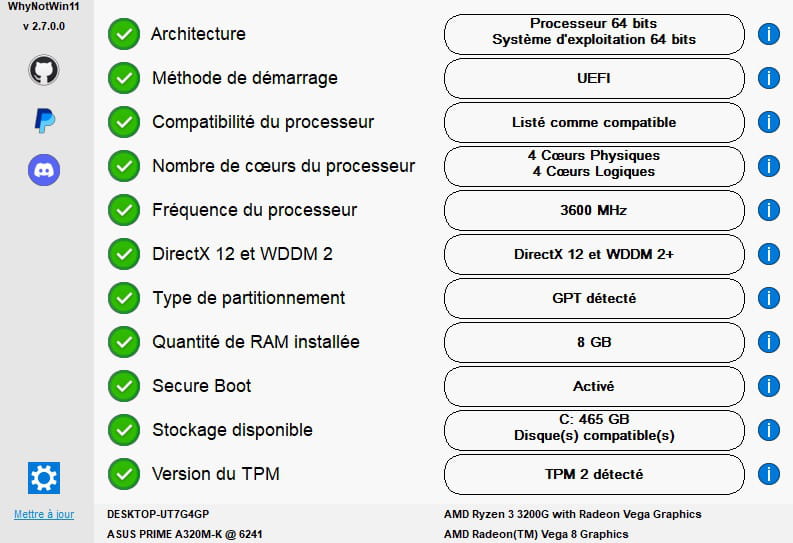
Below is the status of the hard drive:
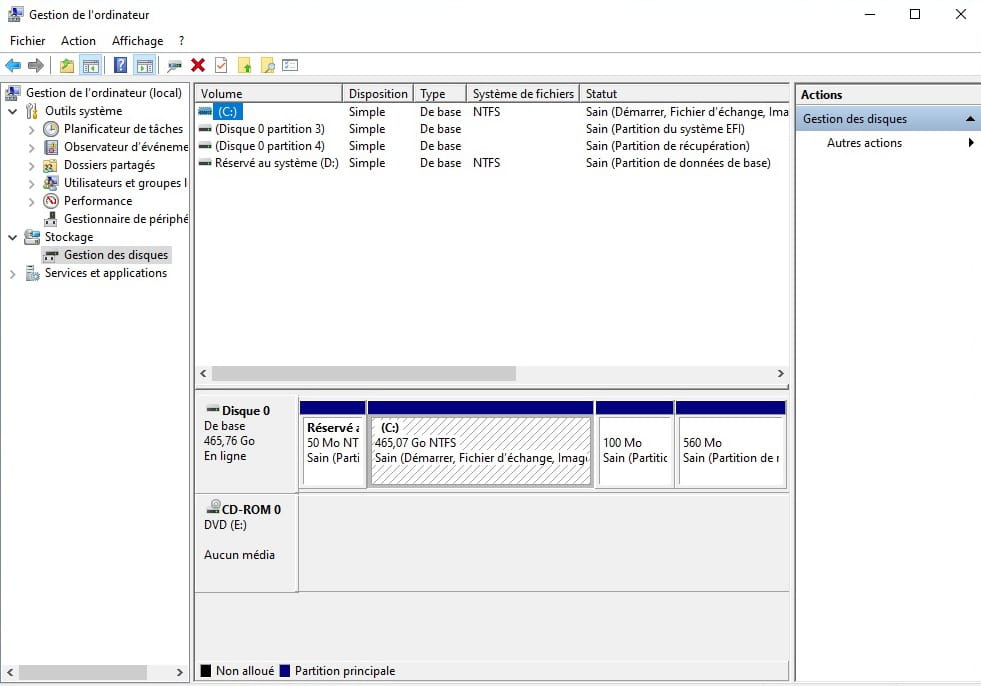
Having received an error message (see above) when converting the hard drive to GPT, do I need to make any other changes?
Thank you
-
Hello,
Thank you fabul and flo88.
I haven't installed Windows 11 yet, because I have a new issue, the system has partitioned my hard drive which wasn't partitioned before, and now I have a D drive (system reserved).

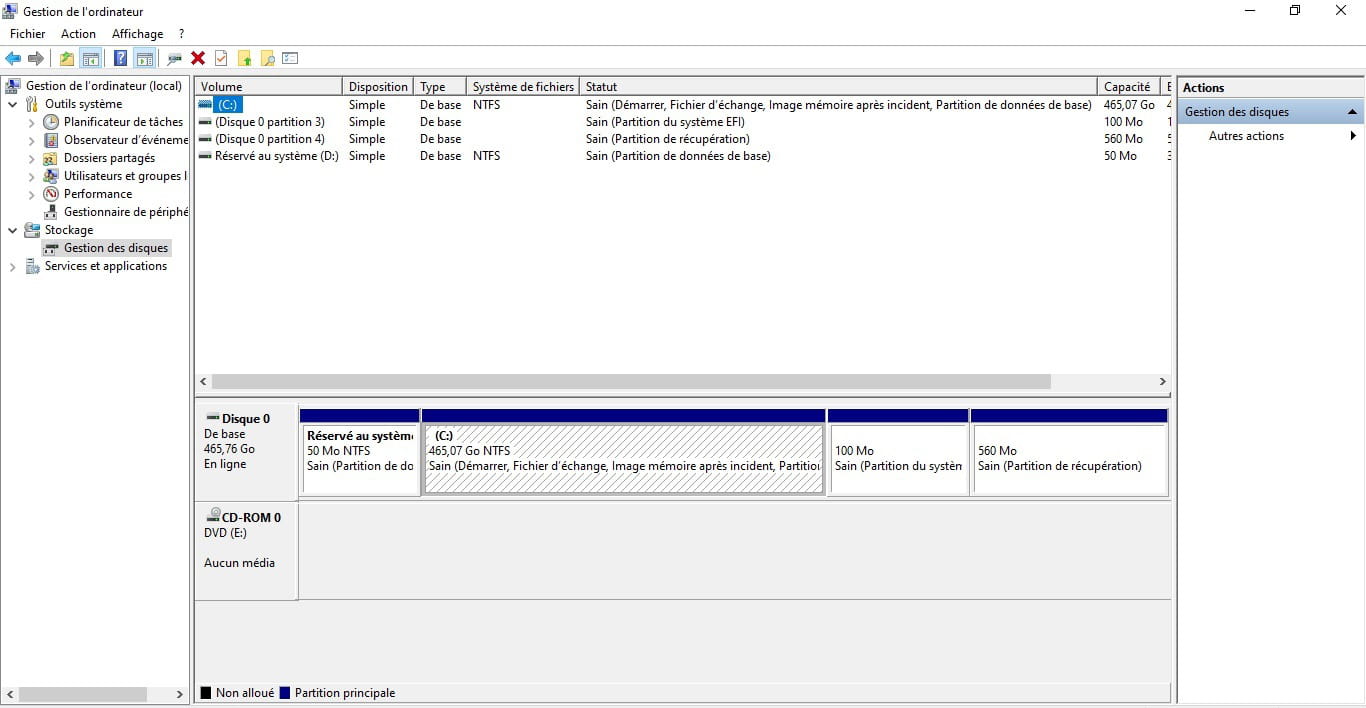
How can I remove this extra drive safely?
Thank you.
-
Good evening,
Thank you fabul and flo88.
For safety, I backed up my files, but everything went smoothly (Windows 11 Pro license activated automatically), even though the installation was quite long; the progress bar temporarily, but for a very long time, stopped at 46%.
One last question; should I uninstall the drivers (they were configured for Windows 10 Pro) and reinstall them in the Windows 11 version, or does the new system do this automatically?
Thank you.
-
Good evening, Thank you fabul and flo88; subject closed.

