No internet connection
Solved
kaneagle Posted messages 86302 Registration date Status Moderator Last intervention -
Hello,
Here's my problem: I turn on my computer in the morning, everything works fine. I leave for other activities and when I come back, there's no more network on my ASUS desktop computer.
I have to restart to access the internet!!!
What should I do? Please help me.
Best regards,
PUIREUX
16 answers
-
Hello,
have you done all the security updates? Can you check if the network card driver is up to date?
wifi or Lan?
windows 10, 11?
-
Thank you very much for your response
Yes, it seems that all security updates have been made
I am connected to a Windows 10 network
How can I make sure, please?
-
wifi or cable connection?
Additionally, check if the Wake On LAN feature might be causing interference with your network.
To disable Wake on LAN (WOL) on Windows 10, you can follow these steps:
-
Open the Device Manager on Windows by pressing Windows + R, then type
hdwwiz.cpland press Enter. -
In the Device Manager, find your network adapter and click on it to open its properties.
-
In the network adapter properties, look for the "Power Management" tab. If this tab is not present, you may try updating your network adapter drivers.
-
In the "Power Management" tab, uncheck the box "Allow this device to wake the computer" to disable WOL.
It is also possible to disable WOL via your computer's BIOS. Make sure this option is disabled in the BIOS to avoid any unexpected reconfiguration.
Furthermore, you can disable hybrid shutdown (also known as fast startup) which is associated with S4 state, where WOL is not supported. To do this, go to the Control Panel, open the "Power Options" item, select the link "Choose what the power buttons do", and then uncheck the box "Turn on fast startup (recommended)".
-
-
-
Hello, I can't find the "Power Management" tab
Thank you for your suggestions
Best regards
-
Hello, no one to help me...
Happy Easter Sunday
Best regards
PUIREUX
Hello everyone,
While waiting for @regcal to get back to you, you should answer the question he asked you. Regarding your internet connection, are you using an RJ45 (8P8C) cable (directly from the PC to the box with a cable…) or is it through Wi-Fi?
I cannot find the "Power Management" tab.Change the power mode on Windows [11, 10] – Le Crabe Info
5 ways to open the power options in Windows 10/11 - malekal.com
Hello, I am directly connected via a cable from my tower to my PC
Thank you very much, best regards
PUIREUX
Hello @PUIREUX StatusMember
Windows + R
Type --> devmgmt.msc and OK.
Go to network adapters
Right-click on the network adapter
Uninstall
Check --> Attempt to remove the driver for this device
Uninstall--------------------------------------------------------------------------------------------------------------
Click on --> Action
Scan for hardware changes.
Hello,
thank you for following steps 3, 4, and 5
Hello Regcal, thank you very much for your explanations, I just did all the manipulations and restarted my PC
I will check if everything is OK, if the problem persists I will get back to you
Have a nice day
Best regards
PUIREUX
Hello Regcal, I followed your advice but unfortunately I am still at a standstill!!! No improvement... my PC does not recover internet after a shutdown
Do you have any other suggestions please
Have a nice Sunday
Best regards
PUIREUX
Too bad it hasn't worked yet... Maybe try disabling the network card's sleep mode and manually setting an IP address, that can sometimes solve this kind of issue. Good luck
@PUIREUX StatusMember
Have you tried the suggestion at --> message 9?
-----------------------------------------------------------------------------------------------------------------
What is the current date and version of the driver?
Sample image: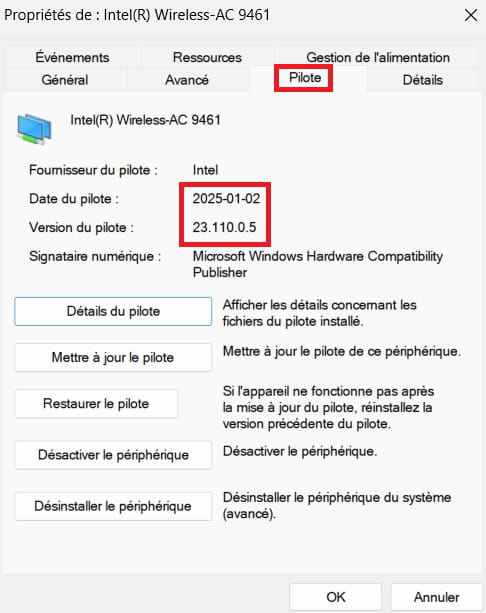
-------------------------------------------------------------------------------------------------------------
Also, provide the hardware identification number of the network card:
Go to Network adapters
Right-click on the network card
Properties
Tab Details
In Property, select --> Hardware IDs
Post this number in your next message.
Sample image: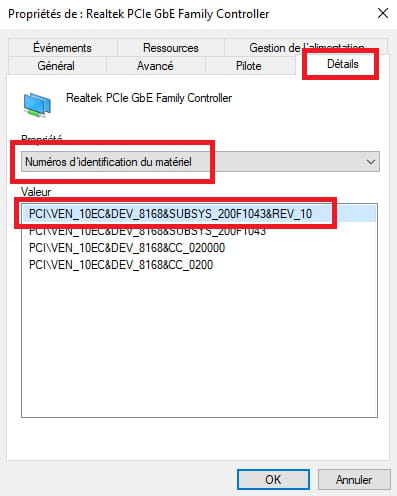
Hello, I can't manage to do your manipulations!!!
Recurring problem, always have to restart my computer after sleep mode.
Thank you
I can't seem to perform your actionsWhat actions?
Example images:
1- Right-click on the network adapter
2- Uninstall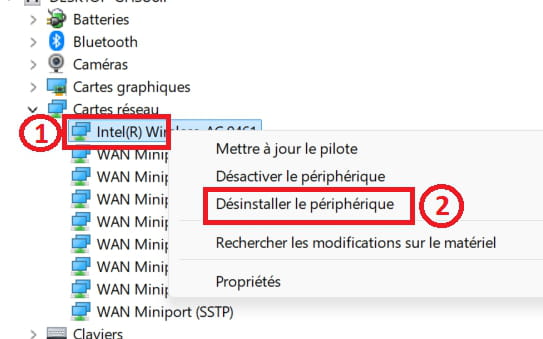
-------------------------------------------------------------------------------------------------------------
3- Check --> Attempt to remove the driver for this device
4- Uninstall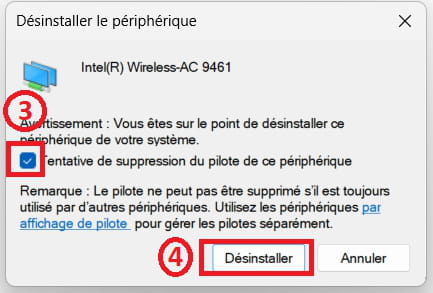
--------------------------------------------------------------------------------------------------------------
5- Click on --> Action
6- Scan for hardware changes.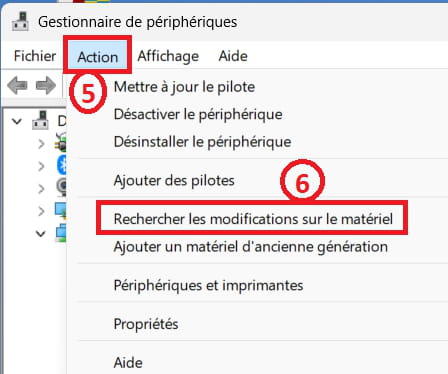
Hello, I just repeated this action
After searching for the changes in the material, what happens now?? For me, nothing... what should I do now?
Thank you and have a nice day
Sincerely
PUIREUX
@PUIREUX StatusMember
Restart the PC.
Check if the ethernet is working.
------------------------------------------------------------------------------------------------------------
What is the date and version of the driver currently?
Go to network adapters
Right-click on the ethernet adapter
Properties
Driver tab
Example image: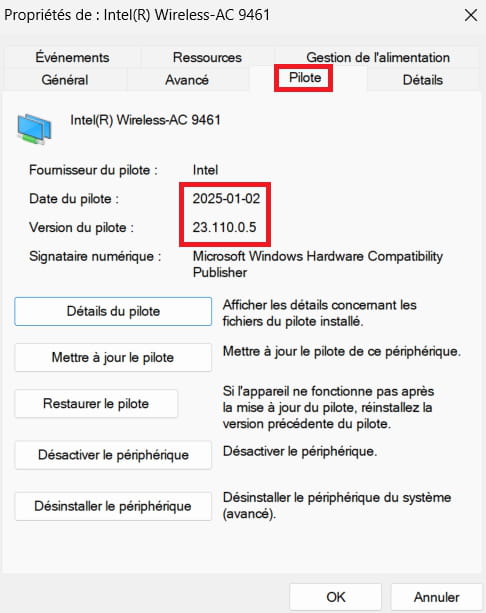
-------------------------------------------------------------------------------------------------------------
What is the model number of the Asus?
Windows + R
Type --> msinfo32.exe and hit OK
Look in Manufacturer and Model
Example image: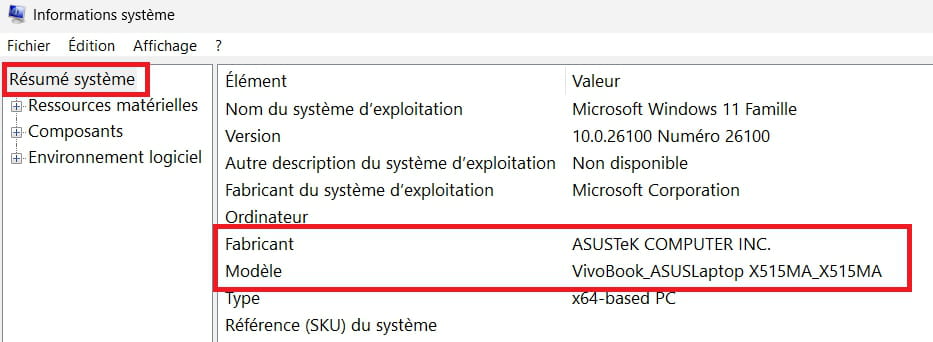
You mention --> desktop computer ASUS
Afterwards --> Acer Aspire X3990
So, which one is it?
---------------------------------------------------------------------------------------------------------------
You haven't answered this --> Currently, what is the date and the version of the driver?
Is the network card a --> Intel(R) 82579V...??
Also, go to network adapters
Right-click on the network card
Properties
Details tab
In Property, select --> Hardware Ids
Post this number in your next message.
Image for reference: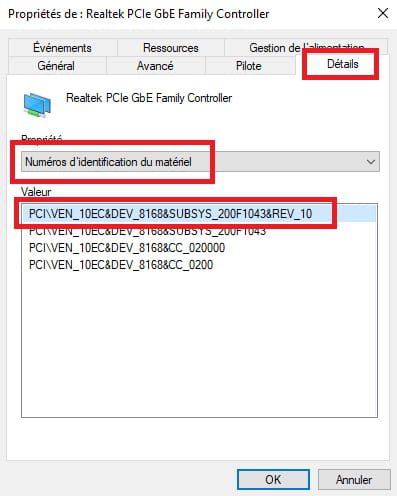
-