Hp deskjet 4130e
Solvedkaneagle Posted messages 86302 Registration date Status Moderator Last intervention -
Hello,
I have a problem: my scanner HP DeskJet 4130e hasn't been working lately. I've tried all the techniques to fix it, but nothing works. Does anyone have a solution?
Especially in Windows 11 services, I absolutely have no scanning or image acquisition options?
Thank you in advance for your solutions!
24 answers
- 1
- 2
-
Hello,
I'm not even sure that the WIA image acquisition service needs to be enabled and automatic in the presence of third-party scanning software that includes its own Twain drivers, but it doesn't hurt to check whether the optional feature is installed (and of course, then check that the HP scanning software is installed as well).

-
-
Is the WIA service activated this time?
I don't use HP Smart, but it apparently suggests using the HP Twain driver installed by the HP scanning software instead of the Windows WIA driver as I had suggested.
Additionally, HP Smart may not necessarily be a good idea. Have you tried installing the Windows 11 drivers and scanning software for the model from the HP website without going through it?
https://support.hp.com/be-fr/drivers/hp-deskjet-4100e-all-in-one-series/model/2100187860
-
-
Hello,
Do you have an HP account? If not, create an HP account and you will be able to scan with HP Smart without any issues.
-
-
Hello,
I’m not really fond of the idea of HP Smart and having to be connected to all their "utilities" that unnecessarily consume resources just to scan.
Incidentally, I no longer have an HP printer, but the HP Scan and Capture app works perfectly on my Epson multifunction printer.
https://apps.microsoft.com/detail/9WZDNCRFHWL0?hl=fr-FR&gl=FR
-
-
-
I don't know if HP continues to maintain HP Scan and Capture on the Microsoft Store; if not, go through a third-party portal.
https://www.zdnet.fr/telecharger/logiciel/hp-scan-and-capture-40367833s.htm
The Wia service is located at A, not S.

Try to access your HP account from your session. If you remember your password, enter it. Otherwise, create a new password. Successive updates to HP Smart mean that you can no longer scan using HP Smart unless you have a functional HP account. If that's the case, just launch HP Smart and click on Scan
Hello,
Reinstall the driver --> DeskJet 4130e
@Carlespatrick StatusMember
If you have solved the problem, please share the solution and don't forget to mark the subject as resolved.
Hello
Currently, I have not resolved the issue at all
I only saw that it's due to the Windows updates
If anyone has the solution
thank you in advance
Carles
@Carlespatrick StatusMember
I only saw that it is due to the Windows updateHave you tried the driver anyway?
good evening
I have reinstalled everything and still the Windows WIA scanning is still in red and there is no scanning...
@Carlespatrick StatusMember
Uninstall and reinstall the printer properly.
Download and install --> Revo Uninstaller
Run it as an administrator
Uninstall all products of the HP printer
Follow the tutorial closely to uninstall everything properly including residual folders and keys.
For the residual scan, check --> advanced mode
Restart the PC.
Disconnect the USB cable from the PC
Turn on the printer
Start the driver setup --> HPEasyStart-13.6.5-DJ4100_51_4_4868_1_Webpack.exe
Connect the cable to the PC as soon as you are prompted.hello
I followed your instructions exactly and the scanner still doesn't work
carles
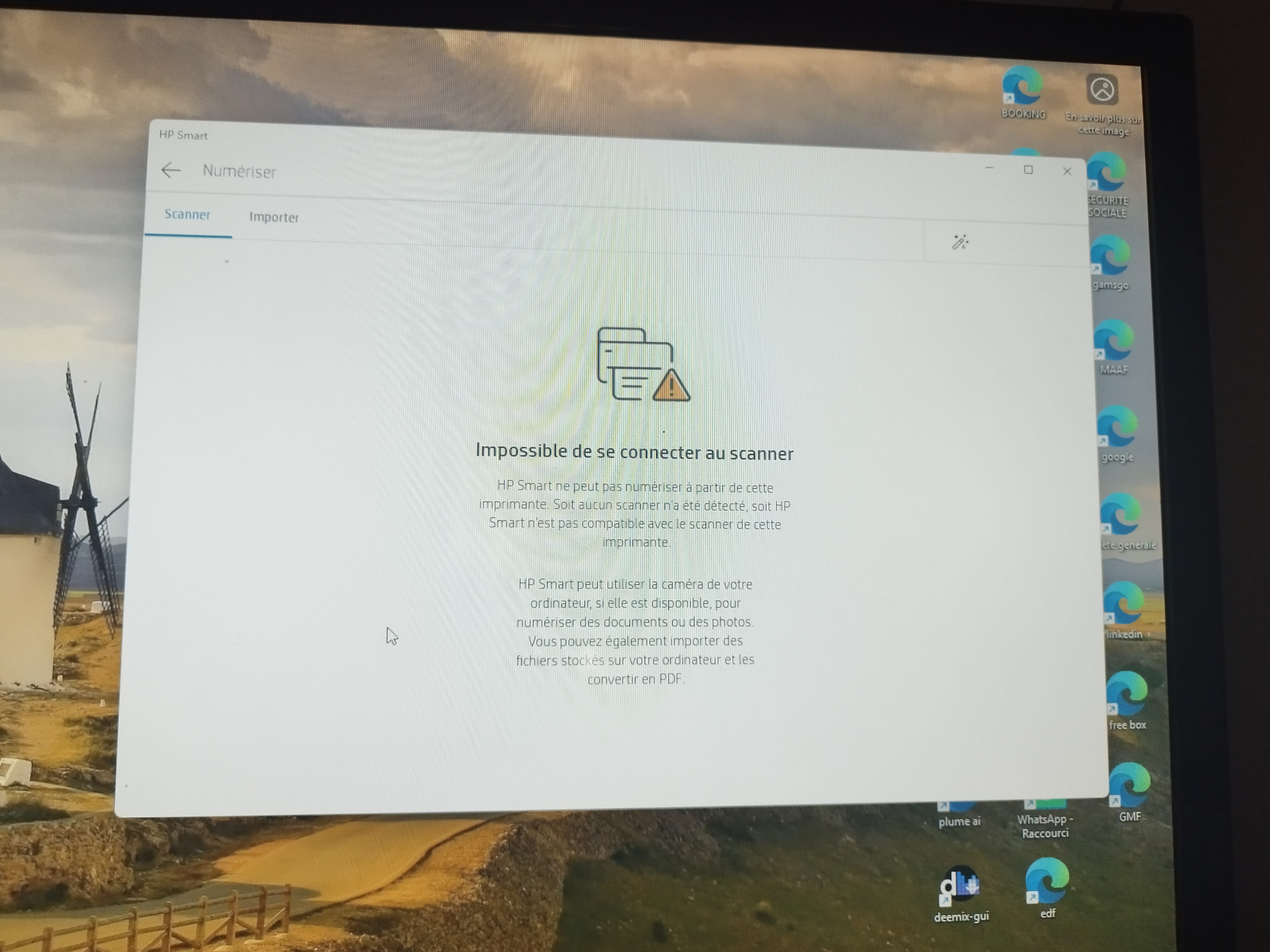
What happens when you launch HP Smart?
The printer is working fine, impossible

access to scanning and when I start HP Doctor it tells me (see image)

Try what is indicated here
@Carlespatrick StatusMember
Maybe irrelevant, but check the Windows Image Acquisition (WIA) service.
Press Windows + R
Type --> services.msc and hit OK
Double-click on --> Windows Image Acquisition (WIA)
Check that the service status is running and set to automatic in the startup type.
@Carlespatrick StatusMember
Press Windows + R
Type --> control panel and OK1- Click --> Turn Windows features on or off
2- In the window, check --> Print and Document Services
3- OK.The service will be installed.
Example image:

--------------------------------------------------------------------------------------------------------------
Is Windows up to date?
Press Windows + R
Type --> winver and OKWhat is the version?
Example image:

-----------------------------------------------------------------------------------------------------------------
Hello,
I still can't use the scanner.
Attached is the reference.

@Carlespatrick StatusMember
The image regarding the version is unreadable.
Please post the 2 version numbers.
Is the document printing and scanning service properly installed?
- 1
- 2
Next
-