
How to insert a picture into a table cell in Word
sciuro Posted messages 290 Registration date Status Member Last intervention -
Hello,
I built a table with 4 columns in Word. The first column is meant to hold an image that will always be the same size (4.5 cm by 4).
The original size of the photos to be copied into these cells is 30 x 28.11 cm (1110 x 1040 pixels - resolution 94 dpi).
The desired size after resizing is 4.5 x 4 cm (335 x 314 pixels - with a resolution of 200).
1- My question: how should I set up my Word table so that the original photos fit into the cell size without overflowing (i.e., at a size of 4.5 x 4 cm), if that is possible.
2- If that is not possible and I am forced to resize all the original photos (about a hundred...), how should I proceed with Photoshop for batch processing: I tried (script) but couldn’t find anywhere the option to specify the desired size in pixels along with the desired resolution (200 dpi). Can someone tell me exactly how to proceed?
4 answers
-
Hello,
it seemed to me that the second question was resolved with your approval, anyway not with Photoshop but with Faststone, including how to obtain the desired settings and a tutorial for batch conversion.
https://forums.commentcamarche.net/forum/affich-38124335-redimensionner-en-cm-des-images-par-lot-avec-photoshop
For the first one, the theory is to adjust in Word the dimensions of the rows and columns of the table to the desired size, but Word is not an image processing software and we will never have exactly those dimensions. -
Hello Brucine,
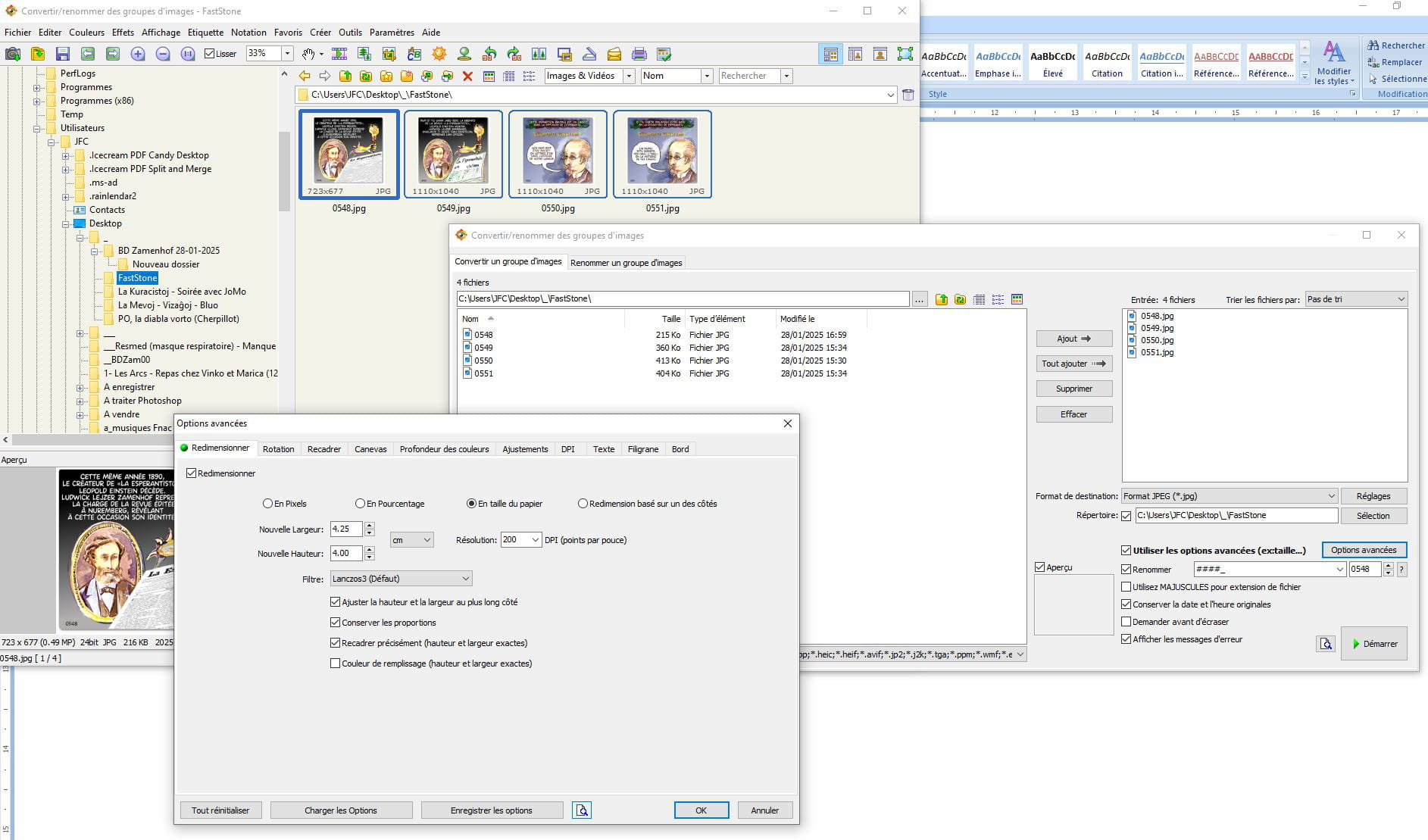
Yes! A few months ago, when I tried Faststone, it did the job really well and I was satisfied. When I went back to it a few days ago for the same task, it no longer wanted to take into account the requested resolution! The images I wanted to resize to 335x315 pixels / 4.25 x 4 cm at 200 dpi were consistently outputting at 335x315 pixels / 11.82 x 11.11 cm at 72 dpi.
Since you seem to know the software well, I'm attaching a screenshot to show you the path followed. Did I miss a step in the process?
Thank you for your reply...
-
The values are linked, I cannot achieve a resolution of 200 ppi at the exact size in cm indicated no matter what parameters I adjust, the recalculation will result in an approximate neighboring size.
The only workaround I found was to begin by editing-setting the DPI to 200x200 (in my case, the images are imported from a smartphone at 72x72).
If I now only resize in pixels to 335x315 I get the correct result on these two criteria, but I doubt (and in fact, regardless of the software) that the third one (print size) is exactly what I want.
There would then be no other workaround than, whether we take the first route or the second, to create, as mentioned in Word, a table with cells of the desired dimensions and then to fit the images by either reducing or stretching them a bit, but remembering again, as I have emphasized, that Word is not an image processing software suitable for this purpose, the result will inevitably be approximate to a few tenths of a centimeter. -
Thank you Brucine,
Your workaround interests me because all the native images I want to resize are the same format (1110 x 1040 pp at 94 resolution), which corresponds, once resized, to 335 x 315 pp at 200 resolution. If the size in centimeters remains approximately very close, that works for me (so far, all my attempts have resulted in 335 x 315 at 72 pp).
But I didn't understand where (in FastStone), and how, you start by editing-setting the DPI to 200 x 200...
-
By editing, adjusting the DPI on the relevant image, it remains to be seen whether this works by right-clicking on any image in the source folder, selecting all.
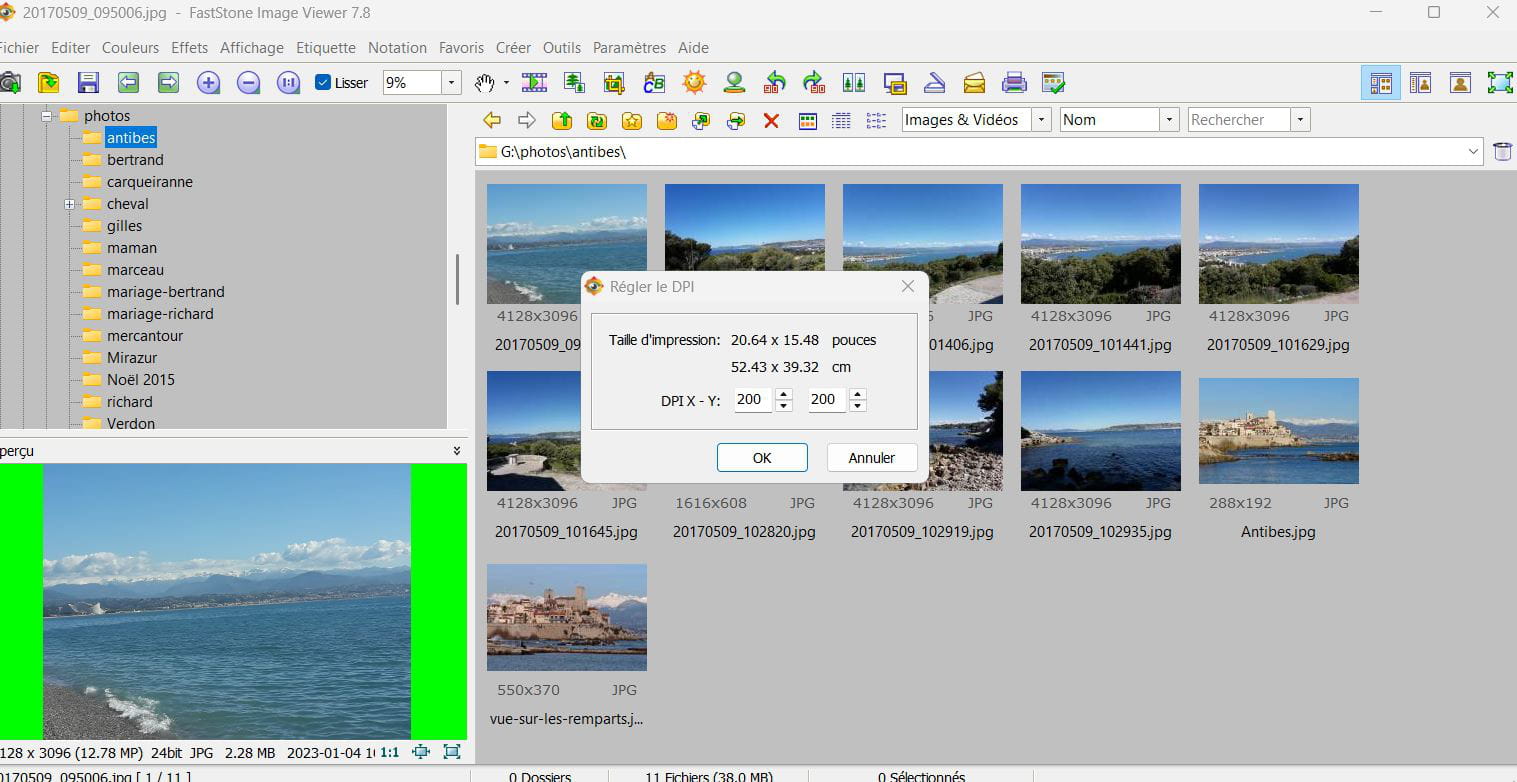
I just tried, but it does not change the print size of the image. For example, by setting the DPI to 200x200, the image comes out at 9.18x8.6 cm. To achieve the format 4.20x 4 cm (actually 4.27x4), I have to increase the DPI to 648x660, which gives me an image of 4.27 x 4 cm at a resolution of 600 pp of 224 kb (versus an expected image of 4.35 x 4 cm at a resolution of 200 pp of 72 kb).
This might actually work for me, but:
1- it does not work in batches, but only image by image... so it's not practical at all.
2- the file size of the image is significantly larger (224 kb compared to 72 kb), which makes the Word document much too heavy as it has... 800 images!That said, I wonder if there is a bug in the "Advanced Options/Resizing" of FastStone, because by checking "paper size," there is the possibility to specify both the height and width of the image and the desired resolution... and yet the consideration of the resolution is not effective.
Is there a way to contact FastStone to ask them what is going on?
My concept was to proceed in two steps: first, to change all the 200x200 photos by adjusting the DPI, then from this first series completed and saved, apply the desired (and approximate) size modification as mentioned in <3>, hoping that this time the DPI would be preserved.
I did both on a single photo; I don't think I did anything other than simulate it on all the ones in the folder, but where this simulation (choosing an image, selecting all, then editing to apply the modification) did not cause any unexpected reaction from the software.
It is illusory to want to involve support on a free software.
But probably Marina is right with less convoluted solutions.Hello
With Word, it's possible
Right-click, Table Properties, tab Table
Button Options: uncheck the option Automatically resize to fit contents.m@rina
-
Hello m@rina.
The Automatically resize... box was unchecked..., but when I paste an image into the cell, it exceeds the frame significantly and I am then forced to reduce it manually, which is impossible to do systematically for 50 or 100 images...
In any case, thank you for your input.
Hello sciuro
Thank you for your feedback.
You just pointed out a bug. Because the solution I gave you has been working this way for a long time and it makes sense.
I just checked on 365 and indeed I can confirm the bug. I also tried it on 2024 and there, it works correctly. So, I will try to report it to Microsoft.
If you haven't resolved the issue yet, you can insert rectangular shapes into your cells, of the right size. Then you copy your image, select the shape, and choose the fill, Picture, Clipboard.
m@rina
Re...
Otherwise, if your images are already inserted, you can use a macro to resize them all to the same size. I have one here:
Inserting rectangular shapes into fifty to a hundred cells: not great in terms of time savings compared to resizing image by image. But for one or two images, it's fine.
On the other hand, the macro could be interesting, but I didn't understand how to access it. When I click on your link, I arrive at a page where it is described, but with no indication of where to download it...
There is no need to download the macro. A simple copy-paste will do.
I'm explaining here for those who have never used a macro:
https://faqword.com/index.php/word/gestion-des-macros/le-b-a-ba-du-vba#forum
Run the macro on a copy of your document. You never know.
m@rina
-
Thank you m@rina for the reminder about using a macro (copy/paste) that I had completely forgotten about...
As for the rest, ideally, it would be great if Microsoft could fix the bug with copying/pasting an image (regardless of its dimensions) into a cell in the table, automatically adapting the size of the original image to that of the destination cell.
The macro could indeed be helpful for me. I'll see during my next use...
In any case, thank you for your help.
-
