
Unable to enable "Memory Integrity" on Win11
Solvedbillmaxime Posted messages 50536 Registration date Status Contributor Last intervention -
Hello,
I had opened a post on this subject and thought that a recent Windows update had fixed the issue, but I was mistaken: the problem reappeared very quickly. Since I can't remove the "Resolved" status from the previous post, I am creating this new one, and I apologize.
I am on Win11 22H2 and I cannot enable "Memory Integrity" in windows defender. One of my drivers is incompatible with this activation. The problem is that I can't find the driver name to delete/disable it.
Here is the driver in question

I can't find more information about this driver. I would indeed like to remove it via "cmd/powershell"
I relied on this tutorial for help: https://allthings.how/how-to-fix-incompatible-drivers-error-for-memory-integrity-in-windows-11/
@billmaxime StatusContributor had responded to my previous post stating that it was the driver for Bluetooth/Bluetooth Adapter
The problem is that I can't find it listed when I run the command "pnputil /enum-drivers" in powershell as suggested in "method 3" of the aforementioned tutorial
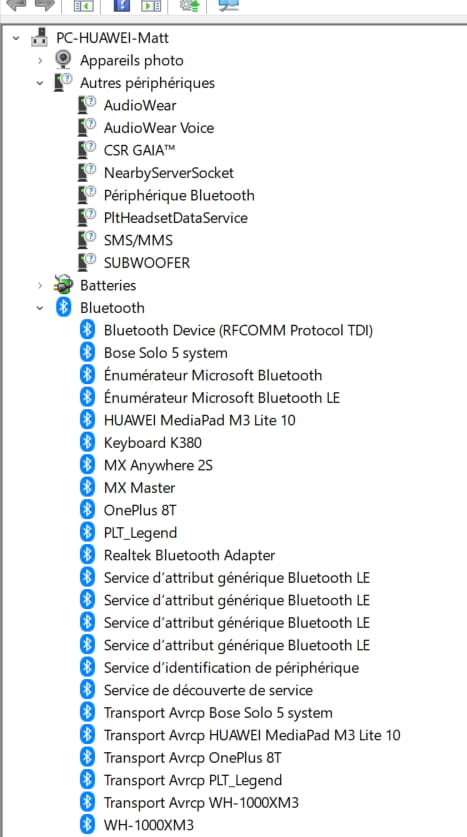
If it helps, here is a screenshot of my device manager:

thank you for the help
29 answers
- 1
- 2
-
hi
test this:
go to File Explorer ==> Windows ==> System32
in the "search" box in the top right, copy/paste ==> csrbcx64.sys and click the arrow to start the search
if the file csrbcx64.sys is found, right-click on it ==> open file location
PS: I read this in a thread from July 2021 ==> click here
Open File Explorer, then go to C:\Windows\System32
In the search box, type this and press Enter:
csrbcx64.sys
When you find this driver, right-click on it and select "Open file location".
Then, right-click on csrbcx64.sys and select Rename and name this file csrbcx64.sys.old
Then, restart your PC and test if you can enable core isolationCannot rename, system file..??
I found this: but still don't know how to resolve
"Why do incompatible drivers prevent the use of memory integrity?
security Windows 10
Enabling the memory integrity setting would prevent the loading of these incompatible drivers. Since blocking these drivers can cause undesirable or unexpected behavior, the memory integrity setting is disabled to allow these drivers to load.
If you wish to restore the memory integrity setting, you can try resolving a driver compatibility issue by checking if an updated and compatible driver is available through Windows Update or from the driver manufacturer. Microsoft does not recommend removing drivers to try to restore this setting."
@+
-
Well done @billmaxime StatusContributor
I successfully renamed the file to .old and activated kernel protection without any issues.
Do you now recommend leaving my file as .old or changing it back to .sys?
-
Hello,
It's still surprising to have so many Bluetooth devices, making identification difficult.
CSR.plc most often corresponds to a chip manufacturer for USB Bluetooth dongles.
The question is not to remove it before knowing if it serves any purpose.
We can probably get some insights by editing (opening with Notepad) the corresponding oem inf file; the file in question does not directly launch the driver, but helps install it with the sys name that appears.
We can therefore start in services.msc to look for the service that launches the corresponding driver, set it to stopped and manual or disabled rather than automatic, and see if any Bluetooth device would stop working under these conditions before trying to uninstall the driver in question and the software that is probably associated with it. -
Hello,
The following PowerShell script lists the drivers:
$hostname = $ENV:COMPUTERNAME # Get Third Party drivers used, that are not provided by Microsoft and presumably included in the OS $drivers = Get-WmiObject Win32_PNPSignedDriver | where {$_.DriverProviderName -ne "Microsoft"} # Initialize the list of detected driver packages as an array $DriverFolders = @() foreach ($d in $drivers) { # We initialize the list of driver files for each driver $DriverFiles = @() # For each driver instance from WMI class Win32_PNPSignedDriver, we compose the related WMI object name from the other WMI driver class, Win32_PNPSignedDriverCIMDataFile $ModifiedDeviceID = $d.DeviceID -replace "\\", "\\" $Antecedent = "\\" + $hostname + "\ROOT\cimv2:Win32_PNPSignedDriver.DeviceID=""$ModifiedDeviceID"""; # Get all related driver files for each driver listed in WMI class Win32_PNPSignedDriver $DriverFiles += Get-WmiObject Win32_PNPSignedDriverCIMDataFile | where {$_.Antecedent -eq $Antecedent} $DriverName = $d.DeviceName $DriverID = $d.DeviceID Write-Host "####Driver files for driver with name: $DriverName" -ForegroundColor Green Write-Host "and with DriverID: $DriverID" -ForegroundColor Green foreach ($i in $DriverFiles) { # We eliminate double backslashes from the file paths; $path = $i.Dependent.Split("=")[1] -replace '\\\\', '\' $path2 = $path.Substring(1,$path.Length-2) $InfItem = Get-Item -Path $path2 $Version = $InfItem.VersionInfo.FileVersion Write-Output "File: $path2" Write-Output "Version: $Version" } }Best regards
-
Thank you for your help
@brucine StatusMember
I opened services.msc but I can't find "csrbcx64.sys"

@hypothetix StatusMember
I ran the script, which gives me a long list of responses. I copied the response into a Word file so I could do a ctrl-F. I didn't find " csrbcx64.sys " but I found this:
"05F988593351}_VID&0002054C_PID&0CD3\8&147A401A&0&38184C59E89D_C00000000
####Driver files for driver with name: CSR GAIA™"Could this help?
-
If there is a service that uses this driver, it will not bear its name but will appear in the properties of one of the services (probably proprietary and not Windows), but it’s a bit of a laborious search and success is not guaranteed.
Besides what you have already tried, an alternative is to use Autoruns
https://www.commentcamarche.net/telecharger/utilitaires/4175-autoruns/
to be run in administrator mode as suggested here for example:
https://login.microsoftonline.com/common/oauth2/v2.0/authorize?client_id=a81d90ac-aa75-4cf8-b14c-58bf348528fe&redirect_uri=https%3A%2F%2Fanswers.microsoft.com&response_type=code%20id_token&scope=openid%20profile&state=OpenIdConnect.AuthenticationProperties%3DFPyvFhJ5n4BKHqNKB--YogBtKIpeaJxRWdsnC85I0CUxe3tpNlHtHzNb90JBl-sNDQkknNj3vPCXxiDjd0WwTloYR0E6h_zsEvAewpPYrG5jpeM3ERoBmleO16mFcqZul477-682LMVJREj_G91VQrHoXwKyXsDiQXsLZmRi1XLbQRNbUFjtSvCvYOF-FeC9T-ssHxANh_AF5LON005Tou-JmBXINQLpayvXW0hN5ep9NdzGYnz5Qy0ioAzeFCjw84G-e1TDd_FZAgVkHqsWtty0tRFqsfHCCzjsmTY76nDmT7syCI0xcSBj50Y04Lo2fBjjlWU2T0o_s5YkEfW_xxMe6_2bD4sL6Kmr3lGVwEM&response_mode=form_post&nonce=638028810982356528.MWZlZmU5YWUtMGE5OC00NjcyLWI4N2ItZmFiODhiMDVjNmU0YWMzYzJhZmUtNGI1Zi00ZTUxLThhM2UtMjRjMmY5ZDViZjU0&prompt=none&x-client-SKU=ID_NET472&x-client-ver=6.17.0.0
We scroll all the way down to services where we will find the offending driver: we can either simply uncheck it (disable it until it is checked again) or use right-click to delete it, but neither option will tell us if the driver in question is serving a purpose and what that might be.
Perhaps there could be a clue in the programs in the control panel looking for something that refers to CSR Host Tools or something that might suggest a program installed with a Bluetooth device?
-
-
Hello,
Just a quick addition to brucine's post.
To speed things up, we can use the command-line version autorunsc
for example in administrator mode:
autorunsc64.exe -a s -c >> services.csvhttps://learn.microsoft.com/en-us/sysinternals/downloads/autoruns
-
Hi
You still have the same device alert in "Other Devices"

I think it's the one causing the problem
Talk to you later
-
Thank you for the help
@brucine StatusMember and @hypothetix StatusMember
I used Autoruns, disabled the file in question, restarted, but the problem persists:
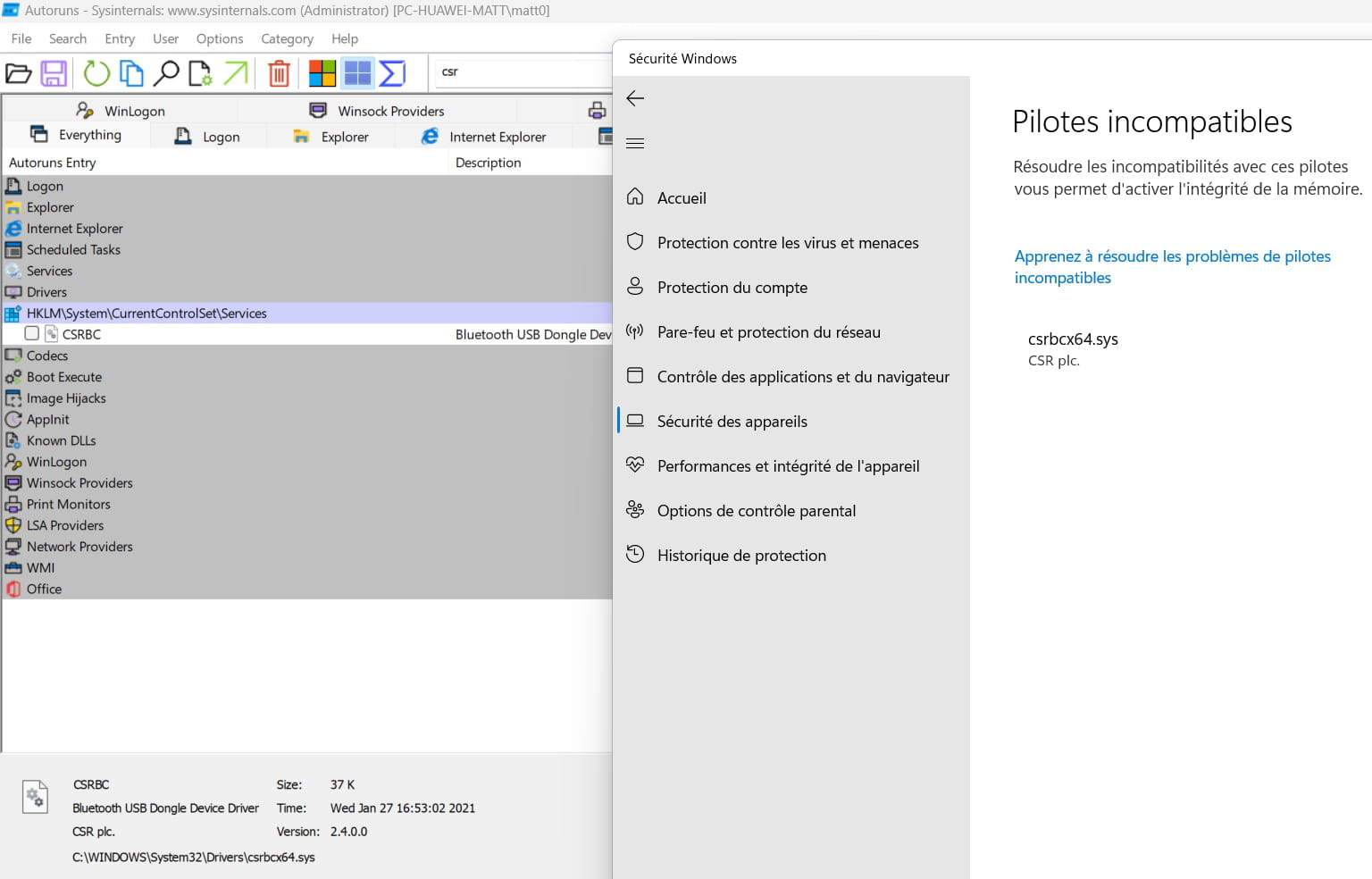
@billmaxime StatusContributor, here is a screenshot of the device manager. We can clearly see a "CSR". Well done. The reading of these "devices" means absolutely nothing to me. Should I delete them?
-
hi
I don't know what you have plugged into the PC?
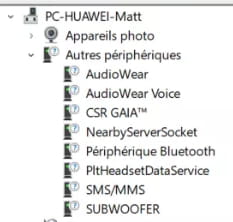
@+
-
@brucine StatusMember
Thank you
Can’t I just delete these drivers?
And what if I delete all my Bluetooth devices in the Bluetooth pairing settings?

-
You can certainly delete the drivers for all the Bluetooth devices you don't use (so the sys files and, possibly, the accompanying oem.inf files), but keep in mind that as soon as the device in question is recognized and reconnected again, Windows will start reinstalling those same "generic" drivers: you must therefore first remove the cause.
-
-
@brucine StatusMember
To remove the drivers, I assume I go through the device manager by right-clicking => uninstall but do I need to do another operation to delete the sys and oem.inf files?
This might allow me to possibly bypass the Windows Defender update and, with a bit of luck, I no longer have the Bluetooth device that caused the problem :)
-
As you said, with a bit of luck....
We can uninstall through the device manager or directly delete the relevant sys files via Autoruns or their location which is usually C:\Windows\System32\drivers, but you need to know the name of the driver and/or its manufacturer.
A good indication is the name of the "company" (not Microsoft) and the date: all Microsoft system files or original drivers are dated either from the initial installation of Windows on the PC or from the various updates.
The inf files (same note), whether oem or not, can be found at C:\Windows\INF; aside from the date, to find out what they correspond to, you need to edit them with Notepad, but aside from the "Mr. Clean" aspect, they are unlikely to be invoked in the case that concerns us since they result from a software installation and they are not sufficient to reinstall the corresponding sys files that would have disappeared or, for that matter, to do anything if they are not called by the installation routine of that software.
I don't know if the action via the device manager uninstalls the sys driver or simply disables it like I remember in Autoruns.
In any case, rather than tackling the device manager, I would prefer to remove the culprits via Settings-Devices-Bluetooth Devices.
-
-
Well,
thank you
I think I’m going to give up.
Through "Settings-Devices-Bluetooth Devices," I deleted some Bluetooth devices, but they reappeared every time I restarted. So I removed, via the "Bluetooth Device Manager," those I no longer use.
It didn't change anything.
I don't feel capable of "directly deleting the concerned sys files via Autoruns or their location typically at C:\Windows\System32\drivers, but you need to know the name of the driver and/or its manufacturer."
In fact, my main problem is that I don't have the exact name of the problematic driver. On other forums, some people have had the same issue but were able to identify the driver as shown in the following image:

I don’t have the details:
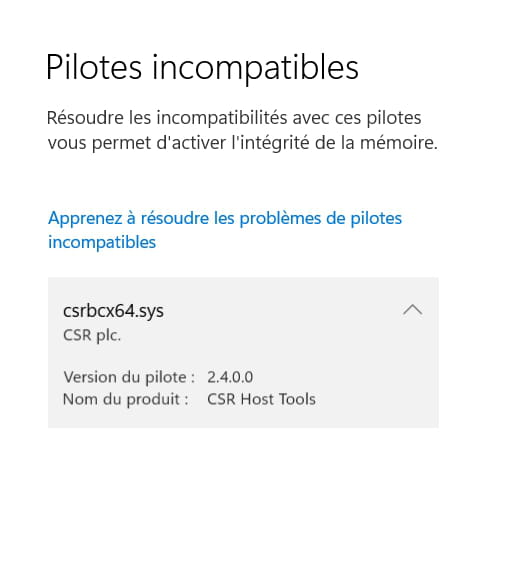
:/
Indeed, once the driver is identified, the method is as follows: t.ly/H8Nz
(for some reason that I don't understand, I can't make my link clickable: t.ly/H8Nz)
-
You don't have the detail because, as I mentioned and contrary to the Intel example, there is no installation software and no oem.inf configuration file for this installation, which does not prevent this csrbcx64.sys driver from existing and being directly located in the Drivers folder or via the Windows search tab, provided it is not hidden (in which case you need to check the option to show system and hidden files), and in that case there is nothing preventing you from deleting it directly or removing/unchecking it via Autoruns, which should return its name unless it is active and loaded in the session.
We can also imagine that it is a device directly related to the installed hardware (for example, I have a Bluetooth service related to my sound card software, which then needs to be disabled).
The last point I think of is that we can also imagine that an accessible Bluetooth device (and if it’s not at the neighbor's, we can definitely act on the fact that it is connected) even if not paired could be discovered by Windows and thus the driver installed with it: we should be able to act on the services at this level, for example by checking if the device installation manager service is set to manual.
Obviously, disabling the Bluetooth support service resolves the issue, but it assumes that we are not using any.
-
-
Thank you
Following the reading of this forum (t.ly/_Ga4), where the same problem is exposed, I suppose it is "'a device directly related to the installed hardware" but I am not certain of that
What do you advise me to do? How risky is it to leave the computer like this ("memory integrity disabled)?
-
I don’t know, if as I mentioned with my example of sound card (Realtek audio software), we will definitely find this software and be able to verify if it has Bluetooth capabilities that can be disabled in its settings if necessary.
It seems to me that indeed, it only takes one driver not to ensure memory integrity for the whole to be disabled.
Memory integrity is only one of the components of kernel isolation aimed at verifying that the drivers and code executed in the Windows kernel have not been altered by malicious software.
The question therefore remains relatively theoretical since if we do not deliberately download them (attachments, accidentally clicking on dubious sites, counterfeit software sites...), it is still quite rare to observe viruses and anyway (I do not use Windows Defender), there are in principle other levels of protection.
My protection software will in principle scream via its Defense function if anything unusual attempts to access a system file, modify the registry, access a certain number of services...
-
-
Well,
I'm going to leave it like that then and wait for an update to fix the issue...
Thank you very much for your time and the explanations. I hope this post will be helpful to others.
-
Hello
Did you connect a headset (via Bluetooth) to the PC?
The printer, if it has Wi-Fi, can also cause this kind of issue (for peripherals with errors)
For SMS/MMS, it's the phone
See you
-
@billmaxime StatusContributor
thank you
I just removed all my Bluetooth devices (including my headset) via the Bluetooth control panel and... still the same problem
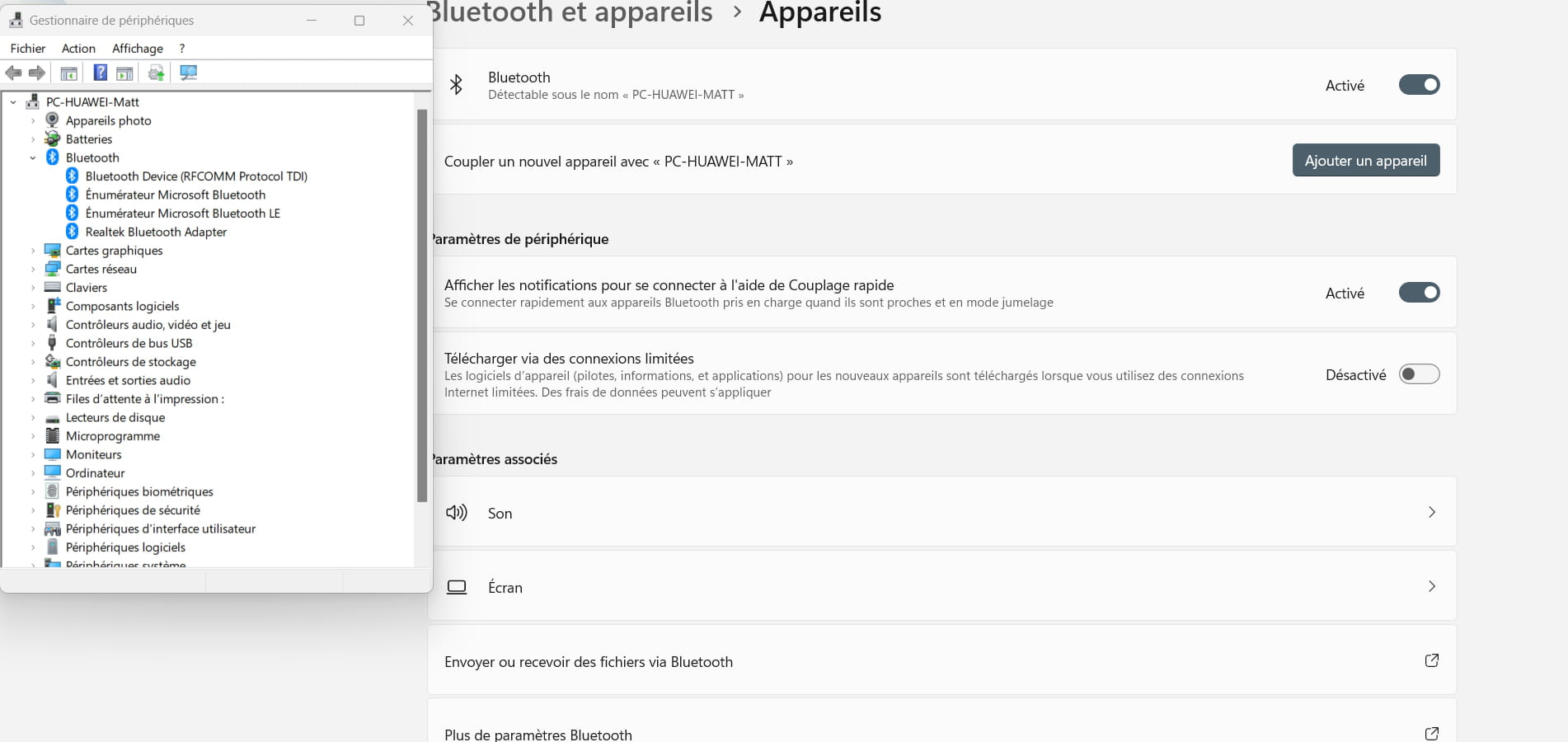
-
hi
and... still the same problem
this one ==> Can't activate "memory integrity"?
in the device manager, you no longer have a "Other devices" section
and you no longer have any devices with alerts, the issue lies elsewhere for activating memory integrity
see you
-
Hello,
Yes, the problem remains: "this one ==> Unable to activate 'memory integrity'?"
and you no longer have any devices alerting, the issue comes from elsewhere for memory integrity activation
Yes, indeed... and I have no idea where from...
-
hi
in the device manager, click on View ==> Show hidden devices, and post a screenshot
I see you have a lot of Bluetooth hardware in the DM (Sony headset/soundbar/phone)
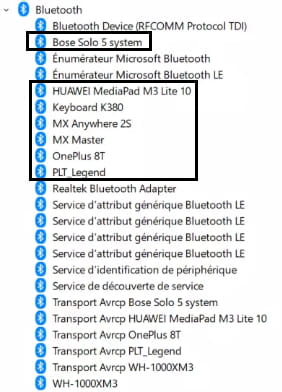
in search, type msinfo32 and click open
give the info that I have highlighted (click on the image)

@+
-
Thank you for the help
Here is the screenshot:

and here is the requested information:
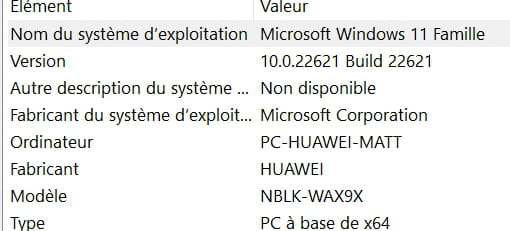


- 1
- 2