Black screen when installing AMD graphics drivers
Dwunh
Posted messages
6
Status
Member
-
kaneagle Posted messages 86301 Registration date Status Moderator Last intervention -
kaneagle Posted messages 86301 Registration date Status Moderator Last intervention -
Hello,
I have a problem with AMD graphics drivers that I will detail below.
—-------------------------------------------------------------------------------
CONFIG:
-GPU: AMD Radeon RX 6500 XT
-Processor: i5-8600k
-Motherboard: Asus Prime H310M-KR 2.0
-Power supply: 650W
-RAM: 16GB
The computer is running Windows 10
—-------------------------------------------------------------------------------------
PROBLEM:
When I try to download the AMD graphics drivers (downloaded from the manufacturer's website), I get a black screen and then I can't get back to a normal screen.
It’s important to know that Windows 10 is freshly installed and the hard drives have been formatted.
To try to see what happens during installation, I connected my screen to my motherboard and was able to see the following error messages:
This one during installation:
And this one when launching the AMD program: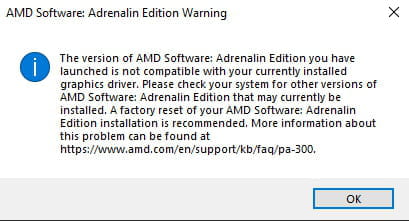
I tried the solutions proposed in the link that is in the second error message but it doesn't solve my problem.
I have tried about ten different versions of the drivers but always the same error message.
I am therefore out of solutions and would like to know if anyone has any solutions to propose.
Thank you in advance.
I have a problem with AMD graphics drivers that I will detail below.
—-------------------------------------------------------------------------------
CONFIG:
-GPU: AMD Radeon RX 6500 XT
-Processor: i5-8600k
-Motherboard: Asus Prime H310M-KR 2.0
-Power supply: 650W
-RAM: 16GB
The computer is running Windows 10
—-------------------------------------------------------------------------------------
PROBLEM:
When I try to download the AMD graphics drivers (downloaded from the manufacturer's website), I get a black screen and then I can't get back to a normal screen.
It’s important to know that Windows 10 is freshly installed and the hard drives have been formatted.
To try to see what happens during installation, I connected my screen to my motherboard and was able to see the following error messages:
This one during installation:
And this one when launching the AMD program:
I tried the solutions proposed in the link that is in the second error message but it doesn't solve my problem.
I have tried about ten different versions of the drivers but always the same error message.
I am therefore out of solutions and would like to know if anyone has any solutions to propose.
Thank you in advance.
15 answers
-
jeannets Posted messages 28459 Registration date Status Contributor Last intervention Ambassador 6 618
Hello,
It's simple, he says that "Adrenalin" is not compatible with your installation's configuration...
https://www.amd.com/en/support/kb/faq/pa-300-
Thank you for your response.
So I started downloading the drivers in "driver only," and I indeed have no more error messages, but I still have a black screen when my monitor is connected to the graphics card.
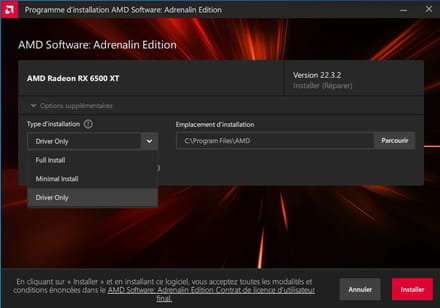
Not having the AMD "Adrenalin" software doesn't bother me that much; it's mainly the fact that the graphics drivers are not functioning that is the issue.
The drivers I downloaded correspond to my graphics card, so there shouldn't be a compatibility problem, I think. AMD site where I download the drivers: https://www.amd.com/fr/support/graphics/amd-radeon-rx-6000-series/amd-radeon-rx-6500-series/amd-radeon-rx-6500-xt
Furthermore, Windows seems to correctly detect the driver as it is present in the Device Manager, but there is a warning symbol as if there is a problem:
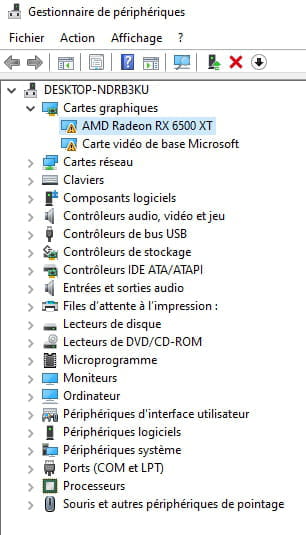
Looking at the properties, we can see the following message:

-
-
jeannets Posted messages 28459 Registration date Status Contributor Last intervention Ambassador 6 618
Everything is described here https://fr.drivereasy.com/connaissances/resolu-nvidia-code-43/
I recommend using the drivers here
https://drivers.amd.com/drivers/whql-amd-software-adrenalin-edition-22.6.1-win10-win11-june29.exe Download it.
You disable and uninstall what currently exists.... Restart the PC... Install what you just downloaded... and turn off your PC... connect a monitor to the graphics card... and start the PC... it should find everything.. -
Hello again,
Unfortunately still nothing, after some research it seems I am not the only one in this situation. I've seen a lot of forums, even some dating back to 2018 discussing this, but I haven't found any clear solution on this subject. -
Hello,
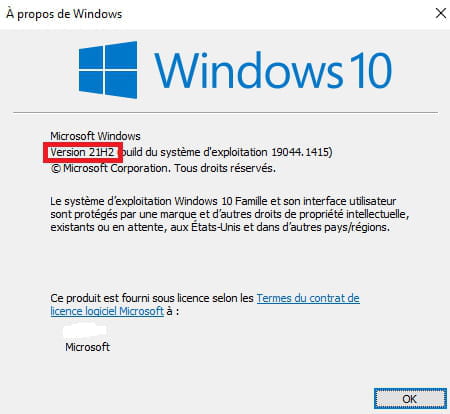
Is Windows up to date?
Press Windows + R
Type --> winver and OK
What version is it?
Example image: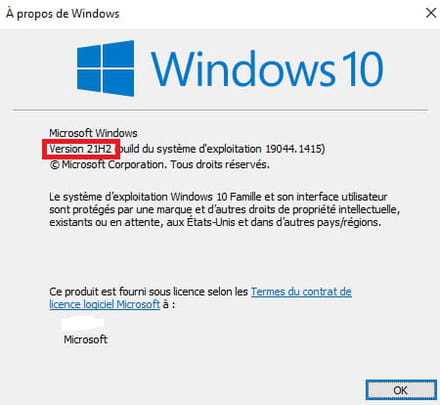
--
Human beings are at their best when things are at their worst. -
jeannets Posted messages 28459 Registration date Status Contributor Last intervention Ambassador 6 618
No solution, yes, you shouldn’t expect everything on the first day...! But maybe some have an idea about the reason, the causes...?? Because there must also be users for whom it works...?
Why does Windows stop it..?? What are the problems..??
You could also try the driver on "Driverscloud" https://www.driverscloud.com/ by doing an online detection of your PC.. -
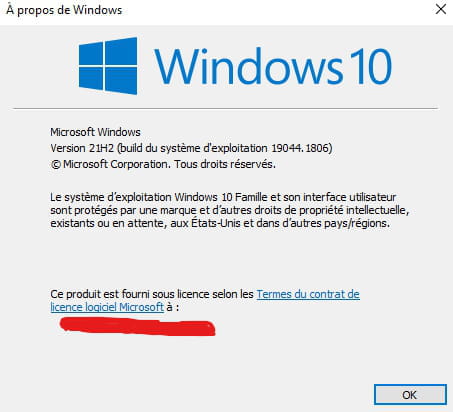
Windows is up to date (I updated it two weeks ago and updated it again this afternoon)
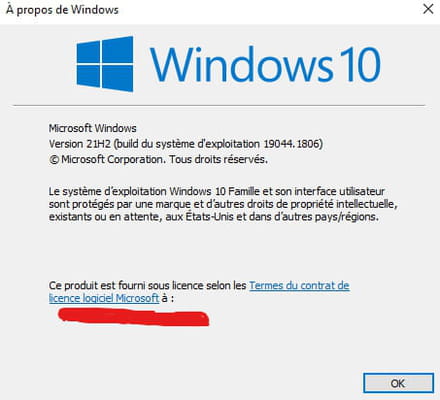
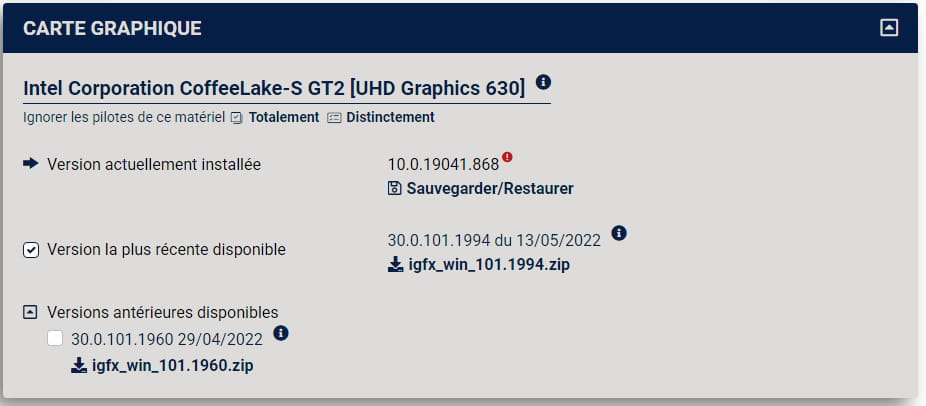
And for Driverscloud, I initiated a detection and it suggests downloading this driver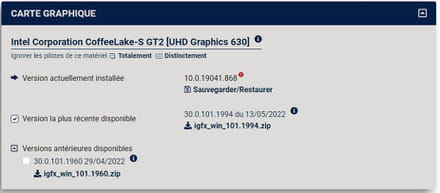
-
jeannets Posted messages 28459 Registration date Status Contributor Last intervention Ambassador 6 618
Oh yes, I think you can; there is a noticeable difference; maybe that's the "problem"...
Then restart your PC... and check if there are any changes in the "device manager"
If I’m guessing correctly, this driver is originally for the microprocessor's graphics, but it might have some connections. -
Your Device Manager shows anomalies: Microsoft motherboard with a yellow rectangle. I would advise you to update the chipset drivers for your motherboard:
https://www.asus.com/fr/Motherboards-Components/Motherboards/PRIME/PRIME-H310M-K-R2-0/HelpDesk_Download/
--
To misname things is to add to the misery of the world (Albert Camus) -
Give the device identification numbers of the 2 video cards
Look at this --> Find the device identification number of a peripheral
Post the numbers in your next message.
EX: PCI\VEN_1002&DEV_1638&SUBSYS_133C1043
--
Human beings are at their best when things are at their worst. -
jeannets
I downloaded the recommended driver, but when I try to install it, I get stuck on this screen no matter how many times I restart the PC; the installation freezes during the first loading.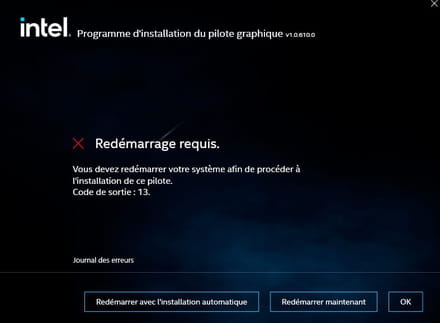
epango
I had already downloaded the drivers through the Asus website.
So now I updated the driver via the device manager and now I have this: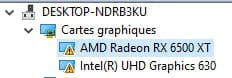
The error is as follows:
I tried disabling the AMD driver and restarting, but I still get the same error with this driver.
kaneagle
AMD: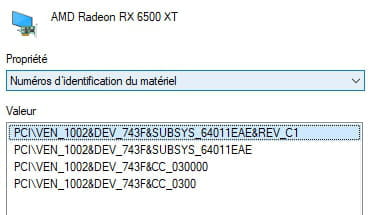
Intel: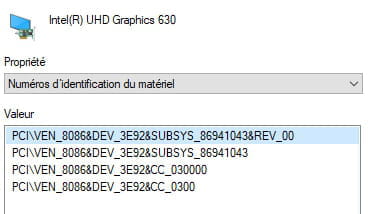
And thanks again, I see that many of you are helping me; it's really nice to see so many people willing to take their time to help. -
If you have image when the screen is connected to the GPU, you can try to manually indicate the path to where the driver is located. To do this:
Download and save the driver to your PC. Go to Device Manager. Expand Display adapters. Right-click on your graphics card (RX6500XT), then click on Update driver. Choose the option:
Browse my computer for driver software. A path will be indicated, but you choose Browse... Look for the previously downloaded driver. When you find it, double-click on it and follow the instructions until the end.
-
Hello
First, install the driver provided with the 6500, only after that you can install the latest version.
--
Signature
Euskadi Ta Askatasuna -
Download and install --> 7Zip 64 bits
For AMD, download this driver --> AMD (565mb) version 22.6.1
Right-click on the driver --> whql-amd-software-adrenalin-edition-22.6.1-win10-win11-june29.exe
Select --> 7Zip
Choose --> extract to "whql-amd-software-adrenalin-edition-22.6.1-win10-win11-june29\"
----------------------------------------------------------------------------------------------
For Intel, this one --> Intel
Right-click on the driver --> igfx_win_101.1994.zip
Select --> 7Zip
Choose --> extract to "igfx_win_101.1994\"
----------------------------------------------------------------------------------------------
Uninstall both cards properly using DDU
Look at this tutorial, step 2 --> Display Driver Uninstaller
Unplug the ethernet and/or wireless
Restart the PC.
---------------------------------------------------------------------------------------------
Go to the device manager
Right-click on the AMD card
Update driver
Browse my computer for driver software
Choose from a list of available drivers...
Have disk
Browse
Go to the extracted driver folder --> whql-amd-software-adrenalin-edition-22.6.1-win10-win11-june29
Folder --> Packages
Folder --> Drivers
Folder --> Display
Folder --> WT6A_INF
Select the file --> U0380677.inf and OK.
------------------------------------------------------------------------------------------------
Return to the device manager
Right-click on the Intel card (Microsoft basic video adapter)
Update driver
Browse my computer for driver software
Choose from a list of available drivers...
Have disk
Browse
Go to the extracted driver folder --> igfx_win_101.1994
Folder --> Graphics
Select the file --> iigd_dch.inf and OK.
Restart.
--
Human beings are at their best when things are at their worst. -
Hello again,
Sorry for the absence, I didn't really have any free time to sort out my problems.
epango
He simply tells me that I already have the latest version installed.
flo88
I don't see which driver you are talking about
kaneagle
Unfortunately, it still doesn't solve the problem, so with the time that has passed I've done your solution with version 22.7.1 of the AMD driver, but I don't think it changes much.
With the AMD driver I now have this error:

With the Intel driver I have this error:

-
More ideas!
Faulty card?
Doing a clean reinstall of Windows 10?
Check this out --> How to install Windows 10Otherwise, wait for more opinions.