How to choose the hard drive to use by default in Windows?
Tom_3333
Posted messages
16
Status
Member
-
dachiasse Posted messages 1932 Status Member -
dachiasse Posted messages 1932 Status Member -
Hello,
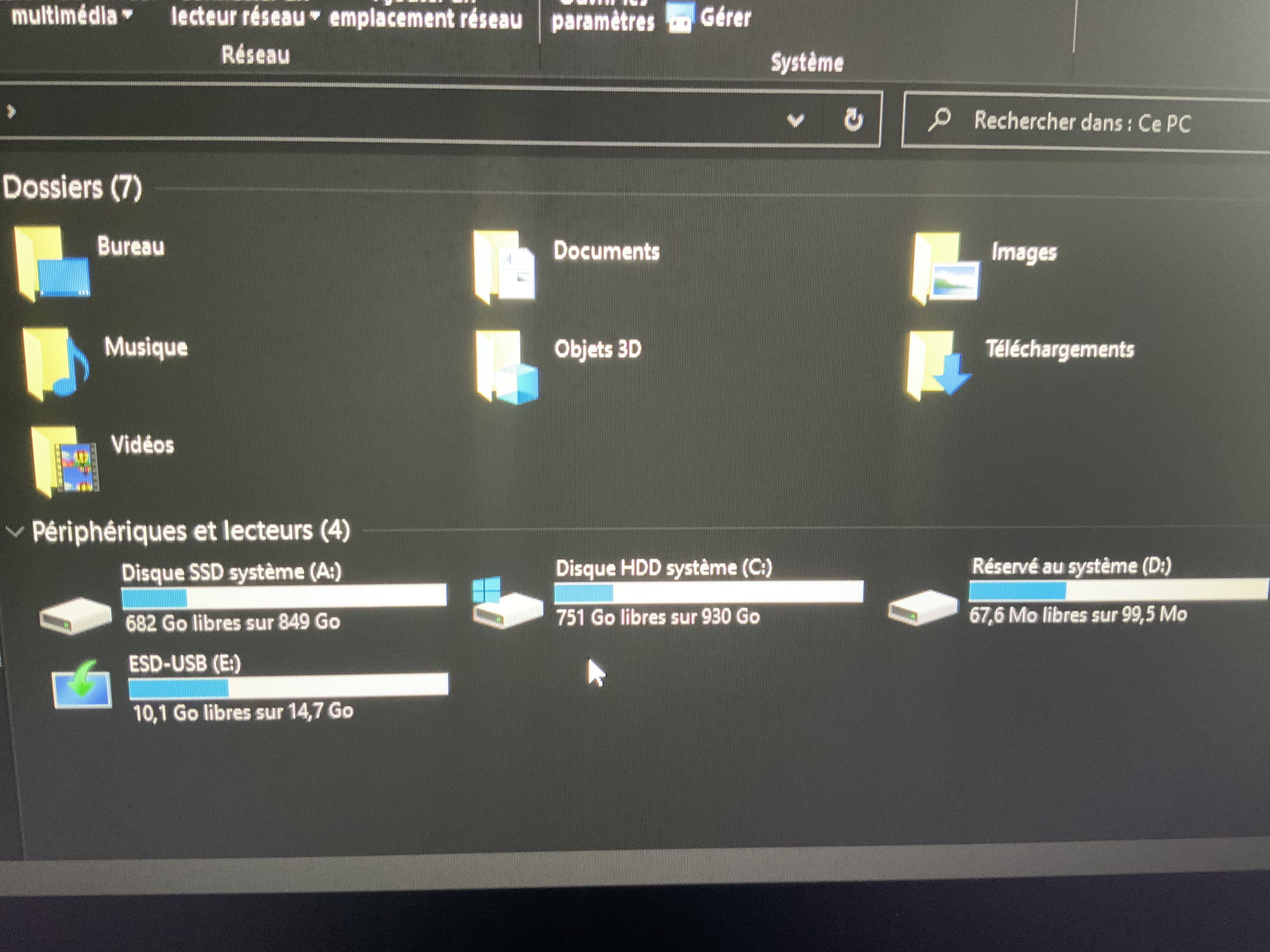
I acquired a new PC this week, I installed Windows as well as all my software, however I realized today that the operating system and everything else was installed on the HDD drive (even though the PC contains an M.2 SSD), anyway I managed to make an exact copy of the HDD to the SSD using a software.
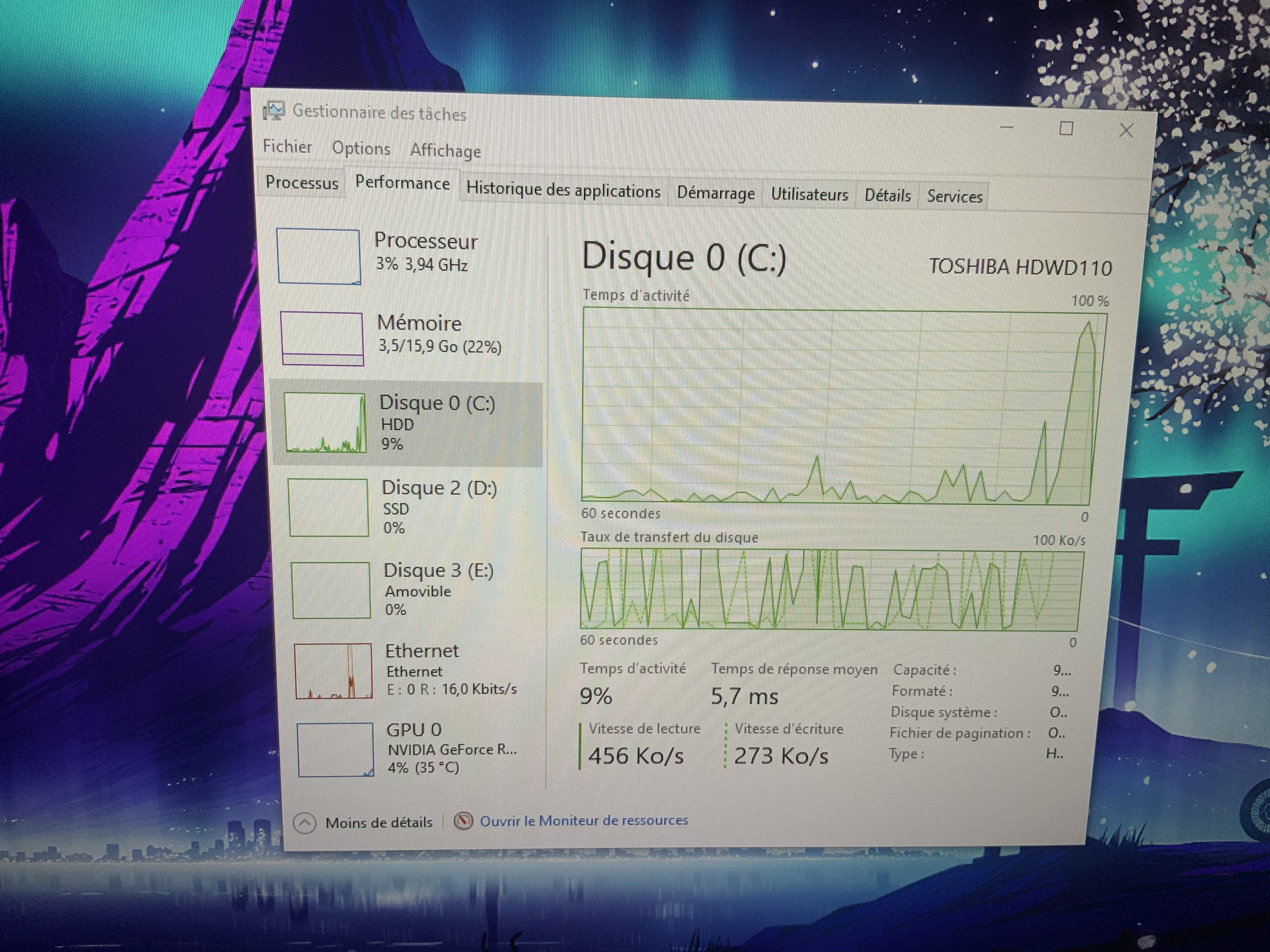
Except now I find myself with Windows installed on both hard drives! I would like to format the HDD since I no longer need what is on it as everything is on the SSD, but I can't because Windows is using it to run the OS (I obviously can't format the drive that has the Windows I am using on it)
I tried to boot the system from the SSD via the BIOS, as well as checked that the SSD was indeed set as the default boot disk in the BIOS, but even though Windows launches correctly, nothing works, it remains active on the HDD,
I have searched everywhere for a solution and I haven't found anything effective,
If someone can help me I thank you in advance! :)
Tom

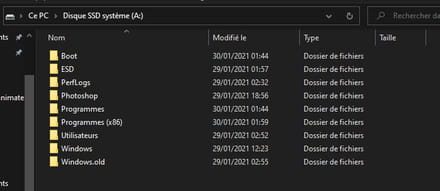
I acquired a new PC this week, I installed Windows as well as all my software, however I realized today that the operating system and everything else was installed on the HDD drive (even though the PC contains an M.2 SSD), anyway I managed to make an exact copy of the HDD to the SSD using a software.
Except now I find myself with Windows installed on both hard drives! I would like to format the HDD since I no longer need what is on it as everything is on the SSD, but I can't because Windows is using it to run the OS (I obviously can't format the drive that has the Windows I am using on it)
I tried to boot the system from the SSD via the BIOS, as well as checked that the SSD was indeed set as the default boot disk in the BIOS, but even though Windows launches correctly, nothing works, it remains active on the HDD,
I have searched everywhere for a solution and I haven't found anything effective,
If someone can help me I thank you in advance! :)
Tom

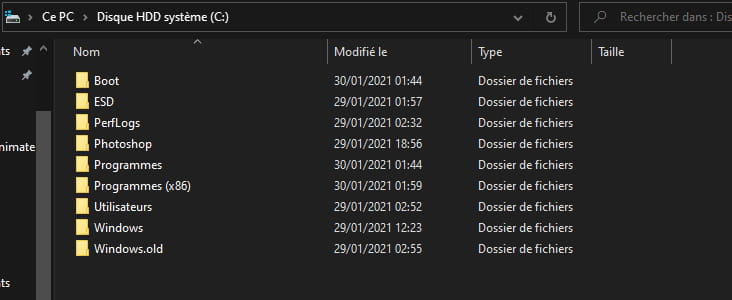

18 answers
-
Hello,
are you able to boot from the SSD?
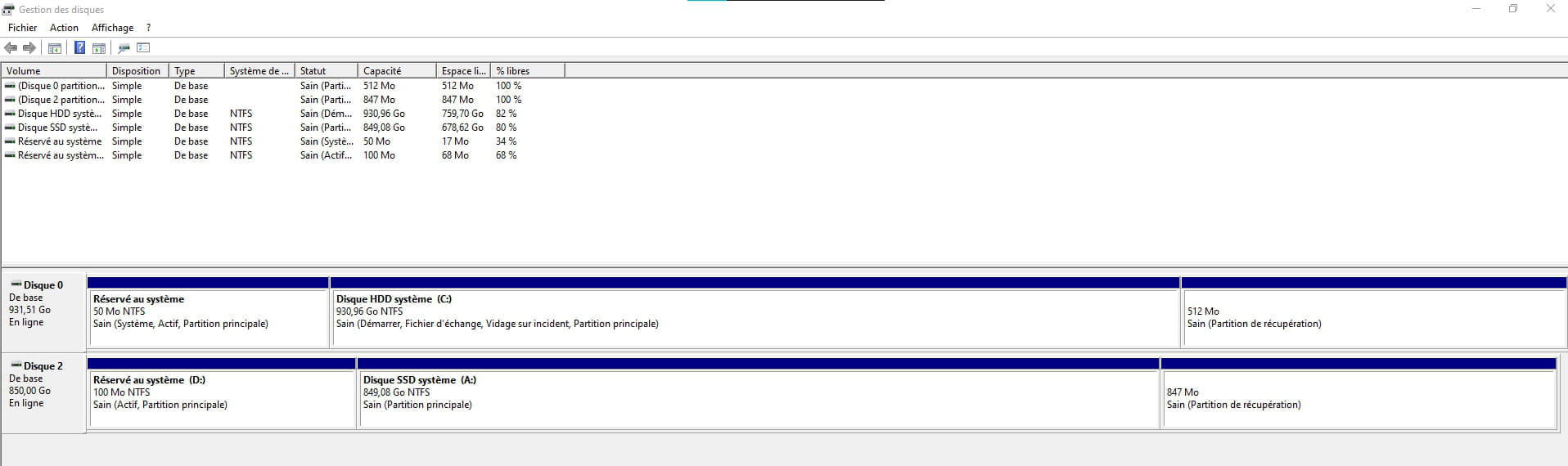
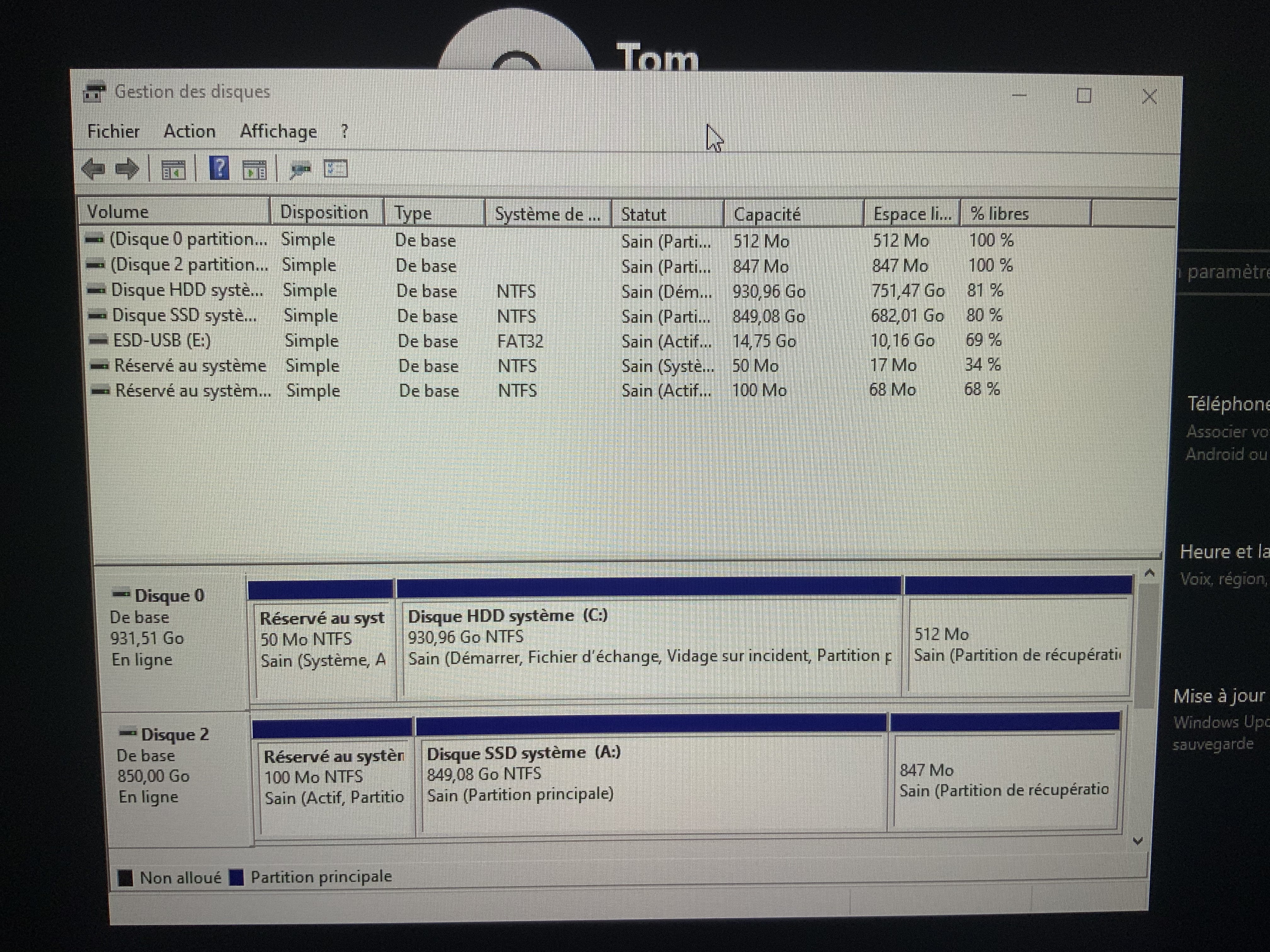
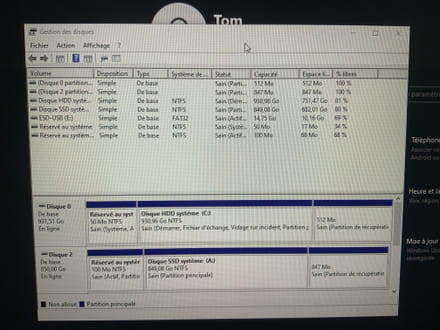
please post a screenshot of the disk management. -
Hello, thank you for your quick response!
Yes, if I boot from the SSD in the BIOS, no problem...
And here is the capture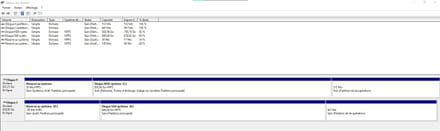
-
Hello,
The boot files are on the HDD
and are not on the SSD
You need to recreate these boot files on the SSD
there are several methods
You need the same version of Windows that you have on a USB drive or DVD
Turn off your PC
Disconnect the HDD and leave only the SSD CONNECTED.
Boot from the USB as if you are installing Windows but without installing it
Now, you need to navigate to the recovery options of Windows 10
open the advanced recovery options.
Option to repair the boot of Windows 10
And Windows will repair the boot, and you follow the instructions, then the PC restarts; you need to restart it without the USB and your Windows is OK
then when you see everything is OK AFTER TESTING YOUR REBOOT you can reconnect your HDD and format it if you wish because it is no longer useful for using your SSD
https://www.malekal.com/reparer-demarrage-de-windows-10/ -
Hello,
Thank you for your detailed response, however I am unable to unplug my HDD...
You mentioned several solutions, is there not a simpler one that does not involve unplugging the HDD?
Thank you very much. -
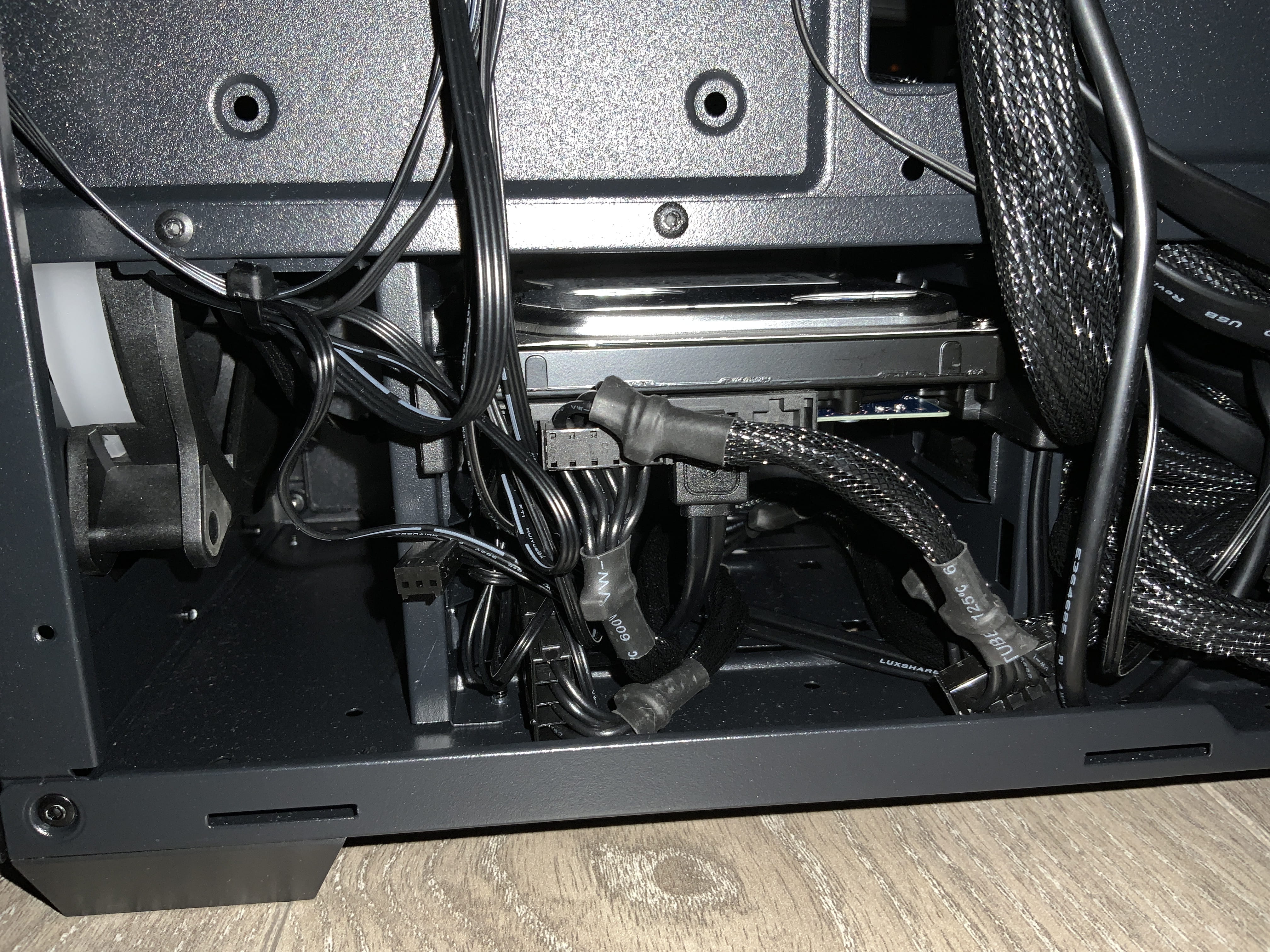
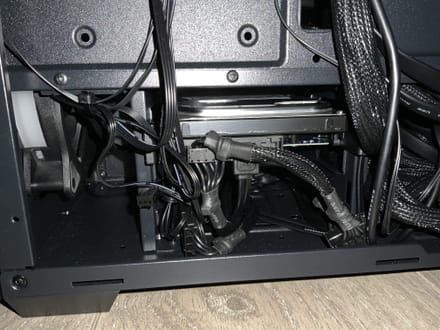
I couldn't find the physical location of the HDD because it's a pre-assembled PC, but I found it. However, the procedure for the repair and changing the boot isn't very clear to me; I'm afraid of making a mistake...
-
I feel like it's the one in the previous photo; I can try to unplug it, but first, I need to install Windows on a USB stick, right?
How can I be sure it's the same version as the one I'm using, and how do I go about repairing Windows 10?
Sorry for all these questions, but I'm not used to tinkering with PCs.-
In your first message, you say you installed Windows
'I installed Windows as well as all my software'
How did you do it, with what did you install Windows
If you are not sure you know what you are doing, then don't touch anything, don't unplug the drive
You need to go through a reinstallation of Windows on the SSD
but before doing anything, how and with what did you install Windows
-
-
I had installed it on a USB stick via this page:
https://www.microsoft.com/fr-fr/software-download/windows10ISO
When I turned on the PC for the first time, Windows was automatically installed on the HDD,
yesterday I copied everything from the HDD to the SSD (using a small program)
The two drives are currently identical and Windows is properly installed on the SSD, I presume.-
'I had installed it on a USB stick'
So you do have Windows on a stick
To put it simply, the information that Windows needs to start is on the HDD. That’s why your Windows on the SSD NEEDS THE HDD
The active partition and the boot sequence are on the HDD
So it’s impossible to boot from the SSD without the HDD
The goal is to write the boot sequence onto the SSD to boot Windows from the SSD
So do you have Windows on a stick, yes or no?
-
-
-
Finally, I have the ISO file; I can't imagine a complete Windows.
-
In case of doubt, I will format the drive and reinstall Windows using this link https://www.microsoft.com/fr-fr/software-download/windows10ISO
This way I will be sure and we can move on. -
To keep it simple and quick
if you have the complete ISO we will install Windows with the ISO without the USB key
if you do have the ISO
start your PC from the SSD as you know how to do
WARNING MAKE SURE TO START FROM THE SSD
Then extract the ISO into a folder but on the HDD drive. Do not extract it into a folder on the SSD
OK -
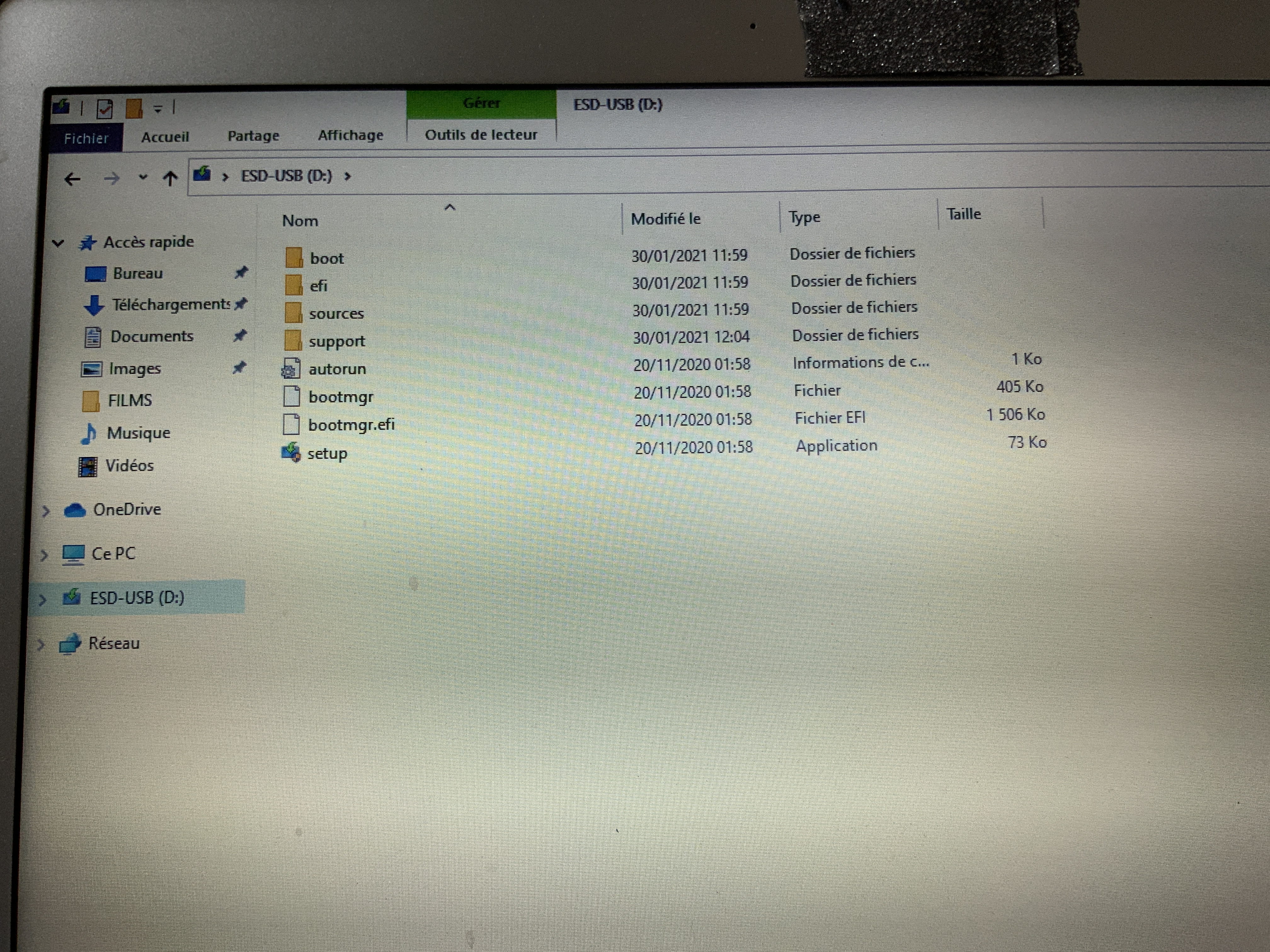
Is it possible to proceed via the USB drive (because I think the ISO file is on it)
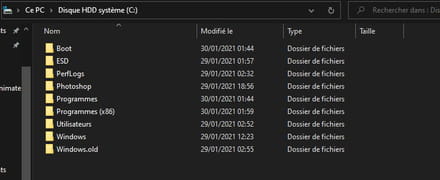
Here's a photo of what the USB drive contains
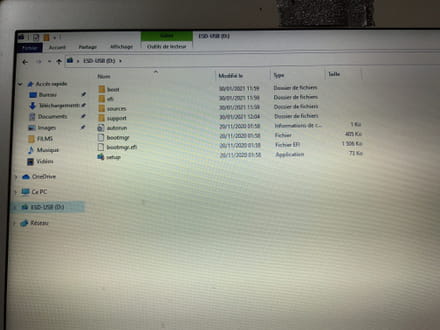
-
-
Normally not
besides, you have everything on the HDD since you made a copy
but let's make sure to start the installation without losing any data or programs
you plug in the USB key and launch the setup.exe file
this will start the installation
just follow the steps, nothing complicated
the installer will check that everything is alright
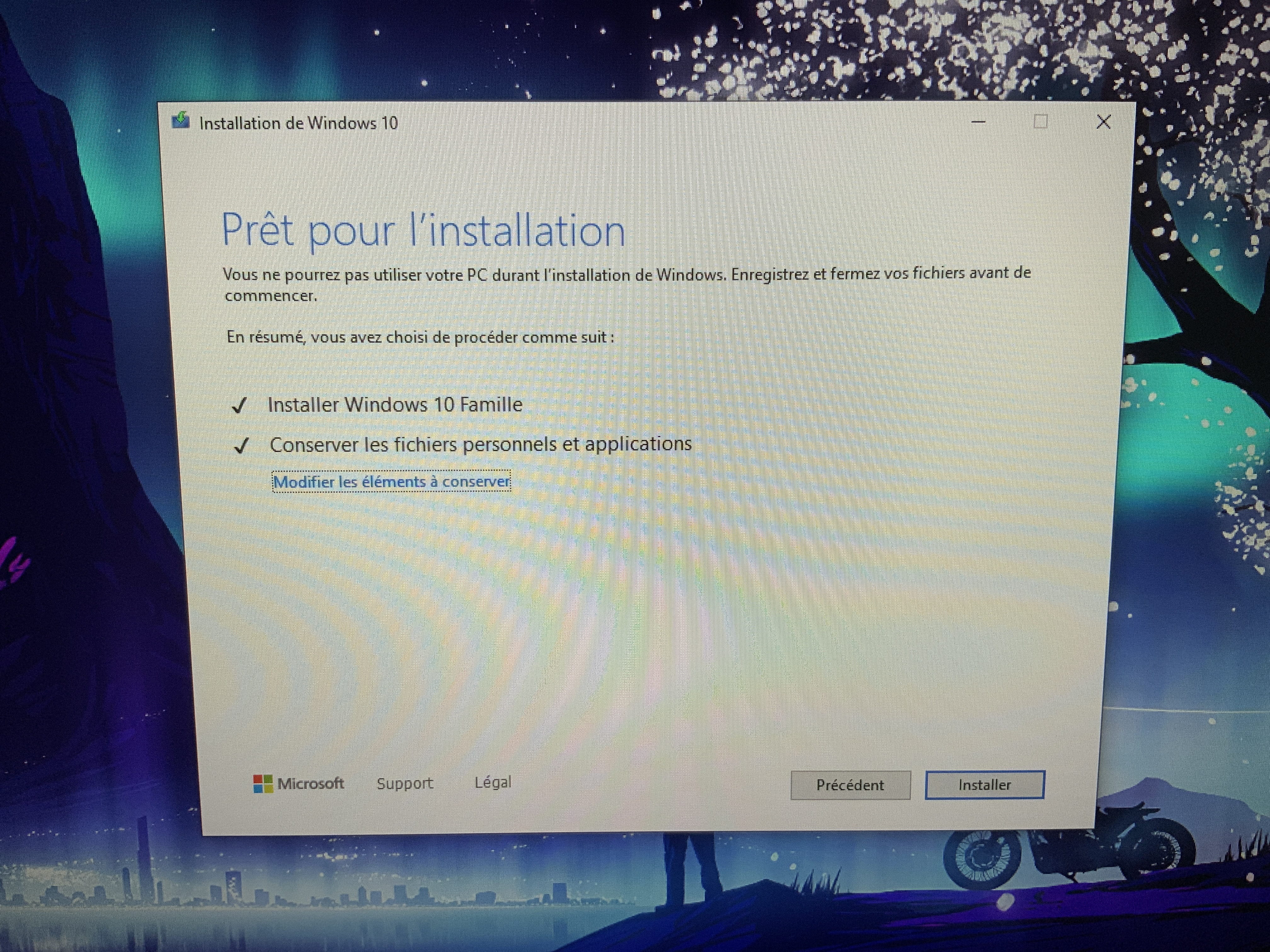
Then you will have to choose the installation without data loss
Choose the correct option before clicking ok and then you just have to follow the instructions
and ask if you don't know what to do, I’m here
We're almost there, keep me updated
-
-
Thank you for your help! I've started the installation and I'm at this stage, but since my HDD is still connected to the computer case, I'm worried it will reinstall on it. Can I go ahead and click "install"?
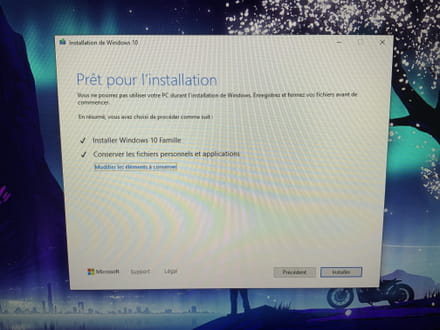
-
I have a question, did you see the 2 cables connected to your disk
Because to check that everything is correct and that the boot is indeed on the SSD
The best thing is to disconnect the HDD and start normally to see that everything is correct and that Windows boots normally
But we will do this when Windows has finished installing -
The reinstallation of Windows has just finished, but the OS is still active on the HDD, I don't understand :(
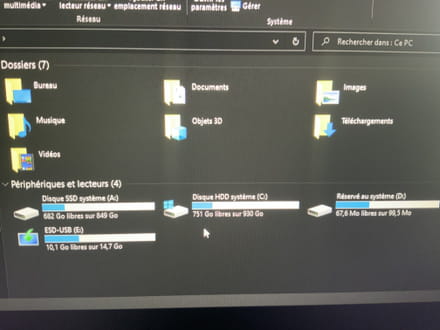
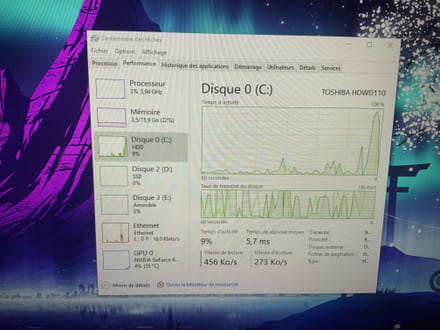
-
But the OS is still active on the HDD, I don't understand. I suspected this a bit because your HDD is used to boot the SSD.
That's why it's important to disconnect the HDD.
We can do the same thing again, but this time we need to
1 - disconnect the HDD
2 - and boot from the USB drive LIKE when installing Windows.
At least you have the USB drive with Windows.
Boot from the USB drive as if you were installing Windows, but without installing it.
Now you need to navigate through the Windows 10 recovery options.
Open the advanced recovery options.
Option to repair the Windows 10 boot
but without the HDD.
-
-
Hello,
Launching the exe with both hard drives connected only resulted in updating the system.
----------
Initially, you should have installed by disconnecting the HDD and in customized mode, choosing your SSD, then after installation, reconnecting your HDD.
> If you choose automatic installation instead of customized, there's a chance that Windows installs on the HDD (which is what happened)
> In customized mode, we choose which disk to install on, but even if we choose the SSD, the installation will still place necessary startup files on the neighboring HDD (that's why you need to disconnect the HDD during installation)
This is to give you a general idea.
-----------
Currently,
> either you reinstall from scratch on the SSD after disconnecting the HDD.
You will need to reinstall your programs, data... then clear the HDD.
> or you specify how you did this so-called "exact copy," with which software and option choices.
Because a simple copy of the partitions won't work, as resources will be missing.
Only a true complete disk cloning would work.
(there are few free cloning software left, so you might have used a program that copied but didn't clone)
And as for testing, this should be done manually at first to be sure.
Disconnect the HDD and see if the PC starts up fine with only the SSD.
This after your future tests
(test your current pseudo copy, or if we go back to your cloning depending on your responses)
Auto message
Without regular feedback from you... you can always refer to article 22 ;-)
Mini In relation to the volunteers who help you: Respond, Respect, Politeness,...-
Yes, but I suggested it to him and he was hesitant because he didn’t know, so we took the risk of trying this method.
Now we just have to unplug the HDD.
On the other hand, we can repair the boot without the HDD.
And we can reinstall without data loss and without the HDD.
Personally, I prefer a boot repair that is much faster, and Windows has already been freshly reinstalled.- Yes, the person doesn't know.
For example, given their comments during the installation, the person only knows how to click on "install Windows" and has no knowledge of the difference with "custom installation" just below (which would have been useful during their first installation).
And so on.
Therefore, to follow up, I was giving them general information (summary) to understand.
But regarding repairs, it's complicated because we don't really know what has been done and what "compliant copy" means.
In my opinion, it's not cloning.
It's possible to simplify and make it understandable for their level, to redo this pseudo-cloning.
Wipe their SSD and do a proper cloning again.
Then test the PC's boot with the SSD (HDD unplugged).
If it works, we will need to wipe their HDD.
Everything is possible... - Yes, but in the installation method that I proposed to him, you cannot customize the installation; it's not a classic boot installation, which is complete.
Here we installed Windows from the Windows interface, which is different and without the option to choose the partition.
I am more in favor of a startup repair. - I know, but as mentioned, a summary of information so that Tom_3333 understands his fundamental mistake, the issue, and where these manipulations are leading.
(People who don't understand usually disappear right from the first unsuccessful attempt, so he should know that these are the right ideas and not look elsewhere)
-
-
Hello,
Latifa's idea of reinstalling is good. But she forgot to ask you to perform the installation with only the SSD connected. That would have spared you the message 31.
You can first use the HDD as a backup drive. Or as additional storage if your SSD isn't sufficient for your daily data. But a backup drive is always useless until we find ourselves looking foolish in the face of data loss.