Gmail & Outlook 2016 Synchronization
Solved
Yann92
-
Yann92 -
Yann92 -
Hello,
The synchronization of my Gmail has become impossible on my Outlook (2016) since November 4th.
I had a similar problem about 2 years ago, which I solved by enabling two-factor authentication on Gmail. This time it crashed for no apparent reason.
I thought it would return automatically, but nothing happened, so after about 2 days, I decided to reinstall. The two-step verification is still enabled on Gmail, and I generated a new password in 'App passwords'.
I then tried to add my Gmail account to my Outlook in the following 3 ways:
• File / Add Account
• File / Account Settings / Manage Profiles / Mail Accounts / New / Email Account
• File / Account Settings / Manage Profiles / Mail Accounts / New / Manual setup or additional server types / POP or IMAP
Each time it doesn't work. I tried with POP (that's how it worked before) and IMAP (by enabling both POP and IMAP in Gmail).
Here are the details I entered:
• Name: XY
• Email address: ***@***
• Account type: POP3
• Incoming mail server: pop.gmail.com
• Outgoing mail server: smtp.gmail.com
• Username: automatically filled as ***@***
• Password: I copy-paste the password generated on Gmail (16 characters)
I tried making all sorts of modifications in 'Additional Settings':
• Outgoing server: check 'My outgoing server (SMTP) requires authentication'
• Advanced options:
o Incoming server (POP3): default 110, tested at 995
o Check 'This server requires an encrypted connection (SSL/TLS)'
o Outgoing server (SMTP) default 25, tested at 587
o Use the following type of encrypted connection: STARTTLS
For your information, my ISP is Free.
I hope I have been as clear as possible, but feel free to ask me for further information. Thank you in advance for your help.
The synchronization of my Gmail has become impossible on my Outlook (2016) since November 4th.
I had a similar problem about 2 years ago, which I solved by enabling two-factor authentication on Gmail. This time it crashed for no apparent reason.
I thought it would return automatically, but nothing happened, so after about 2 days, I decided to reinstall. The two-step verification is still enabled on Gmail, and I generated a new password in 'App passwords'.
I then tried to add my Gmail account to my Outlook in the following 3 ways:
• File / Add Account
• File / Account Settings / Manage Profiles / Mail Accounts / New / Email Account
• File / Account Settings / Manage Profiles / Mail Accounts / New / Manual setup or additional server types / POP or IMAP
Each time it doesn't work. I tried with POP (that's how it worked before) and IMAP (by enabling both POP and IMAP in Gmail).
Here are the details I entered:
• Name: XY
• Email address: ***@***
• Account type: POP3
• Incoming mail server: pop.gmail.com
• Outgoing mail server: smtp.gmail.com
• Username: automatically filled as ***@***
• Password: I copy-paste the password generated on Gmail (16 characters)
I tried making all sorts of modifications in 'Additional Settings':
• Outgoing server: check 'My outgoing server (SMTP) requires authentication'
• Advanced options:
o Incoming server (POP3): default 110, tested at 995
o Check 'This server requires an encrypted connection (SSL/TLS)'
o Outgoing server (SMTP) default 25, tested at 587
o Use the following type of encrypted connection: STARTTLS
For your information, my ISP is Free.
I hope I have been as clear as possible, but feel free to ask me for further information. Thank you in advance for your help.
4 answers
-
Hello,
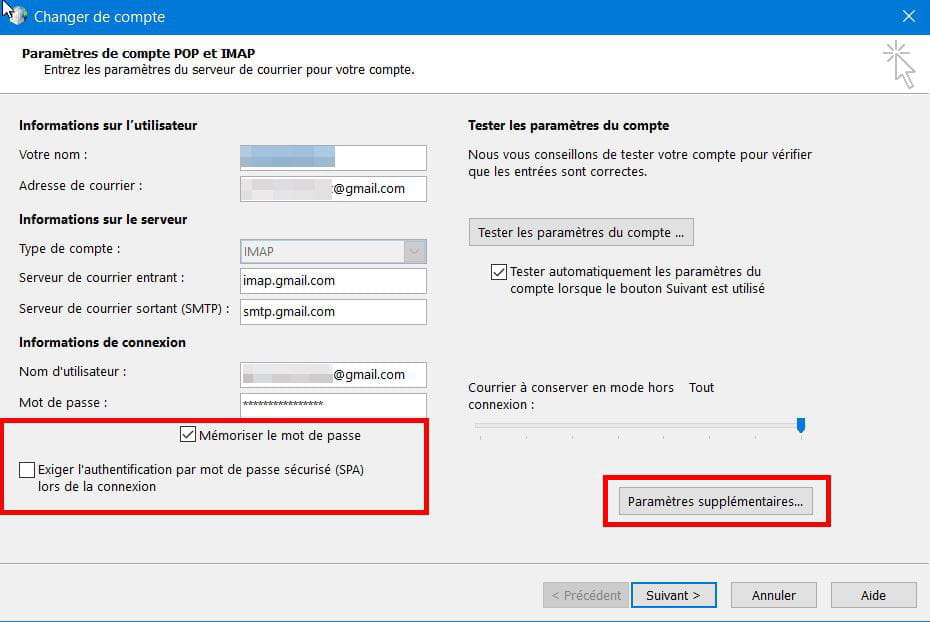
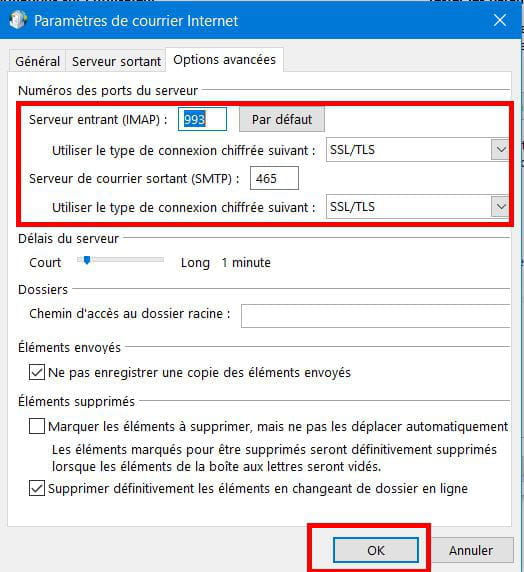
Use the following settings:
For the incoming server: port 995; security SSL/TLS
For the outgoing server: port 465; security SSL/TLS
Do not check "Secure password authentication."
If necessary, create a new application password for email in Google.
To configure the accounts, I go through the Control Panel (right-click on Start, then Run and type control and validate).
Then: User Accounts > Mail (Microsoft Outlook 2016) > Mail Accounts.
Select the Gmail account and click on Modify.
In the next screen, enter the password and click on Additional Settings to configure the servers.


When you have configured the servers, confirm with OK. You will be taken back to the previous screen and you click on Next to test the connections.
--
What is well conceived can be clearly stated,
And the words to say it come easily.
(Boileau)