View photos on TV
JM
-
ziggourat Posted messages 24624 Registration date Status Contributor Last intervention -
ziggourat Posted messages 24624 Registration date Status Contributor Last intervention -
Hello,
I am with Free, I have the revolution and I am on Windows 7.
I have a lot of photos, I would like to view them on my
Philips television.
What website do you recommend for watching all these photos?
Knowing that I am not a big CHAMPION of computers, thank you, and have a good end of the week.
Best regards, J M
Configuration: Android / SamsungBrowser 12.1
I am with Free, I have the revolution and I am on Windows 7.
I have a lot of photos, I would like to view them on my
Philips television.
What website do you recommend for watching all these photos?
Knowing that I am not a big CHAMPION of computers, thank you, and have a good end of the week.
Best regards, J M
Configuration: Android / SamsungBrowser 12.1
6 answers
-
Hello,
Put the photos on an external hard drive or on a USB stick, which you will connect to the front port of the Freebox Server.
Turn on the TV and the Player.
Navigate through the Freebox menus all the way to the right until you reach Disks. The highlight will move to My disks; press OK.
In the list, you will find the disk or USB stick you have connected.
Navigate through the menu structure to find your photos that you can view.
Important: When you are done, go back in the menus and when you are on the name of the USB stick or disk, press the green button on the remote control. Select Eject and confirm. You can now remove the USB stick.
--
What is well conceived is clearly stated,
And the words to say it come easily.
(Boileau)-
Hello,
You can also use the hard drive of the Freebox (it's the Freebox Server which has about 250 GB, so you have storage space ;-)) and use your TV box to access it.
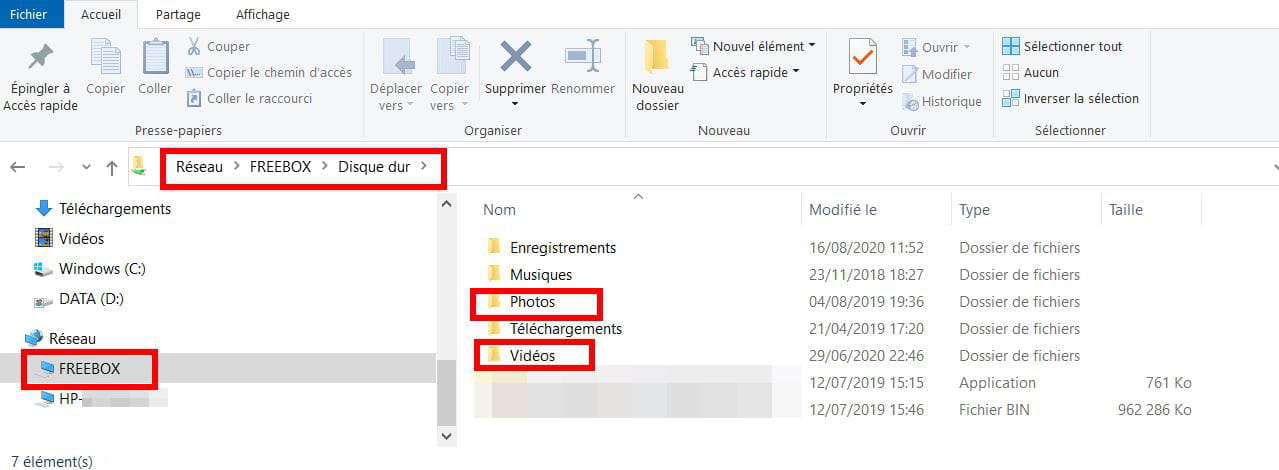
1) You put your photos on the hard drive of the Freebox. On your computer and with a browser, go to Freebox OS: http://mafreebox.freebox.fr/
Once you’re there, transfer your photos by going through: File Explorer --> Hard Drive --> Photos
If you have a lot of photos, it will take a little time...
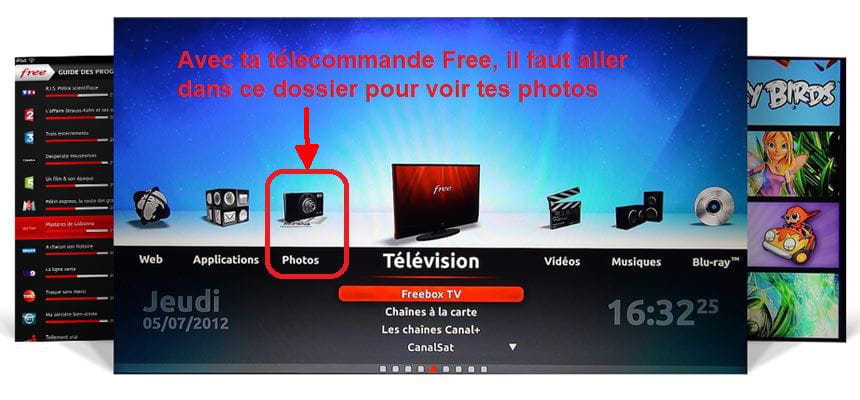
2) To watch them on your TV, turn on the Player (Free TV box). Then go to the Photos folder and your photos should be there.
There, you will be able to view the photos one by one, browse through the thumbnails, start an automatic slideshow, or even rotate the photos, for example.
Note: since the storage space on the Server is limited by default, remember to clean up if necessary in your video recordings or other personal files such as music, photos, or videos.
Best regards- Good evening Ziggurat, thank you for your advice, I will try, it’s not easy but I will do my best. And if you agree, I will have other questions to ask you? I’m not very good at computers.
As I was saying to Pierre Jais, there are photo files from school/wedding/vacation, FINALLY a bit of everything.
Thank you very much, it’s nice of you.
Best regards, J M
-