HP Pavilion PC Windows 10 64-bit crashed after update
Solved
STEPHTOMLEO
-
Malekal_morte- Posted messages 178136 Registration date Status Moderator, Security Contributor Last intervention -
Malekal_morte- Posted messages 178136 Registration date Status Moderator, Security Contributor Last intervention -
Hello,
My PC crashed and I tried a recovery to the original settings via HP Recovery Manager, everything seemed to work normally but in the end my PC started with the administrator version and then a message indicating that the restoration was incomplete, the restoration did not finish.
In the background, I have a black screen C:\windows\system32\cmd.exe
The specified drive is not found.
HP Recovery Manager offers me either to save the log (which I did on a USB key)
or the details, the last line indicates:
There might be unexpected reboots during [Windows setup]. The process will cause CTO panic because the image might not be normal now.
or to try again (I have done this several times but it doesn't work).
Thank you for your assistance.
Configuration: Android / Chrome 81.0.4044.117
My PC crashed and I tried a recovery to the original settings via HP Recovery Manager, everything seemed to work normally but in the end my PC started with the administrator version and then a message indicating that the restoration was incomplete, the restoration did not finish.
In the background, I have a black screen C:\windows\system32\cmd.exe
The specified drive is not found.
HP Recovery Manager offers me either to save the log (which I did on a USB key)
or the details, the last line indicates:
There might be unexpected reboots during [Windows setup]. The process will cause CTO panic because the image might not be normal now.
or to try again (I have done this several times but it doesn't work).
Thank you for your assistance.
Configuration: Android / Chrome 81.0.4044.117
Related links:
- Une erreur JavaScript s'est produite dans le processus principal.
- Critical_Process_Died windows 8
- Unable to acquire the lock /var/lib/dpkg/lock-frontend
- erreur de script Java dans le processus principal
- une erreur javascript est survenue dans le processus principal
- Sony Bravia KDL 32EX403 Hotel Mode
2 answers
-
Hello,
Reinstalling Windows 10 without formatting:
The principle is to create a Windows 10 installation USB drive and boot the computer from it to reinstall Windows without formatting in order to keep your data.
Since the computer is crashed, you need to create it from another working computer.
To create the USB drive:
You need a USB drive of at least 8 GB.- Create a USB drive with Media Creation Tool: Download and create a Windows 10 USB drive with Media Creation Tool
- Boot from it by modifying the boot sequence and specify the USB drive or DVD: How to boot the computer from USB drive
If the USB drive does not work, try making another one with Rufus: how to download Rufus.- Download the ISO file using direct links or from Rufus: Download Windows ISO
- Launch Rufus and specify the path of the ISO file
- In the partition scheme, choose GPT.
- For more details, refer to this tutorial for details: how to create a Windows installation USB drive
The Windows 10 installer should then start:
Follow these tutorials that explain how to install Windows 10:
All steps are given from A to Z with tips at the end to secure Windows 10.- Let yourself be guided to install Windows 10.
- Choose customize (not upgrade)
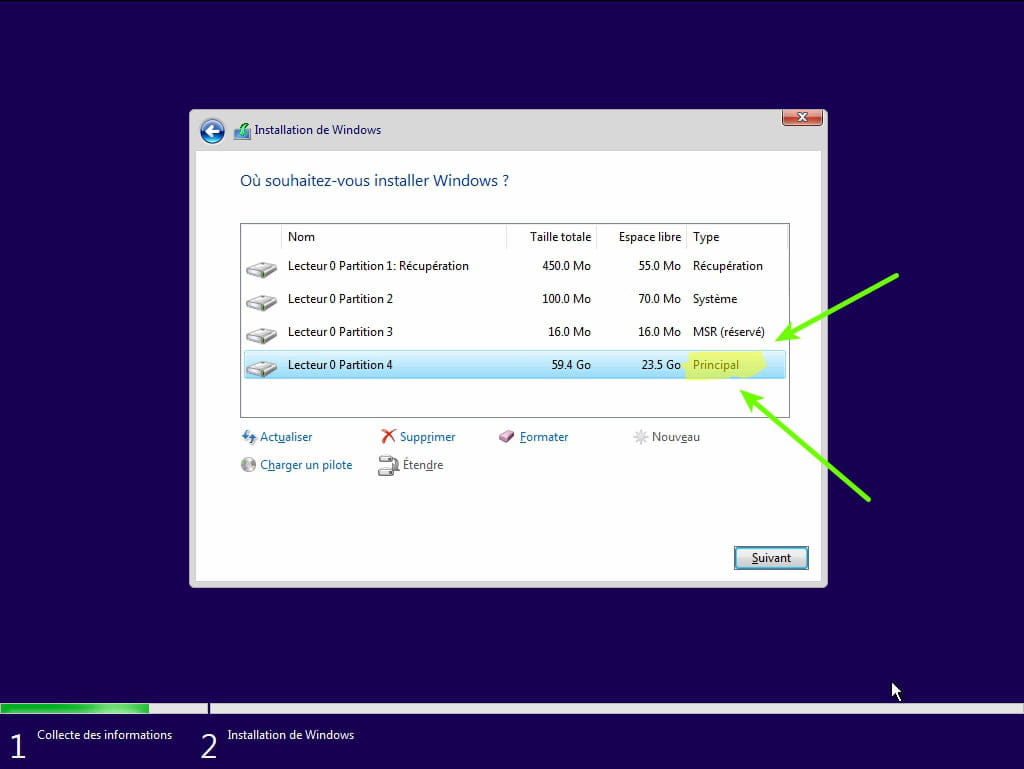
- During the partition phase, select the main partition and click next.
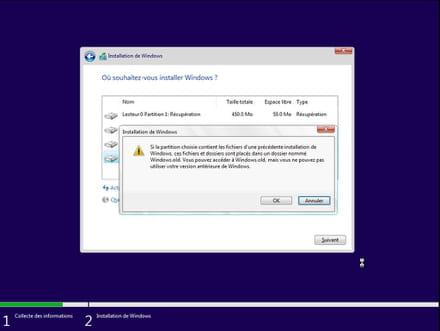
- The installer will tell you that Windows is already present and offer to move it.
- Follow the Windows installation procedure using the tutorial above.
Make sure not to format.
Your user data will be copied into the Windows.old folder.
You can then recover bookmarks, passwords from internet browsers, etc.
Read this tutorial: Recover deleted applications during the reset of your PC to Windows 10
Once Windows is installed, I recommend following these tips to properly configure and use Windows: Tips after reinstalling Windows.
--
Please press any key to continue the disinfection...-
Hello, thank you for your response. Unfortunately, I am unable to create the USB with the Media Creation Tool; it gets stuck and doesn't provide me with further explanations. I downloaded it, but when I try to open it, it asks me if I accept it to make changes to my PC. I say yes, and then I get an error message saying that another instance of the tool is already running. Please close the first one before starting a second, and unfortunately, I can't see why because I have absolutely nothing open anywhere.
Thank you for your clarification.