Windows 10 Repair Attempts
Solved
Jacques-Paro
Posted messages
15
Status
Member
-
Malekal_morte- Posted messages 178136 Registration date Status Moderator, Security Contributor Last intervention -
Malekal_morte- Posted messages 178136 Registration date Status Moderator, Security Contributor Last intervention -
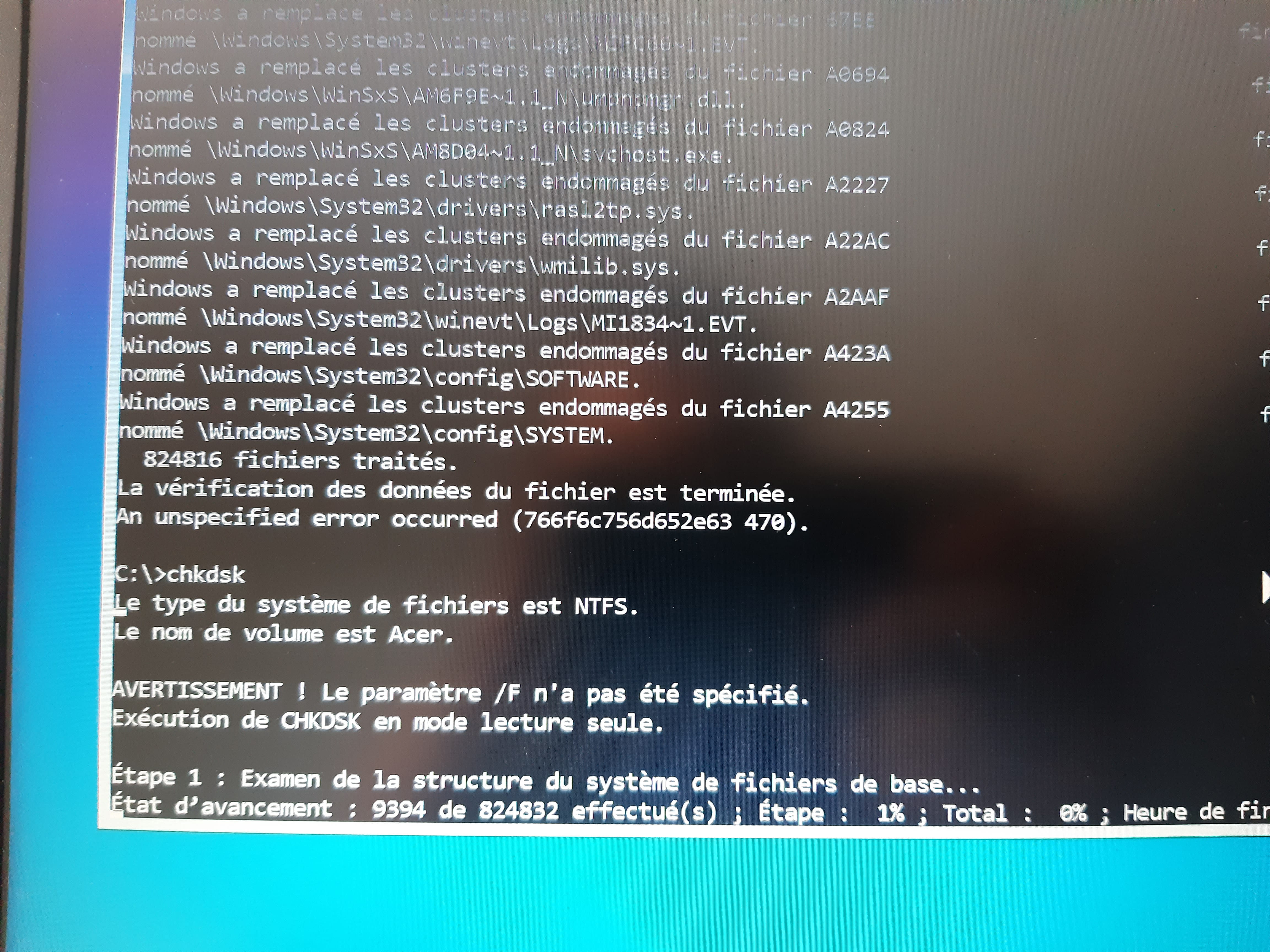
Good evening, I know there are many topics addressing this issue, but none have solved my problem so far. Let me explain: I have an Acer Aspire laptop (I don't remember the model, but the processor is an i3 6006u, I believe) that got stuck during repair attempts after I forced it to shut down because it was lagging for a long time. I restarted it and found myself stuck. I then checked the integrity of the system disk after long hours of processing, and it turns out that the C drive seems intact (it's still in NTFS and responds to the command prompt during the check disk). I am not familiar with the entire procedure and would need your help, please.
P.S.: The following message appears during the auto-repair failure: Log File: C:\WINDOWS\System32\Logfiles\Srt\SrtTrail.txt (I don't know if this gives any indication regarding the nature of the error, but there it is...) I would prefer to avoid reinstalling my OS via a USB drive, as that is currently impossible.
Thank you in advance!
P.S.: The following message appears during the auto-repair failure: Log File: C:\WINDOWS\System32\Logfiles\Srt\SrtTrail.txt (I don't know if this gives any indication regarding the nature of the error, but there it is...) I would prefer to avoid reinstalling my OS via a USB drive, as that is currently impossible.
Thank you in advance!
2 answers
-
Good evening,
Thank you for the indication of the log file, which is important because this log file contains all the errors encountered during the startup of Windows 10.
First, you need to read the contents of the StrTrail.txt file: in automatic repair (blue screen): 1. Click on advanced options
2. Click on Troubleshoot > Advanced options > Command Prompt
3. Enter the following command to display the contents of the log file StrTrail.txt: type C:\Windows\System32\LogFiles\Srt\SrtTrail.txt
4. The results of the various tests performed by Windows 10's automatic repair will be displayed. Identify the test that failed and locate the file(s) responsible for this failure.
5. Proceed to the next step
Does this work?