Windows Spotlight Lock Screen Display Image Never Changes
Solved
JCB40
Posted messages
3060
Registration date
Status
Member
Last intervention
-
Tifan -
Tifan -
Hello,
I have a laptop and for the lock screen background, I select Windows Spotlight
the image never changes while on my desktop PC it changes very often.
Could you please tell me which setting I need to modify so that this image changes?
Best regards
Configuration: Windows / Firefox 73.0
--
Start by doing what's necessary, then do what's possible, and you'll achieve the impossible without even realizing it. Saint Francis of Assisi
I have a laptop and for the lock screen background, I select Windows Spotlight
the image never changes while on my desktop PC it changes very often.
Could you please tell me which setting I need to modify so that this image changes?
Best regards
Configuration: Windows / Firefox 73.0
--
Start by doing what's necessary, then do what's possible, and you'll achieve the impossible without even realizing it. Saint Francis of Assisi
2 answers
-
pistouri Posted messages 19011 Registration date Status Contributor Last intervention Ambassadeur 8 723
Hello,
Try these procedures:
1- Reset Windows Spotlight (not working or stuck with the same one).
Select Image instead of Windows Spotlight and choose any image as the lock screen background.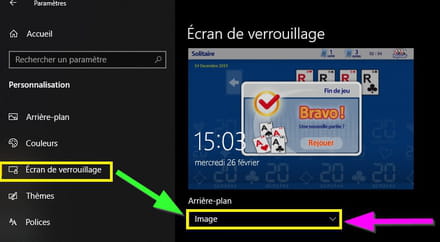
Download or save to the Desktop the file Reset_and_re-register_Windows_Spotlight.bat
Disable your ad blocker if it does not download.
Right-click on the Reset_and_re-register_Windows_Spotlight.bat file and click on: Run as administrator
Then wait for the operation to complete.
Restart the PC.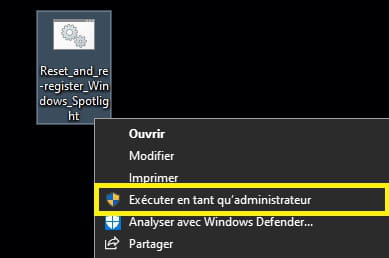
Switch back to Windows Spotlight instead of Image.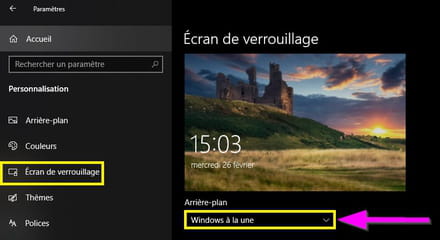
Check in Settings → Personalization → Lock screen
At the bottom of the window check → Show the lock screen background image on the sign-in screen.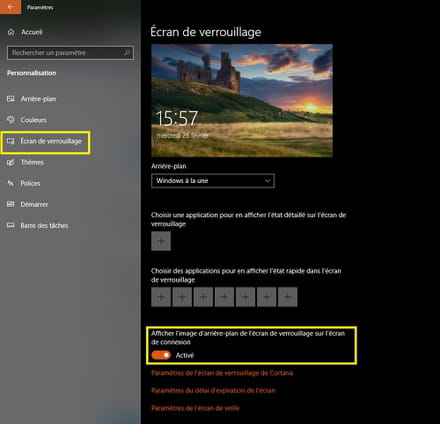
To test:
Close all open programs.
Keyboard keys Windows + L
If the image does not suit you, move the mouse or pad cursor to the top right where this phrase appears→ Do you like this image?
Click on → I don’t like it
To exit the sign-in screen press the Enter key on the keyboard.
Then click on → Sign in
2- Restore Content Delivery Manager.
Content Delivery Manager is responsible for Windows Spotlight, app suggestions, silent installations of advertised apps, and perhaps other features that Microsoft has not documented.
In the search box on the taskbar type → powershell
Right-click on →Windows PowerShell
Run as administrator.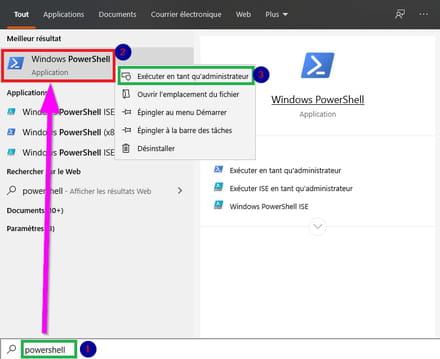
Copy / paste this command:
Get-AppxPackage -allusers Microsoft.Windows.ContentDeliveryManager | foreach {Add-AppxPackage "$($_.InstallLocation)\appxmanifest.xml" -DisableDevelopmentMode -register }
Then press Enter on the keyboard.
Close the PowerShell window.
Restart the PC.
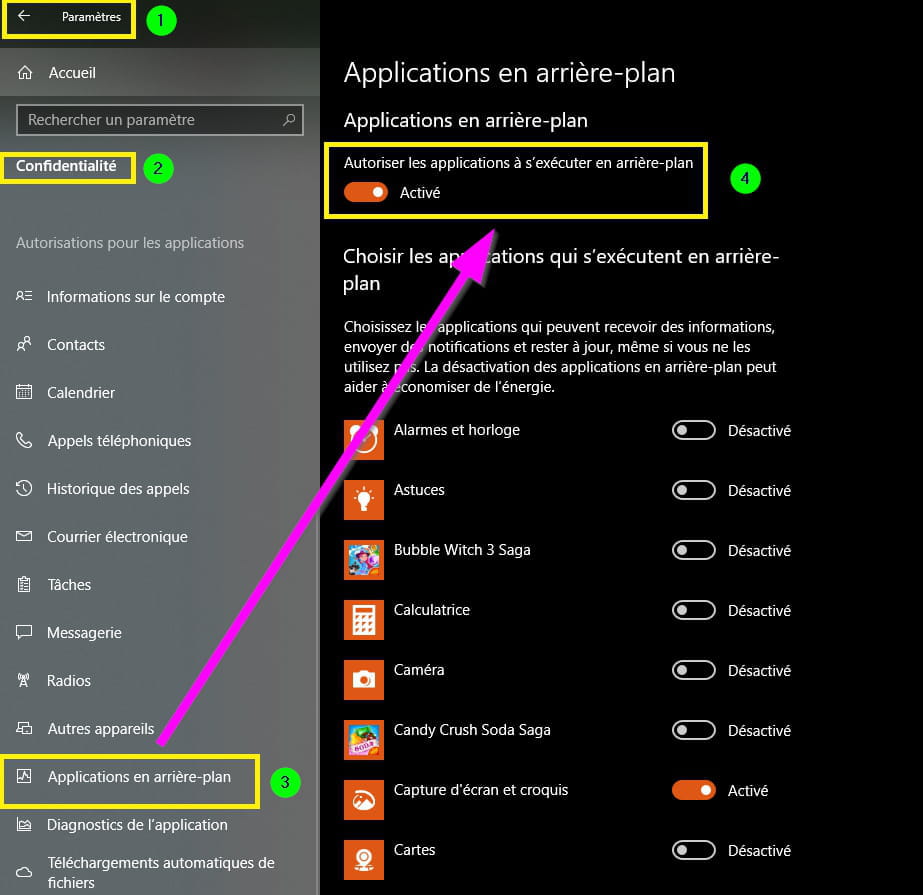
3- Activate background apps.
Go to Settings → Privacy
Scroll down the left menu list to → Background apps
Check or tick the box → Let apps run in the background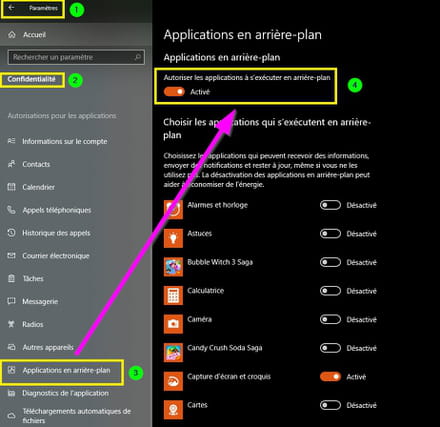
4- Reset Spotlight settings.
To reset Spotlight settings on Windows 10, do the following:
Right-click on the Start button then on Run.
Or keyboard keys Windows + R
Copy/paste into the box:
%USERPROFILE%/AppData\Local\Packages\Microsoft.Windows.ContentDeliveryManager_cw5n1h2txyewy\Settings
Then click OK.
Right-click on the settings.dat and roaming.lock files individually, then click on the Rename option and change their names to settings.dat.bak and roaming.lock.bak.
Before modification: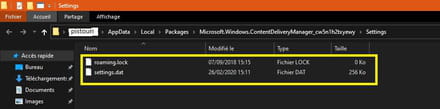
After modification:
5- Have the latest version of Windows updated.
If not, upgrade using media creation tool
6- If W10 is up to date:
A- In the search box on the taskbar type → cmd
Right-click on → Command Prompt
Run as administrator.
Copy/paste:
DISM /Online /Cleanup-image /Restorehealth
Wait for the message → The restoration was completed, the operation was successful
Restart the PC.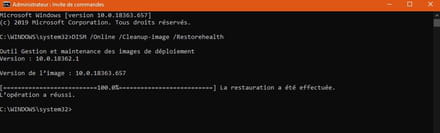
B- Repair Windows without losing documents
The procedure.
Finally, it should be noted that the lock screen can hold the same image for 2 or 3 days.
Take a quick look with Windows + L to indicate I don't like this image.
Another will be replaced immediately, and check if the images change after 48 hours.
Beyond that, there is truly a problem.
A+
-
Hello
Thank you for your help
I followed the entire procedure but the result is the same.
I suspect it's a Windows 10 update bug
Now we just have to wait for the next update
Best regards- I'm thinking about a bug from a Windows 10 update
The last two are:
KB 4524244
KB 4532693
KB 4524244 has been removed, you still need to uninstall the other one to be sure.
Explanation and procedure in this post.
No bug has been reported with Windows Spotlight, but like viruses, you might be the first; in any case, there are no other cases in sight on CCM at this time.
If you've fiddled with privacy options, it could also be worth looking in that direction with W10.
Try with this .reg file → Enable_Lock_Screen
Run it or right-click and then Merge Yes and OK to approve the merge.
Restart your PC.
Check with the keyboard keys Windows + L, and click on I like the image or I don't like this image.
With the option "I don't like this image," another will appear; wait 24 to 48 hours as the effect is not immediate to see if another image is displayed on the lock screen.
You have system restore as a temporary remedy to a previous date.
A+
-
-
-