Hello,
>>>> First, if you have any data to recover from it, let me know before doing anything, otherwise it'll be lost.
We should start over by recreating your USB key as indicated below.
You selected USB floppy, but that's for old floppy drives and not USB keys (normally).
Your key doesn't seem to be recognized.
1 > Download the iso / (it doesn't matter which PC you use to do this)
An iso is a disk image, but don’t click on it yet.
It's a resource that we will use to create an installation USB key. We need to mount this image.
ISO W 10 x 64 home and pro (link valid for 24 hours)
https://software-download.microsoft.com/db/Win10_1903_V2_French_x64.iso?t=33828ecc-449d-447f-ae70-3afdf8d19e43&e=1571668400&h=1605b1132696f892711ff771fa9fc9cb
2 > Create the installation key / Download the Rufus software:
https://www.commentcamarche.net/telecharger/utilitaires/19615-rufus/ 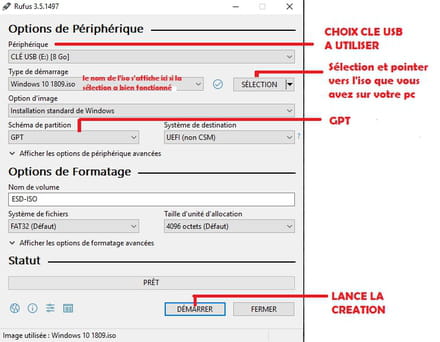
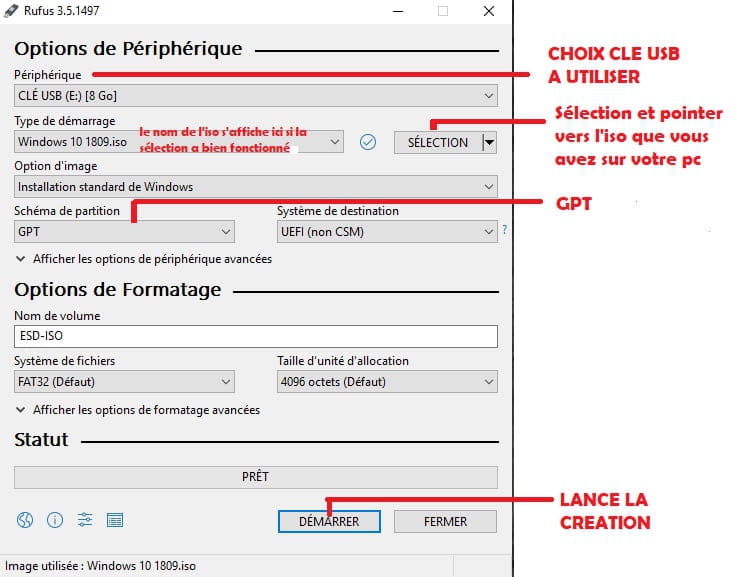
> Basically, point to the USB key that we are going to use (8 GB or more)
Be careful, empty your key beforehand as everything will be erased from it.
> point to the iso file you just downloaded
> adjust the partition type. (gpt as in the image)
> Start the creation and wait for the completion message.
3 > Boot your PC to repair from your installation key / BIOS must be in UEFI mode (and nothing else but UEFI, no CSM, legacy or inherited mode enabled)
and disable secure boot (found in boot or security)
USB first in the boot order
confirm when exiting (F10 and confirmation)
On HP, there may be an additional setting to allow USB to be seen in boot, and this should be found in security or advanced (to search if needed)
Restart after saving changes in BIOS for proper recognition.
Shut down the PC
Plug in the key
Restart
The PC should boot directly from the USB key, thus starting the installation.
If there’s an issue
We will see together.
4 > Windows installation / Here’s a preview for W 10 (not really up to date, but just a preview)
http://www.windows8facile.fr/installer-windows-10/ License key nothing to do if Windows 10 has already been on this PC
(or skip the step without entering anything if prompted even though Windows 10 was there)
You will start with a "custom" installation
You will follow the procedure and arrive at a screen that lists the locations and asks you "where to install Windows".
At this point, there are different possibilities:
You need to specify what you want to do exactly, whether clean and fresh or not, so I can indicate the best solution.
> install on the main partition.
or
> delete all partitions
Refresh
Install on the newly created large volume.
or
> You can also wipe the whole disk before installing
Press Shift + F10
(the command prompt opens)
Enter the following commands one by one, validating each with Enter:
diskpart
list disk
sel disk X (replace X with the number corresponding to the hard disk you want to erase)
clean
exit
Result -
In clear, we empty the disk and you will then return to the installation screen.
You will only have one volume to choose for the installation.
The installation proceeds.
Remove the USB key on this restart
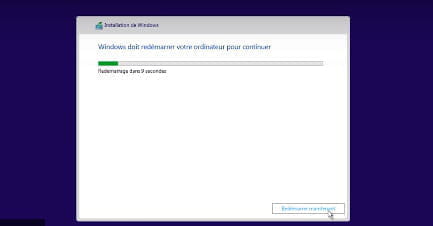
(if for some reason the PC has restarted from the key, you can remove it forcefully and the installation will continue)
5 > Once installed, a few points to check / If activation is OK
And
If drivers are OK and if not, use this
https://www.commentcamarche.net/faq/48455-mettre-a-jour-ses-pilotes-gratuitement-avec-driverscloud
We will see together when you get there.
----------------------------
BE CAREFUL at the slightest issue we will see together to find a solution.
Auto message
If you are here, it means you don’t know, so... ;-)
Mini Advice to the volunteers helping you: Respond, Respect, Politeness,...