Installation update impossible (stuck on boot)
Solved
TT77
Posted messages
336
Status
Member
-
dede74000 Posted messages 26996 Registration date Status Contributor Last intervention -
dede74000 Posted messages 26996 Registration date Status Contributor Last intervention -
Hello,
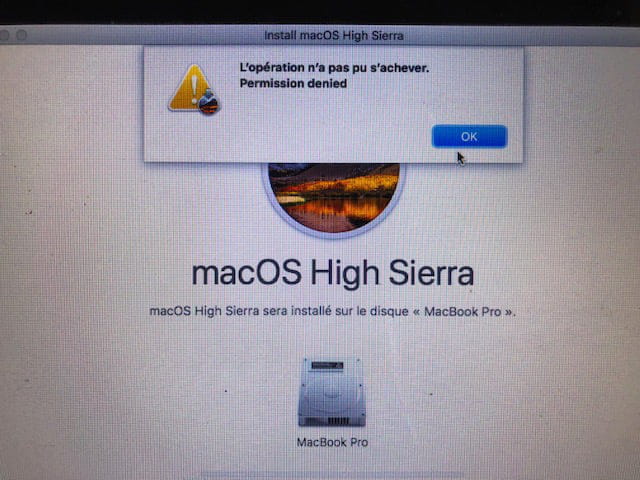
Following the last update (last week) of my MacBook Pro, after restarting to finish the installation, I am faced with the following message:
“macOS could not be installed on your computer”
“Quit the installer to restart your computer and then try again.”
Of course, upon restarting, I end up on the same window.
I cannot boot from the hard drive which no longer appears in the list.
I also tried using a bootable USB drive that I have kept aside to attempt to start, but nothing works.
Looking at Disk Utility, I see the following status of my hard drive:
The disk “MacBook Pro” appears greyed out
When clicking on it, I get the following information:
CoreStorage logical volume. Mac OS extended journaled
“Not mounted”
Capacity 498GB (so it is detected)
Available 0KB
Used --
I could simply reinstall the system from my bootable USB drive, but my last Time Machine backup dates back a few weeks, which is a problem for me...
Thank you in advance to those who can help me :)
Configuration: Windows / Firefox 68.0
Following the last update (last week) of my MacBook Pro, after restarting to finish the installation, I am faced with the following message:
“macOS could not be installed on your computer”
“Quit the installer to restart your computer and then try again.”
Of course, upon restarting, I end up on the same window.
I cannot boot from the hard drive which no longer appears in the list.
I also tried using a bootable USB drive that I have kept aside to attempt to start, but nothing works.
Looking at Disk Utility, I see the following status of my hard drive:
The disk “MacBook Pro” appears greyed out
When clicking on it, I get the following information:
CoreStorage logical volume. Mac OS extended journaled
“Not mounted”
Capacity 498GB (so it is detected)
Available 0KB
Used --
I could simply reinstall the system from my bootable USB drive, but my last Time Machine backup dates back a few weeks, which is a problem for me...
Thank you in advance to those who can help me :)
Configuration: Windows / Firefox 68.0
6 answers
-
Hello,
"Permission denied" :
You could try repairing the system files using the "fsck" (file system check) method
For this, you need to restart the Mac in "single mode" by holding down the Command (⌘) and S keys (or Apple () and S, depending on the keyboard) until a black screen with white text appears.
When nothing moves on the screen, press the Enter ( ↩︎ ) key.
The new line that appears should now start with :/ root#
Now type the command fsck -yf and validate this command with the Enter ( ↩︎ ) key.
- note1: respect the case and spaces
- note2: in single mode, the keyboard is qwerty, so to type the dash character (the one before the y), it is recommended to use the numeric keyboard or use the ) key to create the dash.
Wait for the result of this command (which may take a few minutes depending on the size of the disk and the corrections made).
As long as the result of the command contains the phrase "File system was modified", rerun the command fsck -yf by validating it with the Enter ( ↩︎ ) key.

When the result of the command finally indicates "The volume OS X appears to be OK", type the command reboot and validate it with the Enter ( ↩︎ ) key:
The Mac will restart normally, hopefully for you.
If so, retry the reinstallation either via "Command (⌘) + R" or via "Option + ⌘ + R"
Ritchi -
-
Hello,
Unfortunately, I can't find this information as I don't have access to "About this Mac" (unless there's a command in the terminal?)
The version of the Disk Utility is 17.0.3 if that can help you.-
-
-
https://support.apple.com/library/content/dam/edam/applecare/images/fr_FR/macos/Mojave/macos-mojave-recovery-restore-from-time-machine-backup.jpg
Have you tried restoring from your backup, actually? -
-
-
-
Good evening,
Have you tried booting from the recovery partition?
Here are some tips from my friend Ritchi for:
Restoring Mac OS X
https://support.apple.com/fr-fr/HT201314
- "Command (⌘) + R" which allows you to install the latest version of macOS that was on your Mac.
- "Option + ⌘ + R" which allows you to upgrade to the most recent version of macOS compatible with your Mac.
- "Shift + Option + ⌘ + R" which allows you to install the version of macOS that came with your Mac when it was new, or the closest version still available.
Note:
You must press the key combination immediately after turning on the Mac, and hold it until the desired effect, which is the appearance of the "macOS Utilities" window.
© Ritchi
--
When it's urgent, it's already too late (Talleyrand)
When all else fails, read the manual ;)-
-
-
Permission denied? Strange! Right-click on the hard drive icon/Get Info, what are the permissions?
Upon rereading the source of the message, I see that the hard drive is reported as full: available space = 0
There is no need to look further, either the disk is indeed full, or it is dead.
From the disk utility, the disk is now appearing, is it "mounted"? (mount/dismount menu)
-
-
-
Hello,
I followed your procedure, and on the first execution of the command, I got "The volume OSX appears to be ok".
But the disk disappeared again from the installation choice list.
After several attempts and various tests according to different forums, I finally decided to format my hard drive and reinstall the system.
Everything is working perfectly now.
Too bad for my lost files...
In any case, thank you for your help.
Have a good evening.