Error after using msconfig change number of processors
Solved
popiette42
Posted messages
155
Registration date
Status
Member
Last intervention
-
Malekal_morte- Posted messages 178136 Registration date Status Moderator, Security Contributor Last intervention -
Malekal_morte- Posted messages 178136 Registration date Status Moderator, Security Contributor Last intervention -
Hello,
While trying to “optimize” my computer which was working very well, I’m going to have to take it to a repair shop. But beforehand I would like to turn it off!
While applying a tip picked up in a computer magazine I went into the system settings and set the number of processors to 4. It started to lag even more, so I tried to go back and I caused the catastrophe. Windows started automatic repair. I tried everything to get to Safe Mode, which I can’t exit because the commands are ineffective. Which key should I press? Help!
Thank you
Configuration: Android / Chrome 72.0.3626.121
While trying to “optimize” my computer which was working very well, I’m going to have to take it to a repair shop. But beforehand I would like to turn it off!
While applying a tip picked up in a computer magazine I went into the system settings and set the number of processors to 4. It started to lag even more, so I tried to go back and I caused the catastrophe. Windows started automatic repair. I tried everything to get to Safe Mode, which I can’t exit because the commands are ineffective. Which key should I press? Help!
Thank you
Configuration: Android / Chrome 72.0.3626.121
9 answers
-
Hi,
Read: https://www.malekal.com/msconfig-mauvais-conseils-idees-recues/
Try the bcdedit command and pray to repair the error of processor count change.
To exit the looping Safe Mode, you should also use this bcdedit command at the end of: https://www.malekal.com/windows-demarre-systematiquement-en-mode-sans-echec/
See the video.
If you can't get to the command prompt, you will need to boot from a USB drive.
and if nothing works:
Reinstall Windows 10 without formatting:
The idea is to create a Windows 10 installation USB drive and boot the computer from it to reinstall Windows without formatting.
Since the computer is stuck, you need to create it from another working computer.
To create the USB drive:
You need at least an 8 GB USB drive.- Create a USB drive with Media Creation Tool: https://www.malekal.com/windows-10-media-creation-tool/
- Boot from it after changing the boot sequence and selecting the USB drive or DVD: How to boot the computer from USB key
If the USB key doesn't work, try making another one with Rufus: how to download Rufus.
Download the ISO file, for example with Adguard: Download Windows ISO
Run Rufus then select the ISO file
In partition type, choose GPT.
For more details, refer to this tutorial for details: how to create a Windows installation USB key
The Windows 10 installer should then start:
Follow this tutorial which explains how to install Windows 10: how to install Windows 10.
All steps are given from A to Z with tips at the end to secure Windows 10.- Let yourself be guided to install Windows 10.
- Choose Customize (not Upgrade)
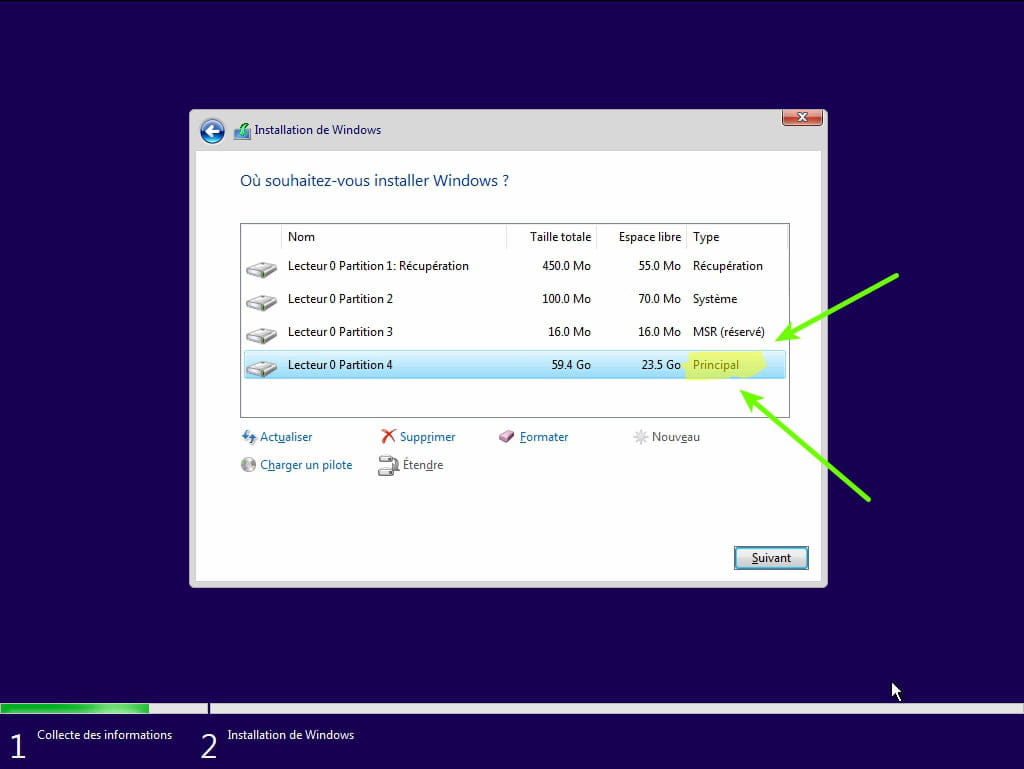
- During the partition phase, select the main partition and click Next.
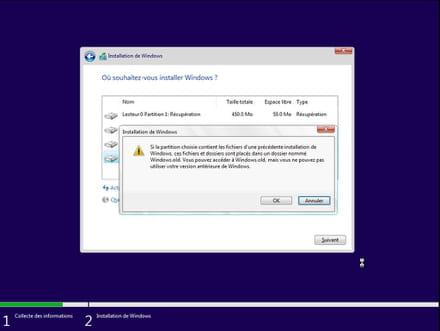
- The installer will tell you that Windows is already present and offers to move it.
- Follow the Windows installation procedure using the above tutorial.
Do not format.
Your user data will be copied into the Windows.old folder.
Once Windows is installed, I recommend following these tips to properly configure and use Windows: Tips after reinstalling Windows.