
Driver his
b2oba97
Posted messages
36
Status
Member
-
Imad -
Imad -
Hello,
I have a small issue with a Thomson THBK2-12.32B500 laptop.
After formatting, I lost the sound.
The PC is running Windows 10.
(The drivers are properly installed) I have tested all possible drivers and the sound won't activate. :(
If you have a driver to solve my problem,
thank you.
I have a small issue with a Thomson THBK2-12.32B500 laptop.
After formatting, I lost the sound.
The PC is running Windows 10.
(The drivers are properly installed) I have tested all possible drivers and the sound won't activate. :(
If you have a driver to solve my problem,
thank you.
32 answers
- 1
- 2
Next
-
-
Hi
thank you for your response but I have already visited several driver websites
still the same result, no sound!!
-
-
Hello,
Press Windows + R
Type --> devmgmt.msc and OK.
If there is an alert regarding a device:
Provide the hardware ID number of the device
Look at this --> Find the device identification number
Post the number in your next message.
What do you have under sound, video, and game controllers?
Is Windows 10 32 or 64 bits?
--
Human beings are at their best when things are at their worst.-
Hello
Here is the equipment identification number
ACPI\VEN_8086&DEV_22A8
ACPI\808622A8- 808622A8
I uninstalled a driver called ES8316AudCodec Device to see if it could solve my problem
I restarted the PC and the driver won't install anymore
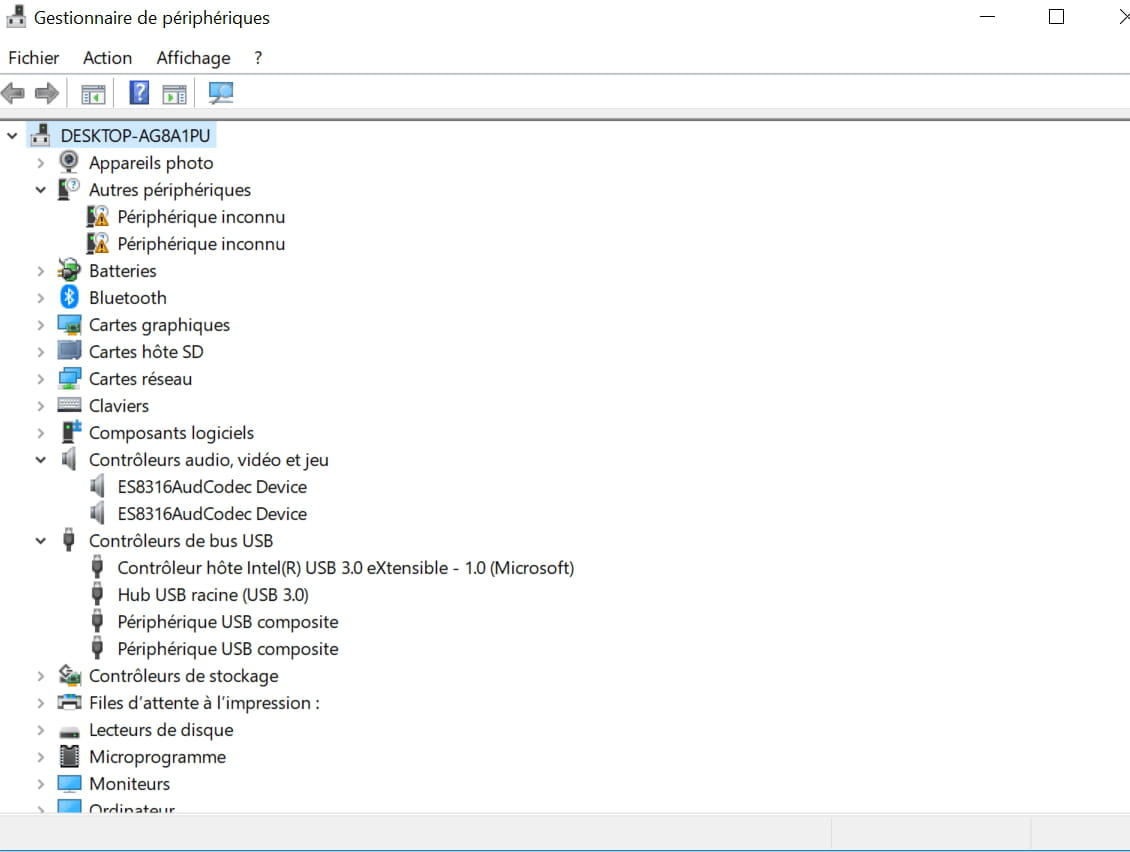
I have two audio, video and game controllers: ES8316AudCodec Device and Intel SST Audio Device (WDM)
The version of Windows 10 is 64-bit
-
-
Download and install --> 7Zip 64 bits
Download this driver --> Audio
and put it in your documents.
Right-click on --> 20811144....cab
Select --> 7Zip
Choose --> extract to "20811144....\"
Go to Device Manager
Right-click on the device
Update driver
Browse my computer ......
Choose from a list of drivers...
Have Disk
Browse
Go to your documents
Go to the unzipped driver folder --> 20811144....
Select the file --> isstrtc.inf and OK.
Restart.
--
The human being is at its best when things are at their worst. -
Run an sfc:
Press Windows + X
Select --> Windows PowerShell (admin) or Command Prompt (admin)
Type --> sfc /scannow and hit enter
A system file check will take place.
--
Human beings are at their best when things are at their worst.-
Hello
I performed a system file check
it detected corrupted files and repaired them
here are the results:
The Windows Resource Protection found corrupt files and successfully repaired them.
For online repairs, details are included in the CBS log located at the following path:
windir\Logs\CBS\CBS.log. For example: C:\Windows\Logs\CBS\CBS.log. For offline repairs, details are included in the log file provided by the /OFFLOGFILE switch.
-
-
Repair Windows.
Check this out --> Repair Windows 10 without data loss
--
The human being is at its best when things are at their worst. -
Give the equipment identification number of the unknown device
Look at this --> Find the device identification number
Post the number in your next message.
--
Human beings are at their best when things are at their worst -
Here is the equipment identification number
ACPI\VEN_ESSX&DEV_8316
ACPI\ESSX8316- ESSX8316
-
Hello,
Try this driver --> ACPI Audio
Right-click on --> ACPIAudio.zip
Select --> 7Zip
Choose --> extract to "ACPIAudio\"
Go to Device Manager
Right-click on the device
Update driver
Browse my computer ......
Choose from a list of drivers...
Have disk
Browse
Go to the folder of the unzipped driver --> ACPIAudio
Select the file --> ES8316AudCodec.inf and OK.
Restart.
--
The human being is at its best when things are at their worst -
Press Windows + R
Type --> services.msc and OK.
Check that the Windows Audio service is running and set to automatic startup type.
------------------------------------------------------------------------------------
Press Windows + R
Type --> control panel and OK
Sounds
In the playback tab, what do you have set as default speakers?
Example image:
-
Try this driver --> Audio
Unzip it
Run setup.exe
--
The human being is at its best when things are at their worst. -
The repair yielded nothing, so reinstall Windows
Look -->> HERE <<--
--
Human beings are at their best when things are at their worst. -
Go to Device Manager
Sound, video and game controllers
Right-click on each device --> Intel SST and ES8316
Uninstall
Click on --> Action
Scan for hardware changes.
--
The human being is at their best when things are at their worst -
Give the equipment identification number of the --> multimedia audio controller.
-
After rebooting the PC, all the drivers are installed
but there's still no sound
I found a topic that has the same problem which was resolved
https://www.commentcamarche.net/forum/affich-35389958-avoir-le-pilote-pci-ven-8086-dev-0f28-pour-w10#top
I followed the procedure but it doesn't work!! -
hi
you followed the procedure from the topic, but did you select the file >> isstrtc.sys that Kaneagle gave you in this message >> https://forums.commentcamarche.net/forum/affich-35592796-pilote-son#5
instead of the file >> isstrtc.inf
the link and procedure from the topic you followed >> https://forums.commentcamarche.net/forum/affich-35389958-avoir-le-pilote-pci-ven-8086-dev-0f28-pour-w10#24
PS: hi Kaneagle
@+
--
the radiation level is higher at the employment office than at Chernobyl -
Hi
I contacted Thomson's customer service and they gave me some drivers, but it didn't help :(
I think in this case, the problem is hardware-related with your PC
See you later
--
the radiation level is higher at the unemployment office than in Chernobyl -
Hi
before formatting, the PC had sound
it's after the formatting that there's no sound anymore
so I don't think it's a hardware issue
possible, but >> I contacted Thomson's customer service and they gave me drivers but nothing worked :(
did you properly follow the installation procedure for the driver(s) from Thomson?
@+
--
the radiation level is higher at the unemployment office than at Chernobyl-
https://drive.google.com/drive/folders/13EegkFfZVJGsog5k_g2yJvHZ9OBDjD-3
To install the driver:
- If .exe file is available: double click on the file in question, and the installation will be done automatically.
- If not:
Go to the control panel then devices and printers.
Go to the concerned computer / hardware tab / choose the device for which the driver is missing / properties / update driver / browse my computer.
Once installed, restart the product. -
-
-
re
I reread the topic, and your PC is 64 bits...
I downloaded the drivers from the link that Thomson sent you, and the SON driver is for 32 bits...
In image:

X86 is 32 bits
@+
-
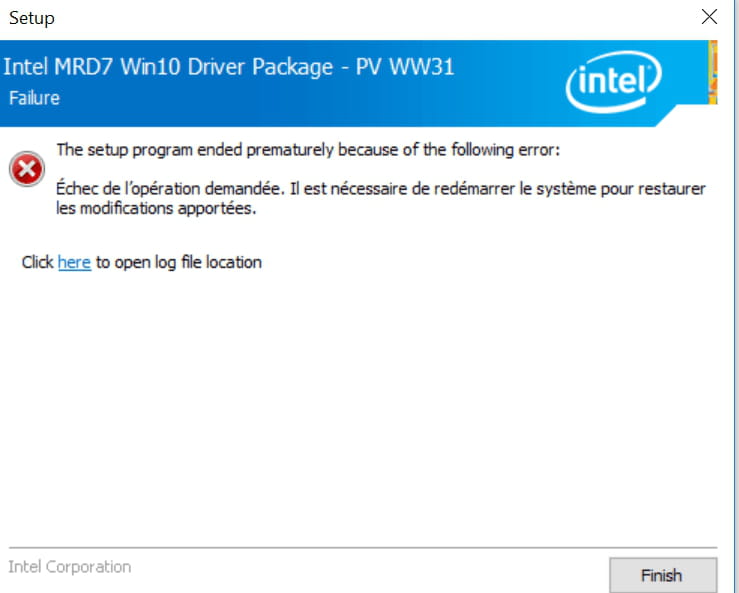
Right-click on the driver --> Intel package.zip
Select --> 7Zip
Choose --> extract to "Intel package\"
Go to the unzipped driver folder --> Intel package
Folder --> MRD7-Win10-PV-WW31
Folder --> Installer
Folder --> PlatformInstaller
Run the --> setup.exe
--
The human being is at its best when things are at their worst. -






- 1
- 2
Next