Get the driver "PCI\VEN_8086&DEV_0F28" for W10
Solved/Closed
yannel777
Posted messages
161
Status
Member
-
billmaxime Posted messages 50534 Registration date Status Contributor Last intervention -
billmaxime Posted messages 50534 Registration date Status Contributor Last intervention -
Hello,
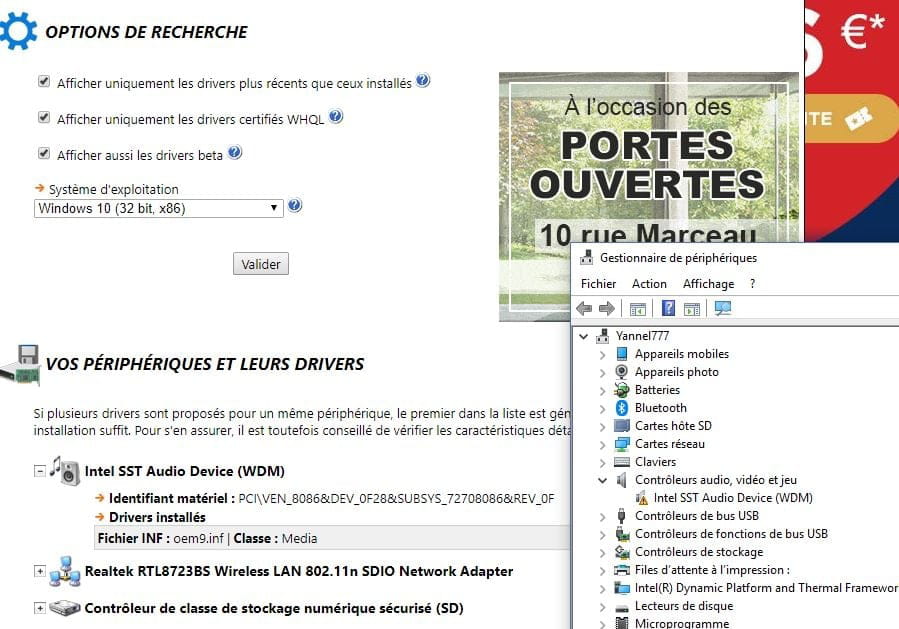
I am looking for how to download the PCI\VEN_8086&DEV_0F28 (pci device: 8086:0F28 8086:7270)
device: Atom Processor Z36xxx/Z37xxx Series LPE Audio Controller (Multimedia Audio Controller)
For Windows 10 32Bit on a Thomson NEO14-SE.

Thank you.
Configuration: Windows 10 / Chrome 66.0.3359.181
I am looking for how to download the PCI\VEN_8086&DEV_0F28 (pci device: 8086:0F28 8086:7270)
device: Atom Processor Z36xxx/Z37xxx Series LPE Audio Controller (Multimedia Audio Controller)
For Windows 10 32Bit on a Thomson NEO14-SE.
Thank you.
Configuration: Windows 10 / Chrome 66.0.3359.181
12 answers
-
Hello,
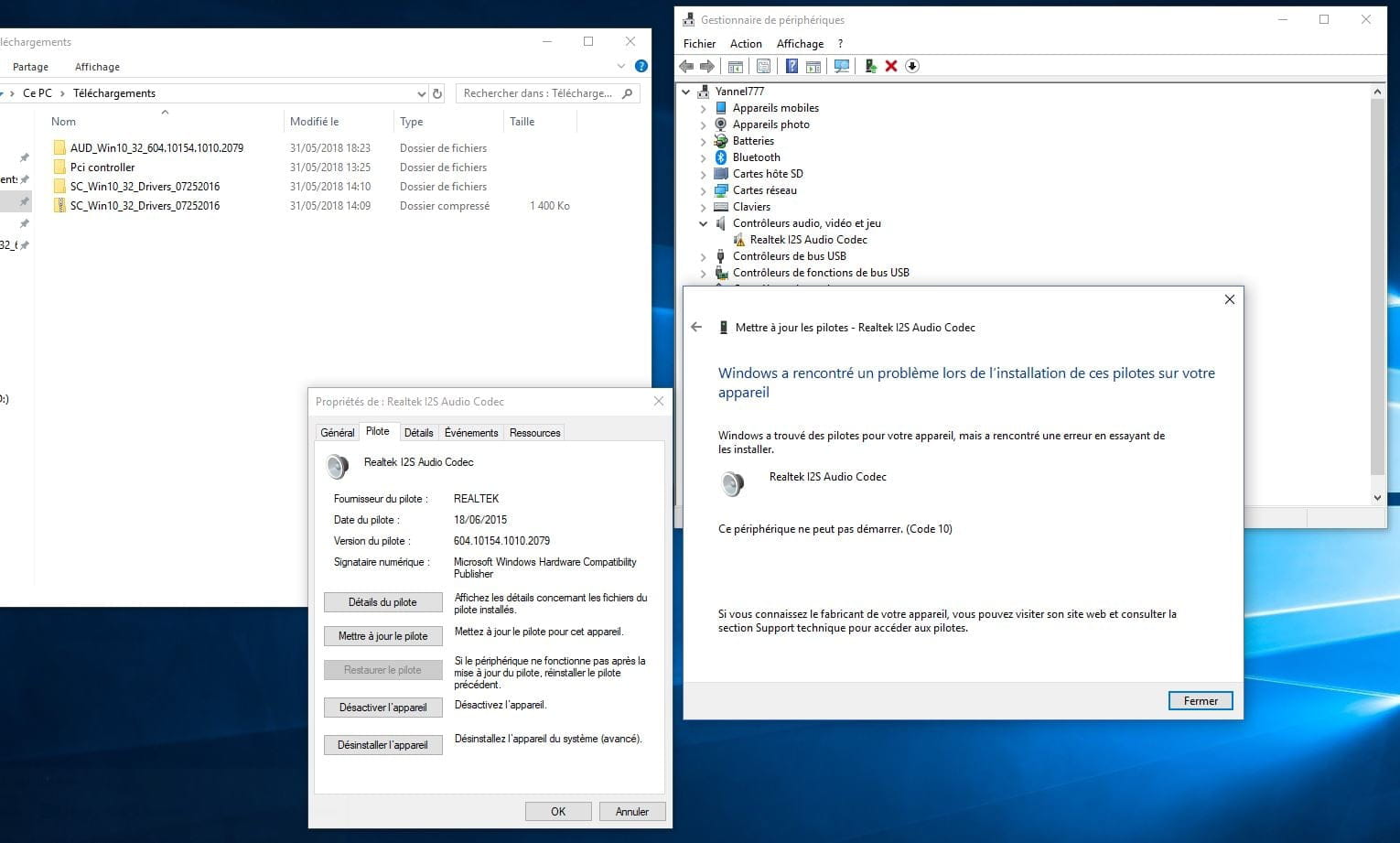
I finally have sound on my computer (Thomson NEO14-SE) (Windows 10 32Bits on a Thomson NEO14-SE)
I would like to thank kaneagle and billmaxime in advance for the help you have given me regarding my audio problem on my Notebook (NOTEBOOK 14.1'' 32 GB NEO14A-2WH32)
Thank you very much to you.
Following the email I recently sent to "SAV Group SFIT Thomson Computing <sav>"
I was able to receive a quick response from them.
They sent me all the original drivers related to this computer.
Link to download them:
https://www.dropbox.com/s/7d32bf3koikazdt/Drivers%20%20pour%20Thomson%20Neo14-SE%20%28Original%29.zip?dl=0
Procedure for installing audio drivers.
1) Upon starting your notebook "Thomson Neo14-SE"
Quickly press the "ESC" key on your keyboard to enter the "BIOS Setup Utility"

Then go to the "Advanced" tab and then "Audio Configuration"

"LPE Audio Support" = "LPE Audio ACPI Mode"
"Audio Controller" = Leave "disabled"
"Azalia HDMI Codec" = Leave "disabled"
Then press the "Exit" tab
"Exit saving changes" = "Yes"

Allow your computer to restart.
2) Installing the audio drivers "ES8316AudCodec Device" & "Intel SST Audio Device (WDM)"
Download the compression software and install it --> 7Zip
Link: https://www.dropbox.com/s/ev2wyza1qe6vk84/7z1805.exe?dl=0
Then
"Go to the "Device Manager"
2.1) Installation of the driver "ES8316AudCodec_APO_X86"
Download the driver to your desktop: "ES8316AudCodec Device"
Link: https://www.dropbox.com/s/z566fq8r00mw3fw/ES8316AudCodec%20Device.zip?dl=0
Unzip it with 7zip >> extract to >> "ES8316AudCodec Device"
Click on "Desktop-XXXXX" then Menu "Action" > "Add legacy hardware"
Then "Next" > "Install the hardware that I manually select from a list (Advanced user)"
Click on "Show all devices" then "Next"
Click on "Have Disk..." then click on "Browse"
Go to the driver folder you unzipped --> "ES8316AudCodec Device" > "ES8316AudCodec.sys"
"Next" > "Next" > "OK"
then Restart
2.2) Installation of the driver "Intel SST Audio Device (WDM)"
Download the driver to your desktop: "Intel SST Audio Device (WDM) - Thomson NEO14-SE.zip"
Link: https://www.dropbox.com/s/19d5yo4nwg6z41v/Intel%20SST%20Audio%20Device%20%28WDM%29%20-%20Thomson%20NEO14-SE.zip?dl=0
Unzip it with 7zip >> extract to >> "Intel SST Audio Device (WDM) - Thomson NEO14-SE.zip"
Click on "Desktop-XXXXX" then Menu "Action" > "Add legacy hardware"
Then "Next" > "Install the hardware that I manually select from a list (Advanced user)"
Click on "Show all devices" then "Next"
Click on "Have Disk..." then click on "Browse"
Go to the driver folder you unzipped --> "Intel SST Audio Device (WDM) - Thomson NEO14-SE" > "isstrtc.sys"
"Next" > "Next" > "OK"
then Restart
3) And for those who install all the drivers one by one.
Link: https://www.dropbox.com/s/7d32bf3koikazdt/Drivers%20%20pour%20Thomson%20Neo14-SE%20%28Original%29.zip?dl=0
Right-click on the corresponding device
Update driver
"Browse my computer ...... "
"Choose from a list of drivers..."
"Browse..."
Next
"OK"
Restart
Then repeat the same process with all the drivers
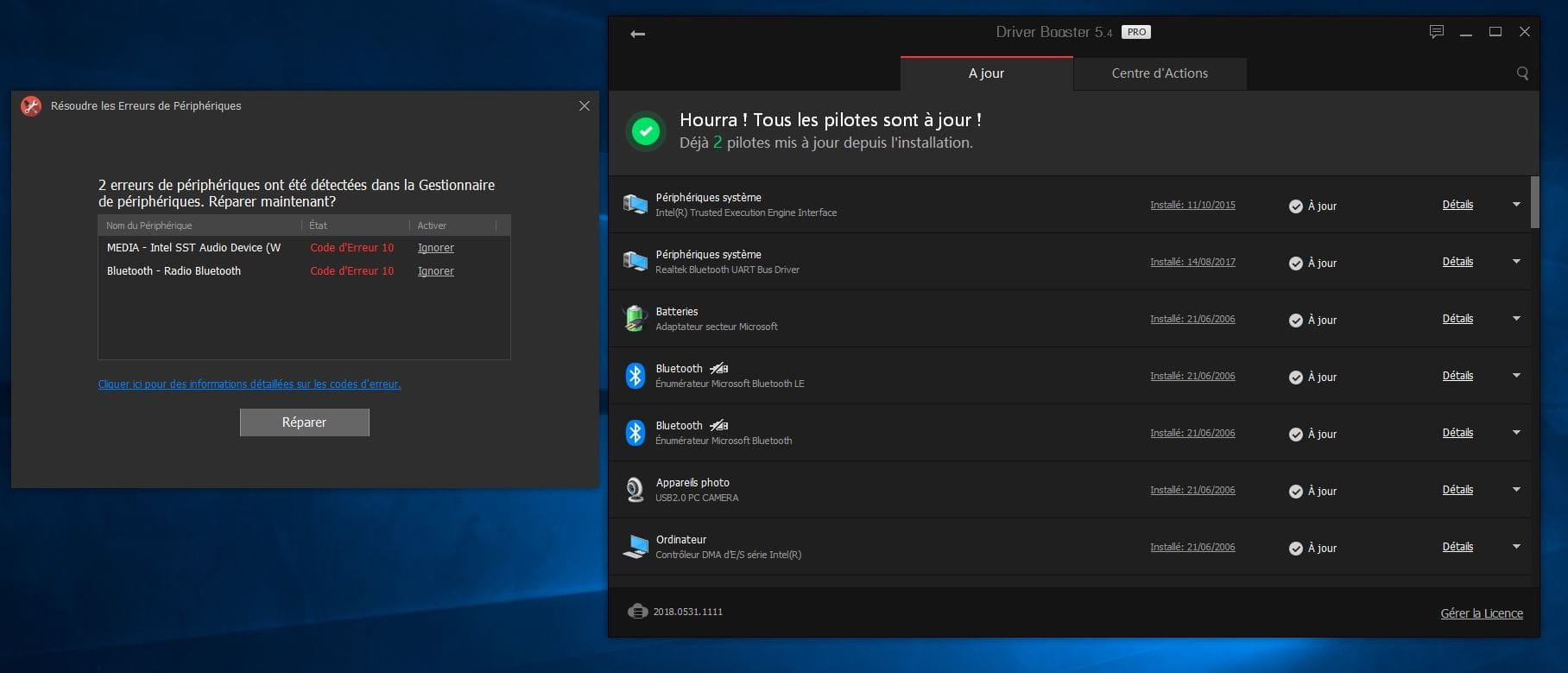
And here’s the result:
 </sav>