Sony not recognized by the computer via USB
Pili
-
Papounet17000 Posted messages 26460 Registration date Status Member Last intervention -
Papounet17000 Posted messages 26460 Registration date Status Member Last intervention -
Hello,
I own a Sony Xperia E5 and I would like to transfer the photos on it to my computer (Windows 8.1 64 bits). The problem is that when I connect my phone via a USB cable, the computer does not recognize it.
I reinstalled the drivers, but that didn't help. I tried using Sony Companion, but even the software does not recognize it. I tried changing the different connection modes (MTP-MIDI), but that didn’t work either. It’s the same if I debug the USB.
I have forgotten the device via the manager and reconnected it. It reinstalled the drivers, but still no access. In the storage settings on the phone, I cleared the data and tried connecting it again, but nothing.
I’ve gone through websites that offer solutions (Sony or others). I’ve tested everything, but nothing has worked, and I still haven't resolved my issue.
Could someone help me?
Thank you in advance!
PS: When I go into the device manager, my Sony shows up with a small yellow warning sign, and the same for the driver. If I right-click and select update driver (search automatically), it tells me that Windows encountered a problem. Windows found a driver but encountered an error while trying to install it (MTP Device). A service installation section in this INF file is not valid. I assume the problem comes from there, but it doesn’t tell me what to do...
I own a Sony Xperia E5 and I would like to transfer the photos on it to my computer (Windows 8.1 64 bits). The problem is that when I connect my phone via a USB cable, the computer does not recognize it.
I reinstalled the drivers, but that didn't help. I tried using Sony Companion, but even the software does not recognize it. I tried changing the different connection modes (MTP-MIDI), but that didn’t work either. It’s the same if I debug the USB.
I have forgotten the device via the manager and reconnected it. It reinstalled the drivers, but still no access. In the storage settings on the phone, I cleared the data and tried connecting it again, but nothing.
I’ve gone through websites that offer solutions (Sony or others). I’ve tested everything, but nothing has worked, and I still haven't resolved my issue.
Could someone help me?
Thank you in advance!
PS: When I go into the device manager, my Sony shows up with a small yellow warning sign, and the same for the driver. If I right-click and select update driver (search automatically), it tells me that Windows encountered a problem. Windows found a driver but encountered an error while trying to install it (MTP Device). A service installation section in this INF file is not valid. I assume the problem comes from there, but it doesn’t tell me what to do...
2 answers
-
Thank you for the feedback.
-
Hello,
Personally, I use Air Droid for backing up my personal data.
It’s easier to transfer photos, videos, documents, etc. from the smartphone to the PC and vice versa.
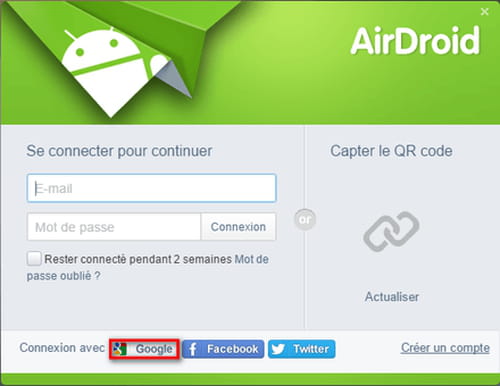
For the web browser on PC
The Air Droid app for Android
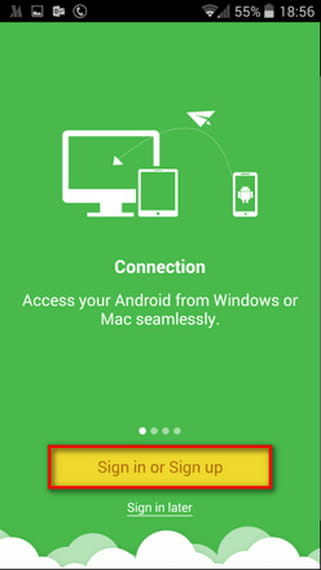
Both devices need to be connected with the same Google account.
Video tutorial here
The advantage is that the transfer happens via wifi, so there’s no cable to connect.
You just have to make sure both devices are connected to the same network (your router).
One last little thing for having a backup.
Check that everything is synchronized on your Google account (including photos and videos).
That way, you will find the photos in Google Photos and the documents in Google Drive that you can retrieve on your PC.
A bit more info here.-
Hello!
Thank you for the backup solution, I hadn't thought about using Google Drive.
That said, I just found my problem at the moment by continuing to tinker on my computer. I'm posting this here in case someone has the same issue.
By going into Device Manager > Display > Show hidden devices.
I noticed that my old mobile (an Xperia M) was still present and I think it was causing interference.
I uninstalled this device.
Then, I clicked on MTP USB Device (a bit above) which shows with a yellow warning sign next to it. Right-click > Update driver > Search for a driver on my computer.
I clicked on Mobile Device and selected MTP USB Device, and there it correctly updated the driver, replacing the Xperia M device with the E5. And it automatically opened my phone with the files inside. Miracle!!
If that doesn't work, it's a very good idea to use Drive.
Thank you and have a great day!
-