How to eject a hard drive without the Eject tab
ny_cat94 Posted messages 5 Registration date Status Member Last intervention -
my hard drive is connected to my computer. I can't eject it because the drop-down menu no longer offers the 'eject' tab.
I have already scanned and repaired the HDD with Windows
Thank you for your help
10 answers
-
You shut down your PC, then safely unplug your external hard drive.
-
If it is indeed your PC, I will give you methods on how to reinstall Windows, so you are by default an Admin.
From another PC, use the MediaCreationTool to download an ISO file of Windows 10 (for another PC). For Windows 11, if compatible, it can be downloaded directly to create a USB key of 8 to 16 GB or more to update, repair, or install Windows
Windows 10
Windows 11
When you have the Windows ISO file, you can create a bootable USB drive with Rufus or Ventoy
If the PC is old, you must create the USB in MBR mode
If it is newer (Windows 8 or higher) in GPT mode for EFI (Secure Boot Support for Ventoy depending on how the BIOS is configured)
Disconnect the Ethernet cableBoot from it using the PC's Boot Menu key
You can search on Google for "[Brand Model] Boot Menu Key"
Choose "Custom installation" (Not upgrade)
Not required to format if there is space; if there are data, they will end up in a Windows.old folder (which will be automatically deleted after 10 days)
Install on the same partition, or optionally, delete all system partitions and create a new one (Delete data).
Ethernet always disconnected; when Windows tries to force you to connect to a Wi‑Fi network, press Shift+F10 and type: oobe\bypassnro
Choose (I don’t have Internet)
-
Hello,
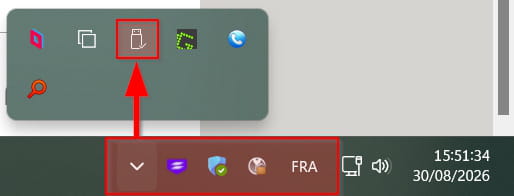
Question: which dropdown menu are you referring to? The one near the clock (in the corner, bottom right)? Or the one in the hard drive list?
If you haven't tested the one near the clock yet, it looks like a small USB stick. It is sometimes hidden.
-
Hello,
Run chkdsk /f and respond with Y for yes, and let it run to completion.
It will be removed by the Yes, so remove it safely. -
Hello,
Thank you for your reply but what is a chkdsk /f?
-
Re Hello,
CHKDSK is a built-in Windows tool to check a partition and repair the file system
You can run CHKDSK from Terminal (Admin) (PowerShell)
Launch with Terminal (Admin) by right-clicking the Start button, the command
chkdsk /f x:
(Replace the drive letter x with the current letter of your hard drive)
Answer Y for Yes
As a result, it asks to unmount the drive, so that it is no longer used by any process, thus safely ejectable afterward.
-
well I found out what a chkdsk /f is but my computer finds no results.
Furthermore there is no named administrator on this computer in other words I can't do anything
-
Hello, There is a space between CHKDSK and /F, the drive letter after it, and there cannot be no administrator account; Windows automatically creates a default one. That said, there may not be an error on this disk; some drives cannot be ejected (this is the case with one of mine), I think because unlike USB keys Windows does not consider them removable, I think there is a registry setting to that effect but I don’t remember where. Moreover, since relatively recent versions of Windows 10, if I right-click this drive, Properties, Hardware, select it with the mouse and click Properties and Policies again I get the following: In French, and of course after ensuring there’s been a bit of time so there’s no action on this drive nor any that would be "hidden" (scheduled task...) I can safely unplug this drive without any damage.
-
-
you’re really amazing at replying off the cuff. Even if I can’t accomplish anything because all of this is a bit like Chinese to me, a thousand thanks for your help.
I got this PC from my mother, it runs Windows 11, so this PC is configured under her name Monique, seen on Windows-SSD (C:), and yet this Monique account does not appear in 'User accounts'. I created a local user account named Catherine.
Okay, create a USB key ...... except that I only have one USB port .... on which the external hard drive that I cannot eject is plugged...
so .... let's see if I understood correctly, I can possibly create a USB key (to repair, install or update Windows 11) from another PC but how do I connect it to my PC since I no longer have a free USB port available
you’ll have understood I’m less than a novice -:(((
-
Hello,
You may simply use USB Disk Ejector
In my opinion, this is not risky but wait for comments from someone more qualified than me...
-
Hello,
It has not been verified, as far as we know, the removal strategy in <7> (in which case there is no risk in unplugging the drive if it is not active) and indeed there are a lot of utilities.
I mentioned a few of them in <8>, I tested RemoveDrive again (including link); to avoid having to specify the path, copy-paste RemoveDrive.exe under
C:\Windows\System32 and then type at the command prompt (or in a batch file on which you can just click):
Removedrive M: -F>NUL
where M is the drive letter.
We must therefore verify this letter if it is likely to change (devices are not always connected in the same order without using a verification script or a utility that freezes the letter).
You can bypass this issue by using the disk name:
Removedrive "Toshiba1TO" -F>NUL
or by its identifier: Right-click, Properties, Hardware, hover over it with the mouse, Properties, Details, choose Path to the instance and copy-paste into a new text file.
We will replace Toshiba1TO above with this unfriendly string; you can shorten it with the wildcard character * if you are sure that nothing else starts with the common terms, here USBSTOR\DISK&VEN_TOSHIBA&PROD_EXTERNAL*
-
-
Hello,
The simplest approach, as discussed in the initial reply, is to shut down the computer. Why complicate things? Turning it off ensures that no damage will occur!
Repairing the filesystem, yes and no!There are two main categories:
- Physical defective sectors (hardware): They are caused by the degradation of the disk (wear, impact, manufacturing defect). These sectors are generally unrecoverable.
- Logical defective sectors (software): They result from errors in the filesystem, for example after a power outage or a brutal shutdown. In some cases, they can be repaired using tools like .
-
What is low-level formatting today?
Originally, low-level formatting consisted of recreating the physical structure of the disk (tracks and sectors).
Today, this operation is no longer accessible to users on modern disks.
Current tools called “low-level formatting” actually perform:
- A full zero-fill writing to the disk (zero-fill)
- A full data reset
- A rewriting of every sector
-
We therefore speak more of full formatting or total erasure, and not of a true low-level format.
Anyway, the disk will continue to degrade no matter what you do until it becomes permanently unusable.
https://forums.commentcamarche.net/forum/affich-38292947-disk-dur-probleme-cluster-defectueux
-
Hello,
In <1>
Run a chkdsk /f and answer O for yes, and let it run to completion.
It will be unmounted by Yes so removable without danger.
In <3>
Therefore, it asks to unmount the disk so that it is no longer used by any process, so it can be safely ejected afterward.
-
I have to do this every time before defragmenting the MFT of a disk or SSD, so why not before ejecting it “on the fly”.
It avoids having to power down the PC, we only reboot Windows if it is the system disk for CHKDSK
When I want to unmount a disk, the simplest is CMD > chkdsk /f x: > Enter > o > Enter
(x is the drive letter)Hello,
The question of reinstalling Windows, as was mentioned, seems strange; there is nothing to indicate that it is defective or that the drive is faulty; I mentioned that the controller of at least some external drives prevents them from being recognized by Windows as removable devices like USB drives.
Equally strange is the idea of shutting down the computer; I may simply want to temporarily connect this drive elsewhere or replace it with another one.
The CHKDSK method seems excessive because the process is relatively long and, in theory, if it is an SSD, the less you write on it, the better it fares.