ASUS VivoBook PC won’t boot anymore, need help
cedric62219 Posted messages 23 Registration date Status Member Last intervention -
I have an Asus and when I plug it in it makes a noise. I changed the charging connector; it still doesn’t start. I think I found the culprit a SMD on the motherboard X1404ZA Asus Vivobook 17. The component is located right next to the connector J3103. on the internet it says it’s an SMD J3103 hall effect SW AW86504STR WBSOT23-3 AWINIC J3103, but I can’t find the same. Regards, if someone could help me, thanks.
11 answers
-
jeannets Posted messages 28457 Registration date Status Contributor Last intervention Ambassador 6 618
Hello
Here are some explanations on the use and operation of this component; you may thus better understand what is happening..
Hall effect sensor SMD – Marking J3103
The marking J3103 that you find on some boards (for example, Asus laptops) very often designates a small surface-mounted Hall effect sensor (SMD).
It is generally a digital Hall‑switch (magnetic field detector) used for:Typical function Example of application Detection of the presence of a magnet (e.g. lid or drawer or fan sensor) Stopping/powering on the hard drive when it is removed Detection of speed or position (fan, hard drive, motor) Control of cooling fan speed Security / lock (chassis open detector) Power cut in case of unauthorized opening General characteristics of an SMD Hall sensor “J3103”
Parameter Typical value (according to the families of Hall SMD sensors) Package SOT‑23‑3 or 4‑pin (surface mount) Supply 3 V – 5.5 V (some variants 4.5 V – 24 V) Output Open‑collector (requires a pull‑up) or push‑pull Sensitivity Trigger around 30 mT (varies by model) Operating temperature –40 °C to +125 °C (typical) Response time < 1 µs for digital versions These values are representative of Hall SMD sensors commonly found on the market; the exact component identified by the marking J3103 may correspond to a model such as AW86504STR, A3144, A1103 or an Allegro/Micronas equivalent, all based on the same physical principle: the magnetic field generates a Hall voltage that is amplified and then compared to produce a logical output
.
Decoding the marking
Hall sensor marking codes are often made up of letters and numbers indicating the sensor type, temperature range and batch number.
In marking databases, the code J3103 appears among SMD sensor lists; it is generally associated with a 4‑pin Hall sensor where the symbol “J” designates the manufacturer family and the numbers indicate the internal part number.
How to test / use it
- Power – Connect VCC to 5 V (or to the voltage indicated in the datasheet) and GND to ground.
- Output – The output pin is often open‑collector; add a pull‑up resistor (10 kΩ to 5 V) to obtain a high logic level when no magnetic field is detected.
- Detection – Bring a magnet (pole north or south depending on the type, unipolar) close to the sensor; the output then goes to the low (or high) state depending on the component’s logic.
- Measurement – Use an oscilloscope or a logic-mode multimeter to verify the state change.
Where to find the exact datasheet
- Look up the marking J3103 in electronics part databases (e.g. datasheetarchive, Mouser, Farnell).
- If the component comes from a manufacturer such as Allegro, Micronas or Texas Instruments, the corresponding datasheet will describe the sensitivity curves, temperature limits and the precise pinout.
In summary
- J3103 most likely designates a small SMD Hall sensor, often of the digital type (open‑collector).
- It is used to detect the presence of a magnetic field and to generate a logic signal for safety or fan-control functions.
- The typical characteristics (3–5.5 V supply, digital output, SOT‑23‑3/4 package) correspond to common Hall sensors described in the literature
+1
.
If you need the exact datasheet, you must identify the manufacturer (often indicated on the PCB or in the product documentation) and then search for the full part number associated with the marking J3103
-- "The fault" can also come from several other reasons... A charger that does not charge behaves the same... Lithium batteries don’t like heat, that’s also to consider. etc...etc...
-
Hello, first a big thank you to you. So the PC won’t start at all, no lights, and when I plugged in the charger I heard a click (the fuse component burned) I changed the charging connector because it looked suspicious to me, but it still won’t start and the charger does the same thing. On the other hand, I’m not sure about this model whether the battery works, because some laptop models, if the battery is dead, refuse to start. I’m an IT guy, so I tested components on the motherboard; it’s okay, 19 volts reaches the PC at the components, but it clearly cuts off another component at the bottom 0.
-
jeannets Posted messages 28457 Registration date Status Contributor Last intervention Ambassador 6 618
hello,
is there a power indicator..? like... power, caps lock or num lock... for example... even access to the BIOS..??
If none of that..??? the PC's processor doesn't work, usually because it's not powered...
There are several CMS fuses on a motherboard often named F1..F2..F3 etc.... Up to 6 or 7... only one can "blow" due to another component or conductor that has shorted... An incorrect handling, with several clumsy hands..!!
the screen may also not work, you should try with another (external) one to confirm... Although without power, it won't run either.. But you should try.
Sometimes there can be traces of carbonization on the boards, but not always... A component dies in 1 m/s, leaving no trace (very hard to find)
Search with conviction.
-
yes exactly nothing burns fuse I and find that one you will need I am looking at that I found a diagram on the internet to see on the PC I tested everything the same the power button is located on the keyboard I even tried removing the ribbon cable to start two pins nothing at all starts not
-
jeannets Posted messages 28457 Registration date Status Contributor Last intervention Ambassador 6 618
Okay, something doesn't feel right, it looks like a major power outage is coming...
Without power, nothing works
Suspect, in order... the charger... the battery... the fuses
There might have been lightning in the region..?
-
yes he hadn't had a storm after on this model there if the battery is dead would it have to start without a battery?
-
jeannets Posted messages 28457 Registration date Status Contributor Last intervention Ambassador 6 618
in principle, it should work without a battery (disconnected) but with the charger OK and sufficiently powerful, not all of them are.. a light should come on..?
However, the time, the language, the configuration will not be correct without a battery.
The 19V should be present on the motherboard... measured with a DC voltmeter.
And, what voltage is at the terminals of the battery (disconnected from the motherboard)..?
-
HELLO so with two different chargers not turning on neither white indicator either disconnect the battery less on the case of the PC and the positive on certain components at the top to certain components I have 19 volts even across 2.2 ohm resistors but getting 0 volts from the middle of the motherboard there must be a component burnt problem I don’t know how many fuses are on this motherboard
-
jeannets Posted messages 28457 Registration date Status Contributor Last intervention Ambassador 6 618
Here's the motherboard, I think, the power connector of the charger is at the bottom left of the image.
https://m.media-amazon.com/images/I/71rgOh4aRbL._AC_SL1500_.jpg
This connector may be poorly soldered or "broken" with successive connections... But dust can also get inside and cause bad contacts...
The same thing can happen on the male connector at the end of the cable coming from the charger...
If this cable is bent, it causes conductor strands to break in the cable... and reduces current flow, it can be a source of failure... you need to check the quality of the solder joints, possibly redo them (a dry solder joint is not always visible, especially to an untrained eye..)
You should look at both sides of the board, with a jeweler's loupe.
a Doc and video here https://www.technozblog.online/motherboard.php?model=X1404ZA
-
THANK YOU for the advice; yet I indeed have 19 volts on the motherboard, I even tried two different chargers, including a new one, the same. However, there is one odd thing: on a filter connected, black to ground of the PC and the red to one of the sides, I read 19 volts on one side and 0 volts on the other side. Normally, small filter components shouldn't have that, right?
-
jeannets Posted messages 28457 Registration date Status Contributor Last intervention Ambassador 6 618
here is what I found as a matching one... https://fr.made-in-china.com/category23_Electrical-Electronics/Specialized-IC_1.html
but I don’t see any filter...? Normally, power filters have 4 terminals... or two times two terminals; two inputs and two outputs corresponding connected inside, it’s a “bobbin” or inductor. The common terminals are seen as a short circuit... In case of failure, they would be open, at least one of the two.
-
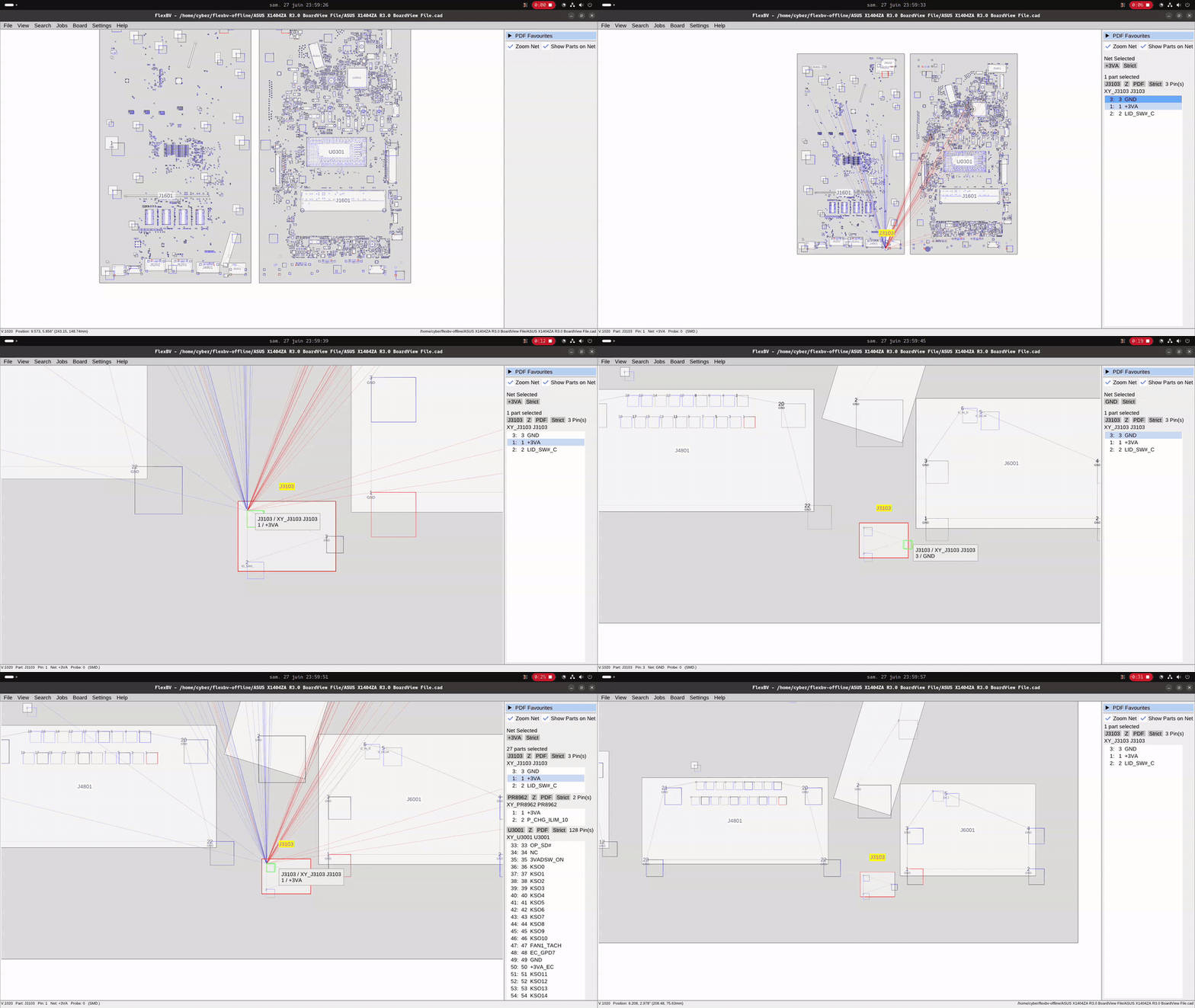
Hello the J3103 must output 3 Volts
If it is indeed him....
-
yes this one is right next to the charging connector I measured nothing at all not even 1 volt nothing with the ground on the PC chassis and I tried every pin the same on the other side I did find a component on the motherboard on one side 19.98 volts and the other side 0 volts not normal? ceramic capacitor small orange color roughly plus pin 1 apparently I should have 3 volts right?
-