Photo file 18 on USB drive
Solvedbazfile Posted messages 58540 Registration date Status Moderator Last intervention -
Hello,
My USB drives are infected with a file named "photo 018".
In doing some research, I saw that one of your users (Antoine in April 2024) had the same issue and that it was resolved.
Can I use the same approach?
Can you help me?
Thank you.
9 answers
-
Hello,
Can you please copy Antoine's discussion so we can see if it's the same virus issue or something else?
Your effort to do this helps us help you.
Thank you in advance.
-
-
Hello,
You can combine this tool that disinfects USB viruses and this tutorial to disinfect your PC.
https://github.com/lemasc/lemascusbrem/releases
https://forums.commentcamarche.net/forum/affich-38206831-alors-vous-voulez-supprimer-les-virus-vous-meme-comment -
Hello @FennecGourmand22 StatusMember.
First, connect your USB drives to your PC, then download KVRT to learn how to use it see this page paragraph Kaspersky Virus Removal Tool (KVRT), be careful to check the letters of the infected USB drives and external hard drives in all volumes.

Once KVRT has finished disinfecting, check if the problem is still present.
Then to check the PC:
Download FRST.
Once downloaded save FRST on the desktop then right-click on FRST and choose Run as administrator which looks like this:

 Wait until the message the tool is ready to use appears, then click Analyze.
For your information:
 If opening FRST triggers a Microsoft Defender alert, disregard it, click on Additional information then Run anyway, see below.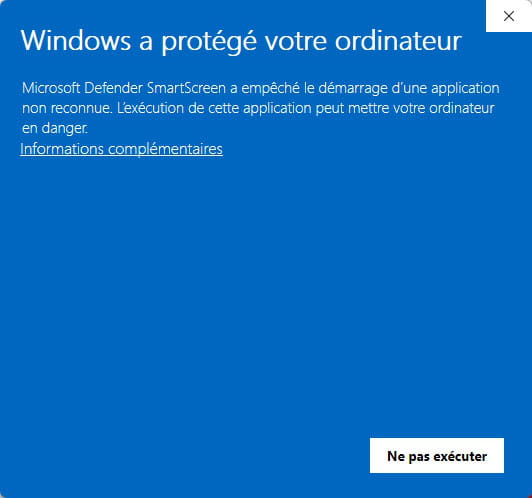

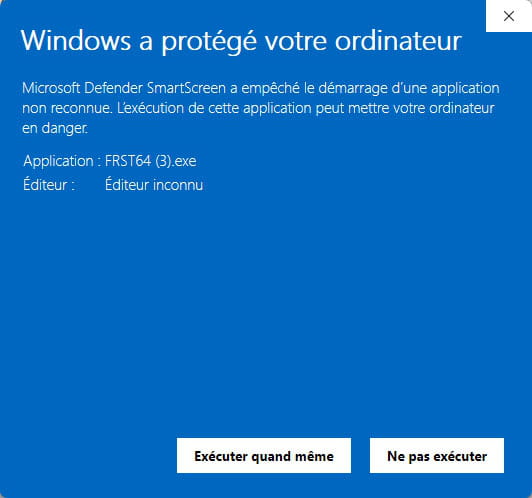
Warning, wait until the messages indicating the analysis is complete appear.


At the end of the analysis, the two reports FRST and Addition will be on the desktop.


Send the FRST and ADDITION reports to https://pjjoint.malekal.com/ or https://www.catupload.com/.
Then attach the two links generated by https://pjjoint.malekal.com/ or https://www.catupload.com/ in your reply.
bazfile
Moderator/Security Contributor.
a hello, a response, a thank you are always appreciated. -
Hello bazfile,
The scan by Kaperki took a very long time.
Here are the requested files and the links https://pjjoint.malekal.com/files.php?id=FRST_20251116_v8p14o6q15q12
My USB drives no longer display the file.
Thank you very much.
-
-
@FennecGourmand22 StatusMember .
Kaspersky has successfully disinfected your USB keys and your PC; for this type of infection, Kaspersky Virus Removal Tool (KVRT) was the most suitable tool.
On your PC, there are only a few orphaned/obsolete processes; if you wish to remove them, follow these steps.
Procedure to follow in the indicated order:
1- Open FRST as an administrator; to do this, right-click on FRST and select run as administrator
2 - Copy the entire script from the box below:Start:: CreateRestorePoint: CloseProcesses: CustomCLSID: HKU\S-1-5-21-876033475-3579766026-1083322639-1001_Classes\CLSID\{6a27a1a9-7be8-1491-04ca-ee68a211c258}\localserver32 -> "C:\Program Files\Google\Play Games\current\service\Service.exe" -ToastActivated => No file CustomCLSID: HKU\S-1-5-21-876033475-3579766026-1083322639-1001_Classes\CLSID\{CB965DF1-B8EA-49C7-BDAD-5457FDC1BF92}\InprocServer32 -> C:\Users\Anne\AppData\Local\Microsoft\TeamsMeetingAddin\1.0.20244.4\x64\Microsoft.Teams.AddinLoader.dll => No file ShellIconOverlayIdentifiers: [ FSOverlayIcon] -> {C0829D19-E5A0-44F5-B56E-D15030C53BB9} => -> No file ShellIconOverlayIdentifiers: [ ACloudSynced] -> {5CCE71FA-9F61-4F24-9CD1-98D819B40D68} => -> No file ShellIconOverlayIdentifiers: [00asw] -> {472083B0-C522-11CF-8763-00608CC02F24} => -> No file ContextMenuHandlers5: [igfxcui] -> {3AB1675A-CCFF-11D2-8B20-00A0C93CB1F4} => -> No file SearchScopes: HKU\S-1-5-21-876033475-3579766026-1083322639-1001 -> DefaultScope {1ADA0383-8B63-4A01-A8E4-AFAE2E32D9BF} URL = SearchScopes: HKU\S-1-5-21-876033475-3579766026-1083322639-1001 -> {1ADA0383-8B63-4A01-A8E4-AFAE2E32D9BF} URL = FirewallRules: [{8B982F5D-8F27-466E-9173-FED4FE82682E}] => (Allow) C:\Program Files\WindowsApps\Microsoft.SkypeApp_15.61.100.0_x86__kzf8qxf38zg5c\Skype\Skype.exe => No file FirewallRules: [{232F4D2E-2BBB-4F8E-8E39-2D9D9F4B77FD}] => (Allow) C:\Program Files\WindowsApps\Microsoft.SkypeApp_15.61.100.0_x86__kzf8qxf38zg5c\Skype\Skype.exe => No file FirewallRules: [{4CD3F637-071E-4A39-9950-32D5D068E491}] => (Allow) C:\Program Files\WindowsApps\Microsoft.SkypeApp_15.61.100.0_x86__kzf8qxf38zg5c\Skype\Skype.exe => No file FirewallRules: [{710699FB-A7B3-4D51-A3E1-BC6D15E23066}] => (Allow) C:\Program Files\WindowsApps\Microsoft.SkypeApp_15.61.100.0_x86__kzf8qxf38zg5c\Skype\Skype.exe => No file FirewallRules: [UDP Query User{A1D07B22-0133-49DE-823F-F98587C6B114}C:\windows\system32\spool\drivers\x64\3\lxdnpswx.exe] => (Allow) C:\windows\system32\spool\drivers\x64\3\lxdnpswx.exe => No file FirewallRules: [TCP Query User{44E82490-ACF7-4919-8831-72186AD0F621}C:\windows\system32\spool\drivers\x64\3\lxdnpswx.exe] => (Allow) C:\windows\system32\spool\drivers\x64\3\lxdnpswx.exe => No file FirewallRules: [{CE05C4CC-25DD-4678-85F1-D3754BB2C658}] => (Allow) C:\program files (x86) (x86)\lexmark 2600 series\lxdnmon.exe => No file FirewallRules: [{CF16180E-D00D-45E7-B57F-5FD6C9EF3D8E}] => (Allow) C:\program files (x86) (x86)\lexmark 2600 series\lxdnmon.exe => No file FirewallRules: [{554F74D6-E081-4679-8EAB-8042B3EFC52E}] => (Allow) C:\Program Files (x86)\Lexmark 2600 Series\lxdnmon.exe => No file FirewallRules: [{99AFAA2F-8B13-4293-93B8-2AE027FF3ED6}] => (Allow) C:\Program Files (x86)\Lexmark 2600 Series\lxdnmon.exe => No file FirewallRules: [UDP Query User{BD78F9E3-7371-40C8-A649-344E60DDE05D}C:\program files (x86) (x86)\lexmark 2600 series\lxdnmon.exe] => (Allow) C:\program files (x86) (x86)\lexmark 2600 series\lxdnmon.exe => No file FirewallRules: [TCP Query User{3CECBFC1-A055-4EF9-BB5F-06854640E4CE}C:\program files (x86) (x86)\lexmark 2600 series\lxdnmon.exe] => (Allow) C:\program files (x86) (x86)\lexmark 2600 series\lxdnmon.exe => No file FirewallRules: [{10CF7B47-4DA1-4786-90BA-4A420BE8ED5A}] => (Allow) C:\Windows\SysWOW64\lxdncoms.exe => No file FirewallRules: [{A062ADB8-1682-4D53-910A-4CB502C39A30}] => (Allow) C:\Windows\SysWOW64\lxdncoms.exe => No file FirewallRules: [UDP Query User{B5582672-ADF9-463D-A23C-D7A354C4F5D2}C:\program files (x86)\lexmark 2600 series\lxdnmon.exe] => (Allow) C:\program files (x86)\lexmark 2600 series\lxdnmon.exe => No file FirewallRules: [TCP Query User{5A18BD14-1EC9-4CAA-8D7A-EDC703C4C1E2}C:\program files (x86)\lexmark 2600 series\lxdnmon.exe] => (Allow) C:\program files (x86)\lexmark 2600 series\lxdnmon.exe => No file FirewallRules: [{3EBDAA05-A9D5-4921-A43F-A8D84E865351}] => (Allow) C:\Windows\System32\lxdncoms.exe => No file FirewallRules: [{002EB2F2-E38E-4F34-962B-76B45A243FF1}] => (Allow) C:\Windows\System32\lxdncoms.exe => No file FirewallRules: [{158C5B60-AC8E-4F6B-BD24-7D878E6E7724}] => (Allow) C:\Windows\SysWOW64\lxdncoms.exe => No file FirewallRules: [{FCAE7E44-42F8-47C9-AFCC-6A5B40F375FE}] => (Allow) C:\Windows\SysWOW64\lxdncoms.exe => No file FirewallRules: [{CE887837-842D-4A22-BB20-42031B8B52BD}] => (Allow) C:\Program Files (x86)\Mozilla Firefox\firefox.exe => No file FirewallRules: [{9763B6FB-B39D-4541-AD47-FE3BBDEAAE33}] => (Allow) C:\Windows\System32\lxdncoms.exe => No file FirewallRules: [{A97364E6-2E17-4B47-B3E0-404CAD618954}] => (Allow) C:\Windows\System32\lxdncoms.exe => No file FirewallRules: [{BA36B246-735C-4433-84C1-CFD96578163D}] => (Allow) C:\windows\system32\spool\drivers\x64\3\lxdnpswx.exe => No file FirewallRules: [{82FC70FC-0846-490A-BF17-4CBDB2C323CD}] => (Allow) C:\windows\system32\spool\drivers\x64\3\lxdnpswx.exe => No file FirewallRules: [{1448CCFD-BC4B-4A95-A136-55DAF81977D8}] => (Allow) C:\Program Files\AVAST Software\Avast\AvEmUpdate.exe => No file FirewallRules: [{F337CE19-E3A1-4A67-9CE6-CB43DA8C67CA}] => (Allow) C:\Program Files\AVAST Software\Avast\AvEmUpdate.exe => No file FirewallRules: [{E69FFCE1-2386-4857-A33F-D21BF4E5ECC1}] => (Allow) C:\Users\Anne\AppData\Local\Temp\EpInsNav\DL\3013\Network\EpsonNetSetup\Data\ENEasyApp.exe => No file FirewallRules: [{A06A1E05-5147-4F27-B060-A2DE4BEAF4FD}] => (Allow) C:\Users\Anne\AppData\Local\Temp\EpInsNav\DL\3013\Network\EpsonNetSetup\Data\ENEasyApp.exe => No file FirewallRules: [{802A22E0-16C4-44D1-B016-C58BF94D5DF2}] => (Allow) C:\Users\Anne\AppData\Local\Programs\Opera\82.0.4227.43\opera.exe => No file KLM\SOFTWARE\Microsoft\Windows Defender: [DisableAntiSpyware] Restriction HKLM\SOFTWARE\Microsoft\Windows Defender: [DisableAntiVirus] Restriction HKLM\SOFTWARE\Policies\Microsoft\Windows\WindowsUpdate: Restriction HKU\S-1-5-21-876033475-3579766026-1083322639-1001\...\Run: [MicrosoftEdgeAutoLaunch_0312593BFFDB8261C1676A58C7A72931] => "C:\Program Files (x86)\Microsoft\Edge\Application\msedge.exe" --win-session-start [4254248 2025-11-13] (Microsoft Corporation -> Microsoft Corporation) HKLM\SOFTWARE\Policies\Mozilla\Firefox: Restriction HKLM\...\Windows x64\Print Processors\Lexmark 2600 Series Print Processor: lxdndrpp.dll (No file) Task: {06DE8E91-F612-422C-838B-B326A4C31BAD} - \Microsoft\Windows\UNP\RunCampaignManager -> No file <==== ATTENTION Task: {C0A90872-6225-40BA-86E0-2DDD6BCF48E0} - System32\Tasks\CCleaner Update => C:\Program Files\CCleaner\CCUpdate.exe (No file) Task: {94AB5022-C134-4910-AE97-2515D7A0B0DE} - System32\Tasks\GoogleSystem\GoogleUpdater\GoogleUpdaterTaskSystem128.0.6597.0{BD28B244-F3D5-4E6F-9A44-A7225C37AEFE} => "C:\Program Files (x86)\Google\GoogleUpdater\128.0.6597.0\updater.exe" --wake --system (No file) Task: {3539C85A-C740-42E8-9F61-8814F34B3840} - System32\Tasks\Installation App Launcher => "C:\Program Files (x86)\Lexmark 2600 Series\ezprint.exe" (No file) Task: {29079946-558B-4730-8BEE-3084973F42B4} - System32\Tasks\Oem\AcerJumpstartTask => "C:\Program Files (x86)\Acer\Acer Jumpstart\hermes.exe" /default (No file) Task: {BC8B0ED3-749C-4708-BC4E-158D30129A6A} - System32\Tasks\Opera scheduled Autoupdate 1640875198 => C:\Users\Anne\AppData\Local\Programs\Opera\launcher.exe --scheduledautoupdate $(Arg0) (No file) S2 GoogleUpdaterInternalService128.0.6597.0; "C:\Program Files (x86)\Google\GoogleUpdater\128.0.6597.0\updater.exe" --system --windows-service --service=update-internal [X] S2 GoogleUpdaterService128.0.6597.0; "C:\Program Files (x86)\Google\GoogleUpdater\128.0.6597.0\updater.exe" --system --windows-service --service=update [X] AV: Trend Micro Internet Security (Enabled - Up to date) {AFEE279F-FAE7-BAEE-3A88-4BF7277B8551} End::3- Once the script is copied, click on Repair; FRST will automatically take the script from the clipboard.
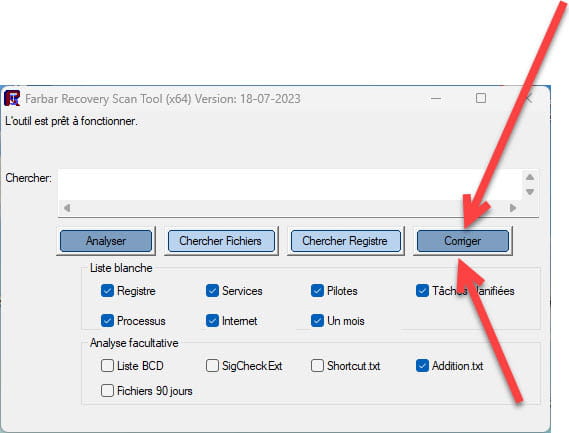

Allow the correction to proceed; once it's done, you will be asked to restart your PC; do so as soon as prompted, see below.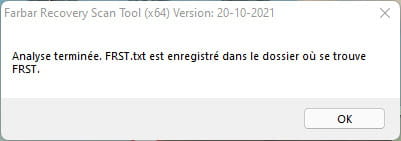

Then once your computer has restarted:
4- You will have a Fixlog file on your desktop, then send this fixlog report to https://pjjoint.malekal.com/ or https://www.catupload.com/.Then provide the link generated by https://pjjoint.malekal.com/ or https://www.catupload.com/ in your response.
5- Let me know if everything is now OK.
bazfile
Moderator/Security Contributor.
A greeting, a response, a thank you are always appreciated. -
Here is the link for fixlog.
https://pjjoint.malekal.com/files.php?id=20251116_l13i10v9v12p8
For me, everything works better now and I no longer have those files.
Thank you again for your dedication to resolving these issues, especially on a weekend.
Have a good evening.
-
@FennecGourmand22 StatusMember .
The fixlog is fine.
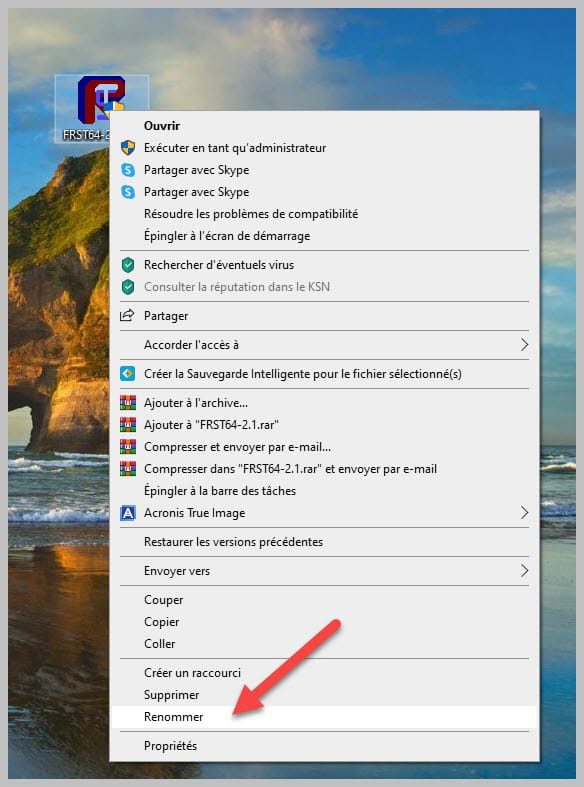
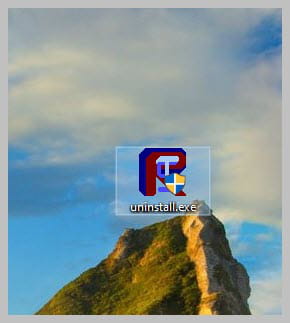
Uninstall FRST, rename the FRST file you downloaded to uninstall, then once the file is renamed, open it; the uninstallation will occur automatically via a PC restart.Have a good evening too.
bazfile
Moderator/Security Contributor.
A hello, a reply, a thank you are always appreciated.