How to change the display on an android tablet

NEOPHYTE4 Posted messages 236 Registration date Status Member Last intervention -
Hello,
Currently, the display of different programs on my Android tablet is automatically in "landscape" mode, which suits me perfectly. However, there are exceptions because for some programs the display is in "normal" mode, which does not suit me at all as it is not practical. I cannot seem to modify this display setting.
How can I force all programs to automatically be in "landscape" display?
Thank you in advance for your help.
Best regards
Thank you. The complete novice with no pretensions!
Windows 11/Microsoft 365/Thunderbird/Samsung ML1865 printer/Epson WF 2840 printer/Bouygues fiber box/Galaxy Tab A8-SMX205 tablet
1 answer
-
Hello,
Swipe down from the top of the screen to display the quick access options.
You will find an icon that in your case will be labeled Landscape (depending on the current display, it may be named Portrait or Auto-rotate).
1) A brief press on the icon has 2 possible effects:
- switch to auto-rotate.
- if you have rotated the tablet before pressing the icon, you lock the screen in the new position.
2) A long press on the icon provides an additional option, when auto-rotation is disabled: the presence of an additional icon at the bottom of the screen.
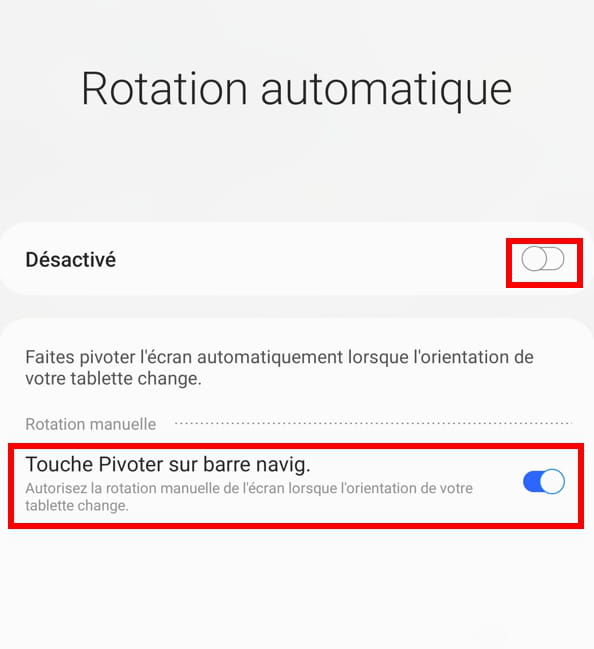
When this option is enabled, an additional icon briefly appears at the bottom of the screen when the tablet is rotated. Pressing the icon allows you to change the orientation of the display. You need to be quick because the icon only appears for about 5 seconds; this avoids having to go through the quick access icon.

Personally, this is how I use my tablet: "Auto-rotate" disabled and "Rotate button" enabled.
What is well conceived is clearly stated,
And the words to say it come easily.
(Boileau)