
Insertion avec "ALT + x" ne fonctionne pas avant le 32
Solved
JiGéGé Posted messages 274 Registration date Status Member Last intervention -
Hi,
Bonjour,
The insertion of the first 31 ASCII characters using the "Alt +..." manipulation is not working.
However, from #32 (space, !, " etc.), everything appears perfectly and without hesitation.
How is this possible and what should be done to make it work? Thank you.
On Win11 pro - 23H2
4 answers
-
Hello,
characters before 32 are service characters that trigger an action (line break, beep, tab, transmission acknowledgment...), they are therefore not displayable.
See you, blux "Fools dare to do anything.
It's even how we recognize them."-
Hello,
Most of them do.
ALT+14
♫
They depend on the Windows language, the font used, and also the software where you want to enter them (there may be other key combinations or none in some).This is of course about displaying the corresponding symbols when they exist, not the control character.
In this latter case, there are different tricks specific to the character in question.
For example, if I want to color a Batch as follows:

I have to use the escape character ESC which will not be rendered by ALT+27.
@echo off echo [0;40;36;1mThis is cyan [0;40;31;1mthis is red[0m pause
It must appear, although we don’t see it here, before every bracket and it appears in the text as a question mark in a rectangle.
You can grab it from the Internet by copying and pasting it into a file or do the same thing yourself in a Batch:FOR /F "delims=#" %%E IN ('"prompt #$E# & FOR %%E IN (1) DO REM"') DO SET "ESC=%%E" ECHO %ESC% > esc.txtSorry for the delay: domestic issues...
Let's move on.
In the meantime, thank you for your very overly detailed responses, and I want to be a bit clearer: I’m not looking to perform programming feats or to understand in detail how all this works, with what language, based on what programming procedure, etc., I am just a basic user, without particular knowledge in the matter (my talents lie elsewhere... ;-b), who is content to type text and sometimes fill out a basic little spreadsheet.
My quest is simply to easily insert specific characters into plain text, like for example an uppercase "À" or an uppercase "Ç", with a simple combination of keys, without having to write an app or copy-paste from an existing text or change the font for a single character.Until now, before my migration to Win11, it worked well on a daily basis, with combinations like "alt+144", "alt+183", etc.
And this, regardless of the font used, the program running, the site visited, etc.
For the past month, it hasn’t worked anymore.
So I would just like to know if anyone can tell me what to change in one or another general setting of the machine or what fix should be initiated."(...) service characters that trigger an action (...), they are therefore not displayable.(...)": for me, and for others I believe, without having done anything particular before, they displayed well, based on this correspondence table using the command "Alt+(the number from the DEC column)", in Word, OpenOffice, Notepad, here, elsewhere, etc.
Finally, contrary to what I said earlier, I have unfortunately found in the meantime that the correspondence between the "dec" column and the related character in the table is actually very random even in the "Extended character set" part: sometimes it matches, sometimes it doesn't....
If anyone has any idea about how to fix all of this, I would be grateful in advance.
-
Hello,
The initial question that was answered was regarding characters below 32, which is no longer the case.
ALT+144 and ALT+183 are not relevant examples; if spell check is enabled, the E at the beginning of a sentence should be automatically corrected to É anywhere as well.
We assume an AZERTY keyboard with a numeric keypad.
Windows only intervenes through the code page, which, unless specified otherwise in an application, is always that of the installation language, but these criteria can be modified by switching to another language and/or in Settings > Time & Language for Language, Region, or even Input in Associated Settings.
There is also in Control Panel, Clock and Region, Region, Administration, Change system locale a setting to modify the language in programs that do not support Unicode.
In principle, the code page is 850, but certain characters may differ if another is used, for example, 1252.
Even on this basis, some extended characters depend on the font used and where they may or may not be available.
Regardless of what you say, some software can use specific combinations, for example, ALT+C in Word for characters above 255.
There are in any case several methods to enter special characters, very well summarized here; for example, I summarized 3 simple ways to obtain Ç.
https://1forme.fr/inserer-un-caractere-unicode-ou-un-signe-diacritique/
Aside from spell check or directly inputting the character, obtaining an accent on a vowel is even simpler with ALT 0768 or 0769.
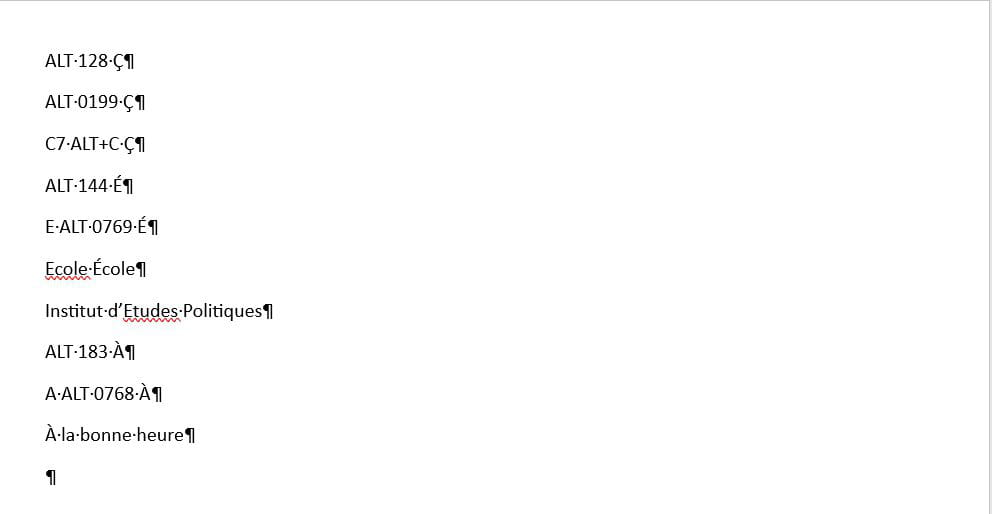
Thank you for all this, it's very extensive and excessively varied, but I don't understand much of it given my level, it's all Greek to me.
So, okay, I don’t know much about computers, but I can definitely go and find special characters in suitable fonts, copy them, and paste them where needed. All of that is fine.
Other solutions even exist...
But that wasn't my question at all, because I'm not going to (by the way, who would?) initiate such annoying manipulations while typing a text.
After looking a bit elsewhere too, without real success, I would like to believe that someone here has the solution for my PC to use and apply the commands aimed at the CP 850 table, and tell me what to do to set this default adjustment in place.
Thank you in advance.
-
Hello,
Regarding at least some characters (in fact, the most common ones), I illustrated in <6> other ways to obtain them than using the character table or ALT+nIf the character entered by ALT+n is not "correct," it's also because, as stated in <6>, your Windows regional settings are not.
Open the command prompt from the start menu (you'll probably say that's too complicated again) and type CHCP.
The normal return is 850.
If in the command prompt I type ALT+144, I get É
If I change the table by CHCP 1252, the result is the same.The code page 65001 is the code page for extended international characters known as UTF-8.
It is reported to potentially produce bugs under Windows, but it works without issue in the Dos console (where I often use it deliberately to read special characters like accents); it should not cause problems there, for example, ALT+144 will still return É.
Therefore, it should generally be avoided under Windows; if it is enabled, it is likely because the Beta option was checked inadvertently.
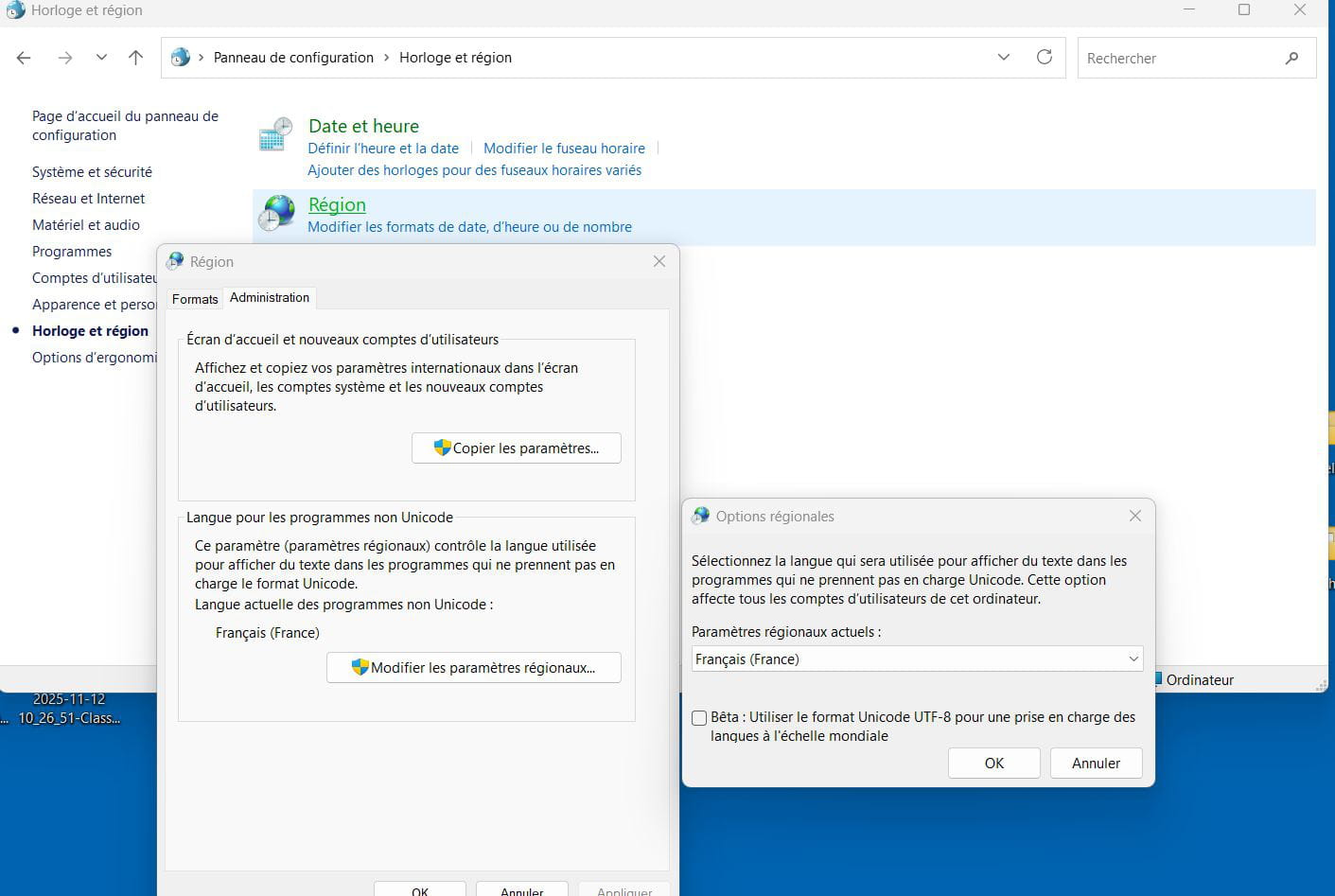
Oh great!
It works!
The "beta" checkbox was indeed checked. I don't know why or by whom. It is no longer checked.
And the "chcp" command now returns "850".
And there we go => É À Ç etc. ;)A big thank you for taking the time with such patience on my puzzle, I understand it wasn't exactly simple for you, especially considering my limited knowledge and my patchy vocabulary.
Really.
It takes a nice thorn out of my side on a daily basis.
Have a nice day.
-

