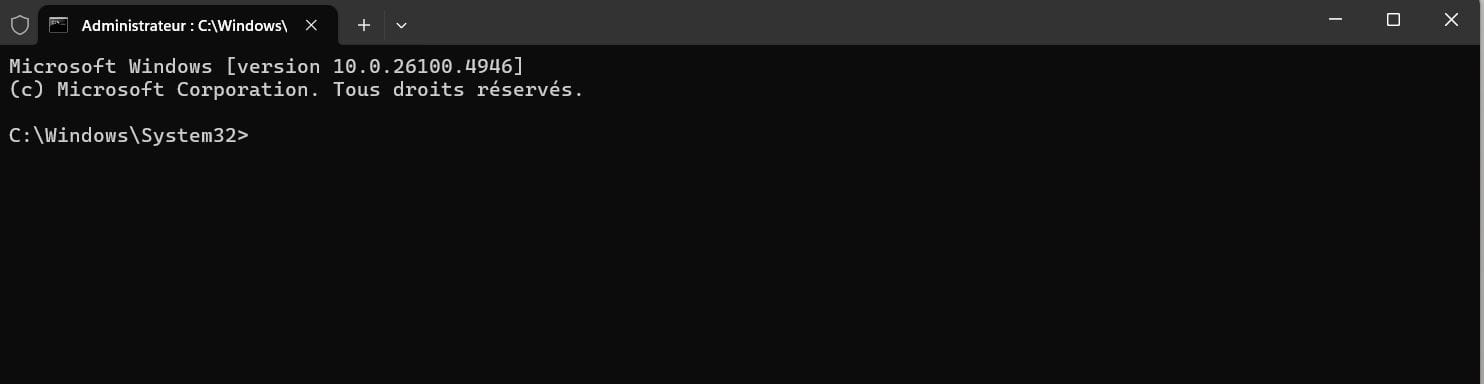
Using the command line
Solved
e.d.g.a.r. Posted messages 590 Registration date Status Member Last intervention -
Hello,
In order to fix the - white icons - on the desktop, I wanted to use the command lines in Run (Win+R)
1 - Command: ie4uinit.exe -show = No result
==========================================
2a - Command: taskkill /f /im explorer.exe
The desktop turned black, (I assume) after pressing Enter on the keyboard.
2b - continuation of the command
del /f /q %localappdata%\Microsoft\Windows\Explorer\iconcache_*.db
The problem is that I no longer have access to the Win+R command...... ??????!!!!!!!!
(I look at the desktop, obviously it is all black.)
A moment of panic before realizing that by turning off the PC (power button) and turning it back on with the same button, the desktop was fortunately back (phew), AND of course with the shortcut icons still white.
Question: Did I lose the Win+R command due to a mistake on my part?
@+
(for me in memory, I chose the theme "Hardware & System" and the forum "Windows"
12 answers
-
+ Receive answers by email / ok
-
Hello,
We don't see how we could respond to you by email on the forum, which is not how it's done anyway.
You're confusing Run and the command line.
Run, whether accessed via the Win+R shortcut or through the search in the start menu, launches the corresponding executable program (exe but not only).
The command prompt can be obtained, for example, by executing cmd.exe (right-click as administrator) in the same location and allows you to run the corresponding DOS commands in the DOS console.
https://www.malekal.com/reparer-icones-windows/https://www.malekal.com/reinitialiser-cache-icones-de-windows-10-windows-11/
-
-
@ brucine,Hello, and thank you for your response,
Since I hadn't checked the box "also receive replies by email," I did it in the form of a reply (to myself) :)
I could have done without it, of course.
Regarding "Execute," the place where I copy or paste the command lines suggested to me in this forum, I need to find out and understand with your valuable help how not to lose the command prompt after launching the first line of code, out of the three proposed (***), as explained previously.
Probably by going through the command prompt in the search bar, which I indeed didn't do, as I went through Win+R during my first attempt.
- Thus, will I keep or not (??? present on the screen the possibility to continue entering the successive command lines 2/3 then 3/3.
In the meantime, I will read the links provided by Malékal.
Have a nice day.(***) (with the period at the end?)
1/3 taskkill /f /im explorer.exe.
2/3 del /f /q %localappdata%\Microsoft\Windows\Explorer\iconcache_*.db.
3/3 Start explorer.exe
-
I will clarify if needed what I said earlier.
Whether we open cmd.exe by searching for it in the search window or in the start menu, the result will be the same, the display of a console where we will type the commands in question one by one and press enter to execute them before moving on to the next.
We can combine them into a single operation in what is called a batch (a script containing a set of command lines) but the interest in this is not obvious here.
-
-
Yes, I understand that.
I followed the successive procedures proposed. WITHOUT SUCCESS
Regarding the procedure:
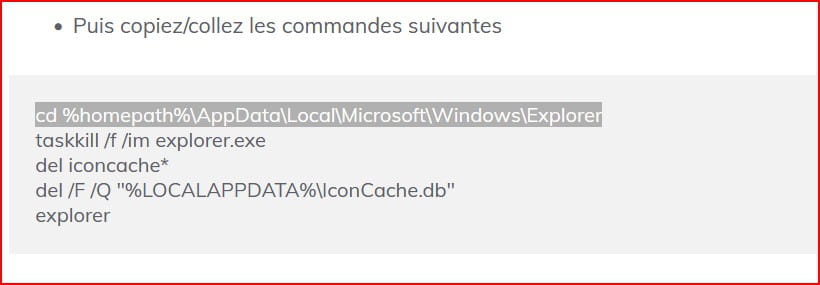
"How to reset the icon cache in Windows 10, Windows 11"and my attempt with the following commands:
a-
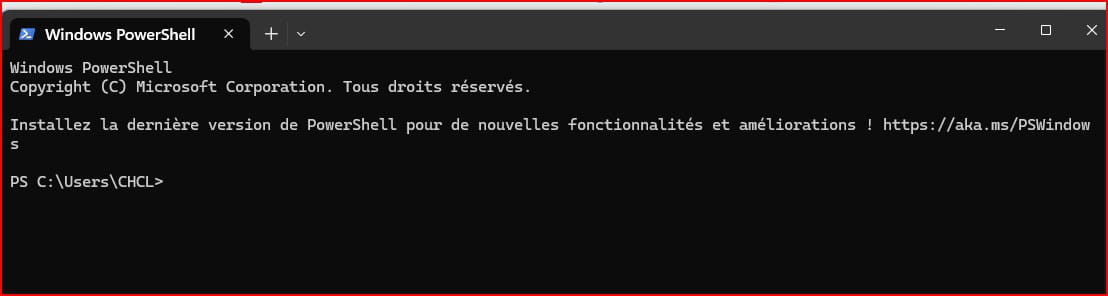
b-Windows Terminal (Adm-Util)
c- First command
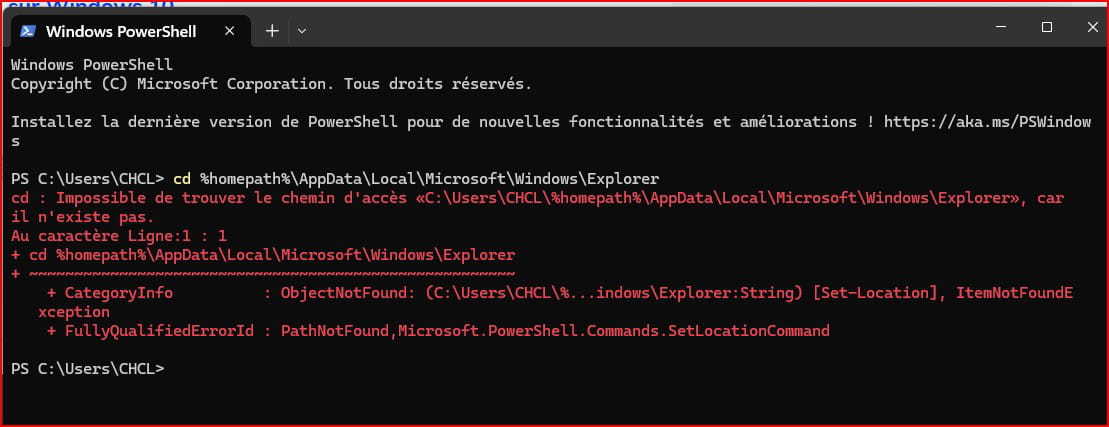
WITHOUT SUCCESS so I stopped there.
-
You go through the Windows Terminal (usually a mixed command prompt between Dos-PowerShell but oh well...) instead of using the cmd.exe command prompt; if you don't want to search for it in the search menu, it can be found in the Windows System submenu of the start menu.
If the Terminal reads PowerShell, I never use it, the %homepath% variable won't be read and neither will CD.
By the way, the syntax %homepath%\AppData\Local is unnecessarily complicated, you just need to type %LocalAppData%.
You can also bypass the problem by typing it "in clear":
C:\Users\xxx\AppData\Local\
where xxx is the username.
In the presence of special characters (spaces, accents...) the entire path (what follows the command, here CD) must be placed in quotes.If you don't want to get your hands dirty, create a new text file on your desktop, copy all the code from the link on Malekal's site into it, save it, and rename it to whatever you want as long as it ends with .cmd, for example toto.cmd.
All that's left is to right-click on it, and run it as an administrator.
-
-
Hello Brucine, and thank you for accompanying me on a topic I don't master at all. You've understood that.
Having relied on Malekal's links, (for reference)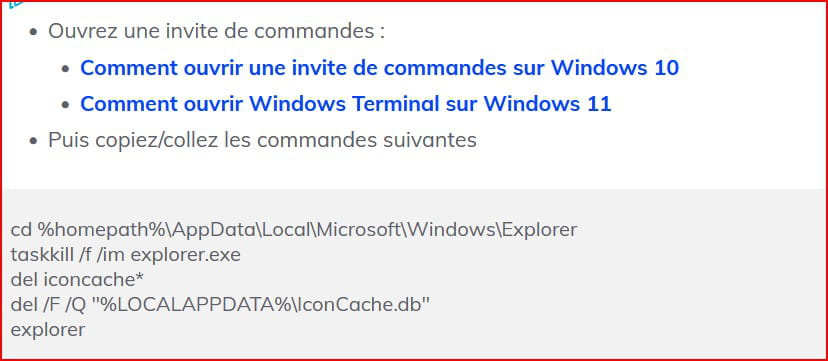
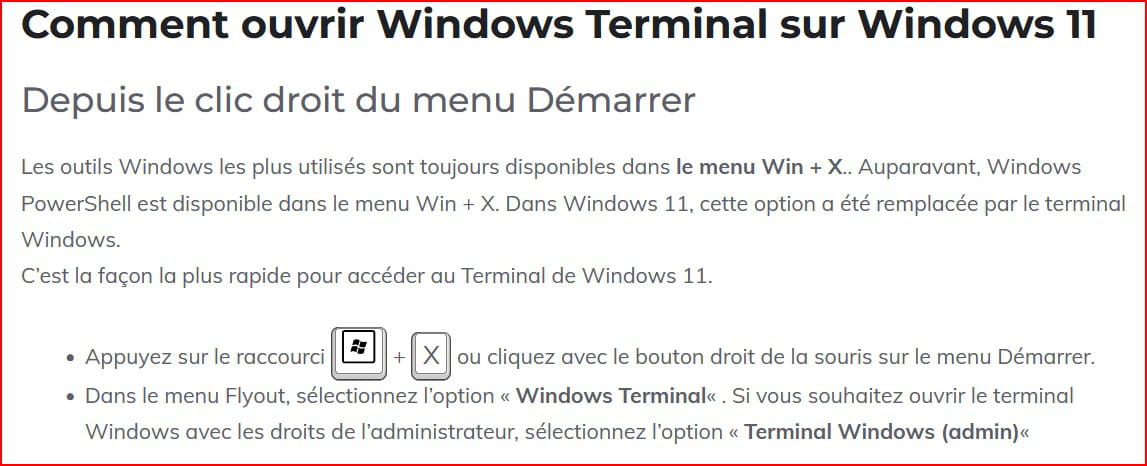
I will therefore proceed step by step according to your previous indications:
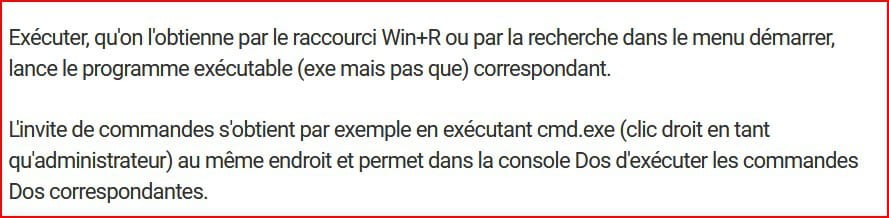
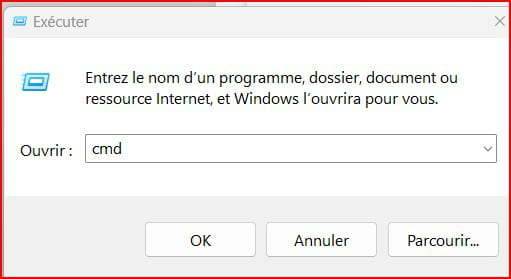
I was expecting to see cmd.exe ........
I arrive here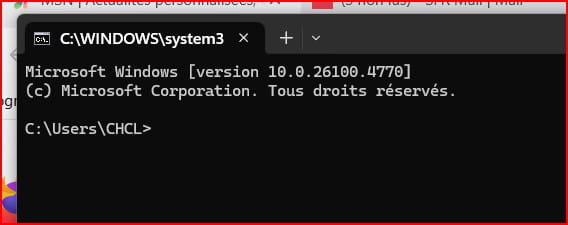
Initially, should I continue this way to enter "SUCCESSIVELY" the commands proposed by Malekal?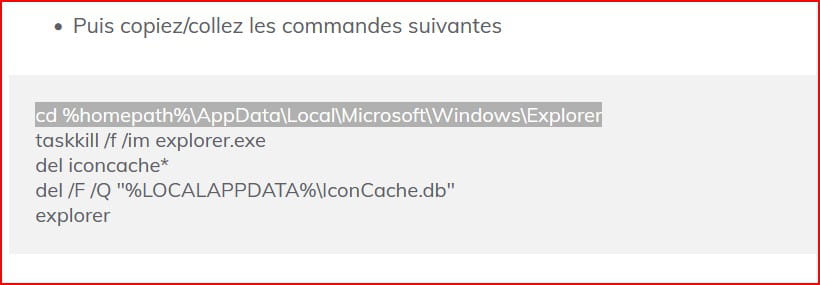
-
Hello again,
My previous message was accidentally deleted, so I'm resuming the discussion and providing my step-by-step approach below.Logged in as administrator
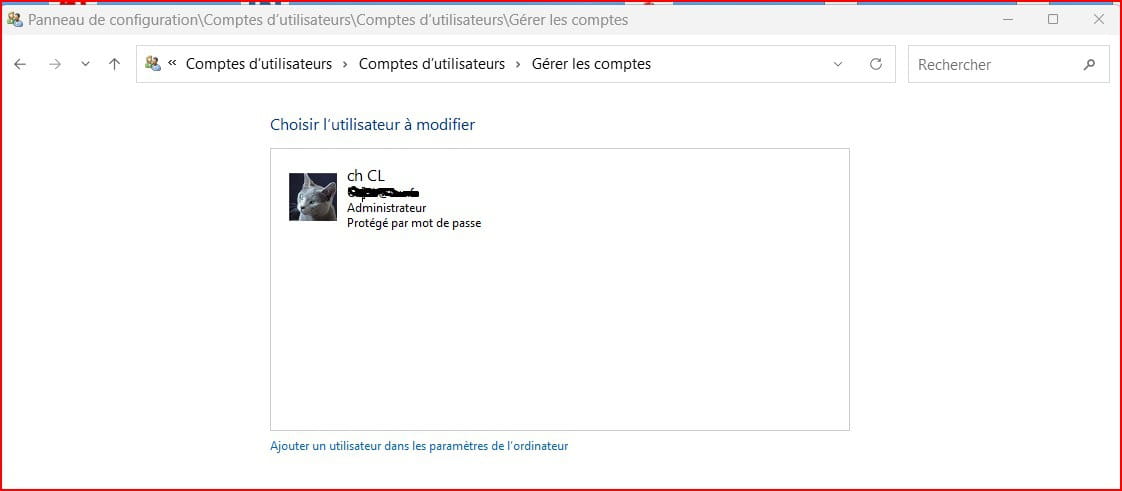
Preparation Copy/paste containing the FIVE commands (Malekal)
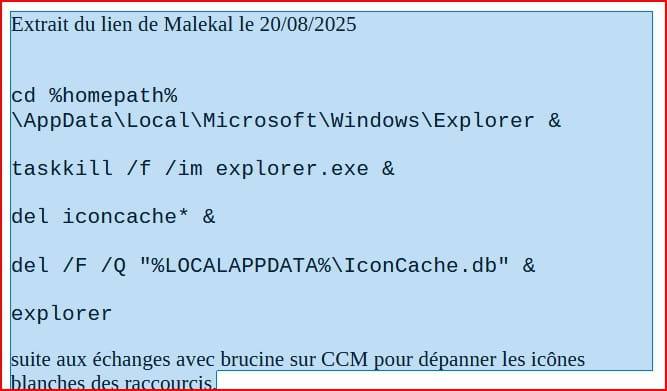
Beginning Execution Cmd
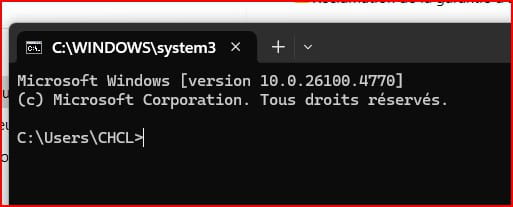
..........the continuation of the discussion (Result of the message when pasting the FIVE commands on the first line) in a message to follow (separately from this one), as this message disappears when entering the first command..........
-
......... continuation
Here is the message that appears when I copy the FIVE commands on the first line in order to dispatch them over several lines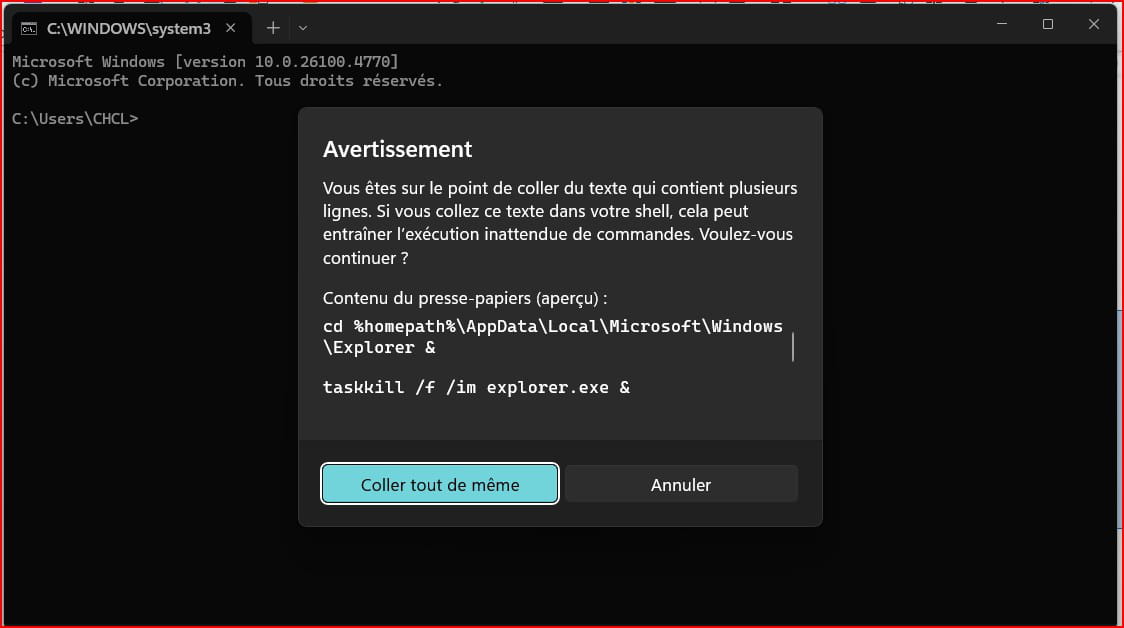
- Should I continue despite this "Warning"?
-
The sticking point is that if we don't copy everything, after the second line, we no longer have an explorer and thus no more copy-paste.
The alternative is to copy and execute the first line followed by enter (without spaces or ampersand), the same goes for the second, after noting down the next three with pen and paper which we will enter by hand.
-
-
Hello,
Busy elsewhere, I had somewhat abandoned it.
So I'm getting back to it.Entering the first command with the "&" sign at the end of the command =
cd %homepath%\AppData\Local\Microsoft\Windows\Explorer&But when I enter the second command via Enter, here's what pops up: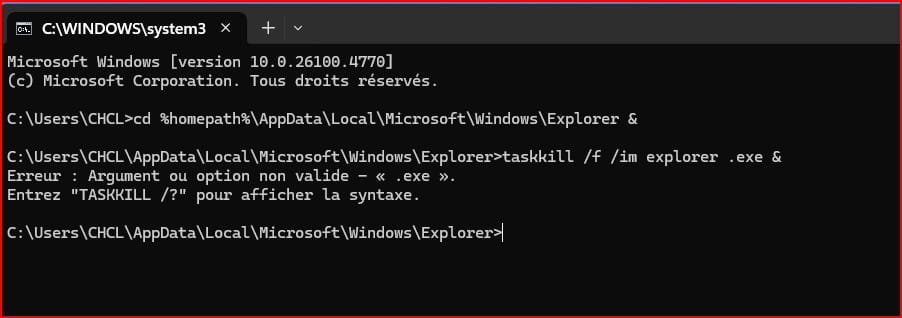
What I notice, and find strange, is that when I press Enter to proceed to entering the second command, there is both a repetition of the first command AND an error.

 Probably a mistake on my part?

 @+
-
Hello to both of you.
Ok for the ampersand &
Regarding the commands, I will therefore start again command by command with always this:Excerpt from Malekal's link on 20/08/2025
cd %homepath%\AppData\Local\Microsoft\Windows\Explorertaskkill /f /im explorer.exedel iconcache*del /F /Q "%LOCALAPPDATA%\IconCache.db"explorerfollowing discussions with brucine & jee pee on 29/08/2025 to fix the white icons of shortcuts.
Note:
If
taskkill /f /im explorer.exein UPPERCASE:TASKILL /F /IM EXPLORER.EXE
The spaceEXPLORER.EXEseems smallerthan in lowercaseexplorer.exe(when I put the period,
the space is part of the period.
If I remove the space, I remove the period)
-
Hello,
Not yet, you've mixed up 2 lines, there are 5cd %homepath%\AppData\Local\Microsoft\Windows\Explorer taskkill /f /im explorer.exe del iconcache* del /F /Q "%LOCALAPPDATA%\IconCache.db" explorer
Dos is not case-sensitive, it just happens that in your previous screenshot you did indeed introduce a space before exe regardless of an artifact that may make the spacing of these characters appear more or less large.
Or as previously mentioned, if you don’t want to bother, generally do it in a batch: copy everything above into a new text file, rename it clean.cmd, right-click and run as administrator.
-
-
Hello,
I made another attempt today, but without success. Because if some icons on the desktop remain white, new shortcut creations are also (white).
I took a picture of the screen. But I can't upload it here, because the Bluetooth icon has disappeared.I hope there isn't a cause-and-effect link with what I did.
Best regards -
.....
(for the Bluetooth icon, it's fixed.
So here’s what I came up with for the FIVE COMMANDS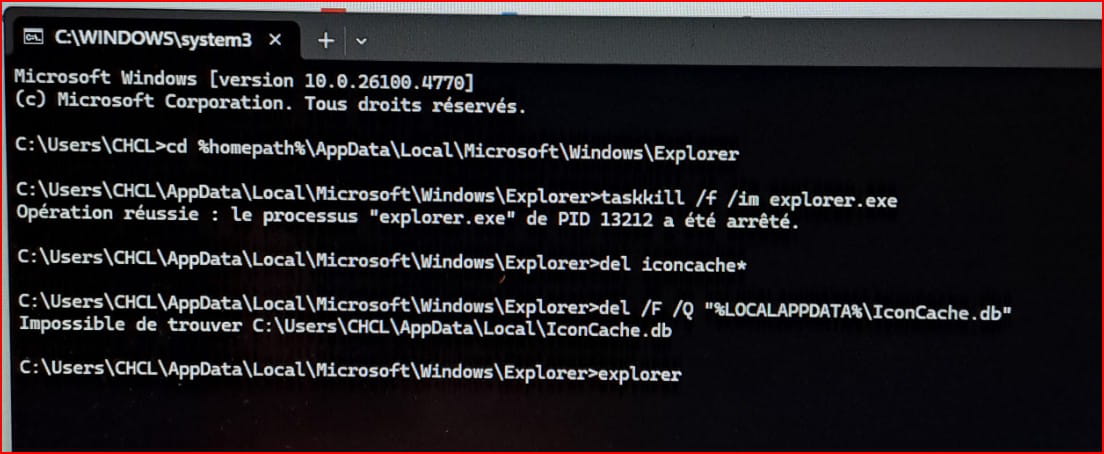
Any mistakes? (I pressed enter between each command.)
-
Hello,
I am getting to the point, it's time to wake up, the syntax is redundant and makes no sense.
The fourth line prescribes the path which doesn't make any sense because we are already there which is irrelevant, but especially deleting Iconcache.db which makes even less sense.
In principle, there is no file named Iconcache.db but only files like Iconcachexxx.db.
Even if it were the case that the third line prescribes deleting everything that starts with Iconcache, including this file.
Therefore, it is not the non-existent error message that is important, but the script itself when executed correctly can fail for other reasons.
A late system restore may no longer be possible.
But perhaps system files (DISM command) or the registry are corrupted.
https://www.proservices-informatique.fr/reparer-icones-blanches-bureau-windows/
As a last resort, in case of failure, Windows must be reinstalled over itself from an installation USB key.
-
-
Re
Thank you Brucine,I'm going to stop here. Because I don't know enough about the subject.
At most, I'll try to uninstall the latest W11 update.
Best regards -
Hello,
I was able to restore - one by one - the shortcuts with their corresponding logos.
Issue resolved.