How to completely uninstall the CHROME browser
Solved
Awdeline
Posted messages
822
Registration date
Status
Member
Last intervention
-
Awdeline Posted messages 822 Registration date Status Member Last intervention -
Awdeline Posted messages 822 Registration date Status Member Last intervention -
Hello,
Is there a specific way to completely uninstall the Chrome browser?
Thank you in advance for your responses.
Is there a specific way to completely uninstall the Chrome browser?
Thank you in advance for your responses.
4 answers
-
Hello ...
I suggest you install Revo Uninstaller if you haven't already done so ► See this link... If you don't know this tool, take the time to read about how it works at the link..
When Revo Uninstaller has finished uninstalling Chrome, it may be that Chrome has left traces in the hidden files of Windows...
Show hidden files
Don't forget to hide the files again at the end
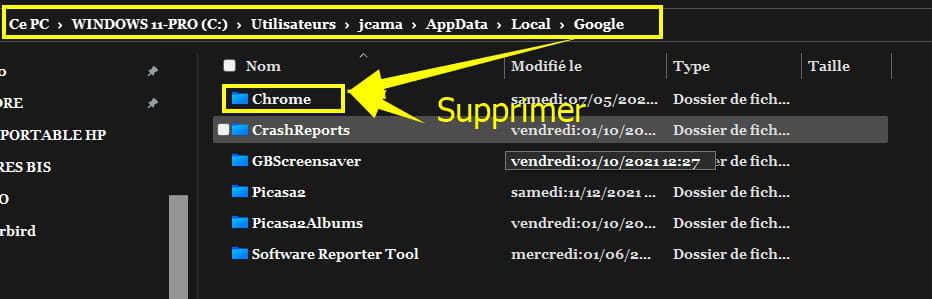
Show hidden files ► Follow the path shown in the screenshot below (C:\Windows\User(Name...yours)\AppData\Local\Google) ► Delete Chrome from the displayed list ► Restart the PC and Google Chrome will be completely uninstalled..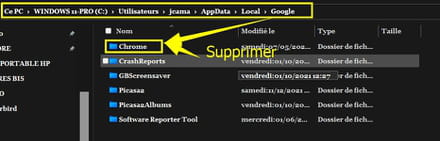
See you for your upcoming comments or else ► Subject resolved -
Hello,
It's a bit drastic to uninstall Chrome for a cookie issue.
In the Chrome window, click on the three little dots in the top right corner and select Settings.
In the window that opens, click on the left Privacy and Security.
Then, in the center, click on Clear browsing data.
You can then choose to clear the selected data (cookies for you).
If you still have problems, it's not a cookie issue.
You can first check your computer with Malwarebytes.
https://fr.malwarebytes.com/
If nothing is resolved, present your issue in the Virus/Security forum.
--
What is well conceived is clearly expressed,
And the words to say it come easily.
(Boileau)-
Thank you Pierr10 for your message.
I have already done everything you advised me to do, namely deleting all browsing data. Even several times. Except that my antivirus warns me that I am still being tracked by a cookie.
So I want to get rid of this troublesome cookie. That’s why I wanted to completely uninstall Chrome thinking it would also remove this cookie. But on the condition that Chrome is completely uninstalled.
You know everything.
-
-
Hello,
We assume we are talking about a PC.
First of all, even if the current browser is something else (as in my case), there is nothing preventing us from keeping Chrome in place; there may be several reasons: backup browser if the first one crashes, Chromecast, access to specific content like Gmail or Google Sheets...
There is no more or less difficulty in uninstalling compared to other software, provided that Chrome is closed, including any active background tasks (updates...).
The uninstall routine offers an option to keep or not keep browsing data, but there is, as with all software, a good chance of residues: registry, Windows Prefetch folder, Google entries in Users-AppData-Local-Google...
Some voices will rise to argue that a dedicated utility, such as Revo Uninstaller, will clean everything up; I doubt it, but it doesn't hurt to try.
Manual cleaning involves deleting the entries I mentioned and cleaning up the relevant entries, especially in scheduled tasks and the registry.
If you don’t want to do this manually, you can use tools like Autoruns and CCleaner (and reserve the latter for this sole "optimization" of the registry, ignoring the other "options").-
Thank you Brucine for your response.
Yes, it is a PC.
So you are advising me to use Ccleaner, which should only be used to optimize the registry?
Will this maneuver delete a stubborn cookie?- Hello,
In the way I recommend using it, Ccleaner will only identify registry entries left after uninstallation via the control panel and/or an uninstallation utility and manual cleaning if needed, thus allowing them to be removed.
A browser's cookies are stored in that browser's folders; they are not shared with another: completely uninstalling the browser also deletes the cookies.
If one wants to delete a specific cookie without uninstalling the browser, there is no problem doing it within Chrome, and no reason for it to be resistant.
Like other browsers, Chrome has an option to automatically delete cookies and other histories upon closing; there are also a number of cookie management extensions available (which I don’t use and don’t see the need for, but to each their own).
-
-
Hello Brucine,
I clicked to have all cookies deleted upon closing the PC. I have cleared my browsing data several times, and my antivirus still warns me that I have a cookie that is tracking me.
So, I only see a complete uninstallation of Chrome as a solution.
These cookies are really annoying.
Thank you for your message.-
Hello,
I don’t see how an antivirus relates to cookies: they’re just text that can compromise privacy, but they’re never infectious.
I would say that the browser settings could be the issue: no matter how much I clean up upon closing, just reopening it can immediately trigger an internet connection: non-blank home page, updating extensions, automatic login to a Google account... and consequently generate a new cookie.
One can intercept at least a large portion by configuring cookie settings in the browser, using anti-script extensions, and setting up the firewall such that, when simply browsing, no application other than the firewall itself is allowed (outgoing TCP, ports 80 and 443).
Under these conditions, and as websites typically ask what to do with cookies upon connection, one should be able to identify at least the site requesting it, if not the name which is not always representative.
We would see more clearly with this information if it’s not Confidential Defense.
Without even going to this type of police investigation, Chrome itself will tell you which cookies exist and to which site they are linked:
https://fr.wikihow.com/voir-les-cookies- brucine I will have to pay more attention to see if the warning indicating that I am being tracked by a cookie is indeed coming from my antivirus. But I am pretty sure it is the case.
For the moment I have not yet received this notification.
Thank you very much for the link regarding cookies that I will read immediately. So far, I have not been able to determine which site this stubborn cookie is coming from.
-