Change refresh rate on second screen
Klim
-
Klim -
Klim -
Hello,
I just bought an Asus TUF GAMING VG27VQ monitor that supports 165 hertz.
I've connected my monitor via DVI > HDMI to my laptop using a GTX 1660 TI.
When I go into the Nvidia video settings, it only offers 59Hz or 60Hz for my second monitor.
My question is: is it possible to switch my second screen to 144Hz or higher for gaming? Even if it means disabling the laptop screen.
I just bought an Asus TUF GAMING VG27VQ monitor that supports 165 hertz.
I've connected my monitor via DVI > HDMI to my laptop using a GTX 1660 TI.
When I go into the Nvidia video settings, it only offers 59Hz or 60Hz for my second monitor.
My question is: is it possible to switch my second screen to 144Hz or higher for gaming? Even if it means disabling the laptop screen.
6 answers
-
Hello
Technically, DVI supports a frequency of 144Hz, but this may need to be set up in the "dashboard" of your GTX 1060 installed along with the driver.
The quality of your cable can also influence the signal quality.
Logically, leaving both screens connected is not a problem but may limit your options.
Normally, the Fn + Fx key (depends on your laptop) or using Windows+P allows you to choose.
See you!
--
If the answer helped you: a little thank you is nice. If it's resolved: the green button at the top is better ;-)
Let him who has never opened a user manual throw the first mouse. -
Hello Macintosh,
I just tried with an HDMI cable from the Xbox One X (which supports 4K on my TV, so it can't be my cable) and the result is the same.
I have a GTX 1660 Ti, not a 1060 : ).
I'm using the Nvidia driver with the latest updates.
Here are my settings in the Nvidia control panel:
- https://ibb.co/vjQj00v
Windows+P is set to "extend"; I tried "second screen only" to see if my laptop screen is limiting the refresh rate, but it doesn't change anything, I still have 59 and 60 Hz in my Nvidia control panel.
In my device manager, I checked and I have 2 screens, but they are not distinct from each other:
- https://ibb.co/0MMWTHP
According to Asus documentation, DVI supports 144 Hz but not 165 Hz. But why can't I switch from 60 to 144 Hz?
- https://www.asus.com/fr/Displays-Desktops/Monitors/TUF-Gaming/TUF-Gaming-VG27VQ/techspec/ -
Hello
It's true that in 1080p, 1920x1080, you are limiting yourself ;-)
Try the maximum resolution of your screen!!
See you later
--
If the answer helped you: a little thank you is nice. If it's resolved: the green button at the top is better ;-)
Let him who has never opened a user manual throw the first mouse at me.-
-
1060 and 1660Ti have indeed few differences :).
My resolution on my second screen is indeed 1920x1080p, not modifiable beyond that. These are the recommended settings for Windows 10.
Furthermore, while browsing a bit, I found this:
- https://ibb.co/4Vky0Lk
will this have a harmful impact on my graphics card and/or computer? -
-
I haven't tried it yet because I'm currently reading the monitor's documentation, and from what I'm reading, it's clear that I can't find the 144Hz.
Here's what the doc says:
Adaptive-Sync/FreeSync (only DisplayPort/HDMI):
Allows a graphics source that supports AdaptiveSync/FreeSync* to dynamically adjust the refresh rate of the display based on typical frame rates of the content for an energy-efficient display update, virtually without stutter and low latency.
To enable Adaptive-Sync/FreeSync, first disable the ELMB feature.- Adaptive-Sync/FreeSync can only be activated between 40 Hz ~
165 Hz.- For supported GPUs, the minimum system setup
of the PC and the required drivers, please contact the manufacturers of the
• ELMB (only DisplayPort/DVI): enables/disables the ELMB (Extreme Low Motion Blur) feature. This feature is available when the refresh rate is 120Hz, 144Hz, or 165Hz (only DisplayPort).
I have a DisplayPort provided with my screen, but my laptop only has a mini DisplayPort. So thinking it through, if I get a DisplayPort to mini DisplayPort cable, it should work for 165Hz, right? After that, I searched a bit on Google to understand the DisplayPort technology compared to HDMI, and several versions exist for both. But which version should I choose? Because the DisplayPort 1.3 goes up to 120Hz... -
-
-
Hello
Provided by Asus, what risk?
In Device Manager, modify driver and point to the folder where the Asus driver (unzipped) is located.
See you later
If the answer helped you: a little thank you is nice. If it's resolved: the green button at the top is better ;-)
Let anyone who has never opened a user manual throw the first mouse at me. -
The ICM is for colorimetry, yet Asus provides the instructions.
To install the driver, right-click on INF; it's the old method.
Why don't you do the manip that I gave you? Good habit for the future ;-)
A+
--
If my answer helped you: a small thank you is nice. If it's resolved: the green button at the top is better ;-)
Let whoever has never opened a user manual throw the first mouse at me.-
-
-
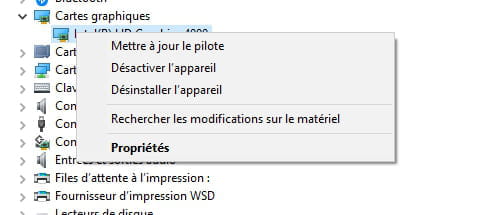
I right-click on my graphics card, then I click on Scan for hardware changes? It doesn't change... I still have my two generic plug and play monitors... I just restarted it.
There’s no shame in being ashamed, I'm here to learn :). Thank you again for being here. I’ve ruined your Sunday with trivial matters :-( -
-
-
-
PS: Restart desired after driver update.
--
If the answer helped you: a little thank you is nice. If it's resolved: the green button at the top is better ;-)
Let him who has never opened a user manual throw the first mouse at me.