White highlighting on text areas
Solved
Max-Caufield
-
telliak Posted messages 3652 Registration date Status Member Last intervention -
telliak Posted messages 3652 Registration date Status Member Last intervention -
Hello,
I have a problem with Word. I'm not sure what happened, but for the past few hours, every time I type text in a colored cell of a table, the text gets highlighted in white. I've even tried it in text boxes or colored shapes, and the effect is the same. It's impossible to remove it, unless I go to the borders and shading settings, but now that doesn't work at all... I've searched the entire application but found nothing. It's not highlighting because when I click on the text, it says there's none...
Could someone explain where the problem is coming from and how to fix it? Thank you in advance!
I have a problem with Word. I'm not sure what happened, but for the past few hours, every time I type text in a colored cell of a table, the text gets highlighted in white. I've even tried it in text boxes or colored shapes, and the effect is the same. It's impossible to remove it, unless I go to the borders and shading settings, but now that doesn't work at all... I've searched the entire application but found nothing. It's not highlighting because when I click on the text, it says there's none...
Could someone explain where the problem is coming from and how to fix it? Thank you in advance!
6 answers
-
Hello,
Yes, Telliak is indeed right. It's not an issue with the table formatting, but with the text formatting.
And to fix this problem definitively in this document and not just piecemeal in each table, we need to correct the Normal style that is at the root of this issue.
To do this:
1) Select a small piece of text (not a whole paragraph, just a few words)
2) Home tab, Paragraph group, click on the Shading button => No Color.
3) Keep the selection, then right-click on the Normal Style (either on the ribbon or in the Styles pane) and choose "Update Normal to Match Selection".
There you go, normally, after that everything should be fine.
m@rina
--
From now on, if a user tells me "it's not working" without any further info..., I'm out! -
 1) Go to https://www.cjoint.com/
 2) Click on [Browse] to select your file (maximum 15 MB)
 3) Scroll down to click on the blue button [Create the Cjoint link]
 4) After a few seconds, the second page appears, with the link in bold; right-click on it and choose "Copy link"
 5) Return to your discussion on CCM, and in your message, do "Paste".
=>See the page https://www.commentcamarche.net/faq/29493-utiliser-cjoint-pour-heberger-des-fichiers
There are also:
 1) https://mon-partage.fr/
 2) https://www.transfernow.net/
--
Retirement is great! Especially in the Caribbean...
Raymond (INSA, AFPA) -
Where does the problem come from? I'm not really sure...
How to solve it? Apply the recurring (and effective) advice from m@rina: insert a drawing area with INSERT / Shapes / New Drawing Area and write your text inside.
--
It's great, retirement! Especially in the West Indies...
Raymond (INSA, AFPA) -
Hi,
I'm not an expert in shading...
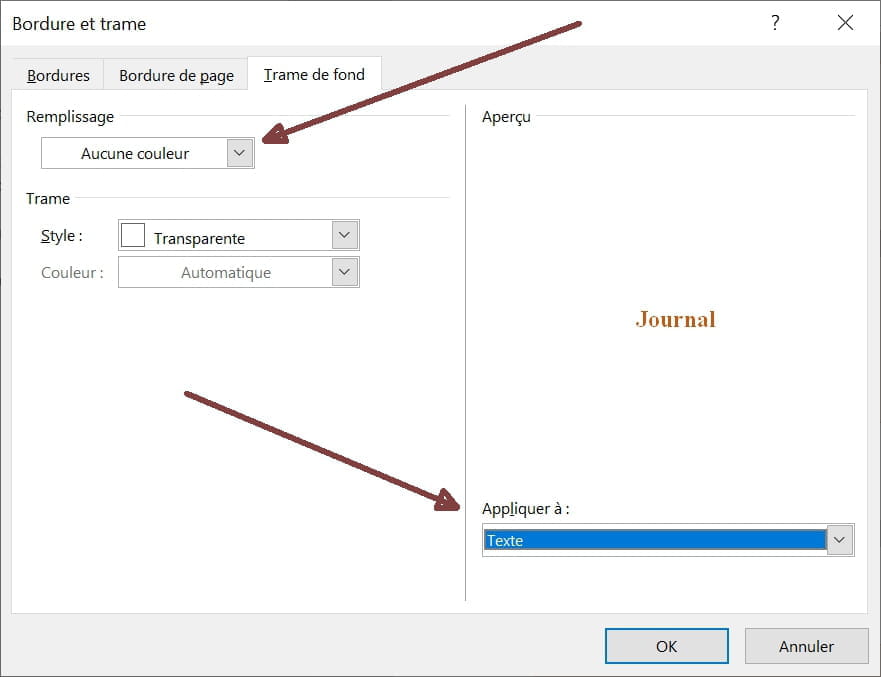
The problem seems to come from the fact that the texts in the tables have a white shading.
To fix it: select the table and in Border and Shading, specify:
No color in Fill
Text in Apply to at the bottom right
-
Well done telliak!
I had tested several combinations, but not that one, which works perfectly. Congratulations.
Best regards.
--
Retirement is great! Especially in the Antilles...
Raymond (INSA, AFPA) -
I just tried it and it seems to work!
Thank you very much everyone!!!
Have a great weekend!