Installing Windows 10 on HP Notebook 15-bw055nf
Sebinformatique
Posted messages
2
Status
Member
-
ianoo -
ianoo -
Hello,
A friend accidentally sat on their laptop... I'll skip the details...
I changed the broken screen (same model), it works very well, I had to change the hard drive (dead) and since then I've been struggling to install W10 on it... no matter how many times I try to reset the PC (An error occurred during the reset), uninstall updates (failed), etc., I've tried everything in the automatic repair panel and when I boot the PC via USB with the W10 ISO image, here's what happens in order.
I choose to boot from my USB stick


I choose the 64-bit option

There is a loading bar that lasts 15 seconds and then here's what I get, whether on the screen I changed or on an external screen

I changed the lithium battery, tried 2 different hard drives. I don't know what to do anymore.
HP notebook 15-bw055nf
Processor APU AMD Dual-Core A9-9420 (3 GHz base frequency, up to 3.6 GHz burst frequency, 1 MB cache)
4 GB SDRAM DDR4-1866
AMD Radeon™ R5 Graphics
HDD: Seagate 2.5 / 1TB
Original and current Windows: W10
The PC is 2 and a half - 3 years old
Looking forward to your responses.
Best regards, TeOs
A friend accidentally sat on their laptop... I'll skip the details...
I changed the broken screen (same model), it works very well, I had to change the hard drive (dead) and since then I've been struggling to install W10 on it... no matter how many times I try to reset the PC (An error occurred during the reset), uninstall updates (failed), etc., I've tried everything in the automatic repair panel and when I boot the PC via USB with the W10 ISO image, here's what happens in order.
I choose to boot from my USB stick
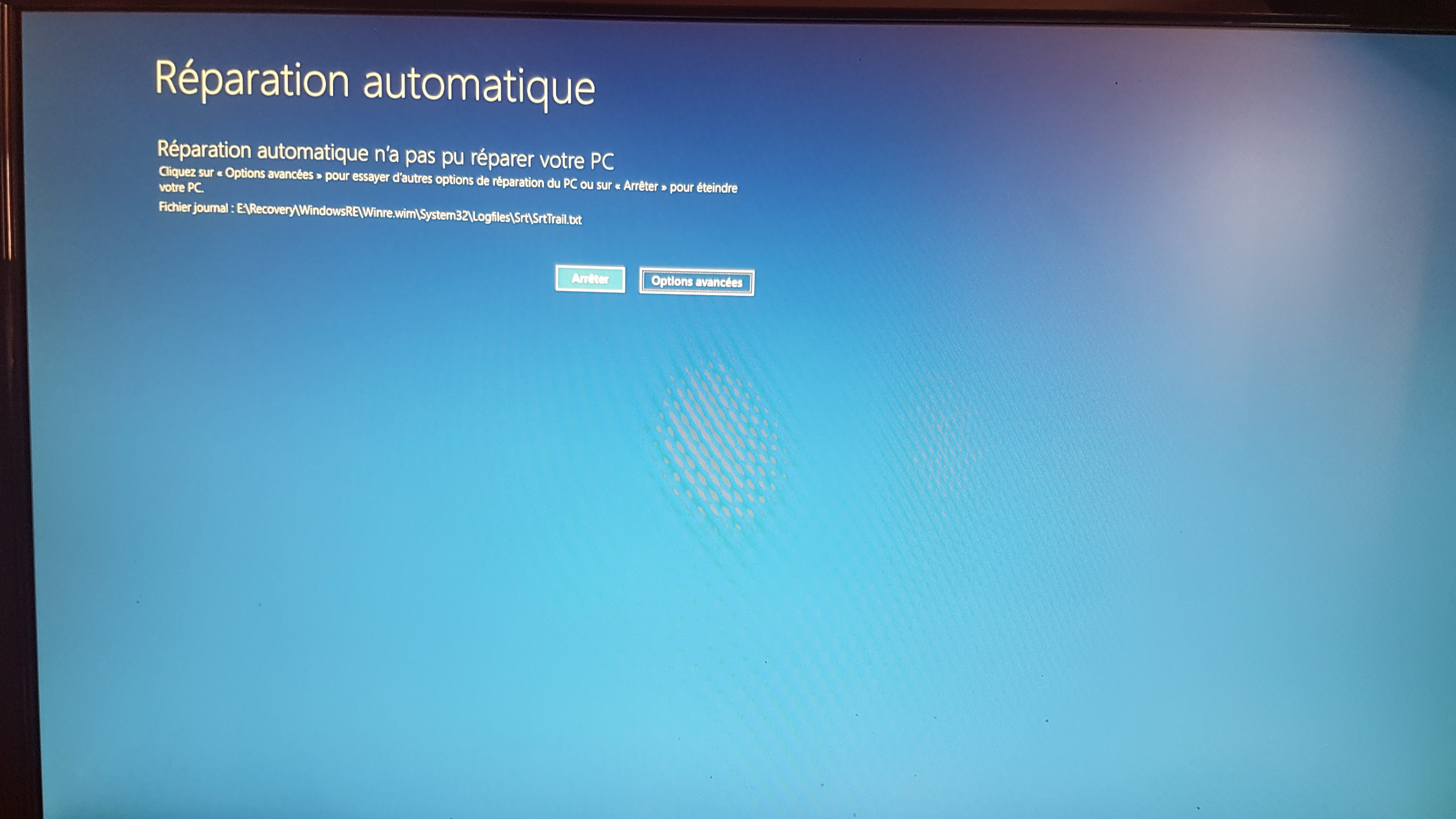

I choose the 64-bit option
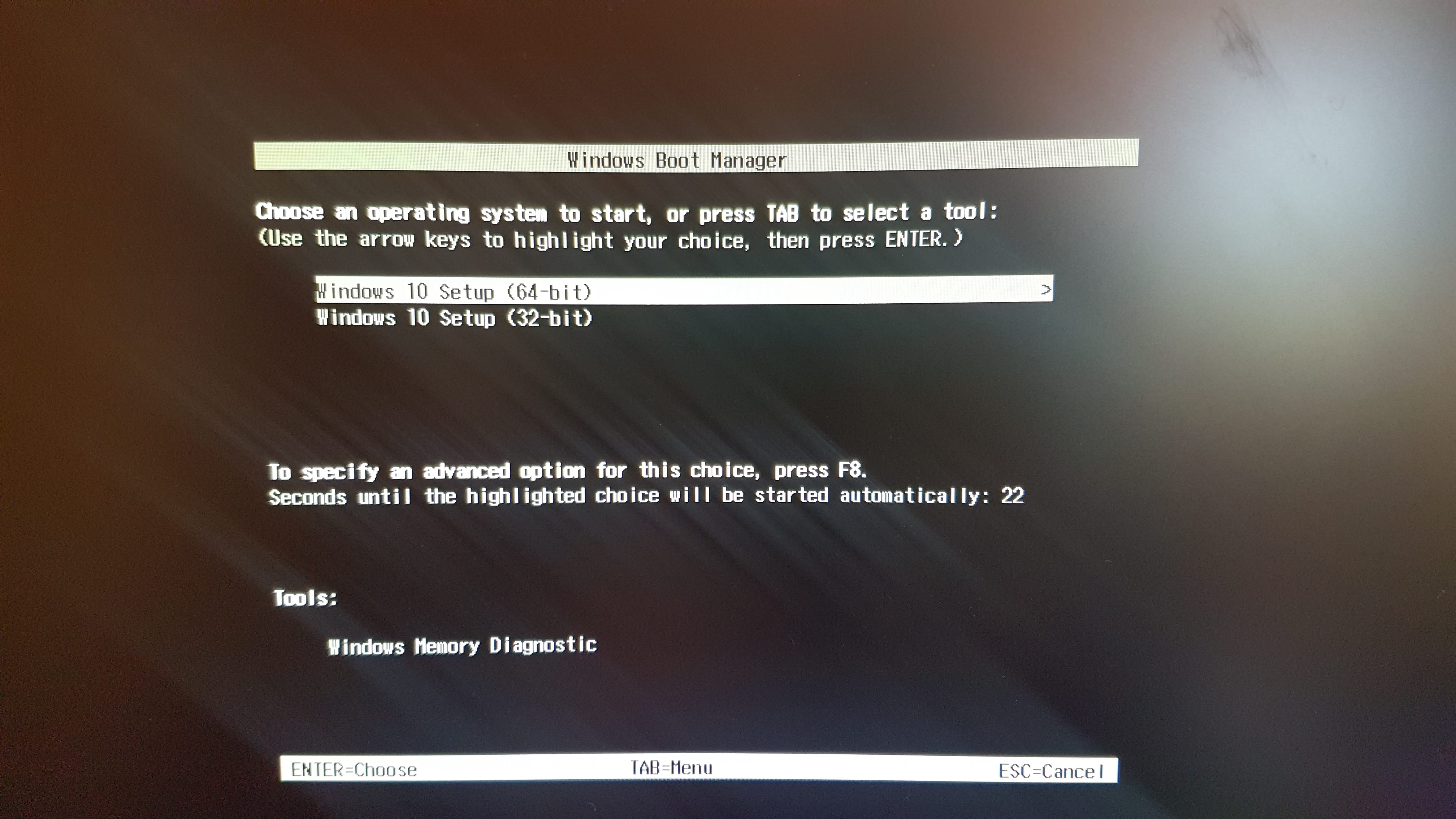
There is a loading bar that lasts 15 seconds and then here's what I get, whether on the screen I changed or on an external screen

I changed the lithium battery, tried 2 different hard drives. I don't know what to do anymore.
HP notebook 15-bw055nf
Processor APU AMD Dual-Core A9-9420 (3 GHz base frequency, up to 3.6 GHz burst frequency, 1 MB cache)
4 GB SDRAM DDR4-1866
AMD Radeon™ R5 Graphics
HDD: Seagate 2.5 / 1TB
Original and current Windows: W10
The PC is 2 and a half - 3 years old
Looking forward to your responses.
Best regards, TeOs
2 answers
-
Hello,
I recently faced the same issue on an HP PC; I was unable to boot from a new hard drive or from a USB drive with Windows on it.
I finally managed to install Windows using the HP Cloud Recovery Tool (available on the Microsoft Store), which allows you to create a bootable USB drive that works with HP PCs and enables you to reinstall Windows. However, you need to prepare a USB drive with at least 32GB because it’s quite large.
Another solution is to make a copy of the old hard drive with all its partitions, but in this case, the old drive needs to be functional. I couldn’t fully test this solution because my version of Windows wasn’t working at all, but the new hard drive booted with the copy, so if everything works on the old hard drive, making a copy should also work on the new one.-
Hello,
You mention... "I finally managed to install Windows using the HP Cloud Recovery Tool (available on the Microsoft Store), which allows you to create a bootable USB drive that works with HP PCs and lets you reinstall Windows. However, you need to plan for a USB drive of at least 32GB because it's quite large."
Much simpler for installing/reinstalling Windows 10: With the Microsoft method... https://www.microsoft.com/fr-fr/software-download/windows10 use a USB key (minimum 8GB), download the "MediaCreationTool" and just follow the instructions...- Yes, I had already tried this method which is indeed much simpler, but as I mentioned, the PC wouldn't boot from the USB drive I created with the media creation tool. Sometimes I ended up with a black screen, other times I had a scrambled screen, but it was impossible to boot from the USB drive.
In fact, the PC doesn't want to boot from a medium that doesn't have software from HP, so the media creation tool doesn't work on it. I also tried to install Windows from another PC onto the disk and then put the disk with Windows into the PC to be repaired, but once again the PC wouldn't boot from it because it didn't have the HP software on it (the same disk booted with the copy of the old disk from HP).
I know it's not the simplest solution, but in my case, I didn't find any other solution.
-
-
Hello,
How did you create your bootable USB drive? with this method... https://www.microsoft.com/fr-fr/software-download/windows10
Your USB drive must be formatted to FAT32 only and have a maximum of 8 GB available.
--
ASUS ROG G752 VSK | QuadCore Intel i7 7700HQ | 32 GB-DDR4 | 2 SSD M.2 500 GB | 2 HDD Seagate 2TB | GeForce GTX 1070M 8 GB | 17.3" screen (120 Hz) | DirectX 12 | Windows 10 (x64)-
Hello Panth33ra, and thank you for responding.
Yes, formatted FAT 32 and the key is 30GB,
the screen being fuzzy like that, what could it be due to? A faulty component? (considering it always happens at the same point during installation and not at other times)Hello,
If this can help others in the same situation. After 2 days of various attempts with several USB drives, several ISOs... what worked for me was updating the BIOS under Windows 10 1511. I was then able to install the latest version of Windows via USB. So, update the BIOS before wasting your time.
-