Factory reset TOSHIBA
Solved
brubru42
Posted messages
85
Registration date
Status
Member
Last intervention
-
Malekal_morte- Posted messages 178136 Registration date Status Moderator, Security Contributor Last intervention -
Malekal_morte- Posted messages 178136 Registration date Status Moderator, Security Contributor Last intervention -
Hello,
I want to restore the factory settings (as purchased) on a TOSHIBA Satellite L70-B-10P laptop from 2015 with Windows 10.
I think I've tried everything, from the control panel/recovery..., advanced options, to the 0 (zero) or F8 keys during startup (either tapping or holding down). Obviously, there’s no restore point to get back to a stable system. I even uninstalled the last quality update, but I cannot remove the last functional update (error message). I can't even access the boot sequence to use a Windows 7 installation disk.
Does anyone have any ideas for getting a clean system again (for selling the PC)?
Thanks in advance.
Bruno
I want to restore the factory settings (as purchased) on a TOSHIBA Satellite L70-B-10P laptop from 2015 with Windows 10.
I think I've tried everything, from the control panel/recovery..., advanced options, to the 0 (zero) or F8 keys during startup (either tapping or holding down). Obviously, there’s no restore point to get back to a stable system. I even uninstalled the last quality update, but I cannot remove the last functional update (error message). I can't even access the boot sequence to use a Windows 7 installation disk.
Does anyone have any ideas for getting a clean system again (for selling the PC)?
Thanks in advance.
Bruno
7 answers
-
Hello,
See here: https://forums.commentcamarche.net/forum/affich-36503620-restauration-configuration-d-usine-toshiba
You can also try to upgrade directly to Windows 10:
Reinstall Windows 10 without formatting:
The idea is to create a USB installation drive for Windows 10 and boot the computer from it to reinstall Windows without formatting, keeping your data.
Since the computer is stuck, you need to create this from another working computer.
To create the USB drive:
You need a USB drive of at least 8 GB.- Create a USB drive with Media Creation Tool: Download and create a Windows 10 USB drive with Media Creation Tool
- Boot from it by changing the boot order and selecting the USB or DVD: How to boot the computer from USB drive
If the drive doesn’t work, try making one with Rufus: how to download Rufus.
Download the ISO file, for example with Adguard: Download Windows ISO
Launch Rufus and then indicate the path of the ISO file
In partition scheme, choose GPT.
For more details, refer to this tutorial for details: how to create a bootable Windows installation USB drive
The Windows 10 installer should then start:
Follow these tutorials that explain how to install Windows 10:
All steps are provided from A to Z with tips at the end to secure Windows 10.- Let yourself be guided to install Windows 10.
- Choose customize (not upgrade)
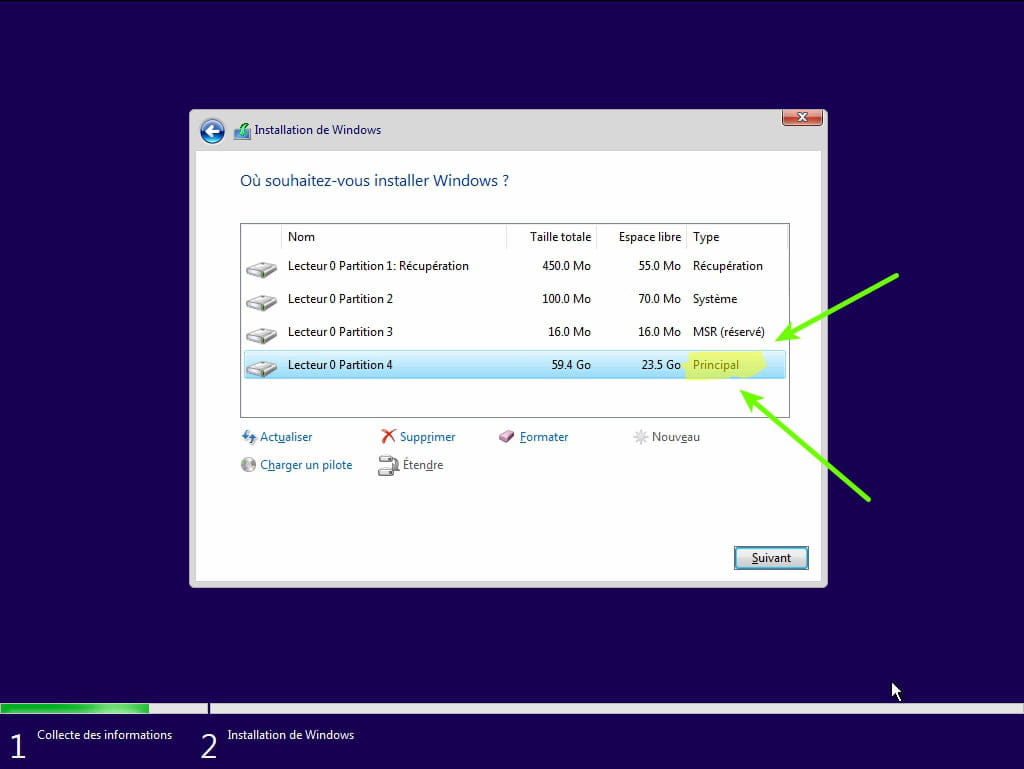
- During the partition step, select the main partition and click next.
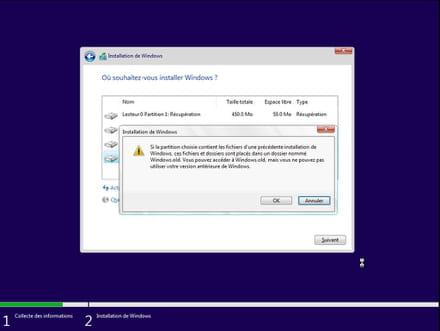
- The installer will tell you that Windows is already present and offer to move it.
- Follow the Windows installation procedure using the tutorial above.
Just don't format.
Your user data will be copied to the Windows.old folder.
Once Windows is installed, I recommend following these tips to properly configure and use Windows: Tips after reinstalling Windows.
--
Please press any key to continue the disinfection...