USB tethering connection
FeuDartifisse
-
brupala Posted messages 111190 Registration date Status Member Last intervention -
brupala Posted messages 111190 Registration date Status Member Last intervention -
Hello,
Configuration: Android / Chrome 69.0.3497.128
I'm having an issue with my computer and I don't know where the problem might come from.
Since my ADSL is not great, I use my 4G to stream (I have a plan with 60 GB, so I'm good on that front, and I'm with Bouygues. By the way, my phone is a Xiaomi Redmi 7) What I do is connect my phone to my computer and enable USB tethering.
The computer detects it and asks for permission, so far so good.
When I go to the Wi-Fi tab on the PC, it says "ethernet 21 or 22, etc." and indicates that it is a *limited* connection (I don't know what that means) And as soon as I go online to see if everything works, it doesn't load :(
Could anyone please help me that would be fantastic!
Configuration: Android / Chrome 69.0.3497.128
I'm having an issue with my computer and I don't know where the problem might come from.
Since my ADSL is not great, I use my 4G to stream (I have a plan with 60 GB, so I'm good on that front, and I'm with Bouygues. By the way, my phone is a Xiaomi Redmi 7) What I do is connect my phone to my computer and enable USB tethering.
The computer detects it and asks for permission, so far so good.
When I go to the Wi-Fi tab on the PC, it says "ethernet 21 or 22, etc." and indicates that it is a *limited* connection (I don't know what that means) And as soon as I go online to see if everything works, it doesn't load :(
Could anyone please help me that would be fantastic!
5 answers
-
Hello,
I do this manipulation very often.
Let's go back in order, from the beginning.Connection
- Disable your phone's Wi-Fi
- Enable the 4G on your phone
- Connect your phone via USB to the computer
- Enable USB tethering on your phone
- Your PC may sometimes ask for permission to communicate on public networks with this new network, respond Yes.
Network Configuration
Normally, you only need to do this once.- Limited connection
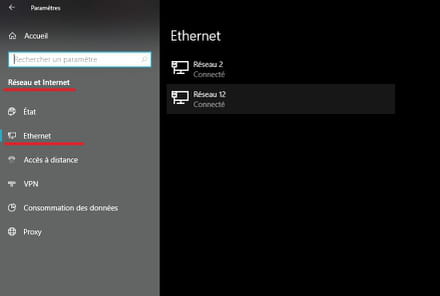
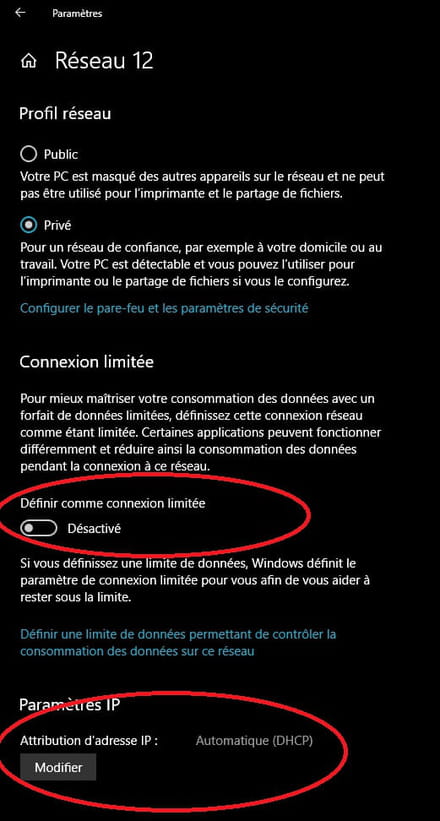
- Routing
Your PC now has 2 different connections. It doesn’t really know which one to prefer and will often use either one interchangeably (which can lead to differences in DNS and sometimes strange connection drops).
To remedy this, we will tell it that the 4G connection is the least preferable. (Yes, I know, it's contradictory, but just wait a bit)
We will be able to later tell your streaming software to use the 4G connection while the rest of the PC is on your normal Ethernet connection at the same time.
Your USB connection is generally identified as Remote NDIS based Internet Sharing Device
We will enter a metric of 999 for the 4G connection and a metric of 1 for the normal connection. This way, Windows will think that the 4G connection has much more latency than the normal connection and will never use it by default.
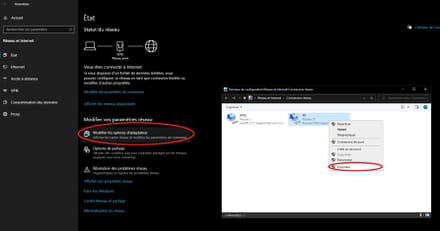
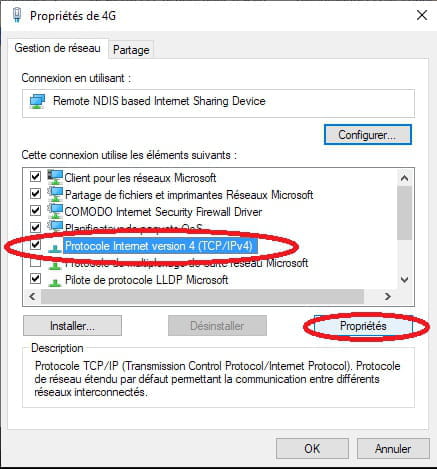
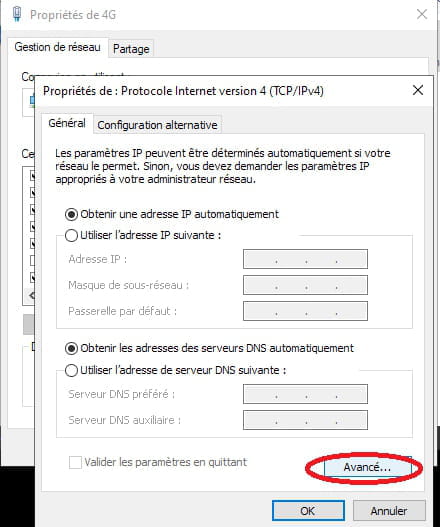
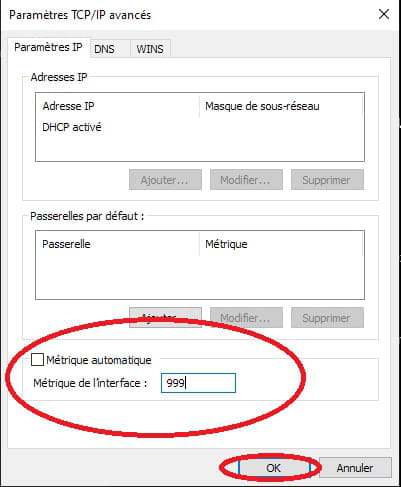
- Repeat the operation for the ipv6 connection of the USB network adapter.
- And do the same for the normal connection, but this time enter 1 instead of 999 for the metric (for both ipv4 and ipv6)
It may be useful to restart the PC at this stage.Streaming Software Configuration
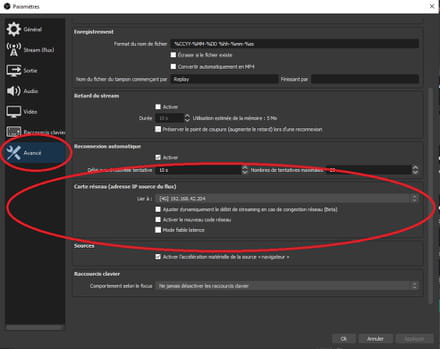
We will tell the streaming software to use the 4G connection.
I only have OBS as an example. But it also works for Streamlabs. Maybe xSplit too.
In any case, you can find this in the Advanced tab of the settings.
Usage
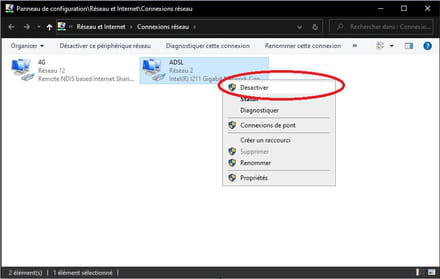
If you ever want to use only the 4G on your PC, you just need to repeat the connection procedure and disable your usual network adapter (or unplug the Ethernet cable).
I think I've covered everything.
However... the 4G is not related to Wi-Fi. They are not the same thing.
--
Musically,
SypayV.