
Undetectable SSD
Solved
Hello,
I have a Lenovo PC that was given to me, but that's not the important part. I thought I only had an HDD inside since I had never seen any other drive in Windows Explorer, but while taking it apart to clean it earlier, I noticed a beautiful hidden 128GB SSD inside. Honestly, I've been scouring all the forums for the past 2 hours trying to figure out how to detect it; it's not visible in the Disk Management tool, etc. All the solutions I've seen so far involve finding the SSD one way or another, but that's not the case for me; it’s completely untraceable. The last option I have left is to check the BIOS to see if it’s listed there, but I don't even know what to do if I find it. Thanks in advance for your help.
Messiah
I have a Lenovo PC that was given to me, but that's not the important part. I thought I only had an HDD inside since I had never seen any other drive in Windows Explorer, but while taking it apart to clean it earlier, I noticed a beautiful hidden 128GB SSD inside. Honestly, I've been scouring all the forums for the past 2 hours trying to figure out how to detect it; it's not visible in the Disk Management tool, etc. All the solutions I've seen so far involve finding the SSD one way or another, but that's not the case for me; it’s completely untraceable. The last option I have left is to check the BIOS to see if it’s listed there, but I don't even know what to do if I find it. Thanks in advance for your help.
Messiah
16 answers
-
ContributorDon't mess with tutorials that might be outdated and less suitable.
Go to the last tab of your BIOS and reset it to defaults.
On your HDD, your Windows installation was either done in UEFI (which is required) or in legacy mode (or inherited or CSM... the name depends on the BIOS, and it's not the best installation).
If installed one way and the BIOS switched to another later, Windows won't boot on it.
For your USB stick, it needs to be created in UEFI GPT (option in Rufus) and to boot from it, you must be in UEFI mode and disable secure boot.
From there, go to custom installation.
Until you reach the screen that lists the drives and their partitions.
We'll see what is visible.
You can exit and we'll decide from there.
----------
Basically
> find out if the installation on the HDD was done in UEFI or legacy.
Windows will only boot in the corresponding mode.
> check if you correctly created your USB stick with Rufus in UEFI GPT.
> And, I don't remember, but if there's nothing to recover on the HDD and we see both drives during installation, we'll wipe them directly, format them properly, and install on the SSD.
--
Auto message
If you're here, it's because you don't know, so... ;-)
Mini Reminder to the volunteers who are helping you: Respond, Respect, Politeness,... -
ContributorYou need to stop looking elsewhere.
These are things that are unrelated or outdated that you have in mind.
We can do everything from the key during installation.
(erase both hard drives, format them correctly, install on the SSD, etc...)
You just have to tell me if you have retrieved everything from your HDD?
(set aside on an external hard drive)
And so if we can delete everything and start fresh.
--
Auto message
If you are here, it means you don't know, so... ;-)
Mini note to the volunteers who help you: Response, Respect, Politeness,... -
ContributorAttention :
Let's say you have put everything aside on an external hard drive.
Because what follows will erase everything on your hard drives.
Not recoverable afterwards.
You will need to:
It's better to install with only the SSD (unplug the HDD during the installation)
1 > Download the ISO /
Already done, that's good
2 > Create the installation USB /
Already done, it's good in GPT UEFI
3 > Boot your PC to repair from your installation USB /
BIOS set to UEFI (and nothing other than UEFI, no CSM or legacy mode enabled)
and disable secure boot
(by default, the UEFI mode is supposed to be good, so just disable secure boot if the PC does not boot from the USB)
confirm by exiting (F10 and confirmation)
Turn off the PC
Plug in the USB drive
Restart
The PC should boot directly from the USB drive, therefore starting the installation.
or
Set your USB drive as the first boot option.
or
Use the key for the boot menu.
If there's a problem
We'll figure it out together.
4 > Windows Installation /
Here’s an overview for Windows 10 (not really up to date but it's just an overview)
http://www.windows8facile.fr/installer-windows-10/
Enter the license key if already purchased.
(or skip the step without entering anything and buy one later)
Choose Pro or Home depending on what you want and in relation to your license key, whether it's Home or Pro.
Proceed with a "custom" installation
You will follow the procedure and arrive at a screen that lists the locations and asks you "where to install Windows".
At that moment:
> We will clear and convert the two disks before installing.
"or just the SSD. If you unplugged the HDD, the same commands apply but can be done from Windows"
Press Shift and F10
(the command prompt opens)
Enter the following commands one by one, confirming with enter:
diskpart
list disk
sel disk X (X is to be replaced with the number corresponding to the disk you want to erase)
clean
convert gpt
exit
exit
Do the same for the second disk (if you left it connected).
Result -
In short, we clear the disk and you return to the installation screen.
You will only have one volume to choose for installation (the SSD).
The installation takes place.
Remove the USB drive at this restart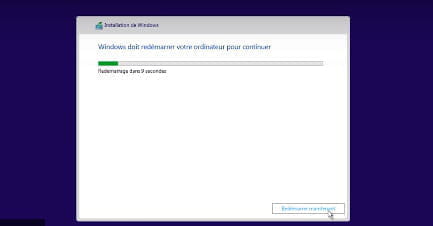
(if by default it doesn’t show at this moment and the PC has booted again from the USB, you can remove it forcefully and the rest of the installation will continue)
5 > Once installed, a few points need to be checked /
If activation is OK (or go buy a valid key, as mentioned 10 to 20 euros on the internet)
And
If drivers are OK and if not, use this
https://www.commentcamarche.net/faq/48455-mettre-a-jour-ses-pilotes-gratuitement-avec-driverscloud
We'll see it together when you get there.
----------------------------
WARNING if there's any issue, we will figure it out together to find a solution.
Auto message
If you are here, it means you don’t know, so... ;-)
Mini Reminder to the volunteers who help you: Reply, Respect, Politeness,... -
Contributorinstallation ok ?
--
Auto message
If you're here, it's because you don't know, so... ;-)
Mini Face-to-face with the volunteers who help you: Respond, Respect, Politeness,... -
Hi,
what model is your phone? -
It's a Lenovo Legion Y520-15IKBN; from what I understand, it was originally supplied with a basic Linux distribution, potentially on the SSD, and the previous owner installed (rather poorly) an unofficial version of Windows 10 (I have the lovely "Activate Windows" message permanently in the bottom right corner of my screen), so I hope this helps, thank you for your response.
-
ContributorGood evening,
Right-click on the Windows icon in the start menu
Choose "Windows PowerShell admin"
(the command prompt opens)
Enter the following commands one by one, validating with Enter:
diskpart
list disk
(exit to exit)
In the result of list disk, do you see your HDD and SSD?
--
Auto message
If you are here, it means you don’t know, so... ;-)
Mini Reminder to the volunteers who help you: Reply, Respect, Politeness,... -
No, it was provided with Windows 10 Home 64-bit. A Lenovo that comes with a Linux distribution out of the factory, I wonder if that exists. I think rather that he formatted the disk and thus erased the Windows 10 recovery partition, which forced him to install a non-activated version before selling it to you.
As for the SSD, you should disconnect/reconnect it and check in the BIOS if it is detected. If it is not, it should be tested on a desktop PC, checking in the BIOS of the desktop. -
When I run the commands in PowerShell, only my HDD shows up.
So I will try this tomorrow, we'll see how it goes, thank you for your responses. -
Sorry for taking so long; I couldn't take care of it right away. I finally found my SSD by going into the BIOS (for my PC, I have to press F2 multiple times at startup) and I switched the SATA configuration to AHCI (it was set to Intel RST Premium). However, no matter what I did, I couldn't boot from my HDD with that option enabled, even after changing the boot order. So I created a boot key with the Windows Media Creation Tool, which didn't work, and now I'm getting ready to try again with a Rufus USB drive. Alright, thank you for your help; I'll keep you updated.
-
-
@BorachoMessiahI forgot to mention that when I boot from the HDD in AHCI mode, Windows tells me that the boot device is not accessible. Does that mean my HDD is not compatible with AHCI at all?
-
-
Hello,
https://www.pcastuces.com/pratique/materiel/sata_ahci/page1.htm
By default, most motherboards are set to "Compatible IDE" mode. Enabling AHCI mode in the BIOS on an already installed system results in a blue screen and a boot loop in Windows XP, Windows Vista, Windows 7, or Windows 8.1.
However, Windows Vista, Windows 7, and Windows 8.1 include AHCI drivers, but they are not activated. Therefore, before switching to AHCI, you must first enable them in Windows.
This must be done before enabling AHCI in the BIOS.
Close all Windows applications
Click Start/Run, type regedit in the input box, then press ENTER.
If the User Account Control dialog box appears, click Continue.
Locate the following Registry subkey and click on it: HKEY_LOCAL_MACHINE\System\CurrentControlSet\Services\msahci
In the right pane, right-click the Start key in the Name column, then click Modify.
In the Value data box, type 0, then click OK.
In the File menu, click Exit to close the Registry Editor.
http://www.easy-pc.org/2014/08/activer-l-ahci-apres-l-installation-de-windows.html -
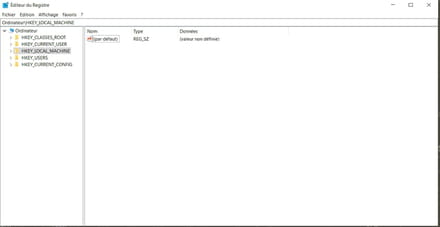
Is this key? -
So my rufus installation is in UEFI GPT, my Windows is in legacy, and I think the problem also comes from the fact that Ubuntu is installed on the SSD. While researching earlier, I learned that the memory codecs are not compatible, so I need to format the SSD, right?
-
-
@BorachoMessiahAnd now with the BIOS configuration, even Linux refuses to start.
-
-
I completed step 3 and my PC is stuck on the startup screen, is that normal?
-
I cleaned and converted the disk with disk part and I still have 3 partitions, and when I select the largest one (2) which is 110.8Go I get the message "This partition is too small. Please extend the size of this partition to at least 10016 MB or select another partition."
-
-
Contributor@BorachoMessiahYes, the table was not updated with what has been done, refreshing it and it's good.
-
-
Well, I was able to do everything, so I finally have a fast and functional Windows, I formatted both disks which are finally both recognized so I want to thank you all for your patience and for your help, you just made someone happy, thanks again, and good luck.
Messiah-
ContributorYou're welcome ;-)
When it's simple, don't complicate things ;-)
Bonus,... depending on the size of the SSD to avoid cluttering it, change the library paths so that the data is directly and automatically stored on the HDD.
tutorial > http://www.chantal11.com/2009/05/deplacer-mes-documents-ou-tout-dossier-personnel-sur-autre-partition-windows-7-8-10/
Remember to mark the subject as resolved if everything is good for you.
-

