Password and user account issues

Hello,
This morning, I wanted to remove the password that WINDOWS asks for at startup. I went through the run command and opened "netplwiz." I arrived at "user accounts" and unchecked the box "Users must enter a username and password to use this computer."
The problem is that I don't quite remember what I did next. But at one point, it created another user (I think it's a Microsoft account??) but the username that was entered in the box was incomplete (the last 2 letters were missing) and I must have confirmed it, and now, when I turn off the computer and then turn it back on, not only does it still ask me for a password, but it also offers me 2 users and says that the password is incorrect (even though, as mentioned above, I unchecked the box so it wouldn't ask for one!!!!) and I still have to enter my password!!
Does anyone know how to remove this second user that I don't want? And how to avoid having to enter a password??
Thanks in advance... (sorry for the long message)
This morning, I wanted to remove the password that WINDOWS asks for at startup. I went through the run command and opened "netplwiz." I arrived at "user accounts" and unchecked the box "Users must enter a username and password to use this computer."
The problem is that I don't quite remember what I did next. But at one point, it created another user (I think it's a Microsoft account??) but the username that was entered in the box was incomplete (the last 2 letters were missing) and I must have confirmed it, and now, when I turn off the computer and then turn it back on, not only does it still ask me for a password, but it also offers me 2 users and says that the password is incorrect (even though, as mentioned above, I unchecked the box so it wouldn't ask for one!!!!) and I still have to enter my password!!
Does anyone know how to remove this second user that I don't want? And how to avoid having to enter a password??
Thanks in advance... (sorry for the long message)
6 answers
-
Hello.
Right-click on Start and then press the A key
Then type net users (press Enter)
Provide the result.
(If your name appears, you can change it for security reasons)-
Hello Renardrougeetnoir,
I’m sorry for not responding quickly, but actually, the issue is on a computer that I only use on weekends, at my country house...
Here are the results of the operation:
-------------------------------------------------------------------------------
Administrator XXXXX DefaultAccount
Guest WDAGUtilityAccount
The command completed successfully
The XXX represents the username that WINDOWS created, which is missing the last 2 letters of the real name that should have been there. And that’s exactly the user I would like to delete...
-
-
ModeratorHello,
Press Windows + R
type netplwiz and hit OK.
Provide a screenshot
Then indicate which user you want Windows to log in as?
--
Please press a key to continue the disinfection...-
-
Moderator@clulu12Press Windows + R
Type msconfig
In the General tab, check "Normal startup"
Then restart the PC
Try again. -
@Malekal_morte-It's not working, still need a password!
-
-
Good evening.
What operating system are you using? (This is an important question)-
-
@clulu12Ok d'accord.
So when you're on the user interface, in the bottom right corner, click once on the stop button,
Once you have the three selections, hold the shift button and click on restart,
When you get to the "Choose an option" interface, click on troubleshooting (or troubleshoot)
Click on Command Prompt and then type these commands in order:
move d:\windows\system32\utilman.exe d:\windows\system32\utilman.exe.bak
copy d:\windows\system32\cmd.exe d:\windows\system32\utilman.exe
then to reboot the PC: wpeutil reboot.
Once you're on the user interface, click on accessibility options, (next to the stop button)
Then type these commands:
net user (a username) /add
net localgroup administrators (the username) /add
Useful info: If the command "net localgroup administrators (the username) /add" didn't work, instead of administrators use administrateurs
Then you have a new user and you can access it without a password.
-
-
ModeratorStart on the advanced system recovery options using Method 1 from this page: Windows Advanced Recovery Options.
The principle is to restart on the page where you're asked for the password, with the icon at the bottom right while holding down the Shift key.
If you cannot get to the window where Windows asks for the passwords due to a freeze or crash beforehand...
Turn off the computer twice during the Windows loading.
It will enter recovery mode, giving you access to the advanced system recovery options.
(If starting with the advanced recovery options is not possible, you need to create a USB key to boot from, you have a link on the previous page for that).
More help:- This tutorial that gives all the methods: Boot into Windows 10 Troubleshooting and Recovery Options
- And also this video: https://www.youtube.com/watch?v=2Z34STeNSCs
Once you're there, go to Troubleshoot and you can then try:- running a system restore to revert to a previous configuration of Windows. This is the Reset this PC option.
- Reset Windows 10 (this keeps your data but removes applications).
--
Please press any key to continue the disinfection...-
Hello,
I'm trying the steps you mentioned, but there's a problem: I'm on the Reset this PC page where it's asking for the user's password, which I entered, and it tells me: "the password is incorrect. Please try again." I even tried to leave it blank (just in case it remembers that I unchecked the box to leave it blank), but it won't accept that either!
I'm really worried!
-
ModeratorIf you no longer have any other administrator accounts on the computer, it’s more complex; you need to reset the password using a Live CD.
See this page: Retrieve the lost or forgotten Windows password using a Live CD.
It is recommended to have two administrator accounts, to have one as a backup in case of problems.
--
Please press any key to continue the disinfection...-
Hello,
I bought a USB flash drive because there aren't even CD drives on laptops anymore!!
But I have a question: isn't there a way to "reset" the PC to go back to the very beginning, as if it just came out of the box?
However, I still find it outrageous that you can't bypass the requirement to set a password now. I didn't want to set one from the start, but WINDOWS wouldn't let me continue until I put one in when I turned on the computer for the first time!! That's just crazy!!
Well, I'm going to see how to make the "live CD" on the USB flash drive...
I hope I don't crash the computer...
On another note, I'm wondering why Windows doesn't recognize the password when I'm on "Reset this PC" whereas when I normally boot up the computer, sure, I have to select the user created at the very beginning (the other one I created by mistake, I'd like to delete it, but we'll deal with that later) but it does recognize the password since I can access my account and open Windows "normally"!!???!! it's really weird! -
Moderator@clulu12To reset, it will ask you for the password of an administrator user.
So you risk getting blocked.
If you can't do it,
Reinstall Windows 10 without formatting:
The principle is to create a Windows 10 installation USB stick and boot the computer from it to reinstall Windows without formatting in order to keep the data.
Since the computer is down, you need to create this from another functional computer.
To create the USB stick:
You need a USB stick of at least 8 GB.- Create a USB stick using Media Creation Tool: Download and create a Windows 10 USB stick with Media Creation Tool
- Boot from it by modifying the boot sequence and indicating the USB stick or the DVD: How to boot the computer from USB stick
If the USB stick doesn't work, try recreating it with Rufus: how to download Rufus.
Download the ISO file, for example with Adguard: Download Windows ISO
Launch Rufus then indicate the path of the ISO file
In partition scheme, choose GPT.
For more details, refer to this tutorial for details: how to create a Windows installation USB stick
The Windows 10 installer should then start:
Follow these tutorials that explain how to install Windows 10:
All steps are provided from A to Z with tips at the end to secure Windows 10.- Let yourself be guided to install Windows 10.
- Choose customize (not upgrade)
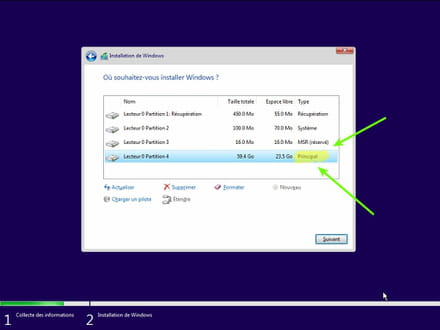
- During the partition phase, select the main partition and click next.
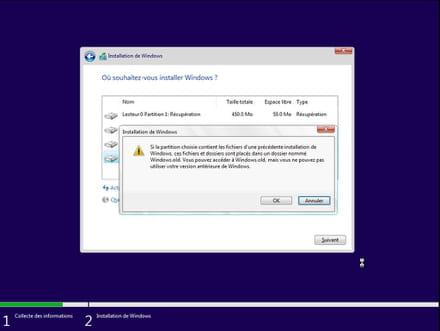
- The installer will tell you that Windows is already present and offer to move it.
- Follow the Windows installation procedure using the tutorial above.
Do not format.
Your user data will be copied to the Windows.old folder.
Once Windows is installed, I recommend following these tips to properly configure and use Windows: Tips after reinstalling Windows.
-
-
Hello,
Here is a link to remove the Windows password, if that can help.
https://www.commentcamarche.net/informatique/windows/57-supprimer-le-controle-par-mot-de-passe-de-windows-10/
--
Ray