Lenovo y50-70 PC issue: reset and major bug
Oggy
-
Malekal_morte- Posted messages 178136 Registration date Status Moderator, Security Contributor Last intervention -
Malekal_morte- Posted messages 178136 Registration date Status Moderator, Security Contributor Last intervention -
Hello,
I'll be direct, I'm not an IT person... I don't know a lot about PCs, but my PC won't work anymore and I'm panicking... I hope you can help me!
Here's the problem. I've had a Lenovo Y50-70 for about four and a half years, Windows 8 with NVIDIA GeForce GTX and core i7. I don't understand. Last night I was playing a game (Fortnite) and everything was fine, the computer was working well. I quit the game and turned off my PC. Everything went well.
An hour later I wanted to turn it back on. CARNAGE. The "please wait" Windows screen is blue (I had it set to red) and I already find that suspicious. Then it asks me for my password, I put it in and it tells me I can't access my PC. I find that even more suspicious. I redo my password and it works. OMG. I get to a desktop page that isn't mine! Everything is changed, no files, documents, photos, Word documents... I had so many important documents! But I didn’t think to make a backup... So, I restart everything (I've had to do it a hundred times by the time I'm writing this) and upon restarting, even more carnage. Everything is still resetting but I can't access the desktop. The desktop shows up black, and the Windows taskbar keeps appearing and disappearing non-stop... I'm so frustrated... :( I don’t know what to do... Heeeeelp
No matter how many times I restart, nothing is working. I haven't done anything to get to this point, I don’t understand... I hope you can help me because this PC cost me an arm...
Thanks in advance,
Laury.
Configuration: Android / Chrome 79.0.3945.93
I'll be direct, I'm not an IT person... I don't know a lot about PCs, but my PC won't work anymore and I'm panicking... I hope you can help me!
Here's the problem. I've had a Lenovo Y50-70 for about four and a half years, Windows 8 with NVIDIA GeForce GTX and core i7. I don't understand. Last night I was playing a game (Fortnite) and everything was fine, the computer was working well. I quit the game and turned off my PC. Everything went well.
An hour later I wanted to turn it back on. CARNAGE. The "please wait" Windows screen is blue (I had it set to red) and I already find that suspicious. Then it asks me for my password, I put it in and it tells me I can't access my PC. I find that even more suspicious. I redo my password and it works. OMG. I get to a desktop page that isn't mine! Everything is changed, no files, documents, photos, Word documents... I had so many important documents! But I didn’t think to make a backup... So, I restart everything (I've had to do it a hundred times by the time I'm writing this) and upon restarting, even more carnage. Everything is still resetting but I can't access the desktop. The desktop shows up black, and the Windows taskbar keeps appearing and disappearing non-stop... I'm so frustrated... :( I don’t know what to do... Heeeeelp
No matter how many times I restart, nothing is working. I haven't done anything to get to this point, I don’t understand... I hope you can help me because this PC cost me an arm...
Thanks in advance,
Laury.
Configuration: Android / Chrome 79.0.3945.93
1 answer
-
Hello,
Reset it with the OneKey button: how to factory reset a Lenovo PC
or
Reinstall Windows 10 without formatting:
The principle is to create a Windows 10 installation USB key and boot the computer from it to reinstall Windows without formatting in order to keep the data.
Since the computer is stuck, you need to create this from another functional computer.
To create the USB key:
You need a USB key of at least 8 GB.- Create a USB key with Media Creation Tool: Download and create a Windows 10 USB key with Media Creation Tool
- Boot from it by changing the boot sequence and specifying the USB key or DVD: How to boot the computer from a USB key
If the USB key does not work, try creating another one with Rufus: how to download Rufus.
Download the ISO file for example with Adguard: Download Windows ISO
Launch Rufus and then specify the path of the ISO file
In partition scheme, choose GPT.
For more details, refer to this tutorial for details: how to create a Windows installation USB key
The Windows 10 installer should then start:
Follow this tutorial that explains how to install Windows 10: how to install Windows 10.
All steps are provided from A to Z with advice at the end to secure Windows 10.- Let yourself be guided to install Windows 10.
- Select customize (not upgrade)
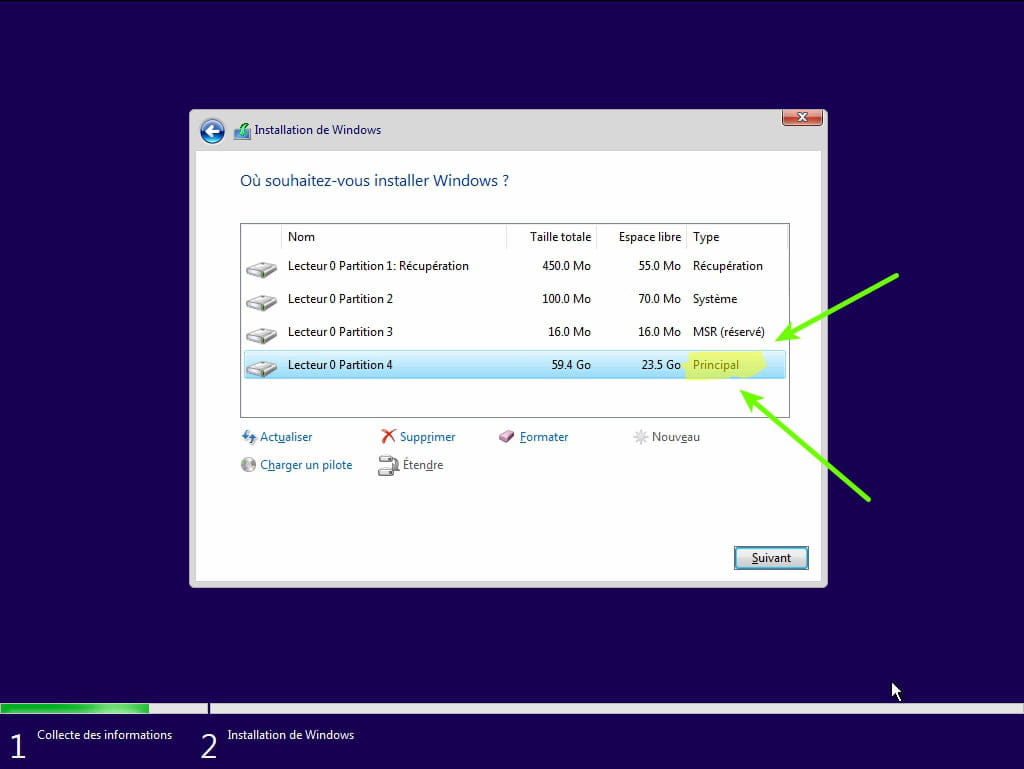
- During the partition phase, select the main partition and click next.
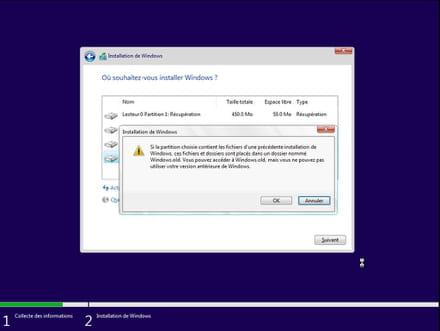
- The installer will tell you that Windows is already present and offer to move it.
- Follow the Windows installation procedure using the tutorial above.
Do not format.
Your user data will be copied to the Windows.old folder.
Once Windows is installed, I recommend following these tips for properly configuring and using Windows: Tips after Windows reinstallation.
--
Please press a key to continue the disinfection...