"Repair Attempt" Loop: HP - Windows 10
Fahelis
-
Fahelis Posted messages 3 Status Member -
Fahelis Posted messages 3 Status Member -
Hello,
I'm reaching out to you because I'm having a big problem with my PC.
It's a HP Pavilion 17-g019nf
Detailed specifications: https://support.hp.com/fr-fr/document/c04740650
It originally came with Windows 8 with a free upgrade to 10, which I did at the time of purchase (August 2015).
A few weeks ago, I started experiencing severe (very severe) slowdowns in everything I was doing. I tried to back up my data to an external drive, but every action took forever, and I wasn't able to recover everything :(
After several days of slowdowns, it eventually stopped booting.
When I turn it on, I see the HP logo, and then usually a black screen for a short while until it goes to "attempting repairs," sometimes "diagnostics," but it always ends up returning to attempting repairs, which loops for hours and hours (I left it overnight once... and it was still there when I woke up).
I wonder if it's more of a hardware issue or if Windows is definitely corrupted.
Knowing that at least part of the hardware must still be viable since I can boot into a live USB of a Fedora distribution, but since I'm not root, I can't mount the Windows partition to recover my data :(
If anyone (who had the courage to read me all the way through) has any advice to give, I'm all ears. Ideally, I would like to recover my data, and secondly, if the PC can reboot, that would be even better ^^'
Thank you for your attention.
I'm reaching out to you because I'm having a big problem with my PC.
It's a HP Pavilion 17-g019nf
Detailed specifications: https://support.hp.com/fr-fr/document/c04740650
It originally came with Windows 8 with a free upgrade to 10, which I did at the time of purchase (August 2015).
A few weeks ago, I started experiencing severe (very severe) slowdowns in everything I was doing. I tried to back up my data to an external drive, but every action took forever, and I wasn't able to recover everything :(
After several days of slowdowns, it eventually stopped booting.
When I turn it on, I see the HP logo, and then usually a black screen for a short while until it goes to "attempting repairs," sometimes "diagnostics," but it always ends up returning to attempting repairs, which loops for hours and hours (I left it overnight once... and it was still there when I woke up).
I wonder if it's more of a hardware issue or if Windows is definitely corrupted.
Knowing that at least part of the hardware must still be viable since I can boot into a live USB of a Fedora distribution, but since I'm not root, I can't mount the Windows partition to recover my data :(
If anyone (who had the courage to read me all the way through) has any advice to give, I'm all ears. Ideally, I would like to recover my data, and secondly, if the PC can reboot, that would be even better ^^'
Thank you for your attention.
3 answers
-
Hello,
It’s probably the disk.
You can check it with CrystalDiskInfo from the Malekal Live CD.
=> https://www.malekal.com/tester-diagnostic-materiel-de-ordinateur-live-cd-malekal/
~~
Reinstalling Windows 10 without formatting:
The principle is to create a Windows 10 installation USB drive and boot the computer from it to reinstall Windows without formatting, in order to keep the data.
Since the computer is stuck, you need to create this from another functional computer.
To create the USB drive:
You need a USB drive of at least 8 GB.- Create a USB drive with Media Creation Tool: Download and create a Windows 10 USB drive with Media Creation Tool
- Boot from it by changing the boot sequence and indicate the USB drive or DVD: How to boot the computer from a USB drive
If the USB drive doesn't work, try making another one with Rufus: how to download Rufus.
Download the ISO file, for example with Adguard: Download Windows ISO
Launch Rufus and indicate the path to the ISO file
In partition scheme, choose GPT.
For more details, refer to this tutorial for details: how to create a bootable Windows installation USB drive
The Windows 10 installer should then start:
Follow this tutorial that explains how to install Windows 10: how to install Windows 10.
All steps are provided from A to Z with tips at the end to secure Windows 10.- Let yourself be guided to install Windows 10.
- Choose custom (not upgrade)
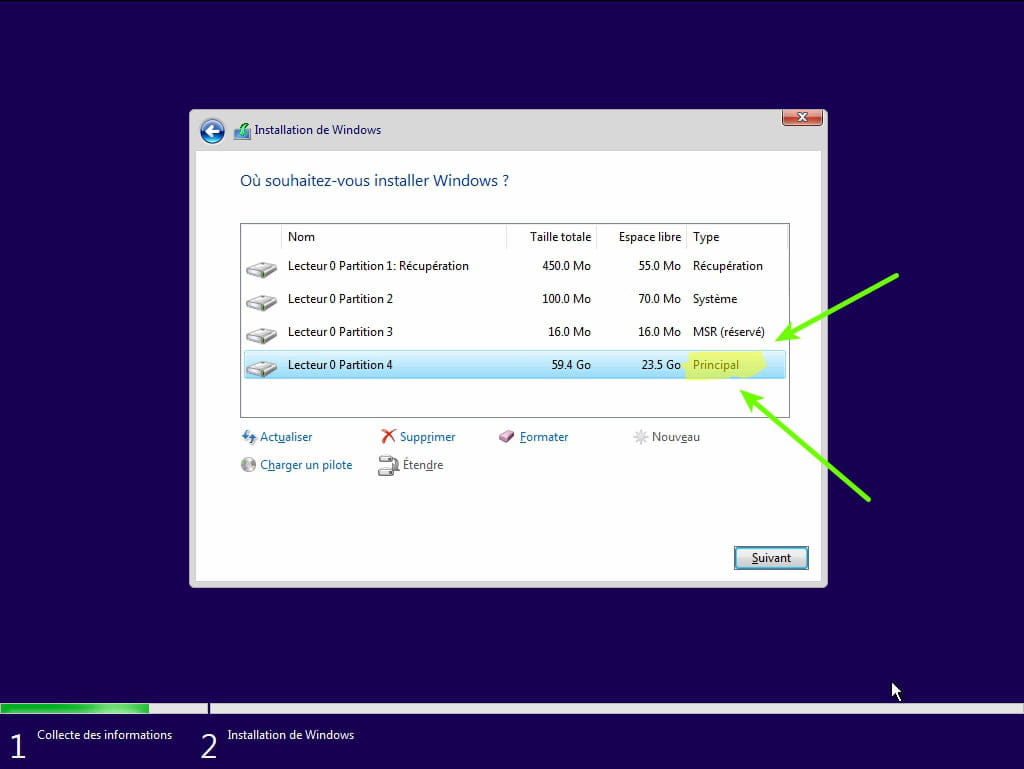
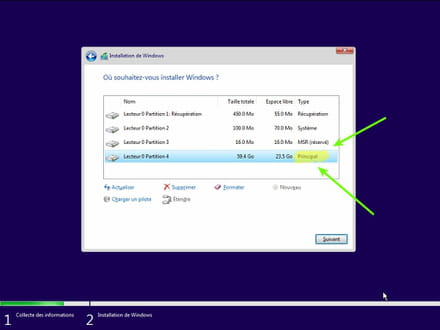
- During the partition phase, select the main partition and click Next.
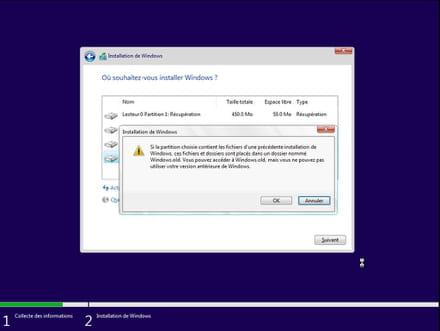
- The installer will tell you that Windows is already present and will suggest moving it.
- Follow the Windows installation procedure using the tutorial above.
Just do not format.
Your user data will be copied to the Windows.old folder.
Once Windows is installed, I recommend following these tips to properly configure and use Windows: Tips after reinstalling Windows.
--
Please press any key to continue the disinfection...