"Epson XP-452 'Ink Out' Error"
Juanlucas_38
Posted messages
5
Registration date
Status
Member
Last intervention
-
Juanlucas_38 -
Juanlucas_38 -
Hello
I have an Epson XP-452 printer
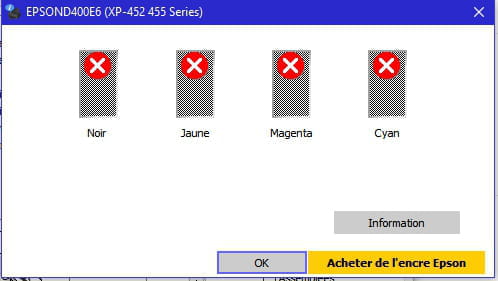
When I turn it on, I get a "Ink out error" displayed in red.
And I can't do anything at all.
It’s less than 3 months old, it's under warranty, but if this issue can be resolved by myself, I would save time.
Thank you for your responses.
I have an Epson XP-452 printer
When I turn it on, I get a "Ink out error" displayed in red.
And I can't do anything at all.
It’s less than 3 months old, it's under warranty, but if this issue can be resolved by myself, I would save time.
Thank you for your responses.
5 answers
-
pistouri Posted messages 19010 Registration date Status Contributor Last intervention Ambassador 8 732
Hello,
Ink out = Out of ink.
1- Turn on your Epson printer.
Check your cartridges.
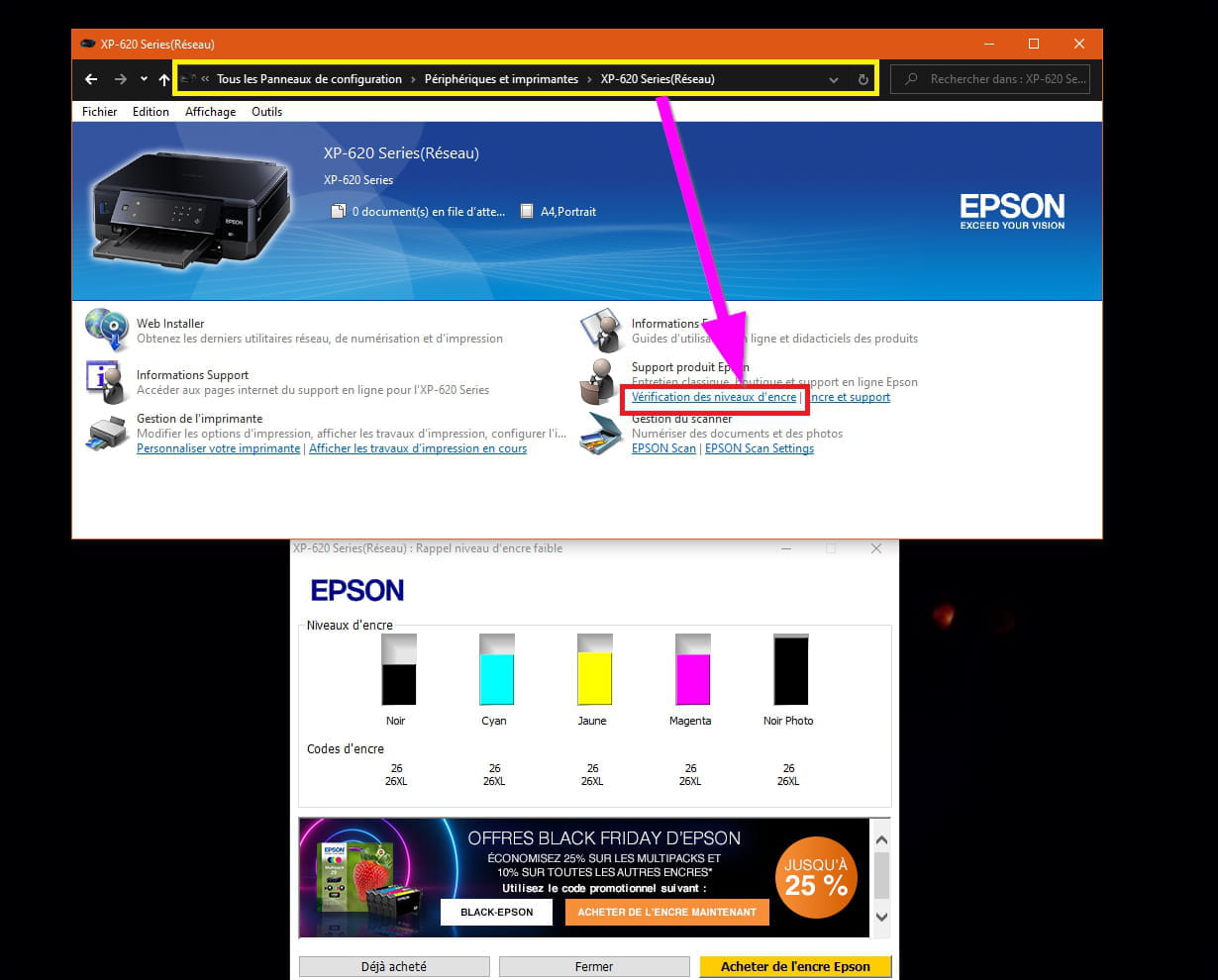
Go to Control Panel → Hardware and Sound → Devices and Printers
Click on your printer.
Section → Epson Product Support
There should be a line → Checking ink levels
Now just look to see if one of them is empty or nearly empty.
2- Try unplugging for about 10 seconds and then plugging your printer back in.
I don't really believe in that.
3- Check out this video
There are no explanations, and on your printer like mine (higher model) there is no right button.
Unless it’s the button with a circle and an upside-down triangle on the front of the printer or the OK button.
It’s like a reset.
3- Try pressing the Power button for a good 5 seconds and release it.
When you release the button, press it again for about 3 seconds.
Now release the button and then quickly press the Power button again.
The printer is reset.
4- Another method:
Unplug the printer from the power source (wait for it to clear memory) for about 10 seconds ...
Connect the printer to the power source (wall socket).
Press the Power button for 15 seconds
Release the Power button.
Press the Power button again for 15 seconds
Release the Power button again (the printer will stay on)
And finally, press the OK button or the one with a triangle in a circle.
Good luck...
A+
--
pistouri