EFI Shell at Boot
-
Hello, I wanted to redo my system and I think I made a mistake; it shows me this Shell image, no command works, only the startup key, I really need help.
Thank you.

Thank you.

1 answer
-
ModeratorHello,
Initially, it doesn’t find any OS.
Reinstall Windows 10 from a USB key.
The idea is to create a Windows 10 installation USB key and boot the computer from it to reinstall Windows without formatting.
Since the computer is frozen, you need to create this from another functional computer.
To create the USB key:
You need a USB key with at least 8 GB.- Create a USB key with Media Creation Tool: https://www.malekal.com/windows-10-media-creation-tool/
- Boot from it by changing the boot sequence and selecting the USB key or DVD: How to boot the computer from USB key
If the USB key doesn’t work, try making another one with Rufus: how to download Rufus.
Download the ISO file, for example with Adguard: Download Windows ISO
Launch Rufus and specify the path of the ISO file
In partition type, choose GPT.
For more details, refer to this tutorial for specifics: how to create a Windows installation USB key
The Windows 10 installation program should then start:
Follow this tutorial that explains how to install Windows 10: how to install Windows 10.
All steps are detailed from A to Z with tips at the end to secure Windows 10.- Let yourself be guided to install Windows 10.
- Choose custom (not upgrade)
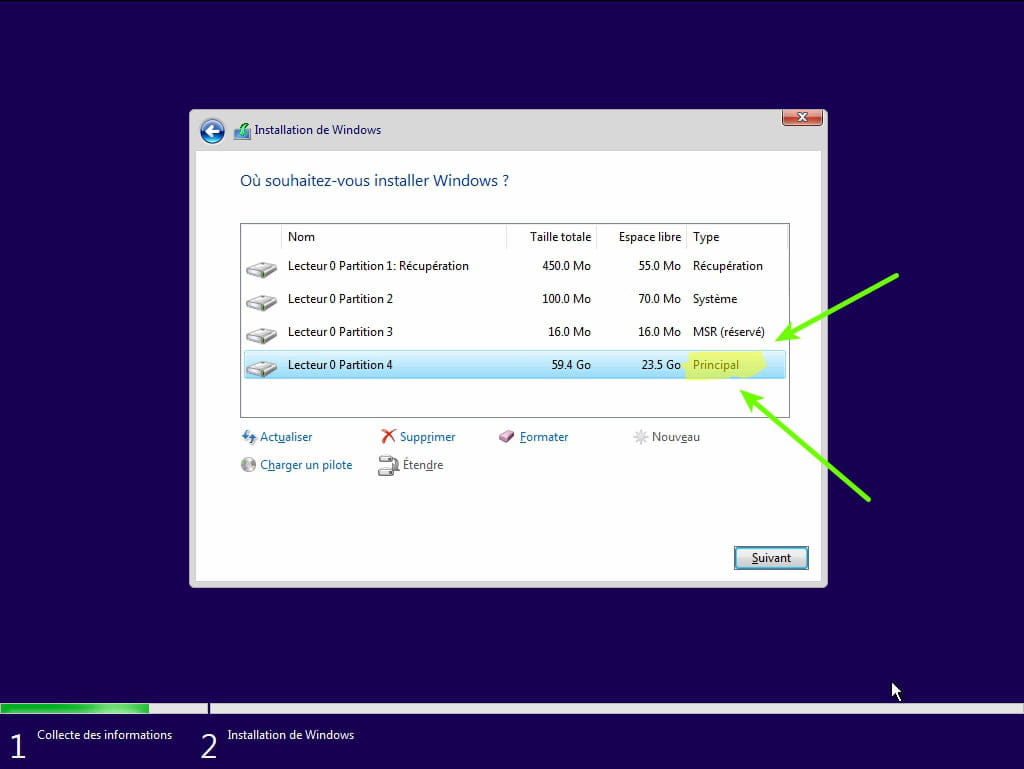
- During the partition phase, select the main partition and click next.
- The installer will tell you that Windows is already present and will offer to move it.
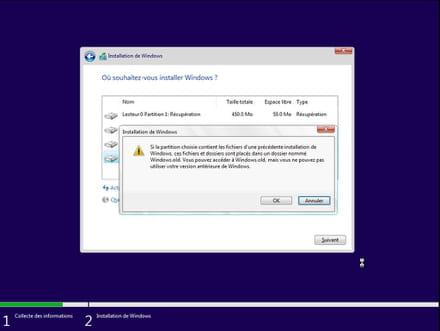
- Follow the Windows installation procedure using the tutorial above.
Make sure not to format.
Your user data will be copied to the Windows.old folder.
Once Windows is installed, I advise you to follow these tips for properly configuring and using Windows: Tips after reinstalling Windows.
--
Please press a key to continue the disinfection...-
-
Moderator@DestaDrizYou're welcome.
Yes, please confirm if you were able to reinstall Windows so we can mark the topic as resolved. -
-
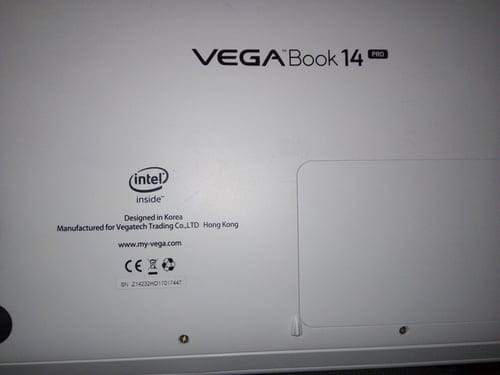
Moderator@DestaDrizWhat is the full model of the computer?
-