« Votre PC a rencontré un problème » installation de Windows 10 clé USB
Sparkle_
Posted messages
5
Status
Member
-
Sparkle_ Posted messages 5 Status Member -
Sparkle_ Posted messages 5 Status Member -
Hello,
I'm not very knowledgeable about computers, and I have a problem with my PC that when I start it shows the blue screen "Your computer ran into a problem. We're collecting ... "
I did some research online and wanted to reinstall Windows 10. So I created a USB drive with the Windows tool, but when I boot my PC configuring the BIOS to my USB, it shows the Asus screen, then the blue Windows logo on a black background, then the blue screen "Your PC ran into a problem and needs to restart. We'll restart for you." It restarts and goes back to the blue screen, and so on.
I tried changing the boot priority order, but nothing changes.
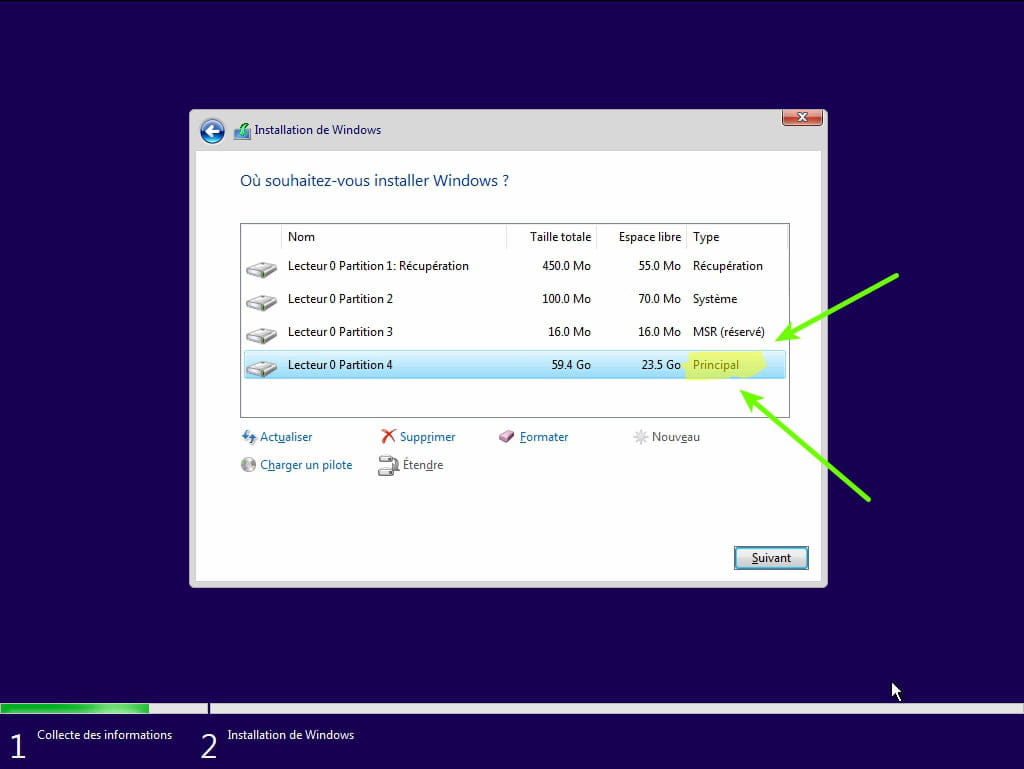
Photo (sorry for the quality) of the BIOS:
I want to clarify that I have an Asus PC running Windows 10, I only have the USB stick connected to the computer, and I don't need to keep the data on the computer, I've already backed everything up on an external hard drive.*
Thank you for your help.
I'm not very knowledgeable about computers, and I have a problem with my PC that when I start it shows the blue screen "Your computer ran into a problem. We're collecting ... "
I did some research online and wanted to reinstall Windows 10. So I created a USB drive with the Windows tool, but when I boot my PC configuring the BIOS to my USB, it shows the Asus screen, then the blue Windows logo on a black background, then the blue screen "Your PC ran into a problem and needs to restart. We'll restart for you." It restarts and goes back to the blue screen, and so on.
I tried changing the boot priority order, but nothing changes.
Photo (sorry for the quality) of the BIOS:
I want to clarify that I have an Asus PC running Windows 10, I only have the USB stick connected to the computer, and I don't need to keep the data on the computer, I've already backed everything up on an external hard drive.*
Thank you for your help.
1 answer
-
Hello,
How was the key made?
If it was made with Media Creation Tool, try the procedure with Rufus.
Reinstall Windows 10 without formatting:
The principle is to create a USB installation key for Windows 10 and boot the computer from it to reinstall Windows without formatting.
Since the computer is frozen, you need to create it from another functional computer.
To create the USB key:- Create a USB key with Media Creation Tool: https://www.malekal.com/windows-10-media-creation-tool/
- Boot from it by modifying the boot sequence and indicating the USB key or DVD: How to boot the computer from USB key
If the key does not work, try making another one with Rufus: how to download Rufus.
Download the ISO file, for example, with Adguard: Download Windows ISO
Choose GPT as the partition type
For more details, refer to this tutorial for the particulars: how to create a bootable USB installation key for Windows
The Windows 10 installer should then start:
Follow this tutorial that explains how to install Windows 10: how to install Windows 10.
All steps are given from A to Z with advice at the end to secure Windows 10.- Let yourself be guided to install Windows 10.
- Choose customize (not upgrade)
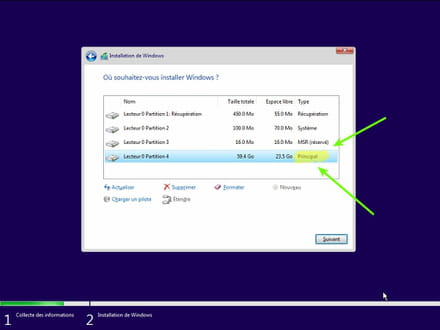
- During the partition phase, select the main partition and click next.
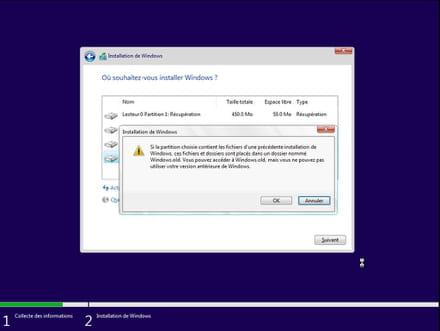
- The installer will tell you that Windows is already present and offers to move it.
- Follow the installation procedure for Windows using the tutorial above.
Especially do not format.
Your user data will be copied to the Windows.old folder.
Once Windows is installed, I recommend following these tips to properly configure and use Windows: Tips after reinstalling Windows.
-
Good evening, thank you for the response :)
I downloaded the Windows tool from this link: https://www.microsoft.com/fr-fr/software-download/windows10
After trying several times to restart my computer, I managed to get the Windows window asking for language selection, but the blue screen occurred right after. So I don't know if it's the key that's not working or if it's the computer.
I will try Rufus and will send another message as soon as I'm done. -