Le service de configuration démarre.....?
ctassé
Posted messages
35
Registration date
Status
Member
Last intervention
-
LePetitChat11 Posted messages 265 Status Member -
LePetitChat11 Posted messages 265 Status Member -
Hello everyone,
I have a damn problem after trying to do a system recovery on my ACER ASPIRE laptop which is now running on Windows 10 after an update I believe happened about a year ago.
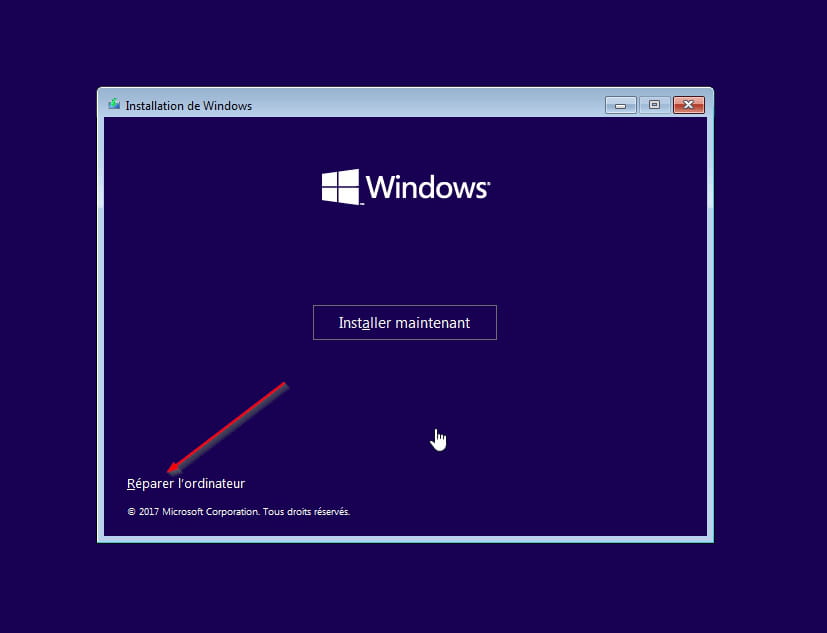
This message is displayed and nothing has moved for 24 hours. Earlier during my recovery, my computer got stuck at 99% of the update and was frozen there for as long as this new message I received after trying to restart and pressing the F10 key to then get this message SETUP IS STARTING SERVICES, I'm pretty discouraged here...
I have a damn problem after trying to do a system recovery on my ACER ASPIRE laptop which is now running on Windows 10 after an update I believe happened about a year ago.
This message is displayed and nothing has moved for 24 hours. Earlier during my recovery, my computer got stuck at 99% of the update and was frozen there for as long as this new message I received after trying to restart and pressing the F10 key to then get this message SETUP IS STARTING SERVICES, I'm pretty discouraged here...
3 answers
-
Hello,
Here is the procedure to reset or reinstall Windows 10 from installation media.
In either case, you will not lose your user data, but the applications will be removed.
Create the Windows 10 installation USB drive:
Do this if you don't have one.
From a functioning computer:- Download the Windows 10 installation ISO: https://www.microsoft.com/fr-fr/software-download/windows10 (other download methods: https://www.malekal.com/telecharger-iso-windows/).
- Create the installation media using Media Creation Tool, more information: https://www.malekal.com/windows-10-media-creation-tool/
On the crashed computer, you need to boot from the Windows 10 installation USB drive to launch the installer, to do this:- Boot from it by changing the boot order and indicating the USB drive or DVD: How to boot your computer from USB drive
If the USB drive does not work, try making a new one with Rufus: how to download Rufus - see this tutorial for details: how to create a Windows installation USB drive
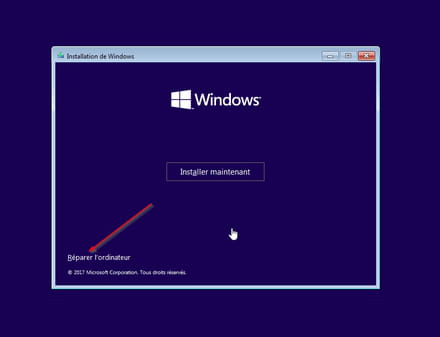
Method 1 - Reset Windows to fix problems:- Go to Repair your computer at the bottom left
- Troubleshoot then reset this PC
Keep your files, applications will be uninstalled.
Method 2 - Reinstall Windows 10 without formatting
If that doesn't work, restart the computer using the Windows 10 installation USB drive.
Follow this tutorial explaining how to install Windows 10: how to install Windows 10.
All steps are provided from A to Z with tips at the end to secure Windows 10.- Let yourself be guided to install Windows 10.
- Choose Custom (not upgrade)
- During the partition phase, select the main partition and click Next.
- The installer will tell you that Windows is already present and offer to move it.
- Follow the Windows installation procedure using the tutorial above.
Make sure not to format.
~~
In both cases, user data will be copied to the Windows.old folder.
Once Windows is installed, I recommend following these tips for properly configuring and using Windows: Tips after reinstalling Windows.
--
Please press any key to continue the disinfection...