Unable to turn on MSI, error message: preparing for automatic repair.
AlexEug
Posted messages
2
Status
Member
-
Malekal_morte- Posted messages 178136 Registration date Status Moderator, Security Contributor Last intervention -
Malekal_morte- Posted messages 178136 Registration date Status Moderator, Security Contributor Last intervention -
Hello,
I have a MSI GS60 2QD that I purchased a little over a year ago and it's running Windows 10.
I have a major problem because I can no longer turn on my PC:
- I turn on my PC
- I see the "MSI" screen
- at the bottom, a message appears saying "preparing automatic repair"
- the computer suddenly turns off
This happens every time I try to turn it on.
What should I do to resolve this issue and recover all my files?
Thank you in advance for your help.
I have a MSI GS60 2QD that I purchased a little over a year ago and it's running Windows 10.
I have a major problem because I can no longer turn on my PC:
- I turn on my PC
- I see the "MSI" screen
- at the bottom, a message appears saying "preparing automatic repair"
- the computer suddenly turns off
This happens every time I try to turn it on.
What should I do to resolve this issue and recover all my files?
Thank you in advance for your help.
3 answers
-
Hello,
See this link to solve looping automatic repair issues: https://www.malekal.com/windows-10-demarre-boucle-reparation-automatique/
If nothing works, you will need to reinstall Windows 10.
Here are the steps to reset or reinstall Windows 10 from an installation media.
In both cases, you will not lose your user data, but applications will be removed.
Create the Windows 10 installation USB drive:
To be done if you do not have one.
From a working computer:- Download the Windows 10 installation ISO: https://www.microsoft.com/fr-fr/software-download/windows10 (other download methods: https://www.malekal.com/telecharger-iso-windows/ ).
- Create the installation media using Media Creation Tool, more information: https://www.malekal.com/windows-10-media-creation-tool/
On the crashed computer, you need to boot from the Windows 10 installation USB drive to start the installer, to do this:- Boot from it by changing the boot sequence and indicating the USB drive or DVD: How to boot the computer from USB drive
If the USB drive does not work, try making a new one with Rufus: how to download Rufus - see this tutorial for details: how to create a Windows installation USB drive
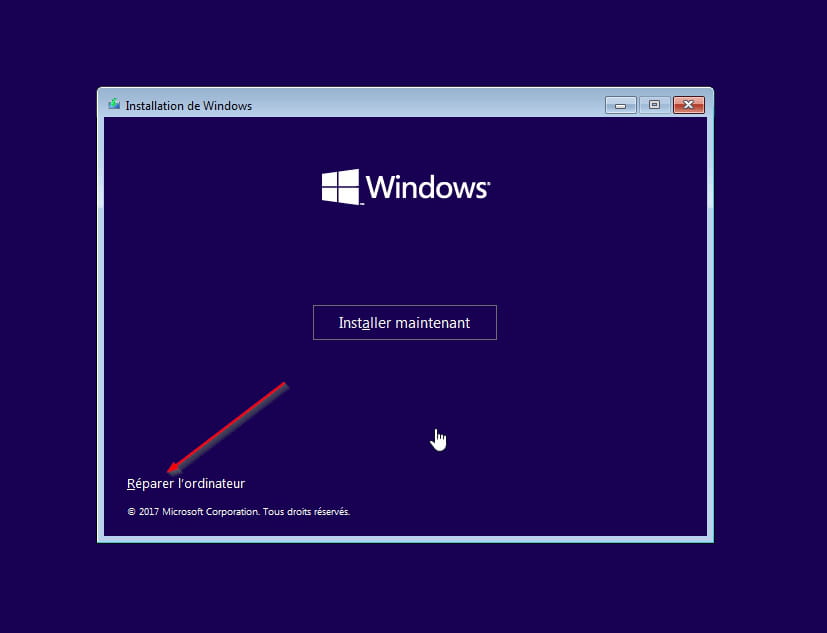
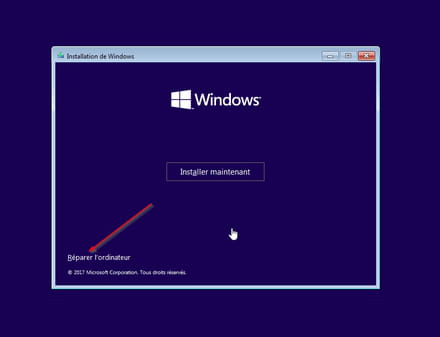
Method 1 - Reset Windows to fix issues:- Go to Repair your computer at the bottom left
- Troubleshoot then reset the PC
Keep the data, applications will be uninstalled.
Method 2 - Reinstall Windows 10 without formatting
If that doesn't work, restart the computer from the Windows 10 installation USB drive.
Follow this tutorial that explains how to install Windows 10: how to install Windows 10.
All steps are provided from A to Z with tips at the end to secure Windows 10.- Let yourself be guided to install Windows 10.
- Choose customize (not upgrade)
- During the partition phase, select the main partition and click next.
- The installer will tell you that Windows is already present and offer to move it.
- Follow the Windows installation procedure using the tutorial above.
Do not format.
~~
In both cases, user data will be copied to the Windows.old folder.
Once Windows is installed, I recommend following these tips to properly configure and use Windows: Tips after reinstalling Windows.
--
Please press any key to continue the disinfection... -
Hi Maleka,
Thank you very much for your response,
it indeed worked well.
I, as you explained, put Windows on a USB stick and was able to repair the computer by following method 1.
Have a good evening! -
ok great and have a good evening to you =)
--
Please press any key to continue the disinfection...