MSI stuck on the boot screen - Preparing Automatic Repair
Ahzrukhal
Posted messages
6
Status
Member
-
Malekal_morte- Posted messages 178136 Registration date Status Moderator, Security Contributor Last intervention -
Malekal_morte- Posted messages 178136 Registration date Status Moderator, Security Contributor Last intervention -
Hello everyone
Since this morning, my computer (MSI Aegis 3 8RC) won't start anymore. When I try to turn it on, I get to the MSI startup screen with the loading dots spinning, and it says "Preparing Automatic Repair," then that line of text disappears and I'm left with just the MSI logo and the loading logo spinning indefinitely.
Does anyone have a solution to suggest?
I added an 8GB RAM stick a few days ago, I tried removing it but the problem persists...
The issue appeared after I had to force restart the computer following a file check of a crashed Steam game; the PC failed to restart and now only shows this MSI startup screen...
Since this morning, my computer (MSI Aegis 3 8RC) won't start anymore. When I try to turn it on, I get to the MSI startup screen with the loading dots spinning, and it says "Preparing Automatic Repair," then that line of text disappears and I'm left with just the MSI logo and the loading logo spinning indefinitely.
Does anyone have a solution to suggest?
I added an 8GB RAM stick a few days ago, I tried removing it but the problem persists...
The issue appeared after I had to force restart the computer following a file check of a crashed Steam game; the PC failed to restart and now only shows this MSI startup screen...
2 answers
-
Hello
Reinstall Windows 10 without losing personal data and applications: see here
--
If my answer helped you, click the Thank You button. -
Hi,
Try the solutions on this page: Windows 10 starts in a loop on automatic repair- Try to start without driver signature enforcement (from the advanced settings menu)... if it works, update the drivers.
- If it crashes too, try restoring the Windows registry from the command prompt.
MSI PCs also come with the option to factory restore using the F3 key at startup.
See: https://www.malekal.com/comment-restaurer-dusine-un-pc-msi/
and if it's still not better:
Reinstall Windows 10 without formatting:
The idea is to create a USB installation drive for Windows 10 and start the computer from it to reinstall Windows without formatting, in order to keep the data.
Since the computer is crashed, you will need to create this from another functional computer.
To create the USB drive:
You need a USB drive of at least 8 GB.- Create a USB drive with Media Creation Tool: Download and create a USB Windows 10 drive with Media Creation Tool
- Start from it by modifying the boot sequence and indicating the USB drive or DVD: How to boot the computer from USB drive
If the drive does not work, try making another one with Rufus: how to download Rufus.- Download the ISO file using direct links or from Rufus: Download Windows ISO
- Launch Rufus and then specify the path to the ISO file
- In partition scheme, choose GPT.
- For more details, refer to this tutorial for details: how to create a bootable Windows installation USB drive
The Windows 10 installer should then start:
Follow these tutorials that explain how to install Windows 10:
All the steps are given from A to Z with tips at the end to secure Windows 10.- Let yourself be guided to install Windows 10.
- Choose customize (not upgrade)
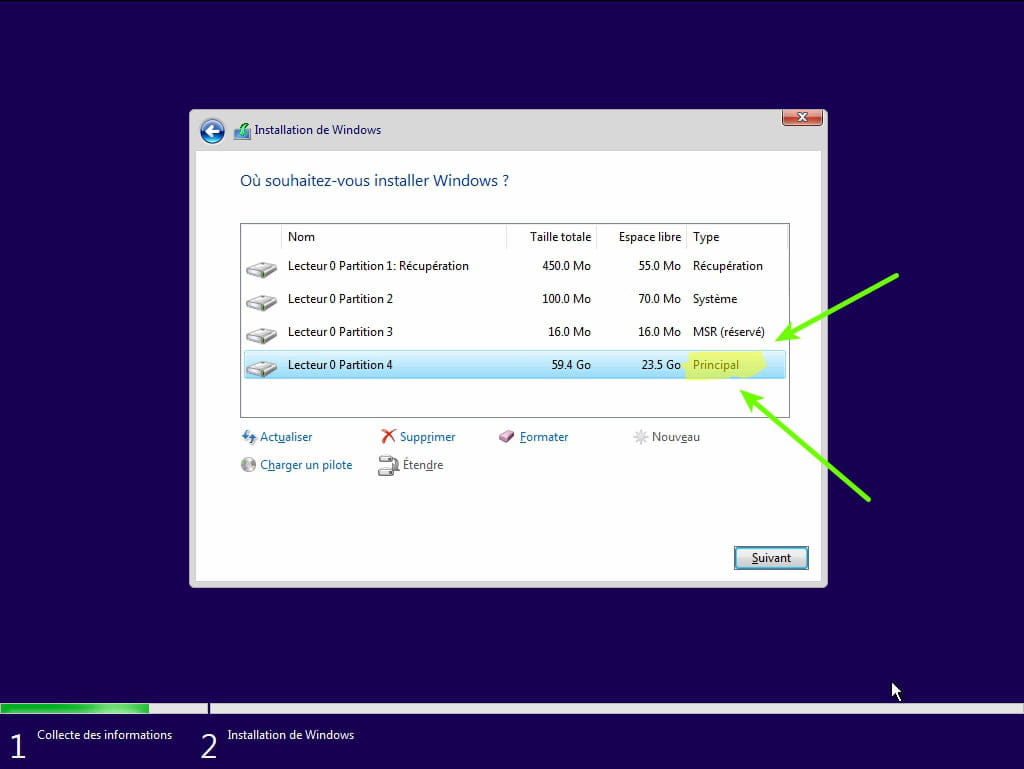
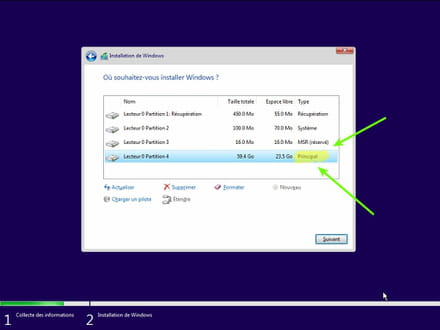
- During the partition phase, select the main partition and click next.
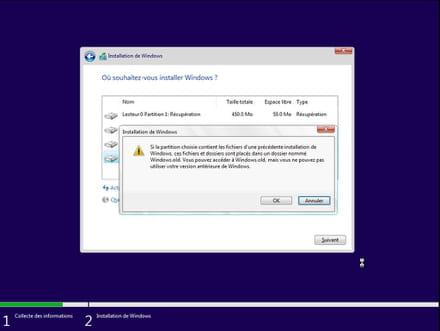
- The installer will tell you that Windows is already present and offer to move it.
- Follow the Windows installation procedure using the tutorial above.
Just do not format.
Your user data will be copied into the Windows.old folder.
You can then recover bookmarks, browser passwords, etc.
Read this tutorial: Recover deleted applications when resetting your PC in Windows 10
Once Windows is installed, I recommend following these tips to properly configure and use Windows: Tips after reinstalling Windows.