ALPS Pointing device driver - error message
Solved
symaja
Posted messages
116
Status
Member
-
Catwoman -
Catwoman -
Hello,
I have two error windows at startup on my PC, both showing the same message: set user settings to driver failed. When I check the task manager, it seems that this is related to my touchpad driver. I went to the Acer website to update this driver, but the messages still appear.
Any ideas to help me???
Good evening and thank you in advance
symaja
Acer Inspire
Intel Core i5 7200 U
Nvidia GeForce GTX 950 M 2 Gb dedicated
8 Gb RAM
1 Tb HDD
Windows 10
I have two error windows at startup on my PC, both showing the same message: set user settings to driver failed. When I check the task manager, it seems that this is related to my touchpad driver. I went to the Acer website to update this driver, but the messages still appear.
Any ideas to help me???
Good evening and thank you in advance
symaja
Acer Inspire
Intel Core i5 7200 U
Nvidia GeForce GTX 950 M 2 Gb dedicated
8 Gb RAM
1 Tb HDD
Windows 10
10 answers
-
I'm starting here cleanly and with a few modifications
(I might have confused you a bit because I hesitated)
Don't give up.
----------------------
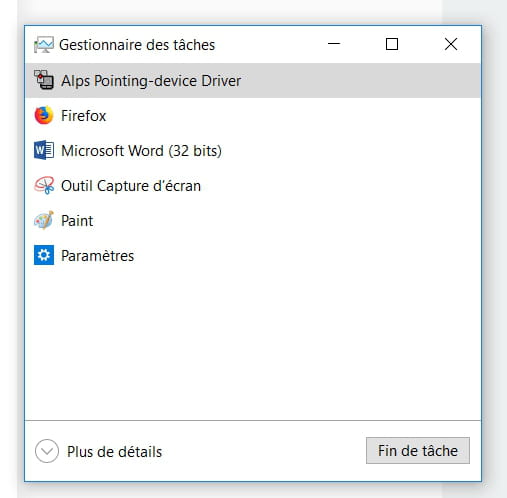
Restart your PC, this way we will find the ALPS Pointing device driver process in the task manager.
-------------------------------
Right-click on the Start menu.
Choose Task Manager
In the Task Manager, go to the Processes tab.
Find
Right-click on it and choose "Open file location"
A page opens with the folder, keep it open for the next steps.
Right-click again on the same line in the task manager.
End Task
The process stops and the line disappears, that's normal.
-------------------
In the file we kept open
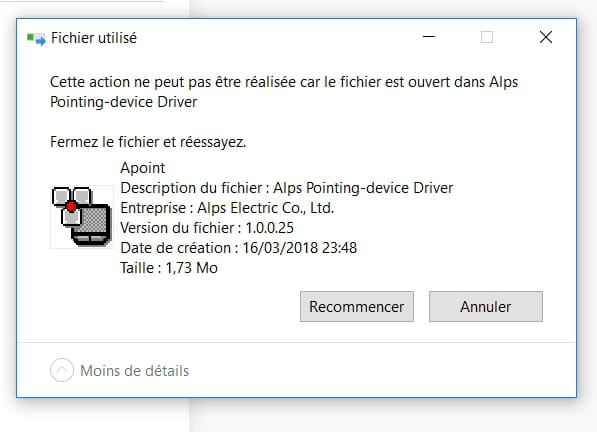
Find this line
Right-click on it to delete it.
The deletion window opens.
Once you have it, close the folder but not the deletion window.
Confirm the deletion (it might require confirmation twice if it doesn’t go through the first time).
Once deleted, your error messages should disappear.