Wake On Lan with Livebox
Solved
Nai
Posted messages
718
Registration date
Status
Member
Last intervention
-
Nai Posted messages 718 Registration date Status Member Last intervention -
Nai Posted messages 718 Registration date Status Member Last intervention -
Good evening everyone :)
I am looking to wake my PC via WOL. I have configured the BIOS (Asus P7P55D-E motherboard) and the network card (Realtek PCIe GBE Family Controller). I am using an app on my Smartphone (Android) to send the packet, but nothing happens :(
I understand that it might be possible that my router does not allow it. Is that the case with the Livebox from Orange?
Thank you in advance for your help :)
Configuration: Windows 7 (64 bits)
Google Chrome (latest version)
Intel(R) Core(TM) i7 CPU
2.4GHz
Memory 8.00 Go
Best regards,
Naï
p.s.: I monitor all my unresolved topics, if you have a solution, I will definitely read it :)
I am looking to wake my PC via WOL. I have configured the BIOS (Asus P7P55D-E motherboard) and the network card (Realtek PCIe GBE Family Controller). I am using an app on my Smartphone (Android) to send the packet, but nothing happens :(
I understand that it might be possible that my router does not allow it. Is that the case with the Livebox from Orange?
Thank you in advance for your help :)
Configuration: Windows 7 (64 bits)
Google Chrome (latest version)
Intel(R) Core(TM) i7 CPU
2.4GHz
Memory 8.00 Go
Best regards,
Naï
p.s.: I monitor all my unresolved topics, if you have a solution, I will definitely read it :)
2 answers
-
Hey
First of all, if you're talking about WOL (Wake On Lan, local network), a smartphone connected via Wi-Fi to the router doesn't get involved since there's nothing to route
I "wake up" two machines using WOW (Wake On Wan, over the Internet) with my smartphone on 3G
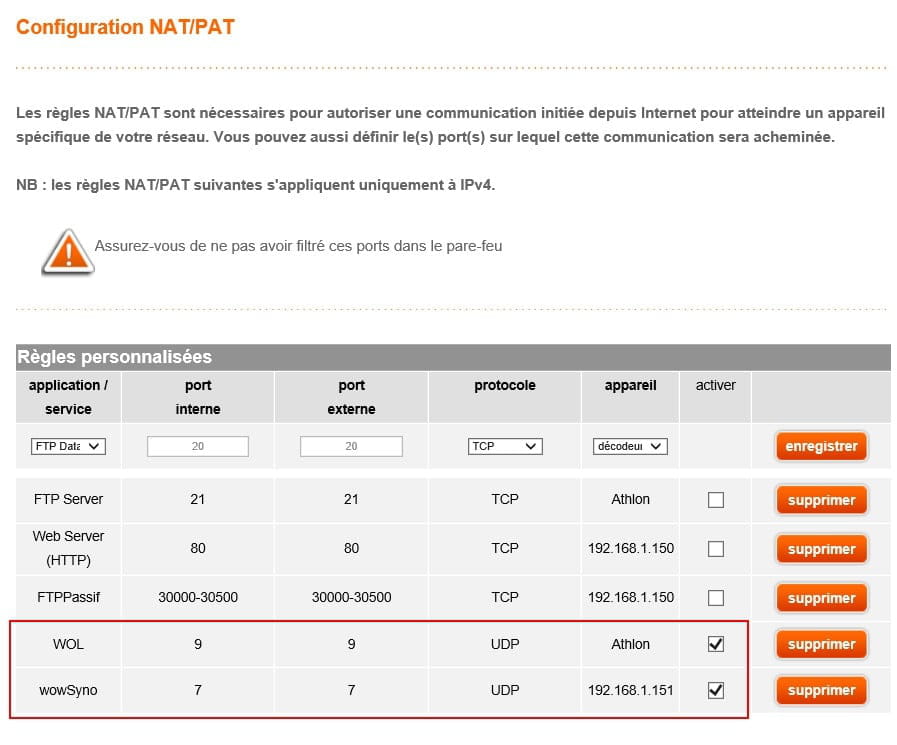
Did you set up a port redirect on your router for your WOW?

It works for me (Livebox Play latest firmware)
Try it locally first and check if the magic packet is reaching the PC with Wake On Lan Monitor
https://www.depicus.com/wake-on-lan/wake-on-lan-monitor
Then do the same test with your smartphone on 3G
The PC must be connected via Ethernet, as no Wi-Fi card can maintain the connection to the router with the PC turned off, and therefore ensure the WOL function
--
-
Ah! Thank you Kaumune! :D
I had resigned myself to letting time pass, and you’re giving me "hope" again! :D
However, you’ve been way too fast for me! :O
The BIOS setup is done. What’s the next step?
The PC is connected via Ethernet, indeed.
I would like to initially do it with WOL (I'll see about WOW later! :D)
If I've understood correctly, Wake On LAN Monitor is supposed to "detect" that a magic packet has arrived?
If so, sending the magic packet with the PCAutowaker app (on my Android smartphone) didn’t work. I'm connected via WiFi (4G disabled) and the MAC address is correct.
I must have missed something, but since it works for you, I’d like it to work for me too! :D
Thanks in advance for the help (probably long and tedious, but undeniably useful for everyone).
Naï. -
If it's just WOL, no need for NAT rules in the box, regardless of which box it is.
For Wake On Lan Monitor, you launch it, enter the port number you use in your smartphone app (7 or 9), and click on START.
You send the magic packet with your smartphone.
If it doesn't work, you need to closely check the settings of your app and the MAC address of the PC.
Verify with an ipconfig /all on the PC: Local IP address of the PC, MAC address of the PC.
Personally, I use this app.
https://play.google.com/store/apps/details?id=com.benfinnigan.wol&hl=fr

-