Email wallpaper for Thunderbird
Solved
oberland
Posted messages
34
Registration date
Status
Member
Last intervention
-
renard bleu Posted messages 2273 Registration date Status Member Last intervention -
renard bleu Posted messages 2273 Registration date Status Member Last intervention -
Hello. My problem is as follows: I want to set one of my photos (on the PC, Vœux_2018.jpg) as the background of an email to be sent. Although I'm not very computer-savvy, I manage to do it, but the photo is duplicated both upwards and downwards, which is unfortunate.
I've heard that I need to add <TD background= "Vœux_2018.jpg" style= "BACKGROUND-REPEAT: no-repeat"></TD> to resolve this issue. Yet, despite all my attempts, I can't open the photo once I've made the background modification. I have to go back to find the original photo and it appears to be duplicated...
Thank you if you can tell me how to write the background modification and then open the photo once it has taken the changes into account.
Merry Christmas, happy holidays to everyone, and thank you in advance...
I've heard that I need to add <TD background= "Vœux_2018.jpg" style= "BACKGROUND-REPEAT: no-repeat"></TD> to resolve this issue. Yet, despite all my attempts, I can't open the photo once I've made the background modification. I have to go back to find the original photo and it appears to be duplicated...
Thank you if you can tell me how to write the background modification and then open the photo once it has taken the changes into account.
Merry Christmas, happy holidays to everyone, and thank you in advance...
13 answers
-
Hello,
Copy and paste your photo into the email... or use the "insert image" tool, but it won't be a wallpaper.
Otherwise, attach the photo... because I don't think there is any other solution.
^Abel^ -
Thank you to Abel, but as he says himself, copying and pasting the photo is just a way to sidestep the problem. Moreover, it doesn't work (when I click on the message text, the system doesn't offer me the option to paste the photo I've just copied).
There is also the attachment which will be the workaround I will use if I can't solve the problem.
Thank you for the response and happy holidays... -
Actually, the classic copy-paste doesn’t work, but clicking on the "Image" icon in the toolbar to insert the image does work...
There’s also the option to insert the text into the image before inserting it using graphic software (Gimp, Photofiltre... or others)...
Personally, I proceed this way.
--
^Abel^ -
Hello.
Indeed, by using the "Image" icon, you can copy/paste a photo (already written). But that’s where my problem begins: how can I prevent it from multiplying both vertically and horizontally? I would like the recipient of the email to see only the photo with its original size... That’s what I don't know how to do... -
My faith, normally it doesn't multiply... :/
There is an anomaly here, but which one? Who has an idea?
--> Is your messaging up to date?
Check in Help > About Mozilla Thunderbird. -
Hello Oberland
To set a background image or signature in the bottom right (for example) in Thunderbird
- In “Write”, click on “Insert” and look for a .gif or .jpeg
- With the cursor, move the image to the bottom right to the desired location.
(To make moving easier: “cut” the image, slightly move
the cursor, “paste” the image and position it in
the bottom right with the cursor)
- In “Account Settings”, enable “Attach
the signature from a file” and click on “choose”
to search for the previously inserted photo
(which displays its path).
- Click OK
- In Thunderbird: Save the blank page with the .gif as a “Template”
To delete the template and the background image
- Delete the file in “Template”
- In “Account Settings”, disable “Attach the signature from a
file
Note: even after deactivation, the address of the image below will remain grayed out but inactive/
Happy Holidays -
Hello Abel
NO, you cannot write on an image in Thunderbird
whether it is an inserted image or a background image in a signature.
You can write next to it, but not on the image.
To write on an image, you need to use photo software
which I do regularly (Photoshop, PhotoFiltre, etc.)
Only then do you insert your photo into Thunderbird.
However, you can insert letterhead or a background of your choice as explained below
and there you can write on the colored background
- Click on “Format” - “Colors and Background”
- Use “Choose a file” with “Browse” to upload your personal file.
- Click OK.
Now, the background should be displayed in the message window.
- In the “Subject” line, give it a name before sending it
- File > Save As > Template
– Then in the Templates folder. Just double-click
on the subject line to start a new message
using this as letterhead.
Have a great weekend and happy holidays. -
Thank you to Renard bleu for their response. I followed the instructions: I inserted the photo, changed the account setting to "choose" to indicate the path, saved it as a template. I closed Thunderbird and reopened it later: it is indeed the previously saved image that appears. I check that I am still on "template." The original image has not been modified or moved. I send myself the message with a little note (besides the image). The message arrives... without the photo!!
I have tried several times and the photo never arrived...
It's a shame, because it shouldn't be missing much, but my computer skills are probably too limited. I will leave it at that, thanking all my contacts for their help.
And happy holidays... -
Re: Abel
We’re playing with words!! But I admit it’s not easy
1) By "insert" we place an image wherever we want.
2) By "background image" in the signature, we position the image
in a more limited area (to the right, for example, like a
signature).
3) In the case of "Wallpaper" (wallpaper or
a specific image) that some wrongly call a background image
(but to each their own language), it’s a "template"
that we create to use multiple times.
In cases 1 and 2, you can only write on the image
with a photo editing software and before inserting or incorporating it into
Thunderbird.
In case 3, you can write on the wallpaper or on
the image considered as wallpaper within
Thunderbird.
I don’t know if I’m clear! (and not Clerc de Notaire (LOL)!!!
Have a good end of the afternoon -
Hello,
Pretend you want to write a new email and in the field, put your email address as if you wanted to send it to yourself and insert your image.
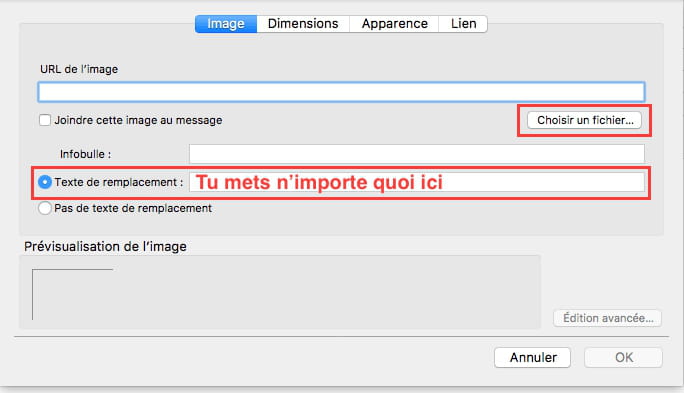
When you insert your image, you are asked to enter alt text. You can simply put a dot if you want, it doesn't matter.
Then: File, Save as template.
Click on Templates on the left and select your template on the right and choose "Forward"
No need to restart Thunderbird for that. I tested it and everything works perfectly.
--
"To make any change in our lives, we must start by expressing gratitude for what we already have." -
Hello Oberland
I think you are not on the original HTML, let's check.
You saved your template because you say:
"it's indeed the image saved previously that appears. I check that I am still on "template". The original image has not been modified or moved. I send it to myself
So send it or take back the previous send in which the image does not appear upon arrival
- Click on "View > "Message body as" > Original HTML (you are probably on simple HTML)
Good luck and happy holidays -
Hello and happy new year to everyone!
And a big thank you to those who participated in this conversation. I finally managed to send a message with a photo (not a wallpaper! I must have confused...). You can only write next to it.
There were several problems to solve: first, not to choose a photo that is too large (500 x 355 worked); then, to request in the account settings to be able to sign with a photo; next, you had to go to "Tools"/"Account settings"/"Add signature..."/Choose the prepared photo.
Finally, go to "Options"/"Distribution format": choose "Text and HTML"
Save it as a template and you can send...
It wasn't easy, but with the multiple help I received I finally made it!! The problem is solved!!
So thank you to those who helped me. Happy new year again and enjoy the end of your holidays or have a good return, as the case may be! -
Hello Oberland
Glad for you if it works.
Could you please mark it as "Resolved"?
Thanks in advance.
Happy New Year 2018