
How to recover Google Chrome bookmarks directly from the hard drive
Solved
fredekac1
Posted messages
6
Status
Membre
-
fredekac1 Posted messages 6 Status Membre -
fredekac1 Posted messages 6 Status Membre -
Hello everyone,
Here is my problem: My PC broke down and it was running on Windows 8.1.
After several weeks without a PC, I was forced to buy a new one, but it runs on Windows 10.
However, the problem is that I need to "emulate" my old PC running Windows 8.1 to recover information that is not directly visible on the hard drive or find another way to retrieve it.
I placed the hard drive from my old PC into an external enclosure to access it via USB.
The data I need to recover involves the Fresh Start extension for Google Chrome. This extension manages sessions through bookmarks (I also have many bookmarks, but that's not my main concern) but mainly the Fresh Start sessions.
I want to point out that on the old PC, I never logged into an account… big mistake!
On the new PC, I reinstalled Fresh Start, but it is empty, just like the bookmarks bar.
So, I manually tried to recover the two files:
Bookmarks and Bookmarks.bak
From the old PC's hard drive - E:\Users\[USERNAME]\AppData\Local\Google\Chrome\User Data\Default
To copy them into the new PC's folder: C:\Users\[USERNAME]\AppData\Local\Google\Chrome\User Data\Default
I then restarted the new PC, but Google Chrome did not recognize them.
Did I miss something?
If this is not the right method or if there is another way, how can I proceed?
I want to reiterate that I never logged into a Google Chrome account, so my info has always remained (at least I think) local :(
Configuration: Configuration: Windows / Chrome 54.0.2840.99
Here is my problem: My PC broke down and it was running on Windows 8.1.
After several weeks without a PC, I was forced to buy a new one, but it runs on Windows 10.
However, the problem is that I need to "emulate" my old PC running Windows 8.1 to recover information that is not directly visible on the hard drive or find another way to retrieve it.
I placed the hard drive from my old PC into an external enclosure to access it via USB.
The data I need to recover involves the Fresh Start extension for Google Chrome. This extension manages sessions through bookmarks (I also have many bookmarks, but that's not my main concern) but mainly the Fresh Start sessions.
I want to point out that on the old PC, I never logged into an account… big mistake!
On the new PC, I reinstalled Fresh Start, but it is empty, just like the bookmarks bar.
So, I manually tried to recover the two files:
Bookmarks and Bookmarks.bak
From the old PC's hard drive - E:\Users\[USERNAME]\AppData\Local\Google\Chrome\User Data\Default
To copy them into the new PC's folder: C:\Users\[USERNAME]\AppData\Local\Google\Chrome\User Data\Default
I then restarted the new PC, but Google Chrome did not recognize them.
Did I miss something?
If this is not the right method or if there is another way, how can I proceed?
I want to reiterate that I never logged into a Google Chrome account, so my info has always remained (at least I think) local :(
Configuration: Configuration: Windows / Chrome 54.0.2840.99
2 réponses

pistouri
Posted messages
19008
Registration date
Status
Contributeur
Last intervention
Ambassadeur
8 719
Hello,
For those who can run Google Chrome, here’s how to back up your bookmarks:
If, as in your case, only the data on the hard drive is accessible, go to your broken hard drive using your enclosure
E:\Users\[USER]\AppData\Local\Google\Chrome\UserData
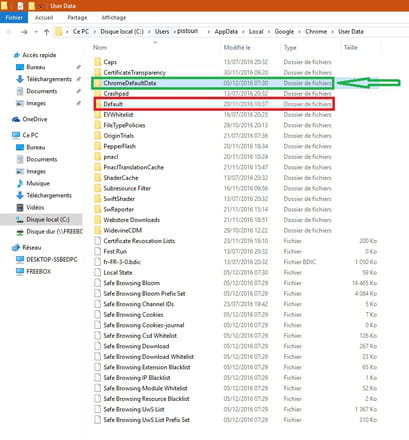
Now you see these 2 folders
1--> ChromeDefaultData
2-->Default
Copy/paste 1-->ChromeDefaultData onto a USB drive
This folder contains the bookmarks among other things
On Windows 10
Copy/paste the ChromeDefaultData folder that is on your USB drive onto the desktop
Right-click on the Start button--> search
Copy/paste this command
%LOCALAPPDATA%\Google\Chrome\User Data
Open the ChromeDefaultData folder
Go back to the desktop, and open the ChromeDefaultData folder (the one from your USB drive)
Select all then right-click--> copy
Go back into %LOCALAPPDATA%\Google\Chrome\User Data-->ChromeDefaultData
In ChromeDefaultData right-click--> paste
If this is not enough, do the same thing with the folder--> Default
For those who can run Google Chrome, here’s how to back up your bookmarks:
- click on the icon with the three little dots at the top right.
- Select "Bookmarks" / "Bookmark Manager".
- Click on "Organize" and finally choose "Export bookmarks to a file...".
- Save the .html file to a USB drive
- On the new computer, import the file with Chrome.
If, as in your case, only the data on the hard drive is accessible, go to your broken hard drive using your enclosure
E:\Users\[USER]\AppData\Local\Google\Chrome\UserData
Now you see these 2 folders
1--> ChromeDefaultData
2-->Default
Copy/paste 1-->ChromeDefaultData onto a USB drive
This folder contains the bookmarks among other things
On Windows 10
Copy/paste the ChromeDefaultData folder that is on your USB drive onto the desktop
Right-click on the Start button--> search
Copy/paste this command
%LOCALAPPDATA%\Google\Chrome\User Data
Open the ChromeDefaultData folder
Go back to the desktop, and open the ChromeDefaultData folder (the one from your USB drive)
Select all then right-click--> copy
Go back into %LOCALAPPDATA%\Google\Chrome\User Data-->ChromeDefaultData
In ChromeDefaultData right-click--> paste
If this is not enough, do the same thing with the folder--> Default


However, Default is indeed present.
I even tried displaying system and hidden files and folders... but nothing!
I also searched for "ChromeDefaultData" in the ...AppData\Local\Google folder but found nothing either.
Have you tried copying the contents of Default and replacing it?
If it doesn't work, rename the Default folder to Default.old
I saw a method where you have to rename the Bookmark file as well.
There you go, I just found it
try this for bookmarks
- Go to the “ Default” folder, locate the Bookmarks.bak file
- Copy/paste it into the folder named “Default” and rename it: Bookmarks in Windows 10
pistol