Video stuttering issue Mac OS X Yosemite
Annabelle
-
fdolbec123 Posted messages 126 Registration date Status Member Last intervention -
fdolbec123 Posted messages 126 Registration date Status Member Last intervention -
Hello,
For the past few days, I've been having a problem with my MacBook Pro. When I watch videos, they start to stutter, both in terms of sound and image. This occurs with both online videos (YouTube, Exashare, Vimeo) and when playing video files (VLC, QuickTime). The stuttering doesn't happen all the time; I would say it starts about 30/40 minutes after I've turned on my computer. I've also noticed that when these stutters occur, my Mac becomes slightly slower.
In the past few days, my computer has also shut down suddenly a few times, around 3/4 times, displaying a message that says "Your computer has restarted due to a problem. To continue the restart, press a key or wait a few seconds." After this message, my Mac restarts by itself.
I'm not sure if these two problems are related, but I feel like they started happening at the same time.
I first tried to free up some space on my hard drive, thinking that memory was too full (my Mac has a flash storage drive of 250GB, and I currently have 76GB free). But that didn’t change anything.
A friend also recently installed two software programs on my Mac: Clean My Mac and Little Snitch Network Monitor. Do you think my problem could be related to these programs?
I'm not very good with computers; can you help me understand where this problem might be coming from?
Thank you!
Information about my Mac:
MacBook Pro (Retina, 13-inch, early 2015)
Processor: 2.7 GHz Intel Core i5
Memory: 8 GB 1867 MHz DDR3
Graphics: Intel Iris Graphics 6100 1536 MB
For the past few days, I've been having a problem with my MacBook Pro. When I watch videos, they start to stutter, both in terms of sound and image. This occurs with both online videos (YouTube, Exashare, Vimeo) and when playing video files (VLC, QuickTime). The stuttering doesn't happen all the time; I would say it starts about 30/40 minutes after I've turned on my computer. I've also noticed that when these stutters occur, my Mac becomes slightly slower.
In the past few days, my computer has also shut down suddenly a few times, around 3/4 times, displaying a message that says "Your computer has restarted due to a problem. To continue the restart, press a key or wait a few seconds." After this message, my Mac restarts by itself.
I'm not sure if these two problems are related, but I feel like they started happening at the same time.
I first tried to free up some space on my hard drive, thinking that memory was too full (my Mac has a flash storage drive of 250GB, and I currently have 76GB free). But that didn’t change anything.
A friend also recently installed two software programs on my Mac: Clean My Mac and Little Snitch Network Monitor. Do you think my problem could be related to these programs?
I'm not very good with computers; can you help me understand where this problem might be coming from?
Thank you!
Information about my Mac:
MacBook Pro (Retina, 13-inch, early 2015)
Processor: 2.7 GHz Intel Core i5
Memory: 8 GB 1867 MHz DDR3
Graphics: Intel Iris Graphics 6100 1536 MB
3 answers
-
Hello Annabelle,
Do these two software programs, Clean My Mac and Little Snitch Network Monitor, work while you watch videos?
Have a good day
Francis
--
Everything is fine with an error code.-
-
The applications do not work while I watch videos. I have even uninstalled them now, and it doesn’t change anything. I also noticed that when I wanted to listen to music (for example iTunes or Spotify), I have the same stuttering problem, which worsens over time.
I also noticed that now, my Mac restarts by itself due to a "problem" approximately every 2/3 hours of use. When it restarts, I have no more stutters, but they eventually come back after a while.
-
-
Well,
When I listen to music on Spotify and it stutters, it's often because there's an application using a lot of memory.
So I'll give you a tip to find out what's using a lot of memory.
There is an application on Mac called "Activity Monitor." You can find it in: "Your Hard Drive Name," then in the "Applications" folder, and then in the "Utilities" folder.
Here’s what it looks like:
When you open it, you’ll see a series of applications and processes running. Here’s an example with my computer:
If you look, you have three buttons on the left. One of them has the shape of a stop sign. Below these buttons, you have what I call tabs (just before the application list). Click on the "% CPU" tab so that it looks like in the previous photo. (selected in blue with a small downward arrow next to it) At that moment, you'll see the applications that are using the most memory at the top of the list. If you see an application that you’re not using and that’s consuming a lot of energy, try quitting it as you usually do.
To find out the reasons why your computer is restarting, I'll do some research and get back to you
Francis
--
With an error code, all is well.-
I looked in my activity monitor, and there are no applications using a lot of memory. There's just one, which is between 1 and 0.7, called AvidAppManHelper, which I don't know. I think it's related to the Avid Media Composer software I installed recently. But I don't see why it could cause a problem.
-
-
-
-
-
-
For that, there is an application called AppDelete. Here’s a tip to delete all files of the application even if it has been removed by dragging it to the trash.
For example, I deleted the application "WavePad" (WavePad.app) by putting it in the trash. However, there are still some preference files and other files in various folders on the computer. Since I don't know where they are, I first create a folder named "WavePad". Then, I select this folder and go to "File/Get Info", a window like this will appear: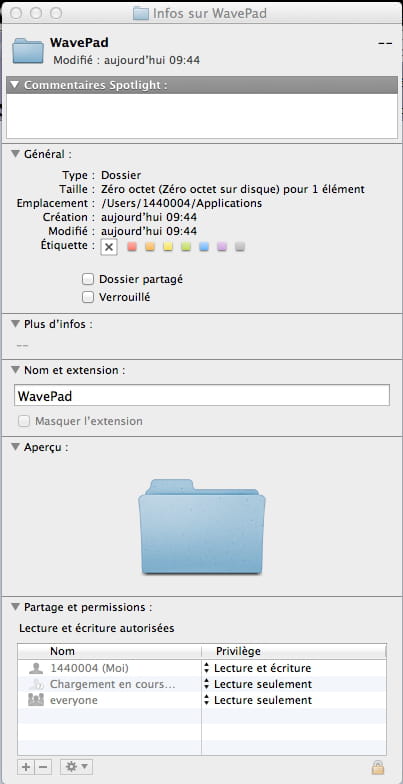
In this window, you should see "Name and Extension".
Below, you can see the name of your folder that you can modify. Add ".app" at the end of this name. For example, "WavePad" would become "WavePad.app". Then press "Enter" to confirm the change.
A security message from Finder like this will appear: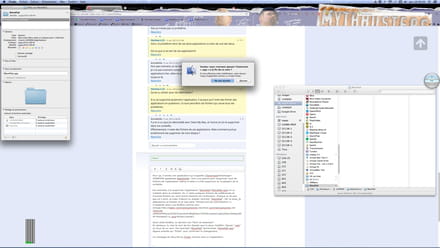
Then click on "Add". Mac will consider this folder as an application.
You just need to drag this file into AppDelete which will find the other files related to "WavePad". You just have to check what you want to delete. By default, all files linked to an application are selected for deletion. You just have to click on the delete button and then empty the trash.
--
With an error code, everything is fine.