Free solutions to write on NTFS system
Solved
@nnie
Posted messages
2124
Registration date
Status
Member
Last intervention
-
Anonymous user -
Anonymous user -
Hello,
I am seeking advice from the CCM experts on this matter.
I am of course familiar with paid solutions, but I found a few free alternative solutions online. Unfortunately, I'm not sure I understand everything!
Here are the links:
OSXFuse,
tutorial on the previous one,
NativeNTFS-OSX which offers a script,
and I even read that someone said they use Seagate's NFTS driver, which would be the same as Paragon!
That's it. I am naturally open to any other free solutions, and if I could get opinions and advice on how to proceed, that would be really nice!
Thank you in advance. :-)
Configuration: iMac Intel Core 2 Duo 3.06 GHz 16 Go DDR3 / OS 10.8.5
____________________________________
Please be patient: time zone UTC+11
I am seeking advice from the CCM experts on this matter.
I am of course familiar with paid solutions, but I found a few free alternative solutions online. Unfortunately, I'm not sure I understand everything!
Here are the links:
OSXFuse,
tutorial on the previous one,
NativeNTFS-OSX which offers a script,
and I even read that someone said they use Seagate's NFTS driver, which would be the same as Paragon!
That's it. I am naturally open to any other free solutions, and if I could get opinions and advice on how to proceed, that would be really nice!
Thank you in advance. :-)
Configuration: iMac Intel Core 2 Duo 3.06 GHz 16 Go DDR3 / OS 10.8.5
____________________________________
Please be patient: time zone UTC+11
17 answers
-
Hello @nnie,
if it can help you (if you haven't finished the procedure yet), I just uploaded a tip that summarizes everything:
https://www.commentcamarche.net/faq/44045-comment-ecrire-sur-un-volume-ntfs-sous-os-x-10-8-mountain-lion-sans-logiciel-de-tierce-partie
Good night or good morning :-)
Best regards ;-)
To get an appropriate response, always indicate your exact system configuration
Have a great day :-) - Francis -
P.S. : I forgot to mention another alternative ... to Parallels ???
--
____________________________________
Please be patient: time zone UTC+11 -
Hello @nnie,
it's nice to hear from you... :)
As far as I'm concerned - I avoid solutions based on MacFuse or Fuse like the plague. I personally had issues with them and I've helped others on this forum several times to get rid of the remnants of "fuse" that caused chaos. Just recently. I've often discouraged software like Tuxera NTFS for Mac or its predecessors on this forum. By the way, I had written to the developers of the free version at the time about the issues encountered. (At that time, I had a Boot Camp partition with Windows 7 installed and I never received a response to my message).
That said, I don't know if OSXFuse is as poorly designed as its predecessor or if the issues are truly a thing of the past.
I have never tested the version delivered with Seagate drives. (I avoid Seagate drives, especially the Barracuda type, as their read heads tend to fail without warning)
So, as far as I'm concerned, I have definitely opted for Paragon NTFS for Mac. It works wonderfully with total transparency.
There you go... this is just a simple opinion, others may well be "very happy" with other solutions :)
@++
--
To get an appropriate response, always indicate your exact system configuration
Have a nice day :-) - Francis-
Hello Francis !
Glad to read you too :-)
And thank you for your opinion. We'll see if there are any user testimonials here ...
What do you think of the script and the FraunhoferFS?
You might not know the latter, but for the script, you probably understand it ... which is not the case for me!
Best regards ;-) -
I haven't tested the script, but I believe its origin dates back to the time of Mac OS 10.6 - from there, the NTFS Mounter utility was derived. It only works under Mac OS 10.6 - a time when a simple command in Terminal was enough to enable write capabilities on an NTFS drive - but not to format it as NTFS.
Since Mac OS 10.7, that has changed. I won't attempt this script on the latest versions of OS X, and even less so if a Boot Camp partition was installed on the Mac to avoid the risk of no longer being able to access that partition.. -
-
-
Thank you Francis, me too! :-)
Something tells me that there will be no one else but you to reply to me...
By the way, did you check out the presentation of FraunhoferFS? I don't really understand what it's about.
Wishing you a sweet night.
Best regards
-
-
Hi
It was a long time ago, so I don't remember very well, but it seemed to me that I had installed a version of ntfs-3g using fuse or macfuse. It worked, but I admit I haven't followed up on that MacOS X PC.
I'm still astounded that after all these years, Apple still doesn't integrate the writable drivers (which are open-source and well-developed) ntfs-3G by default into their OS.
--
Light a fire for someone and they will be warm for the rest of the day. Set a man on fire and he will be warm for the rest of his life.
-Terry Pratchett--
Hi,
As I mentioned earlier, I used the ancestor of Tuxera, (which is NTFS-3), and it caused me quite a few problems, and I have had to troubleshoot several times due to this NTFS-3G / Tuxera / (stuff based on MacFuse or OSXFuse)
It works... then when problems arise, we don't even think that it's this MacFuse that is the cause.... it's only when we go through the crash reports that we realize it...
As for why Apple does not include the NTFS driver or why Microsoft does not include the extended Mac OS driver... that's a whole different topic...
Best regards
EDIT:Technical, legal, and image aspects[edit | edit source]
Using NTFS file systems for writing does not technically present any issues, but it is found in a legal void: indeed, the management and processing of long names in NTFS is still covered for a few more years by a Microsoft patent. While reading these files is difficult to challenge in court for reasons of interoperability (the patent is not used to create files, but to exploit files that have already been legally created), the decision of a court in case of a complaint from Microsoft for writing usage is unknown, and it could also not be the same in all countries.
Such a complaint could however also tarnish Microsoft's image, which may be the reason why a status quo seems to be observed from this publisher3.
As I mentioned above, it's a completely different topic from the one at hand :) -
-
-
Hello @nnie,
Indeed, following the explanations, we see that everything comes from there:
https://osxdaily.com/2013/10/02/enable-ntfs-write-support-mac-os-x/
The famous OSXDaily site, (a reference in my eyes.)
All the explanations of the script are there. And also this passage:There are a variety of easier but older tools to automatically complete the processes mentioned above, but the aforementioned NTFS Mounter utility seems to have stopped working post-Snow Leopard, and thus modern versions of OS X from Mountain Lion to Mavericks will want to use the command line approach instead. There are also third party paid apps available to provide NTFS support to OS X, which may be better options for enterprise environments where an experimental feature is not considered reliable enough to deploy.
So, the command line became necessary after Mac OS 10.6 because the OS X kernel changed, but the possibility of doing it still remains.
I will definitely test it. But if I understand correctly, Mounty for NTFS does exactly what NTFS Mounter used to do, (the script is modified to adapt to versions from OS X 10.8), but exactly also means that the application, (the script), must be executed after each restart of the Mac, (so no need to "go back with a script"), and that each NTFS volume must be mounted individually and on demand. Exactly like NTFS Mounter did under OS X 10.6 - While Paragon NTFS for Mac installed on my machine starts the process as soon as the Mac boots up seamlessly, and mounts each NTFS volume as soon as it's connected. Paragon thus contains a set of scripts and always runs in the background as soon as the Mac starts. There is development behind all this, and for that reason, it is not free.
I will see if I have a disk under 10.8 and will test as soon as possible. (even if I have to install 10.8 somewhere...
See you soon for the follow-up :) -
@nnie,
as planned, I just spent a little time on OS X 10.8 for testing. (I have a partitioned portable disk with several OS X installed)
In the end, the purely OSXDaily solution did not work. (There was a problem editing or creating the fstab file).
It's the response from CLNMPw, here: https://discussions.apple.com/thread/4152122 that helped me progress, here is his message:
OSX Mountain Lion does have built-in support for NTFS, and it can read and write. However, Apple does not enable it by default. Doing so is easy, however. Carlos was close, but he forgot to include the nobrowse flag which is required.

Here is what you should do:
Uninstall other 3rd-party NTFS software, like Paragon, Tuxera or NTFS-3G.
Edit /etc/fstab (you can do this with "sudo nano /etc/fstab" as Carlos suggested
Add the following line:
LABEL="THE_NAME_OF_YOUR_VOLUME" none ntfs rw,auto,nobrowse
Quit your editor (if you used nano, you can do this with Control-X, Y, Enter as Carlos said)
Reboot, or if you prefer just unmount and re-mount the partition using Disk Utility
Voila! You have read-write support for this partition in OSX

Caveat: As of Mountain Lion, the nobrowse mount option is required for this to work. This means that the partition will not show up on your desktop. However, you can access it normally through Finder by either:
Run Terminal and type "open /Volumes/THE_NAME_OF_YOUR_VOLUME" (without the quotes
In Finder, press Apple + the up arrow over and over until you see all of your mounted volumes. Your volume will be listed here.

Enjoy! However, this is all at your own risk. My guess is that Apple didn't enable this by default because they want people to keep their data on the Mac side of the house. However, it could also be that the NTFS driver has bugs that could destroy your data. That being said, I would tend to trust the 1st-party implementation by Apple over 3rd-party implementations.
- I therefore uninstalled Paragon NTFS which was installed on this OS X 10.8 volume
- Initially, I only had one fstab file in
private / etc.. a file named fstab.hd to be precise.
And if I wanted to edit this file, I saw this:

- The various commands in Terminal to modify this file failed, even when I set the write permissions. All, except the command using "sudo nano"...
This created a new fstab file, which was then well taken into account.
- My NTFS disk is named "TOSHIBA1GO", so I adapted my commands in Terminal, and thus
- to edit the fstab file, I typed:
sudo nano /etc/fstab
= password request, validation... etc..
- in the nano editor that opens, I typed:
LABEL=TOSHIBA1G0 none ntfs rw,auto,nobrowse
- I then used the key combination Ctrl X to quit, then Y to confirm the save.
After that, the TOSHIBA1GO hard drive disappeared from the desktop.
- I then typed in the Terminal:
open /Volumes/TOSHIBA1G0
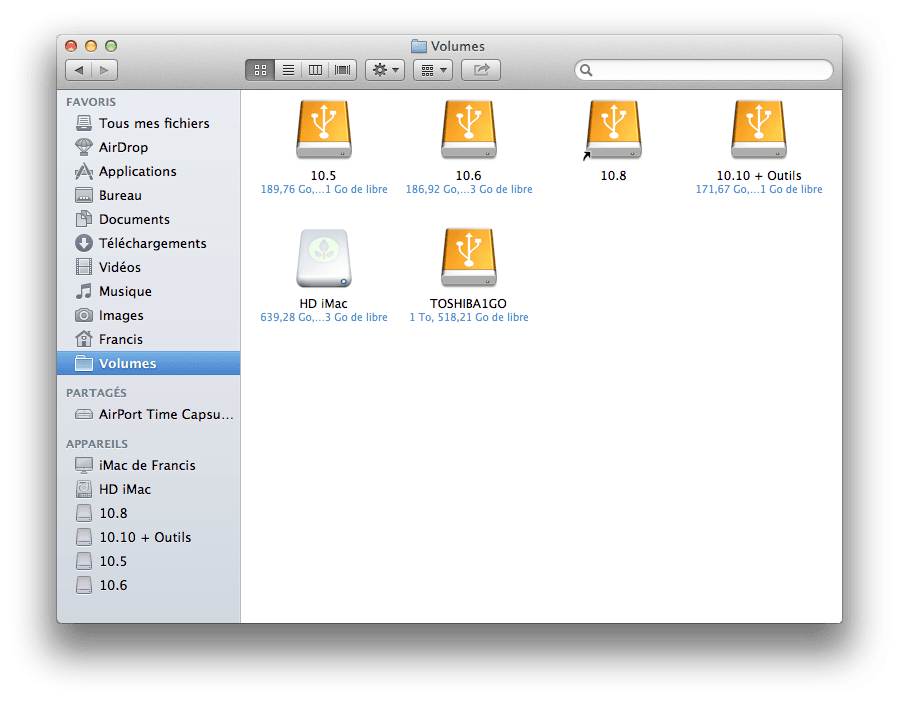
the disk remains invisible on the desktop or in the sidebar, but you find yourself in its window, and you can add new folders or files. Writing on NTFS for THIS disk works. You better keep the window open; otherwise, you need to type Open /Volumes in the Terminal again.
I then restarted the Mac under OS X 10.8 to check the persistence of the setup after reboot. It turns out that the fstab file does its job after restarting, as there is no need to activate NTFS read and write for THIS disk anymore (just don't change its name).
However, it is no longer visible in Finder or on the desktop. Therefore, you need to launch Terminal again and type:
open /Volumes/
to be able to designate it in a list and find yourself in its window.
Interestingly, if I type the command directly:
open /Volumes/TOSHIBA1G0, the system responds that there is no volume named TOSHIBA1G0... but if I simply type
open /Volumes, it presents me with the list of volumes, including the correct disk. I just need to designate it to enter.
So, all of this works but is not very user-friendly. It may, however, suffice depending on the level of need. (not to mention the risks of data loss that are never excluded. When I switched to Mavericks or Yosemite, I had an issue with Paragon NTFS, which was resolved almost immediately by the editor.)
Also, the free Mounty NTFS does not work under OS X 10.8 - I received a message stating that the minimum required is OS X 10.9.
And to revert, just delete the created fstab file. To do this, simply from Finder, go to the Go menu / Go to folder... then type /private/etc and there, locate the new fstab file, the one that does not have the .hd suffix, and delete it.
There you go... I hope I was clear enough... and that this message is not too cumbersome...
I took several screenshots if needed, but I didn't want to overload this message :)
@+++ :-)
To get an appropriate response, always indicate your exact system configuration
Have a nice day :-) - Francis-
Wow! You really haven't been idle!!!
A thousand thanks for your tests and this detailed report!
I had to read it several times to fully understand (and still, I'm not sure I got it all), but I conclude that indeed, as you yourself say, it's not very user-friendly, especially for someone like me who always hesitates to use the Terminal: I don’t even know what the nano editor is!
Honestly, I don’t know if I’ll dare ...
It's a shame that Mounty NTFS only works from 10.9; it would have been simpler.
How did you uninstall Paragon? I had a trial version that I uninstalled with its ... uninstaller, but I found with EasyFind that several files were still left.
I might still end up opting for Paragon, but what happens if we upgrade the OS: do we have to buy a new license?
Thanks again for your help, I wish you a wonderful day. :-))
-
-
To uninstall Paragon, I went through its icon in System Preferences, namely:
NTFS for Mac OS X / Info / Uninstall

My version is older than the one currently sold - I purchased it on April 6, 2013... I must have been on Mountain Lion :-), so it has been over 2 years - it is version 10, the current one is version 12 - but it still works. If I reinstall OS X, I will reinstall Paragon NTFS right after and enter the product key and serial number, and it works... no license to renew in my case so far.
I haven’t checked with EasyFind if there are traces of Paragon left, since it was for testing... but that’s what I’ll do if it needs to be permanent.
The most annoying thing in my opinion is not having to mount the disk via Terminal, that’s actually quite quick, but that each time I want to mount a disk unknown to the Mac, I will have to modify the fstab file to add the new volume. However, there are times when I connect a friend's disk or a family member's on PC for quick file exchanges, and I can’t see myself going through that process every time... as long as it’s a personal disk, declared in fstab, and regularly used, it’s just a matter of typing Open /Volume... but otherwise...
Good night to you, it must be time to go to bed if you haven't done so yet :)
EDIT: I almost forgot... nano is a text editor (not a word processor), included in the OS X system kernel - it’s a thing from the Unix world, like Linux distributions. Mac OS X is based on a BSD distribution derived from UNIX... For this reason, there are many similarities between the Terminal commands of Mac OS and Unix/Linux commands.
Apple talks about it here:
https://support.apple.com/fr-fr/HT202292
And there are screenshots of nano here:
https://openclassrooms.com/fr/courses/43538-reprenez-le-controle-a-laide-de-linux/39267-nano-lediteur-de-texte-du-debutant
EDIT 2: indeed after removing Paragon via the System Preferences, there are remnants left, but very few, not bothersome, and easy to get rid of:

EDIT 3 - interesting:
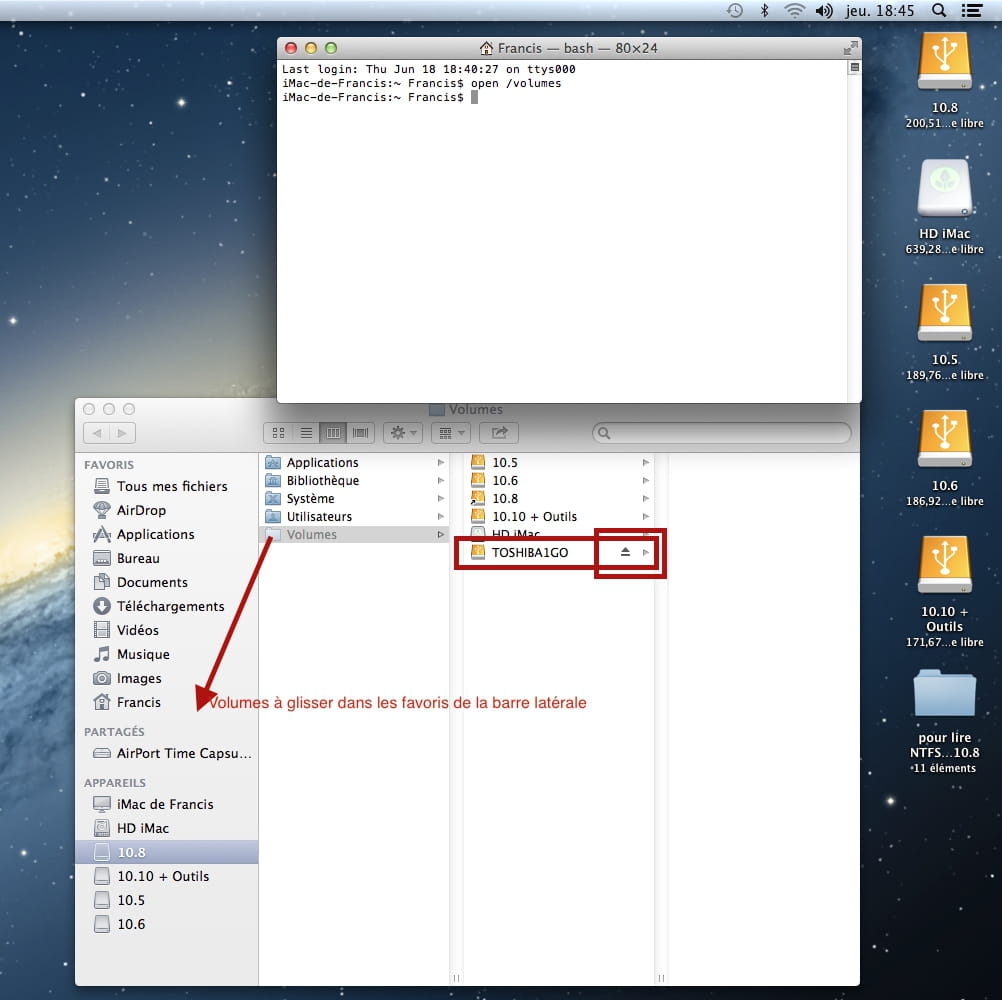
I found a trick to avoid having to launch Terminal to remount the NTFS volume via open /volume repeatedly at each restart or login. To do this, during the first request via Terminal, I dragged the "Volumes" item into the sidebar. You can also drag the NTFS disk itself there, but it doesn’t stay after a reboot, while "Volumes" is maintained.
This way, it’s all good - no need to go through Terminal once it has been done the first time.

I wonder if I'm going to write a CCM Tip :-)
To get a proper response, always specify your exact system configuration
Have a great day :-) - Francis-
Oh yes Francis! It definitely deserves you to publish your discovery as a CCM Tip! You can even include the screenshots you haven't posted here: beginners like me will appreciate the image demo. ;-)
In any case, it's much more convenient than having to relaunch the Terminal every time: well done!
So I'm going to test it out: it only concerns one disk for now, so it should go smoothly.
Thanks again for your valuable help, as always!
Sweet night to you :-* -
Hello Francis,
I was about to put your tip into practice when one final question came to mind: in the screenshot in your CCM Tip, I don't see the little arrow that allows you to eject the external hard drive.
So... how do we do that, is it enough to simply disconnect it? Will it still be accessible in the same way afterwards, when we reconnect it?
Yes, you know I'm full of questions!
Thank you in advance and have a great day. :-)
-
-
Hello @nnie,
The eject arrow is not in the sidebar because the disk is not there. This disk is "seen differently" by the system. But in the volumes window, it is there with its eject arrow when the display is in list mode. In icon view, you still have the option to drag the volume to the trash or right-click to request ejection.

Moreover, the disk is also not on the desktop. We can see it in this other screenshot that I kept, which also shows another way to drag "Volumes" into the sidebar.

I’m going to modify the trick a bit to make it look better...
Let me know without hesitation if there's anything unclear, or if I didn’t quite grasp the question, I’m all ears :-)
Keep me posted on the results.. :)
@++
--
To get an appropriate response, always indicate your exact system configuration
Have a nice day :-) - Francis-
You perfectly understood my question, Francis! And I thank you for your answer: indeed, I hadn't seen the arrow on the right side of the window.
I just have the uncertainty about what happens when we disconnect and reconnect: does the volume reappear in its place? Because you specified that in case of a restart, but not in case of disconnection from the external hard drive. Or did I read it wrong?
You know well that I understand quickly, but I need to be explained at length! ;-) -
Dragging Volumes into the sidebar means that you won't need to touch the Terminal after this manipulation once you restart the Mac.
Without restarting, when you eject the disk using this arrow and then physically disconnect the disk, and afterwards reconnect it, it automatically reappears in the Volumes window. So no worries, still no need for the Terminal.
If you eject this disk using the arrow but leave it physically connected, I have to say I don't really remember... I would need to test it, but I believe I remember that Disk Utility is non-operational... if I recall correctly, you would need to disconnect and reconnect it. In any case, still no need for the Terminal. If that's your concern ;-) -
-
Hi Francis,
It would have been a miracle for me to succeed on the first try, wouldn’t it?
So, I followed your procedure closely, using copy and paste to make sure I was doing it right, but there seems to be a problem with the name of my Multimedia DDE: it’s called WD Elements Play.
The first time, I entered the name as is, and here’s what happened:
iMac-de-Annie-2:~ Annie$ sudo nano /etc/fstab
Password:
iMac-de-Annie-2:~ Annie$ open /Volumes/WD Elements Play
The files /Volumes/WD, /Users/Annie/Elements, and /Users/Annie/Play do not exist.
I concluded that the spaces in the name were causing confusion! I then tried replacing them with _ but that didn't work either:
iMac-de-Annie-2:~ Annie$ sudo nano /etc/fstab
iMac-de-Annie-2:~ Annie$ open /Volumes/WD_Elements_Play
The file /Volumes/WD_Elements_Play does not exist.
Of course, the writing in the nano editor doesn’t show up, but I followed everything correctly; I really think the issue comes from the name. So... what should I do???
If I do a simple open /Volumes, it appears properly, but I can’t write to it. Is this serious, Doctor? ;-)) -
Hello @nnie,
miracles are for next time :)))
the name of the disk itself isn't an issue, but it's the way it entered the Terminal. In my example, (the tips page and here), the name of my external disk is simple. It is true that with a compound name it is more complicated to correctly indicate the name. It’s not dashes that you need to use, that would be too simple :), it’s / or \ ( = alt shift / to get a \ )
The best is to be clever by preparing the command for copy-pasting.
I myself have an external disk named "My Book Home Edition 500 Go", as you can see a pretty messy name to put in the Terminal.
So for testing, I opened the Terminal and dragged my disk in to see how the system names it, so here it is:iMac-de-Francis:~ Francis$ /Volumes/My\ Book\ Home\ Edition\ 500\ Go
To have a laugh, I then renamed this disk to "WD Elements Play" and did the same operation, dragging the disk into the Terminal, so here’s how it appears:
iMac-de-Francis:~ Francis$ /Volumes/WD\ Elements\ Play
So what you can do is either rename your disk to give it a simple name, or you can do the same operation as I did to get the exact name.
In your case the commands should theoretically be:
To enable NTFS writing on the disk, in the nano editor:
LABEL=WD\ Elements\ Play none ntfs rw,auto,nobrowse
and to mount it directly:
open /Volumes/WD\ Elements\ Play
try it and let me know :)
EDIT: I'm going to modify my tip to clarify this point....
-
-
I deleted it all, I started over... and it’s still the same.
I validated the nano command
by Y here, then Enter.
And my external hard drive is indeed in NTFS:
But tell me, is it normal that it keeps appearing in Devices?
Apparently, I am still cursed... :-(
--
____________________________________
Please be patient: time difference UTC+11-
-
-
-
-
Indeed: I write on it via Leo + NTFS 3G, but it doesn't allow me to change its name. :-(
I tried connecting it to my Bootcamp partition... but it never wanted to show up in My Computer. I didn't insist too much because I'm afraid I'll end up not being able to use it anymore, given my luck!
For now, I'm going to have dinner, I'll be back later. Thanks for your patience, Francis!
-
-
Pffff ... I restarted twice:
- once with the external hard drive not connected, then connected afterwards
- once with the external hard drive connected
Same result: external hard drive present on the Desktop, as well as in the Finder sidebar under Devices. Also present via Volumes, but still unable to write to it.
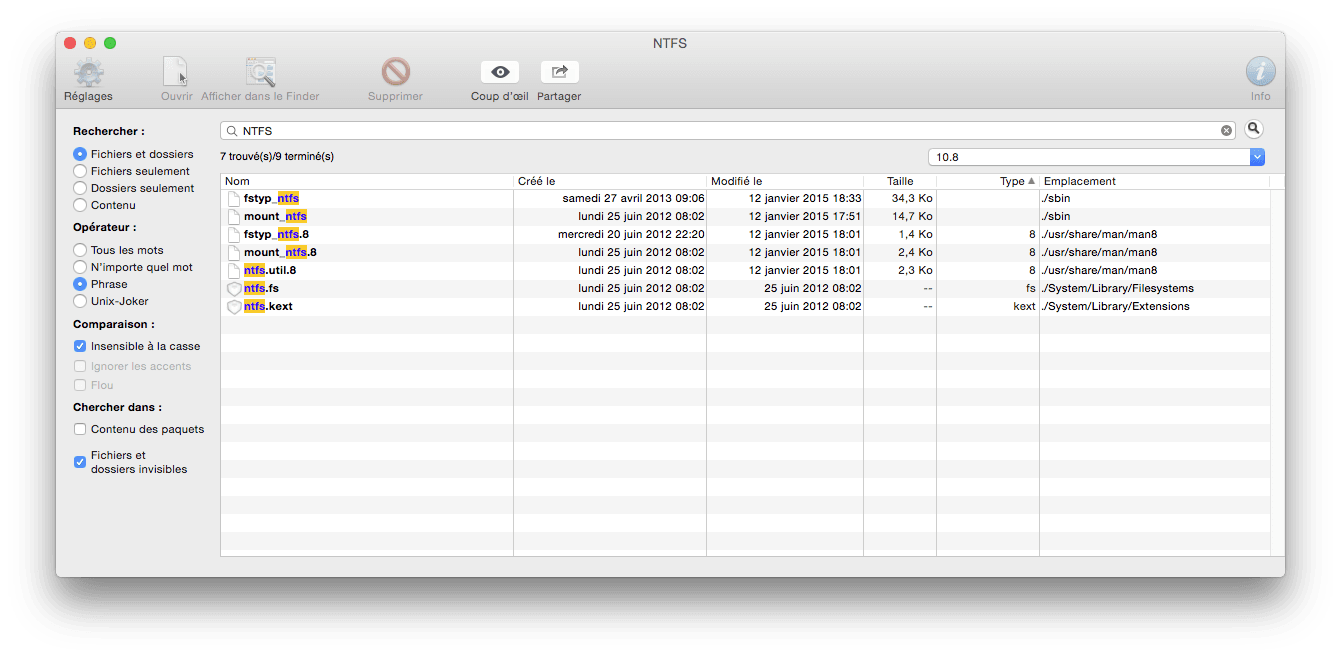
However, I just thought of something: I had tried Paragon in its trial version and uninstalled it, but I just ran a search for the word NTFS with Easyfind and here are the results:

Of course, I have no idea what it is!
Past attempts? Another app? Wine or WineBottler?
Maybe a lead to explore, if it resonates with you more than with me!
I hope your lunch was as pleasant as my dinner. :-)
See you soon or tomorrow, shappledockian friendships. ;-))
--
____________________________________
Be patient: time difference UTC+11 -
Well seen, yes, that could be a cause...
I just removed from my disk my personal files and documents that have NTFS in their names and that I used to make my tutorial or for testing. This is to have a clean search.
And indeed, you have some extra things that seem to be remnants from previous installations, Paragon, Tuxera, NTFS-3g, etc... you should get rid of all that and restart.
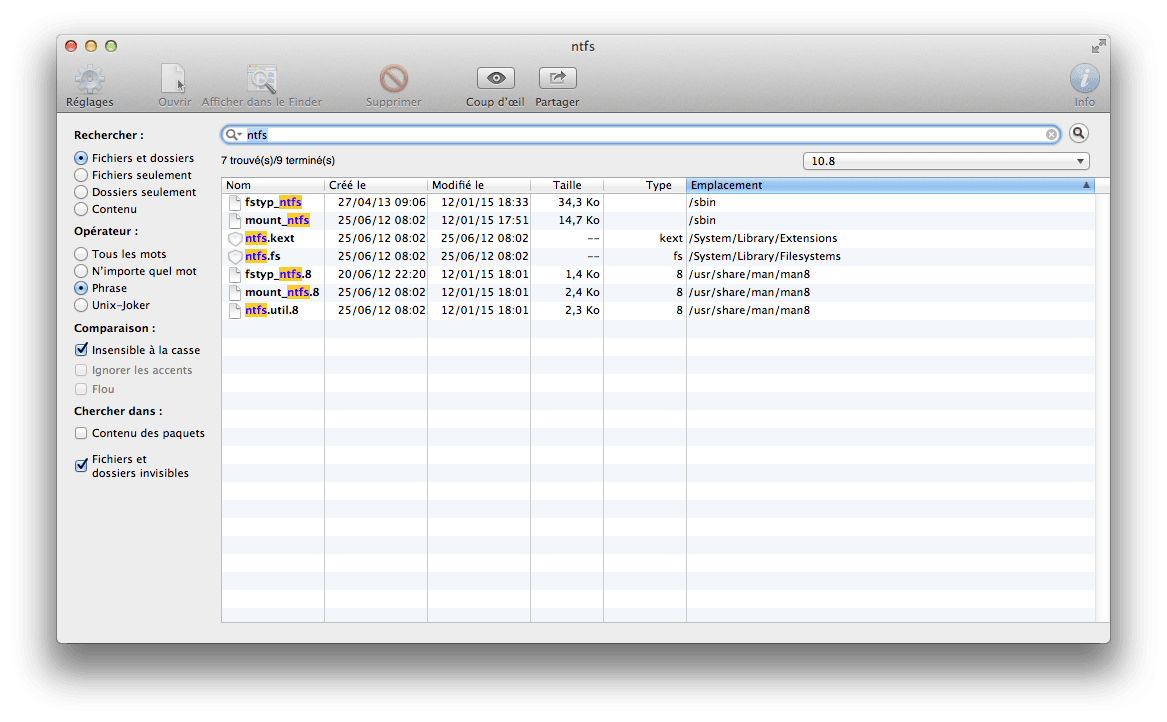
I made you 2 copies of what I have, one sorted by type and the other one sorted by location, to help you. We should only keep what also exists on my side. And oddly enough, my files often have an earlier creation date...
To delete for sure, right-click on the line in EasyFind, and request to show in Finder. If we delete directly from EasyFind, it doesn’t always work...


Also do a search on Paragon and Tuxera, or even ntfs-3g... ignoring case...
And of course, let me know the next steps :)
To get an appropriate answer, always indicate your exact system configuration
Have a good day :-) - Francis -
Re...
I took the screenshots above while running OS X 10.10,
just to retest, I just restarted under OS X 10.8, to check...
it still works smoothly, and the search from EasyFind gives the same result, it's presented a bit differently, but it's the same outcome:


--
To get an appropriate response, always indicate your exact system configuration
Have a good day :-) - Francis -
Hi,
Thank you for all the trouble you’re going through!
So, I’ve removed everything that wasn’t in your screenshots, but now it’s a disaster: the DDE couldn’t be mounted anymore!
Here’s how it appeared:
I had a few cold sweats, but after restoring the NTFS and NTFS.util files, everything went back to normal. However, even after restarting, I still can’t write to it. :-(
Listen, never mind, forget about it: it must be my legendary bad luck striking again!
Good night to you, have a good day, tropical regards. :-)
--
____________________________________
Be patient: time zone UTC+11 -
Hello @nnie,
that's normal... when the newly created fstab file, in which the relevant disk is referenced, is taken into account, this NTFS external hard drive disappears from the desktop and the sidebar, and it can no longer be mounted with Disk Utility. That's why you need to use open /volumes... so it's normal... you can access it from the "Volumes" icon in the sidebar, or by using open /volumes from the Terminal.
don't you want to try again?
Have a good day, sorry, good evening to you :-) , here it's around 37°C in the shade during the day... finally!!
To get an appropriate response, always provide your exact system configuration
Have a good day :-) - Francis-
Hello Francis,
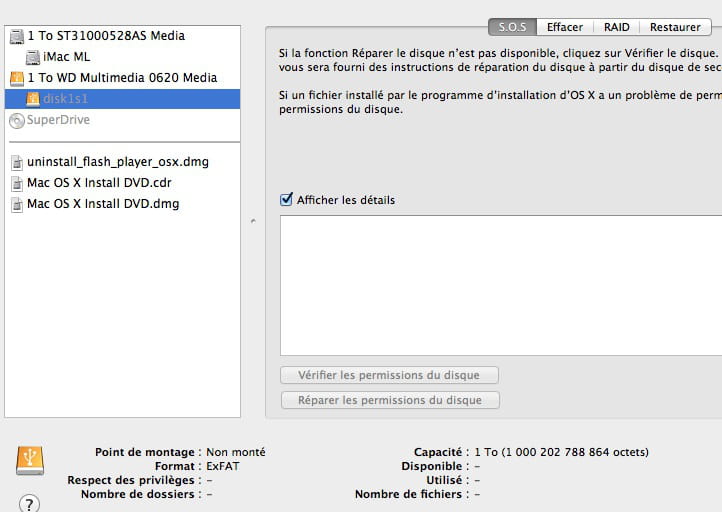
No, I misspoke: connecting the external hard drive caused an error message, stating that this disk could not be read. It appeared in Disk Utility, but it was not mountable and equally absent in Volumes.
By the way, take a look at the screenshot I took; you'll see that it was no longer identified by its name and that its format was "recognized" as ExFAT.
When I restored the 2 files, I found the same configuration as before: present in Finder as a device and on the desktop, but it was impossible to write to it.
I started everything over from the beginning, but nothing worked. :-(
Have a good day and enjoy the nice weather! :-* -
I have 7 files, you have 11 - while writing, I am doing a manual search on the described locations...
What are the files that are additionally present with you?
the file
- "ntfs" without any other suffix in /System/Library/Extension/ntfs.kext/Contents/MacOS
I just opened this package on my OS X 10.8 volume = indeed I have it too? why didn’t EasyFind show it to me? I do not know but I will try the search with EasyFind again later. In any case, that one, indeed we need to keep it. My bad.
then:
- ntfs-3g/7ECE..... .plist, in Library/Preferences
that one is clearly unnecessary, it’s a leftover from an installation of NTFS-3g to get rid of.
then:
- org.catacombae.macntfs-3g.......plist
similarly, leftover from NTFS-3g and moreover, linked to Fuse.... to get rid of.
then
- ntfs.util without the .8 suffix in /System/Library/Filesystems/ntfs.fs
same as point 1. my bad, it’s also with me. So keep it then
I just saw at this moment that my mistake was not checking "package contents" in the EasyFind search criteria.
which means that only the 2 remnants of NTFS-3G should be removed.... again my sincerest apologies :((( but those 2, get rid of them.
I am resuming this time the search with EasyFind ...
-
-
Here it is:

--
To get an appropriate response, always provide your exact system configuration
Have a nice day :-) - Francis -
What I'm going to do is, I will manage in case of a problem, I'm going to rename my drive to WD Elements Play and test it... maybe a recognition of the name, because if I remember correctly, my "TOSHIBA1GO" is not named "Toshiba 1Go" due to a refusal during formatting to NTFS... I'll test and get back to you...
EDIT: there it is, it has been renamed to WD Elements Play... just need to try it under OS X 10.8
To get an appropriate response, always indicate your exact system configuration
Have a nice day :-) - Francis -
No boredom :-))
Well, after some back and forth between OS X 10.10 and 10.8 ...
I renamed my disk to WD Elements Play, did several tests after modifying the fstab file ... I couldn't succeed, even after restarting the Mac. :(
Then, under OS X 10.10, I renamed my disk to Toshiba1Go, it's nicer than the old name, and especially does not have any spaces in the name
Test on OS X 10.8: = modification of the fstab file, but instead of restarting the Mac to have the fstab file taken into account, I simply logged out/in this time, and it works perfectly!
So, the issue must indeed come from the disk name. The spaces requiring a name with \ and spaces must be disrupting the functionality.
If you can find a way to rename this disk, without spaces, without special characters, etc ... I think you would solve the problem - from your Mac under Windows? from a PC? there must be a way to make it appear in My Computer ..
Another idea, but this requires a little more time: install a demo of Paragon NTFS, change the name, and uninstall Paragon NTFS from system preferences and check with EasyFind on NTFS and Paragon...
EDIT: I need to correct my tip again :))
To get an appropriate response, always indicate your exact system configuration
Have a good day :-) - Francis-
Well, well ... as usual, you've found the solution, well done!
OK, I'm going to try to change the name and I think I'm going to reinstall the Paragon demo to do that; it's still the simplest thing for me.
Once that's done, I'll come back here to write about how it went, but it won't be for a while.
Your tip should now cover all the contingencies, right? ;-)
Thank you very much for everything and see you soon for the results. :-) -
Tadaaaam! Here you go, I renamed my external hard drive using the Paragon demo, removed the latter and... it's all good!!!
So it was indeed a name-related issue: spaces are clearly to be avoided.
Have you modified your Tip? I haven't seen it...
In any case, you are definitely my hero, Francis!
Thanks a thousand times more.
Wishing you an excellent day, best regards and kisses. :-)) -
-