PC restarts when turned off
turnstile
Posted messages
5
Status
Member
-
VladIllitch -
VladIllitch -
Hello,
I just launched my new DUST Vision C75 PC on which I've installed some software (antivirus, Office package, printer drivers) and when I tried to turn it off, it restarted by itself after a few seconds.
I tried modifying the power options and disabling the fast startup option, but it doesn't change anything.
Do you know how to prevent the PC from restarting?
Configuration: Windows / Firefox 33.0
I just launched my new DUST Vision C75 PC on which I've installed some software (antivirus, Office package, printer drivers) and when I tried to turn it off, it restarted by itself after a few seconds.
I tried modifying the power options and disabling the fast startup option, but it doesn't change anything.
Do you know how to prevent the PC from restarting?
Configuration: Windows / Firefox 33.0
5 answers
-
I may be a bit late, but I’ve had the same problem for a month that came out of nowhere. Naturally, problems are always invisible, yet very noticeable.
My PC works perfectly fine, everything is normal, except when I want to shut it down or put it to sleep: it won’t.
When I say "it won't," I mean "it won't stay off." Windows shuts down normally, all the hardware powers off... and the PC restarts on its own a fraction of a second after it’s turned off, as if something is "waking it up" constantly.
Even force shutting down the PC by holding the power button doesn’t work. It restarts when I release it. That’s all well and good, but EDF isn’t going to sleep for me!
So you can imagine that instead of ruining my hard drive by unplugging it from the wall to turn everything off, I went straight into the BIOS to see what I could do. I disabled everything that could wake the PC: USB devices, wake on LAN, etc.
But nothing worked, this dumb computer keeps restarting over and over, and doesn’t want to rest anymore. So I kept searching and eventually found a solution that worked for me:
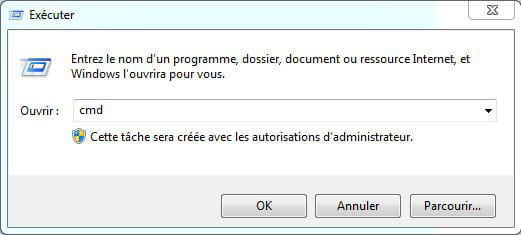
Open the command prompt (start - run - cmd;
or Win + R - cmd).

Type "powercfg devicequery wake_armed," and hit enter.
(thanks Google for this)

Look at the result: Windows will tell you which device or devices are waking the PC up. In my case, it indicated the network card (Broadlink LAN thing) and the keyboard (PIH keyboard device). So, I disabled the network card in BIOS that I don’t use (I’m on Wi-Fi), and the problem was still there. The culprit was therefore the KEYBOARD, which I confirmed after doing the previous step again.
Indeed, by unplugging the keyboard, the PC shuts down and goes to sleep normally. But it’s a hassle to have to unplug and replug every time. It’s not normal to have to do that; a PC should shut down or go to sleep when asked, and not annoy its user!
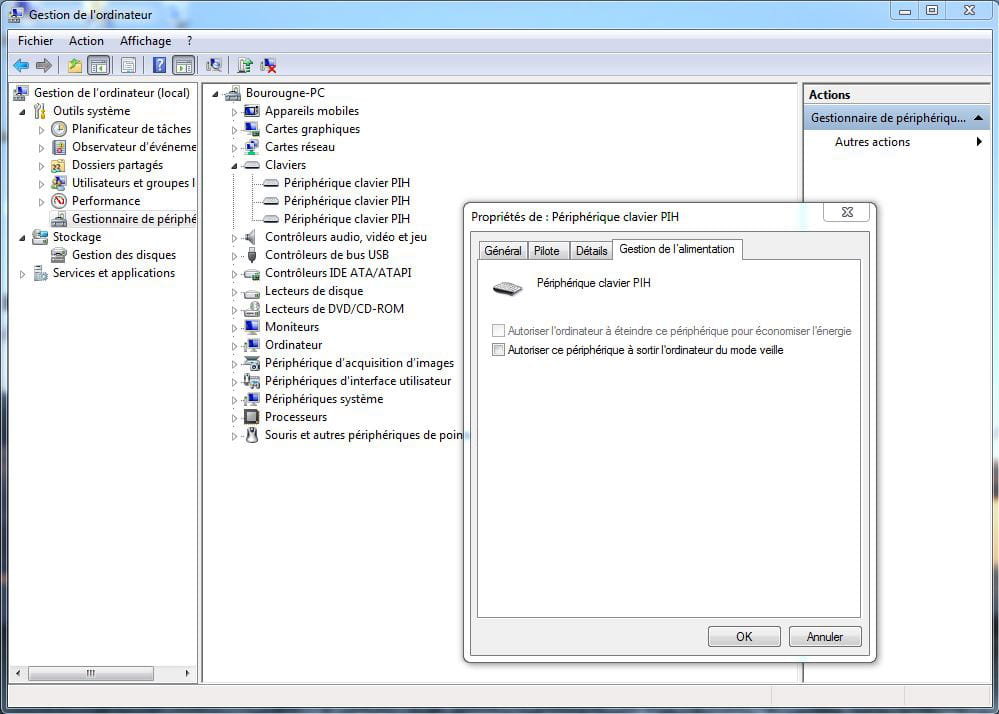
Then I remembered another handy option, found in the Device Manager:

expand the [+] Keyboards line
find the PIH Keyboard Device line (I have three)
right-click > properties
power tab
uncheck "allow this device to wake the computer from sleep"
repeat for all other PIH Keyboard Device lines
And that solved my problem of the computer that drinks too much coffee.
No, it’s not a virus. No, it’s not faulty hardware. It’s just a stupid setting. Where it came from, I don’t know, but luckily it’s bypassable.
I maintain that it’s not normal to have to adjust these kinds of things to stop a whim that came out of nowhere. And by the way, why did the keyboard and network card suddenly feel like constantly waking the computer up? I have no idea.
Spread the word in hopes it helps others. =)