Logitech USB receiver lost.
Solved
djakpack52
Posted messages
17
Status
Member
-
rose -
rose -
Hello,
I have a concern; actually, I lost the RECEIVER of my Logitech wireless mouse and I wanted to know if it is possible to adapt my mouse to another wireless RECEIVER to continue using it.
I would like to specify that I also have another Logitech receiver from the same series of mice, but even after several manipulations, it still doesn't work.
Thank you in advance for your response.
4 answers
-
Hello,
Here is the solution to connect a "Logitech" mouse with a connector of the same brand but from another device (old mouse, keyboard, etc...)
For Uniflying connector of this type:
1) Install the Logitech Setpoint software here: https://support.logi.com/hc/en-us/articles/360025141274
Once the program is downloaded, install it, some updates will happen automatically.
2) In "Start" type: "Logitech Uniflying Software" in the search or go directly to find it in: "...C: / program files / Logitech..." (generally the folder is placed there, but it will depend on your PC settings, by searching a bit you will eventually find it)
3) Click on the "Uniflying" icon, this second software will automatically open right after its installation. Note: if later you need this software again, its executable will have moved, it will be found in: "....C: / Program Files / Common Files / LogiShrd..."
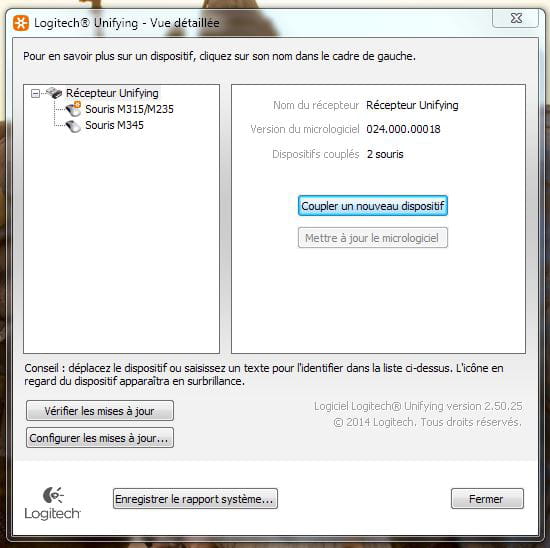
4) Once Uniflying is open, click on "Pair a new device" and you should see this:
5) Press "Pair a new device" and you will see this:
If it's a mouse for example, switch it to "ON" at that moment as indicated.
A new small window opens and validates your new updates as well as the new frequency used by the receiver and the mouse.
There you go, the job is "normally" done ^^.
If you have any questions...